

Identify what WordPress seems to ignore
You change theme.json and the palette stays identical, an option is missing in the editor, or links retain their old color. These symptoms call for different checks. The file may be missing from deployment, use an incompatible property, or supply a default value overridden by customization. A style may also be generated by WordPress and lose to another browser rule.
This guide concerns a self-hosted installation where you can examine the active theme and prepare a working copy. A block theme generally provides the Styles screen in the Site Editor. Core also uses theme.json in some classic themes, but their screens and style rendering vary. If you manage only content, record the theme name and observed elements before requesting file corrections.
The expected result must be observable. Choose one precise option to restore in the editor or one precise element whose style should change. Handle that case before revising the entire configuration. This lets you determine which change produced the effect.
Compare the same page before and after the update
When the reading column narrows after an update, choose a page showing the difference and a second using another template. For the first, record the active theme and version, associated template, and block that seems too narrow. Capture the public rendering at a given window width. Measure at the same place in both versions, for example the introductory paragraph and the Content block enclosing it. Measuring only the window does not tell you how much space the text receives.
To recover an earlier state, use a backed-up copy with its corresponding files and database. A copy of the old theme directory lets you compare delivered files. To reproduce the past appearance, it must be accompanied by the custom templates, styles, and plugins as they were then. If you have only the old theme version, you can establish which value the supplier changed and measure that version on a copy. Note that the settings saved on this copy are those available to you today.
On each version, load the same URL in an anonymous session. In the browser, use the same zoom and viewport width. The editor sidebar and opening developer tools may reduce this area. Undock the tools or use responsive mode with a fixed width. Also record a mobile width. On a 390-pixel screen, two maximum-width settings of 640 and 720 pixels may render identically because of available space and margins.
Check the rest of the page. If the header and footer retain the same width while text narrows, record where the edges begin diverging. If the control and comparison pages narrow in exactly the same block, trace back to their common container or global styles. This record gives you a measurement and scope to check after each test.
Build a control in the editor and on the public page
On a representative private copy, locate a page containing the affected block. Record the WordPress version, any already active Gutenberg plugin, and the theme. Compare the editor involved in the problem with the public page. An interface setting and a CSS declaration do not produce the same result. For example, hiding custom color in the picker may leave a color saved in an old block in place.
For an appearance issue, add a control block of the same type on the copy without a manually selected color or style. Keep the old block for comparison. This distinguishes defaults from attributes already saved in content. Do not use a different block type to conclude that a targeted rule works everywhere.
- Record the expected setting name and targeted block or element type.
- Record the current editor value and control-page rendering.
- Keep a copy of the active configuration and the copy’s customizations.
- Plan one change per test, with a way to restore the initial state.
Open the file belonging to the actually active theme
In Appearance, then Themes, identify the active theme for the relevant site. On multisite, do this in the correct subsite dashboard. Find its folder in the file manager or repository used for deployment. The expected file is named theme.json at the theme root, generally under wp-content/themes/nom-du-theme/. A file under templates or in another copy’s folder is not the active theme’s root file.
For a child theme, also inspect the parent file. Compare the same property in both files. The child theme may supply a value overriding the parent’s. If deploying from an archive, open the file present after deployment and compare it with the one you changed. A locally prepared copy can be correct without having been published to the environment you are observing.
Do not edit a third-party parent in place. When the team owns the theme, work in its sources and deploy through the usual mechanism. When it comes from a publisher, prefer the maintained child file or appropriate official fix.
Correct syntax before looking for an override
Open the copy’s file in an editor that reports JSON errors. Look first for a missing comma between properties, a trailing comma after the final entry, single quotes, or a comment added to the file. Also check that objects and arrays are properly closed. The file must remain ordinary JSON, even if your editor accepts a more permissive format for its own files.
Read the structure from the root. A key appearing twice at the same level makes the result ambiguous for tools reading the file. Merge the two sections under one key. Also avoid adding a second settings section to reuse an example found elsewhere. Other theme values must remain in the existing object.
- Correct the first parser-reported error and reread the entire file.
- Compare the diff with the original to check that no section disappeared.
- Save on the copy and check the control before changing another value.
- If the correction affects too many lines, return to the backed-up file and apply only the intended change.
Choose the schema matching the target WordPress version
A document can be valid JSON and contain a path WordPress does not recognize. Check the property in the reference for the site’s version and matching schema. For a theme distributed across several versions, also account for the oldest supported version. The development schema may already offer a property absent from installed core without Gutenberg.
The version key indicates the data format. Version 3 was introduced in WordPress 6.6. An older file may continue working on recent core. Do not replace 2 with 3 to unlock an option without reading the format changes. When migration is useful, prepare it and check behavioral differences on the copy before including it in a release.
The $schema key helps a compatible editor suggest correct types and names. It gives no extra functionality to the WordPress reading the file. If the desired property is available only in a newer version, choose a setting compatible with the installation or prepare a separate update. First check compatibility of the theme and rest of the site.
Place an interface option in settings
The example targets a theme whose file already uses version 3. It shows how to disallow choosing an arbitrary color in pickers supporting this setting. The test is relevant if this option is initially visible on the control block. Check the picker in the editor after reloading the page. Preset colors and those already saved in content follow their own rules.
Apply only the custom key under settings.color in the existing file. Preserve the palette and other properties. The value false is a JSON boolean and is written without quotes. The schema address here is an example for WordPress 6.6. If your project targets another version, adapt it to that reference.
If the property already exists globally, look for a block-specific value under settings.blocks. It may explain why the control remains available for just one block type. Decide whether the change should be general or limited to that block. Adjust only that scope, then also check a neighboring block that should retain its interface.
{
  "$schema": "https://schemas.wp.org/wp/6.6/theme.json",
  "version": 3,
  "settings": {
    "color": {
      "custom": false
    }
  }
}
Define the default style for the correct element
When the aim is to change link color, place the value in styles. The following fragment sets a text color for the link element. It suits a control containing an ordinary link without local styling. It does not target a Button block’s background or a color applied only on hover. Choose a color readable against the theme background.
In the existing file, apply only the text property under styles.elements.link.color. Preserve properties already defined for links and other elements. After deploying to the copy, inspect the control link and check the computed value. If a link in another block retains another color, examine that block’s scope and attributes before broadening the global rule.
If the value is generated but loses to a more specific selector, repeatedly changing the color code will not resolve the conflict. Identify the winning browser rule and then choose where the value should live. Remove the test change by restoring the original property.
{
  "version": 3,
  "styles": {
    "elements": {
      "link": {
        "color": {
          "text": "#24536e"
        }
      }
    }
  }
}
Examine Styles saved for the active theme
For a block theme, open Appearance, then Editor, and enter Styles. Inspect the area related to the symptom. For links, open Colors, then the corresponding element. For a single block type, also examine its settings in the Blocks section of Styles. A value saved at this level may override the theme file. Recording the displayed value and its scope avoids resetting useful customizations for one difference.
On the copy, change or restore only the affected property if the screen allows it. Also check for a style applied to the block from the page editor. A global setting does not automatically remove what the author selected in the block. If you cannot restore only the property, use a copy with a reference state or an appropriate revision for comparison.
- Record existing choices in Styles and in the control block.
- Compare the property in the theme configuration and interface.
- Decide which should remain the site’s reference.
- Check the control and another block after adjustment, then restore the saved value if the result regresses.
Check a style variation after selection
A theme may offer variations as JSON files in its styles directory. In the Site Editor, a user can choose one and save the site’s Styles. The effective configuration may therefore include choices from a previously selected variation. Merely changing the file offering that variation does not necessarily replace choices already saved for the theme.
If the discrepancy affects an installation using a variation, find the file offering it and compare the same property in the root file, variation, and Styles screen. Also read child-theme overrides if one is active. A site’s displayed color may be intentional even if the new root-file value is valid.
On the copy, preview or select the appropriate variation, then check changes before saving. This choice may alter several styles at once. If only one setting should change, edit it at its own level. For a temporary comparison, note the original variation and return to the saved Styles version once you have identified the source.
Trace the CSS rule determining the final value
Open the control page and inspect the affected element in browser tools. View the computed property, such as color for link text. Then return to the active declaration and record its selector and source. The tool may also show declarations that would apply but lose to another. This distinguishes an absent style from a present style with insufficient precedence.
If the theme rule is absent, check the relevant property and level, then compare with a block without customization. If present, identify the file, local style, or additional CSS that wins. Adjust the source actually carrying the decision. Avoid adding a chain of !important rules, which would make the setting harder to understand and override later.
A browser may also receive an old page or resources. If the copy shows the change while the public site still receives the previous version, first confirm the deployed file and response date. Only then address the cache serving the old version, targeting the affected URL.
Find the loaded template and its container
This procedure concerns block themes. In the page editor sidebar, record the template shown under page settings. Then open Appearance → Editor → Templates with an account allowed to edit the site. In the relevant template, use List View to find the Content block and trace back to its parent group. Record the blocks surrounding the content, their layout setting, alignments, and any fixed widths. A column, constrained group, or constrained Content block can act at different levels.
A theme-supplied template in templates/page.html may coexist with a customized version WordPress saved in the database. A saved version matching the requested template takes precedence over the file. Therefore compare the displayed template structure with the file in the active version. To read a custom template’s blocks, open the editor menu and its code editor on the copy. Record the differing group or setting. A custom-template indication, when available, helps direct your search. If the theme is classic, ask the owner to identify the PHP template and its containers. The Appearance → Editor → Templates route concerns the Site Editor for block themes.
On the copy, if the difference belongs to the group containing the text, change only its setting in the template. You may also assign a distinct template to one page when the exception is specific to it. In the save summary, verify that you are saving the intended template and examine how many pages use it. Reload the control page, another page using the same template, and a page using a different one. The expected result is a width change in the targeted group and within that template’s scope. To roll back, restore the recorded value or assigned template. Resetting a custom template erases its customizations. Preserve its structure before trying this on a copy.
Compare the global setting with the theme.json default
This approach applies when several content items inherit the same width. With Site Editor permissions, open Appearance → Editor → Styles → Layout. Record content width and wide width if the theme exposes these fields. Compare them with settings.layout.contentSize and settings.layout.wideSize in the active theme.json file. If a child theme is active, check both files and the saved styles for the theme actually used. A style variation selected in the editor may also have contributed to saved values.
Content width applies to ordinary children of a constrained layout. Wide width concerns blocks that have this alignment and use it in that context. Increasing wide width therefore will not necessarily widen the paragraph used as your control. The browser can reveal the active global value by displaying the custom property --wp--style--global--content-size on the block or an ancestor. First check that a container rule uses this variable. In a template where a group imposes its own width, the global variable may retain the expected value without governing the measured width.
If a changed theme default is the cause and site policy calls for one column across several templates, test a global value in the editor on the copy. Record the previous value, change only content width, and save Styles. Pages using this setting should regain the intended width as long as their container allows sufficient space. Also check a post list, a wide-aligned block, and mobile reading. To undo it, restore the field’s previous value or choose a Styles revision after checking the other affected settings. A global rollback may also affect typography or colors saved at the same time.
Confirm the winning CSS declaration on the public page
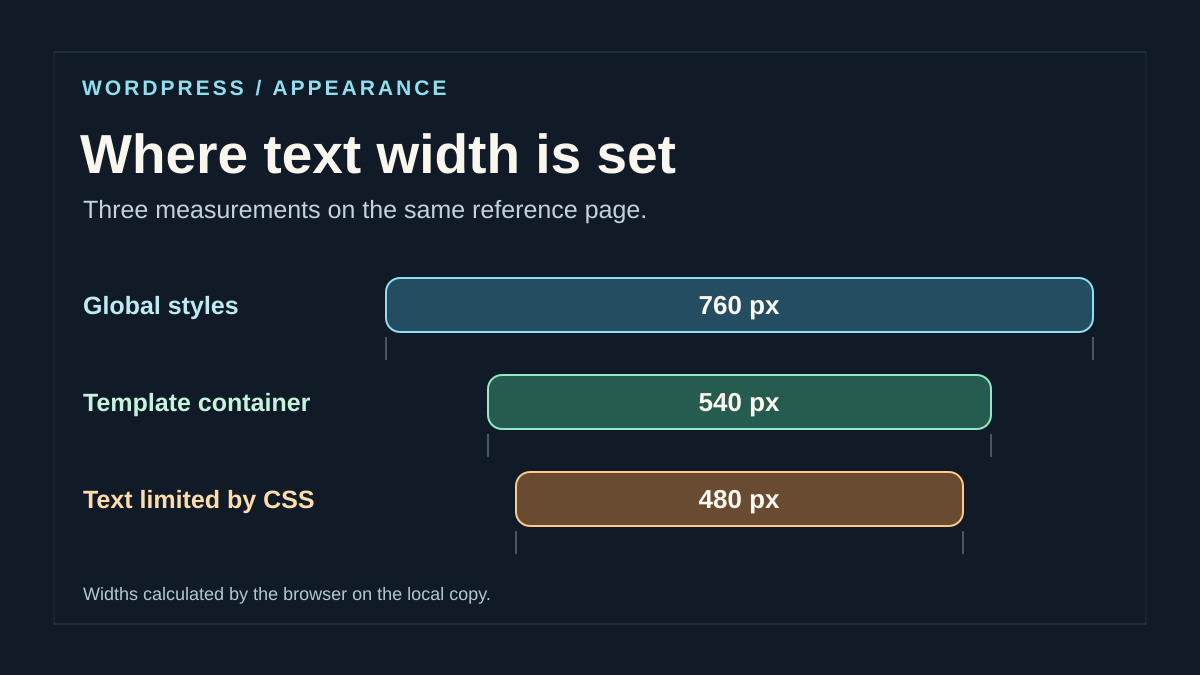
If the container has the expected width and only one block narrows, open the public page and inspect the block in browser developer tools. In Computed, first filter max-width, max-inline-size, and width. Also examine the box model to separate content, padding, and margins. A property displayed as none on the paragraph can coexist with a width of 540 pixels if its parent block is itself limited. Move up to the parent and then group until finding the first element whose width explains the measurement.
Expand the computed property or follow it in Styles to find the selector and source. Record the stylesheet name, any viewport-width condition, and the block targeted by the rule. A rule generated for a constrained container may appear in a style tag in the document. A declaration from style.css, additional CSS, or a plugin may target the block itself. If a concatenated file does not immediately reveal the source, compare on a copy without stylesheet optimization or search for the selector in authorized sources.
Temporarily uncheck the winning declaration in Styles and repeat both measurements. If the text regains the Content block’s width while that block stays unchanged, you have isolated the rule narrowing it. If both widths remain identical, look for the next constraint, such as a grid column or size imposed by a flex parent. These developer-tool tests apply only to the tab and are lost on reload.
Then correct the declaration at its source on the copy. For a rule added to the site, modify the selector targeting the wrong area or remove the now-unnecessary constraint. For a supplier-theme rule, preserve the delivered file and, if needed, prepare a maintainable correction in a child theme or the site’s intended additional CSS. Limit the selector to elements whose measurement changed. Check the active declaration after reload and a page outside the targeted scope. To undo it, restore the recorded line or remove the targeted correction, then repeat the same measurements.
Repeat measurements with one variable per test stage
Here is a proposed test to distinguish three constraint levels on a copy; the following values are educational and are not measurements of your site. With a sufficiently wide window, first set global content width to 720 pixels and measure the container and text. Change only this default to 640 pixels and compare. Then restore the default and separately try a container width and paragraph limit. After each stage, restore the initial value before the next check.
A changed global value without text movement may indicate a narrower container. A paragraph with max-width: none remains limited by its parent; conversely, a rule applied only to the paragraph can narrow it without changing that parent. Check these hypotheses using computed values rather than attributing each measurement to theme.json in advance. Repeat the check on mobile, where available width can hide the difference between two maximums.
To compare your own page, keep an equally simple record. Start with the active version and record three values for each test: the global variable, the width of the block enclosing the content, and the text width. Add the template name. Then test one intervention, reload, and repeat these measurements. A variable changing without container movement points toward the template or another parent. A stable parent with a changing child points toward a rule targeting the child. Simultaneous changes at every level call for repeating the comparison with only one setting changed.
Before reproducing the correction on the active site, compare two pages sharing the template and one outside scope on the copy. Check reading width on desktop and absence of horizontal scrolling on a phone. After saving, reload the anonymous public page and verify the computed value and rule source. Record theme version, template, measurement, and exact setting to restore. This trace will let you check the same area after the next update.
Verify the correction and keep rollback targeted
Repair is established when the control shows the expected option or style and the identified cause explains the difference. For a setting, check the picker with the relevant profile and block type. For a style, check the computed value and visual result. Test a second page reusing the same rule, then check at least one block that should retain its choices.
A file change is removed by restoring the affected file’s previous version. A customization made in Styles is removed by restoring recorded values or, if the screen and history allow it, returning to the relevant revision. Examine what that revision changes before applying it. Restoring theme files does not by itself restore what was saved in the database.
- Repeat the initial record in the editor and on the page if both are involved.
- Compare neighboring pages and useful states, such as hover for a link color.
- If an intended customization disappears, restore its value and narrow the change’s scope.
- Keep the final diff and the name of the file actually deployed.
Document where each style decision should be changed
Decide with the team which settings belong to the theme and which remain under site managers’ control. A value repeated in parent, child, variation, and Styles can be consistent today and diverge at the next release. In the theme record, specify the level to change for the corrected setting and the WordPress version for which it is intended.
Keep a control-block example for colors, spacing, or options structuring the design. At the next change, first compare this control with the previous rendering. If the theme must work across several core versions, check the option on the oldest advertised version and the deployment version. The code editor recognizing a property is insufficient to cover both environments.
The file, Site Editor, and browser inspector suffice for this process. The described features are part of WordPress and require no additional purchase. If passing on the issue, include the property path, loaded file, block type, computed value, and site version. These items direct correction toward the right layer.
Find duplicate JSON keys before deployment
An ordinary JSON parser may accept two identical keys and retain the last without warning. This local Python check explicitly rejects that case in a copy of theme.json located in the current directory. It does not load WordPress or modify any file.
A syntax error indicates the position to examine; a repeated key must be merged into the existing object while preserving its other properties. For example, two root settings objects may make a palette disappear if one replaces the other during reading. Do not simply delete the second without comparing the values it supplies.
Success from this script validates neither the WordPress schema, property compatibility, nor database-saved styles. Continue with the schema matching target core, then the control block and browser-computed value. The non-terminal route remains an editor reporting duplicates and schema issues. To undo the test, restore the previous copy of only that file; Styles customizations require their own rollback.
import json
from pathlib import Path

def objet_sans_doublon(paires):
    resultat = {}
    for cle, valeur in paires:
        if cle in resultat:
            raise ValueError('Clé JSON dupliquée : ' + cle)
        resultat[cle] = valeur
    return resultat

def constante_interdite(valeur):
    raise ValueError('Constante hors JSON : ' + valeur)

texte = Path('theme.json').read_text(encoding='utf-8-sig')
donnees = json.loads(texte, object_pairs_hook=objet_sans_doublon,
                     parse_constant=constante_interdite)
if not isinstance(donnees, dict):
    raise ValueError('La racine doit être un objet JSON.')
print('Syntaxe JSON et unicité des clés contrôlées.')
Sources and references
Use these references to check the features, requirements and limitations described. Reading documentation is not a practical test.
View 13 references
- Guide to theme.json ↗
- Global configuration and precedence ↗
- Version 3 reference ↗
- Child themes ↗
- Styles screen ↗
- Style variations ↗
- Reading merged settings ↗
- WordPress — contentSize and wideSize settings ↗
- WordPress — block template precedence ↗
- WordPress — editing and resetting a template ↗
- Chrome DevTools — computed properties and cascade ↗
- Official documentation: docs.python.org ↗
- Official documentation: developer.wordpress.org ↗