

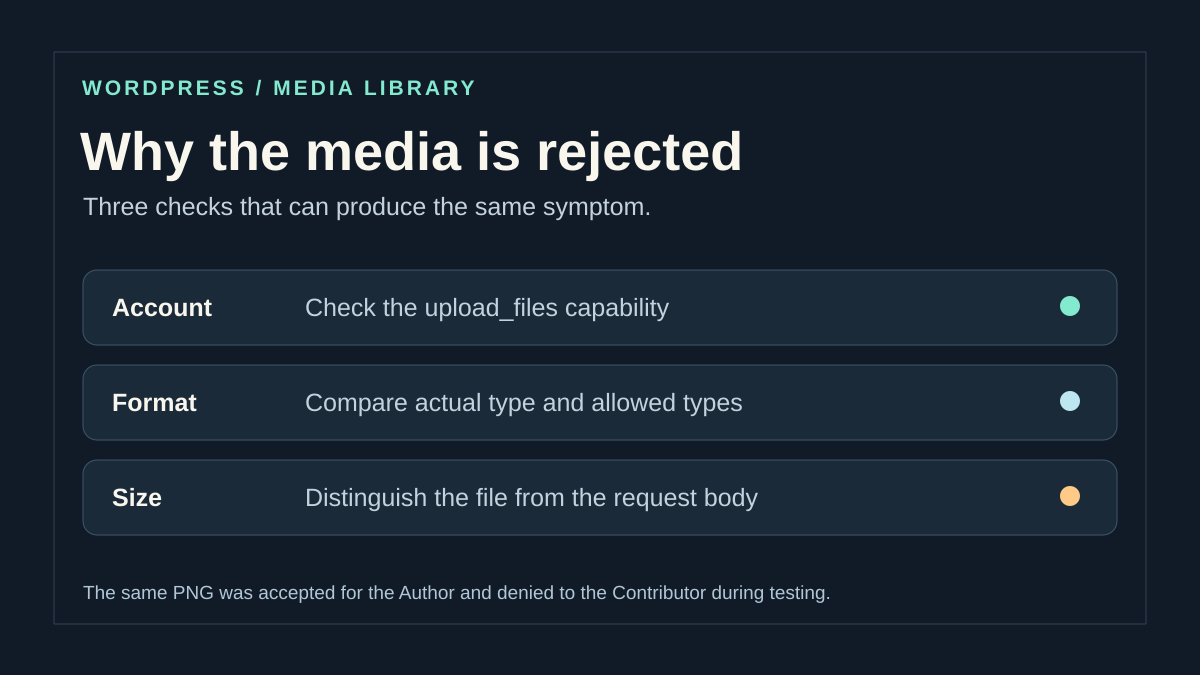
Compare two accounts using the same small file
When a team member can write a post but gets a denial as soon as they add an image, start with a repeatable test. On a copy, choose a small PNG or JPEG image that has already opened successfully in a viewer. Use the same file, the same browser or two comparable profiles, and the same subsite. Keep the name, extension, size in bytes and exact denial text. A screenshot without these values risks conflating two different problems.
First try Media → Add New Media File, if the account can see this screen. Compare with someone already authorized to upload files to this site. If the affected account sees neither the media library entry nor the add button, record that. Menus can be customized. Also check whether the problem occurs in the editor, using the same file and a document this account can edit. A check in a public form or a builder may use that component’s rules. For this initial record, stick to the native media library route.
Once you have recorded the result, check whether the image is already in the media library. A page displaying an error after an interrupted save may leave a usable or incomplete item. Search by name and time before trying again. Keep the first valid case for subsequent tests so the conditions remain comparable.
- If one account fails with the small PNG and the other adds it on the same screen, first check the account’s permission and the site it belongs to.
- If both accounts can add the PNG, try the file that triggered the denial using the authorized account. A failure tied to that file points toward its format, size or a screen-specific rule.
- If the same account adds the media in the library but fails in a particular post, check who owns that post and who can edit it. Linking to the document may trigger a separate check.
- If both accounts also fail with the small PNG, collect the message and check the request route, storage or temporary folder before changing a role.
Approach 1 — Check the upload capability
The WordPress permission to check for the native media library is called upload_files. Among built-in roles, a Contributor can prepare posts without this capability. An Author normally has it, along with other permissions including publishing their own posts. The role name provides an initial clue. A plugin, site policy or multisite configuration may change the capabilities actually granted.
Using an account that manages users, open Users → All Users, then check the affected account’s role on the correct site. On multisite, check membership of that subsite. If you are the affected writer, provide the subsite, screen, sample file and observed difference. The authorized person can confirm the permission without giving you access to network or server administration.
If the person must continue working with Contributor permissions, an authorized colleague can upload the media and then insert it into the document according to the review process. If the task requires regular uploads, have the capability to add and the scope of affected accounts approved. On a site that already has custom roles, the administrator can test adding only the required capability to a dedicated role or designated account on a copy. Promoting an entire group to Author or Administrator would also expand other permissions. Keep the previous role or configuration for rollback.
The following check is for an administrator who already has WP-CLI and can load this site. Run it from the WordPress folder. Replace the URL with the site or subsite URL and 123 with the account ID to examine. The command shows whether the account has the capability in this context. Then repeat the actual media library test, because a plugin’s context or an attachment request may apply additional checks.
wp --url=https://exemple.test --user=123 eval 'echo current_user_can("upload_files") ? "oui" . PHP_EOL : "non" . PHP_EOL;'Distinguish the media library from the document receiving the attachment
If the account can upload the same PNG in Media and it is refused only when adding it to a post, open a draft belonging to that account on the copy. Compare it with the affected post. Record whether the request tries to create the media alone or attach it to a document this account cannot edit. On the native REST route, WordPress checks permission to edit the specified document when attaching.
With the editorial manager, decide who should add the image to the post. An author allowed to upload the file can put it in the media library, then the person who can edit the post inserts it if the site’s process permits. If the document needs a different owner, handle its assignment through the publishing process. Check the result in the exact post and its preview, then recheck the draft status. If there is an error, remove only the added block or attachment relationship and keep the file if it is used elsewhere.
To verify this distinction, compare uploading alone with uploading attached to a post the account cannot edit on the copy. The native REST route checks the upload capability and permission to edit the specified document separately. Keep each attempt’s actual error code and compare it with the WP-CLI result.
Approach 2 — Compare type and size using the authorized account
This approach applies when the account can upload the sample file or several accounts fail with one particular file. Open the problem file in the application that produced it, then record its extension and actual format. A file renamed from .heic to .jpg retains its original data. To obtain a JPEG, export or convert a copy with an application that reads the original format. Reopen the converted file before uploading and keep the original outside the test media library.
On the copy, make three attempts from the same screen. Upload the small reference PNG, then a file in the same family whose format the site should accept. Finally, try a genuinely exported version of the failing file. If the reference images pass and only the original is refused, record the message and exact type. WordPress considers its set of accepted formats and checks file consistency. The type reported by the browser is only part of the check. Some images may also depend on the formats supported by server libraries.
If the organization needs an additional type, ask the administrator to check the file policy, supported formats and how that type will be served. On a multisite network, network-permitted types may supplement WordPress rules. Test the decision on a copy with an approved file and keep the previous value. Conversion to an already accepted format is often sufficient when the document does not need to retain its native format. To roll back, remove the test file after checking it has not been used. Restore the previous setting if you changed the format policy.
A successful conversion should produce identifiable media with the correct type and a consistent preview. Look at the result in the media library, then in a draft if the image is intended for a post. A missing thumbnail when the file appears in the list calls for checking image processing or writing derivative files. This is a different stage from the initial denial.
Read the limit that applies to the upload
In Media → Add New Media File, record the maximum size displayed if available. With an authorized account, Tools → Site Health → Info can help record PHP settings and media or server information. On multisite, the administrator can also check the permitted size per file and the site’s remaining space. The value WordPress displays does not necessarily account for a lower ceiling imposed by the service receiving the request before PHP.
On the copy, compare two genuinely valid images of the same type, one small and one larger. Keep the size in bytes, time and message for each attempt. In Network, find the corresponding upload request. If the browser receives a 413 error page, the request may have been rejected by the web server, a proxy or another relay. The status alone does not identify the exact component. Send the time and relevant path to the administrator so they can check the right layer. If the response is a WordPress message, record the code and its details.
If a smaller version is suitable, export it and check its quality at the intended display size. If the team needs to receive the original file, have the administrator of the relevant layer adjust only the limit shown to be responsible. Keep the starting value and check that the new limit also covers the entire request. Repeat the test with the valid failing file and the small PNG. To undo the change, restore the saved value and check the behavior. The ceiling remains a site or service rule. Avoid adjusting it for a person whose account lacks the upload capability.
upload_max_filesizelimits the size of each file PHP processes. When this limit is exceeded but PHP has been able to process the multipart body, PHP may provide theUPLOAD_ERR_INI_SIZEcode. WordPress then displays a file-related message.post_max_sizelimits the total body sent. A multipart upload includes the file, separators and other fields. If this ceiling is exceeded, PHP may leave form data and files empty. The application may then report that no file was supplied.- A multisite quota, insufficient space or an inaccessible temporary folder can also prevent writing. Ask which resource actually ran out. Raising a PHP ceiling does not resolve a quota or a proxy denial.
Isolate a form that refuses the file
If the same account uploads the same PNG to the media library but fails in an upload form on the site, test the two screens separately. On the copy, open browser tools, display the Network tab, clear the list, then upload a single file. Record the method and path of the failing request. The native upload may use the media route while a form uses its own address and applies its own maximum size.
In the field settings, look for accepted file types, maximum size and access conditions. If the interface refuses the file before any network request starts, record the field message and compare with another compliant file. If the request is sent and returns an error, note the time, status and displayed text. To share the record, copy only these details. A full network export may contain the login session or form data.
Repeat the comparisons after the correction
After the correction, use the same reference PNG again and record the media ID if one is created. Compare a permission denial and a format denial without inferring their cause from the HTTP status alone. Use the actual responses received in your environment.
If size remains the issue, record the effective limits of the PHP process and upstream layer. Compare a valid file below the per-file limit and an approved file previously refused. Do not lower production ceilings to simulate a failure. A body rejected before processing and a file PHP reports as too large require corrections at different layers.
After a permission correction, verify that the intended account uploads the small PNG and that an account which must remain a Contributor retains its scope. After a format or size correction, retry the same approved file that failed, using the same account and screen. Find the media exactly once in the library and open its preview. If it was meant to be added to a post, separately check insertion into the correct document. The expected result is usable media and permission consistent with the intended role.
Record the cause and the value you changed. Keep the site, screen, size and message rather than a log containing document content. If the test still fails, provide these details along with the time and comparison between the two accounts or files. Remove fictional media from the copy at the end and verify the real file is available before removing the previous version.
Allow uploads without granting publishing permission
If a contributor needs to upload their own illustrations while remaining subject to review, the need concerns upload_files, not automatically the Author role. Have the administrator record current capabilities, then prepare a dedicated role in the role-management tool already maintained on the site. Changing a shared role affects every account that has it.
The check must include three cases: upload the sample file in Media, insert it into an authorized draft, then verify that the account still cannot publish if that restriction is intended. Also keep a control account unaffected by the added permission.
For an occasional need, uploading through an authorized colleague remains a free solution without a new tool. It requires neither password sharing nor temporary promotion. If you later remove the added capability, check a new upload; this removal does not delete media already saved. Retaining or deleting those files requires a separate inventory.
Sources and references
Use these references to check the features, requirements and limitations described. Reading documentation is not a practical test.
View 9 references
- WordPress — built-in roles and capabilities ↗
- WordPress — Add New Media screen ↗
- WordPress — checking permission to create media ↗
- WordPress — filtering permitted file formats ↗
- WordPress — checking file type and extension ↗
- WordPress — maximum upload size ↗
- PHP — file and request body limits ↗
- PHP — file upload error codes ↗
- WP-CLI — checking a capability with eval ↗