

Recognize an address problem before moving the site
Your domain displays a temporary page while WordPress works only after adding /wordpress. Or the home page opens but the logo leads to an unexpected subdirectory. Begin by recording both exact addresses and what appears at each. An incorrect destination does not mean posts or images have been lost.
Also decide where visitors should actually arrive. A blog deliberately located under /blog does not need moving to the root. Conversely, if the domain should open the site directly, keeping WordPress core in a subdirectory remains possible. This choice requires consistent request routing; removing a word from a field is not always enough.
This guide mainly concerns an independent WordPress installation with authorized hosting access. It offers two routes: keep the entire site in its subdirectory, or display the site at the root while keeping core separate. Multisite networks and managed platforms require an adapted approach. No additional plugin is needed to establish the diagnosis.
Preserve old values and a backup access route
Before changing anything, copy the current addresses, working login address and path of the directory containing WordPress. Record recent changes: automatic installation, domain addition, move or General Settings change. A private screenshot of the domain panel will help the provider recover the original configuration.
Check that you have a usable backup of files and database. Separately preserve affected configuration files before editing them. Downloading the WordPress directory does not normally include database data. Store copies outside the public directory: a backup file accessible on the web could expose confidential information.
Test access to the file manager or secure transfer method provided by the host. An open WordPress session may stop working after an address correction, so it is not a sufficient backup access method on its own. If you cannot restore values without the dashboard, have support prepare the intervention before saving a change.
Find the root actually associated with the domain
In the hosting panel, inspect the exact domain and its destination directory. The domain root is the directory from which the server serves that site name. It may already correspond to a directory called wordpress. A directory’s physical name does not automatically appear in the public address.
For example, if the domain points directly to the directory containing core, its home page may be served at the root without /wordpress. If the domain points to the parent directory and core is in its wordpress child, this segment may indeed appear in the application URL. Have this mapping confirmed instead of deriving the address from the directory tree alone.
Then inspect the root without deleting files. An index.html page may be presented before index.php according to the configured order. It may belong to an old site or another application. Do not replace it until you identify its owner and role. If the root already hosts a service to retain, displaying WordPress there becomes a replacement project that needs preparation.
Read both settings without trying to make them identical
Under Settings, then General, find WordPress Address and Site Address. Labels may vary with translation. The first setting identifies the accessible location of application files. The second specifies the public-facing address. Copy both values before comparing them with your target organization.
For a site entirely accessible under /wordpress, both values normally include that path. With core under /wordpress and the home page at the root, only WordPress Address retains the segment. A difference between fields can therefore be perfectly normal. Also examine the protocol and domain name, with or without www, without changing all these elements simultaneously.
If the fields are disabled, investigate an enforced configuration with the technical administrator. WP_SITEURL and WP_HOME constants can override stored options. Some plans also inject settings elsewhere. Repeated database changes while another source still enforces the old value do not fix that source. Keep one clearly identified reference configuration.
Choose the route matching the intended address
The first route fits when the subdirectory belongs in the intended public address. For example, you want to retain an independent main site at the root and a blog under /blog. Repair then means restoring a consistent address, correcting erroneous links and, if necessary, preparing a targeted home page redirect.
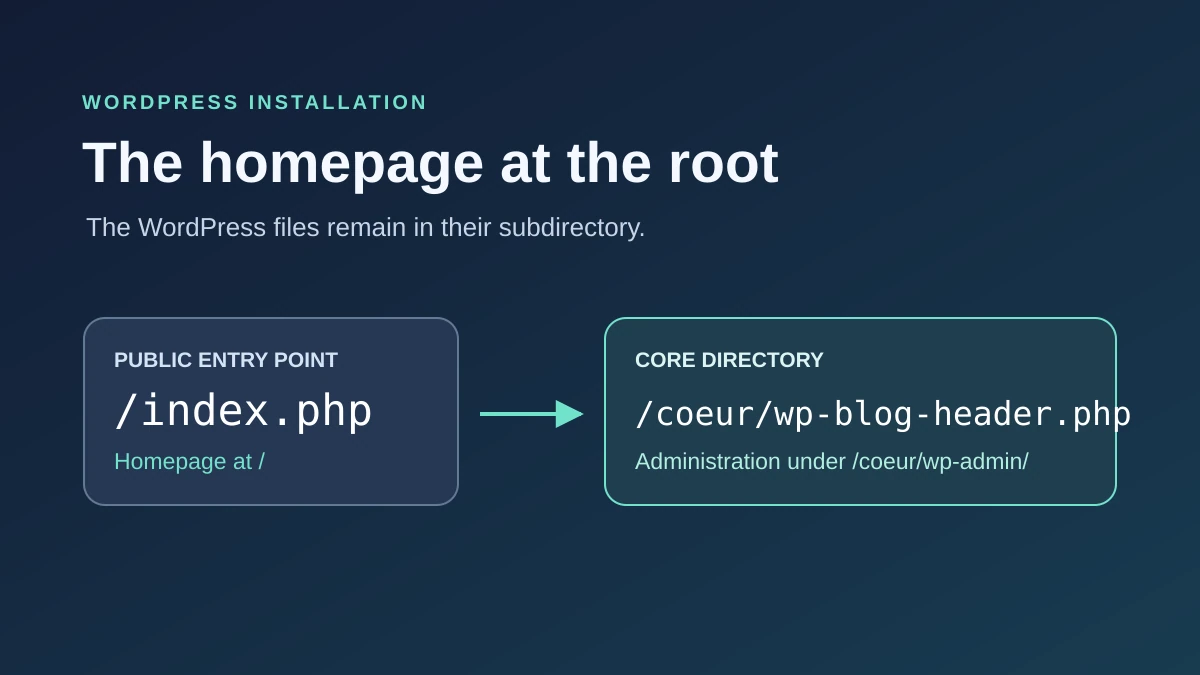
The second route fits when WordPress should manage the domain at its root while its files remain in a subdirectory. It involves a public entry point and server-compatible rules. It requires access to the correct files, an available root and a restoration procedure. Prepare these before changing Site Address.
If your goal is also to move files, change hosts or replace an existing application, stop this local correction. You are preparing a broader migration. Do not turn home page troubleshooting into a complete move for convenience: that adds path changes and data checks when the initial problem may be limited.
Approach 1: keep the entire site in its subdirectory
First confirm the intended public address and domain root. The route below uses a fictional site whose files and public pages are accessible under https://exemple.invalid/blog. Adapt the protocol, domain and path; do not copy this example address.
Then check the home page, a page and login at the application address. A physical directory named blog does not justify that segment if the domain points directly into it. If the correction logs you out, use the confirmed path and usual credentials; the prepared file access remains available for rollback.
Also correct manual links pointing to the wrong location. In the source page, select the button or paragraph link, change its destination and save; check the click publicly. A custom menu uses its own editor according to the theme. The expected result is a route that stays within the intended area.
If the root has no other service and should simply lead to the blog, prepare a redirect for that address only with the routing administrator. Do not cover all paths. To undo an unjustified setting, restore its original value; for a link, restore its old target. A new loop calls for removing the specific added rule, not moving core.
- Open Settings → General in the relevant WordPress installation, with backup file access already verified.
- Record WordPress Address and Site Address. In this setup, both should contain the same full address including the subdirectory.
- Correct only the erroneous field without adding a trailing slash, then click Save Changes.
- Check the home page, a page and login at the application address. If the change prevents access, restore the recorded value through the prepared backup method.
Approach 2: serve the root while keeping core separate
This route concerns an independent installation already in a subdirectory and a root available for its home page. Prepare the operation on a copy with file access, private backups and appropriate server rules. Another application that must remain at the root rules out this simple operation.
The example assumes a subdirectory named exactly wordpress. Respect its actual name and case. The code line below replaces only the core-loading statement in the root copy: it is not a complete index.php file. Keep the PHP opening and all other statements in this file.
- Identify the domain’s actual root and the WordPress directory. If an index exists at the root, identify its role and preserve a copy before replacing anything.
- Copy, without moving,
index.phpfrom the WordPress directory to the root. Keep the original application index in place. - In this root copy only, find the line loading
wp-blog-header.phpand adapt its path to the actual subdirectory, as in the example below. - Prepare rules appropriate for Apache, Nginx or IIS as described in the next section. Do not overlay a generic configuration on the provider’s setup.
- Under Settings → General, keep WordPress Address at the application address, for example
https://exemple.invalid/wordpress, and set Site Address to the root, herehttps://exemple.invalid, using your real values. Save within the prepared intervention. - Refresh permalink rules as described below, then check the root home page, a post, media and application login, here
/wordpress/wp-admin/. - If loading fails, restore the initial fields and only the files or rules changed. Keep the subdirectory and core; do not reinstall WordPress to recover the home page.
require __DIR__ . '/wordpress/wp-blog-header.php';Adapt rules to the server without overwriting its configuration
On Apache, relevant rules may be in .htaccess or server configuration. Enable hidden-file display in the manager if necessary. A complete copy taken elsewhere may contain unsuitable directives, protections or rules belonging to another application. Have these elements preserved when WordPress rules are adapted to the root.
Before opening Settings, then Permalinks, privately back up the relevant .htaccess: the screen may already regenerate rules when opened. After setting up the entry point, keep the current structure and use Save Changes once. Read any write warnings. This action does not replace installing a missing entry point. If WordPress cannot write the required rules, have only the verified configuration applied in the correct location; do not broaden all permissions to force saving.
Native Nginx does not interpret .htaccess. The provider must adapt server configuration and check paths to PHP. An Nginx header may also come from a proxy in front of Apache: ask which layer actually processes the site. On IIS, rules involve web.config among other settings; do not apply an Apache recipe there.
Recover an incorrect address without multiplying changes
If login is lost immediately after an address correction, first use the confirmed application path. For an independent installation whose files you control, an override can temporarily restore expected values. Open the actual wp-config.php through SFTP or a file manager, preserve a private copy and find existing WP_HOME and WP_SITEURL definitions. A rejected password needs a different diagnosis: creating another administrator does not fix the address.
Replace only their values if they exist. Otherwise add the justified lines before wp-settings.php loads, usually before the stop-editing comment. The example assumes a root home page and core under wordpress; for a public site entirely under that path, both addresses must retain it. Adapt protocol, domain and organization without duplicates or trailing slashes.
Save, then check the home page and administration area. These constants override options without rewriting them or moving files. Once access returns, prepare the lasting correction using the recorded old options: removing constants may restore a bad stored address. Do not remove overrides before planning this transition and backup access. If the site deliberately uses file-based configuration, these two values may remain the documented reference. In that case, corresponding dashboard fields remain uneditable; do not maintain a second conflicting instruction.
To undo this test, restore original definitions or remove only those added. This procedure does not directly apply to multisite, WordPress.com or provider-injected configuration. Do not add a repair to the theme or globally replace database URLs to recover one setting.
define( 'WP_HOME', 'https://exemple.invalid' );
define( 'WP_SITEURL', 'https://exemple.invalid/wordpress' );
Distinguish a physical subdirectory from a multisite path
An address ending in /boutique may represent a site in a multisite network without any boutique directory on the server. The path then belongs to network routing. Trying to create this directory, move files into it or give it an independent index may disrupt intended behavior.
Check whether your interface offers network administration and request confirmation from the administrator. Absence of this screen for your account does not rule out multisite. The site’s domain and path must be studied in that context with shared rules and other affected sites. Changes suitable for an independent installation do not automatically carry over.
If you are only administrator of one network site, send the expected and observed addresses to the super administrator. Request a check of the targeted site instead of a global change. After a network intervention, also check another representative site for unintended effects. Keep a network migration project separate from this home page correction.
Check resources and previously saved links
Once the home page is accessible, open an old post, a recent page and several images. See whether stylesheets and scripts load. An unstyled home page may reveal incorrect resource paths; it does not justify changing the theme immediately. Record one failing resource and its exact address to refine the diagnosis.
Content may retain absolute links entered before the correction. Examine custom menus, buttons, logos and embedded page links. First correct one identified example, then verify that it leads directly to the intended destination. A subdirectory in a resource address is not automatically wrong when files actually remain there.
If a real migration requires replacing many stored addresses, prepare a separate operation on a test copy with a backup. Some data are serialized: raw substitution in an SQL export may damage them. Define the old and new addresses, scope and preview of changes precisely. Never blindly replace every occurrence of the word wordpress.
Prepare redirects that preserve paths still in use
If posts’ public addresses have changed, record several old-address/new-destination pairs. Each redirect must lead to equivalent content. Repairing the root is not enough to handle links already distributed. Start with one verified mapping, then extend configuration once behavior is confirmed.
Do not globally remove /wordpress from every request if core remains there. Resources and administration paths still use that location. An overly broad rule may send application files to nonexistent addresses or create loops. Have old public content distinguished from technical paths before creating a rule covering multiple URLs.
Check the final address and response chain in the browser’s Network tab: open developer tools, enable log preservation if offered, then reload the old address. Examine the document request and Location header of redirect responses. For a confirmed permanent move, use an appropriate permanent redirect to a correctly responding destination. Internal links should point directly there. If the chain returns to its starting point, disable the last added rule and compare server, proxy and WordPress instructions.
On WordPress.com or a managed plan, contact the right support team
On WordPress.com, do not try to directly apply an Apache recipe intended for independent hosting. The platform manages its server environment. Check which site you are viewing, its domain and options actually available in your account, then send support both observed destinations if the home page does not match the expected configuration.
A managed WordPress plan with another provider may also enforce addresses or routing rules. Access to some files does not mean all server settings can be freely changed. Ask where the value is defined and which procedure corrects it permanently without fighting an automatically regenerated configuration.
In your request, specify whether you want to retain a public subdirectory address or display the home page at the root. Mention any other site at that root. This explicit decision prevents a domain correction from being interpreted as a migration request. Do not send passwords or a complete configuration copy in a public exchange.
Validate the correction and roll back if necessary
Return to the address list recorded before intervention. Test the home page from a private window, then a post, page, media item and login. Check the final address, content and main-request status. A temporary page responding correctly is not the expected result if it belongs to the wrong site.
Then check a representative action without creating unintended commercial effects: opening the editor, previewing a page or using a form in a test environment. For a store, order tests must follow the administrator’s planned protocol. Purge only affected caches after confirming the correction; a purge does not replace missing server routing.
If several pages become inaccessible, another application is affected or login remains blocked, return to the prepared state. Restore changed values and files in the order planned with the provider. Avoid a global database restoration if orders or registrations have been added since the backup. Preserve this new data before any restoration that could overwrite it.
Document the chosen organization to prevent the next mistake
Keep a short private record showing the public domain, core address, directory served by the domain and administration path. Add the root entry-point location and server-rule administrator. “WordPress is in wordpress” is too vague to prepare future work without repeating the entire investigation.
Record the correction date, old values and files actually changed. If constants enforce addresses, say so, so the next administrator does not try unnecessarily to unlock the fields. Before migration or a domain change, have this record reviewed to preserve the intended organization in the destination environment.
For any remaining support request, provide the precise symptom and an example of an incorrect destination. Separate what works from what fails: home page, posts, files or administration. A post still returning 404 after the home page correction then belongs to permalink diagnosis; a login loop must be examined with its redirects. This record allows investigation at the right level without repeating unnecessary moves.
Compare the stored setting with the path actually served
When core remains in a subdirectory, changing Site Address alone does not create the root entry point. To check this on your copy, compare the response before and after preparing the root index and appropriate rules. The expected result is a home page served at the root while application paths and some resources remain in the subdirectory. Record statuses actually received; a different configuration may produce a different result.
To reproduce the distinction on your copy, record three checkpoints before intervention: the root, subdirectory home page and a resource URL taken from page source. For each address, note the first response status, destination if redirected and an identifying feature of final content, such as the home page title. Another site may return 200 at the root. Identify the page by its content before concluding that the index is correct.
If you have a terminal, run these two read-only commands with the copy’s actual domain and path. They make GET requests without following redirects, discard the response body and print status and any target. The commands use the Windows program name and Windows null output file. On macOS or Linux, replace curl.exe with curl and NUL with /dev/null. In a browser, the Network log provides the same values for document requests.
The -q option remains the first argument: it ignores any personal curlrc file that might enable redirect following and hide the first status.
curl.exe -q -sS -o NUL -w "%{http_code} %{redirect_url}\n" https://exemple.invalid/
curl.exe -q -sS -o NUL -w "%{http_code} %{redirect_url}\n" https://exemple.invalid/wordpress/
Identify the setting that actually takes priority
With file access, open the relevant installation’s wp-config.php read-only and search for WP_HOME and WP_SITEURL. If the file loads external configuration supplying these values, record its name and the origin of each setting before editing anything. With database access, compare the values with home and siteurl in that installation’s options table. The prefix depends on the site. Keep this reading private and limited to the two URLs.
The WP_HOME constant overrides the home option without rewriting that database row. Removing it returns control to the stored value unless another customization intervenes. Before removing a recovery constant, therefore confirm that the database value points to the address to retain and prepare correction through your backup access.
In the two-address route, a missing home page with the expected public URL points toward the served root, its index and its rules. A correct home page referencing an old domain in its canonical tag points toward the effective value and possible redirect rules. Check response source before attributing the symptom to a cache. For redirected administrator access, separately verify that the final destination is the correct installation’s login screen.
Repeat the check before switching the domain
On the copy, make the same requests before the change, after enabling the home page and after restoration. Restore initial addresses and remove only the index added for the test if no previous file was replaced; otherwise restore that preserved file. Also restore only the rules actually changed. Compare the root response and content with the starting state.
Then check an internal URL using the actual permalink format. A PHP development server and plain permalinks do not validate production Apache, Nginx or IIS rules. The home page may respond while an internal page returns 404 if its route is not passed to WordPress. In that case, continue permalink diagnosis after confirming the home page and a native resource.
Record both addresses and actual results for the home page, internal page, resource and login. For the latter, check the screen and then access with the intended account on the copy. A generated administration URL and an accessible stylesheet do not prove a complete login works.
Sources and references
Use these references to check the features, requirements and limitations described. Reading documentation is not a practical test.
View 18 references
- WordPress: core in a separate directory ↗
- WordPress: the two addresses in General Settings ↗
- WordPress: configuring addresses ↗
- Apache: mapping URLs to files ↗
- WordPress: permalinks ↗
- WordPress: Nginx specifics ↗
- WordPress: preparing an address correction or migration ↗
- WordPress: database and file backups ↗
- WordPress: networks and virtual paths ↗
- WordPress: application URL ↗
- WordPress: public URL ↗
- WordPress.com: managed environment ↗
- WordPress: Permalinks screen code and regeneration ↗
- PHP: the __DIR__ magic constant ↗
- Chrome: network log and headers ↗
- WordPress — Canonical tag output ↗
- curl — Output options and write-out variables ↗
- curl: disabling personal configuration ↗