

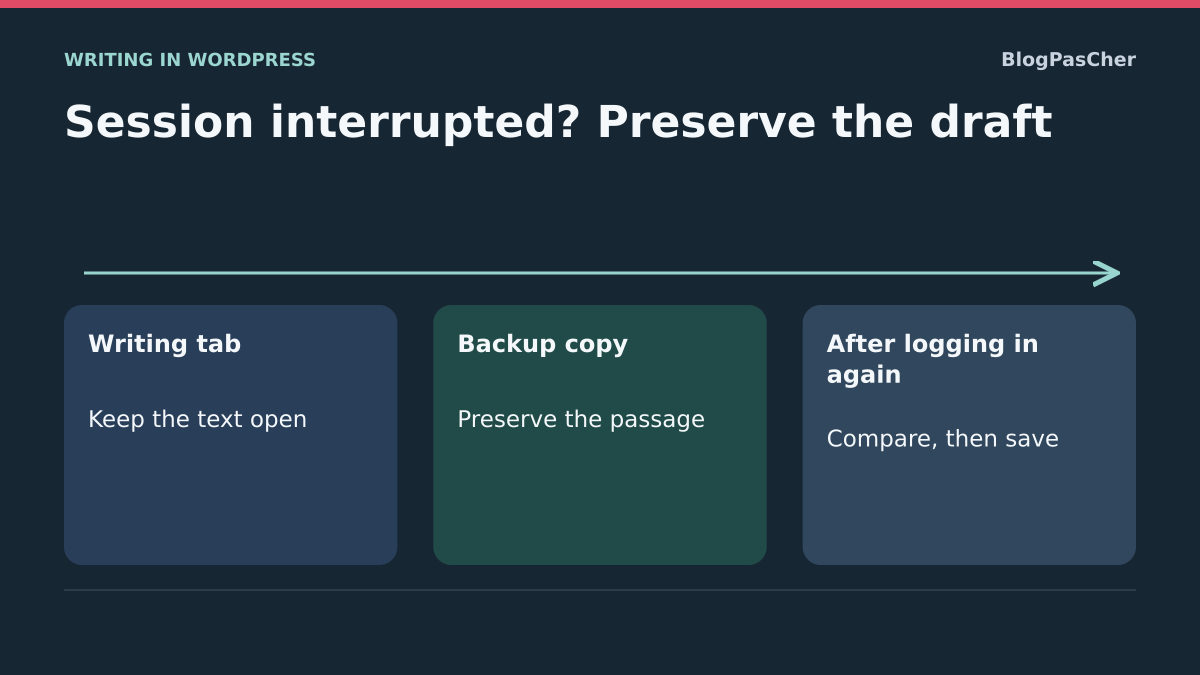
Protect what is still open
You are writing in WordPress when a login window reappears. The text remains in the editor, but you do not know whether the latest changes reached the server. Leave the tab open. Avoid reloading it, closing the browser or clearing site data before safeguarding your work. A title marked “saved” a few minutes ago may correspond to a version predating the last paragraph.
If the editor allows it, copy the title and added passage into a private working file with a dated name. In the block editor, if Copy all blocks is available in the options menu, you can also preserve structure. Check copied content before closing the tab. If a component does not copy correctly, separately record its values, selected media and links. On a shared computer, use an approved location inaccessible to other users.
If the reauthentication window covers the editor, use it if you recognize the login address, or reopen your usual administration in another tab of the same profile. Keep the writing tab in place. If the session returns, copy the still-visible passage before any requested refresh. Do not paste a confidential draft into a public service for emergency saving. The first goal is a copy you can reread without relying on the WordPress session.
Reopen administration and compare both versions
In a new tab of the same profile, open the usual dashboard address and sign in with the account used for writing. In multisite or when managing several WordPress.com sites, also verify the selected site and post. An identical title may exist in another copy. Compare the post ID when shown in the editing address. In WordPress, open Posts or Pages, find the draft and examine the saved version without changing the initial tab.
Reread the beginning and end of the passage where the problem occurred. If the server already received the change, avoid pasting it twice. If a useful autosave or revision appears, first compare it with current content. Depending on the editor and content, history may include an earlier version or a recovery suggestion. Text that never left the browser may be absent from this history. Therefore check your local copy and saved version separately.
If text is missing from the server, first reinsert only the confirmed missing passage into the reopened version. Preserve any colleague’s changes saved during the interruption. Use Save Draft or the action appropriate to content status. If working on an already published post, agree the recovery method before a public update. Finally, verify the passage by reopening the content. Keep your backup copy until this check.
Reproduce the interruption with a demonstration draft
On a WordPress copy, save a fictional draft, then add another paragraph. Record login and incident times. If you need to understand a logout, have the session tested with a demonstration account. The maintainer can reproduce session loss on the copy without touching working accounts. Then compare what remains visible in the editing tab with the version returned by the server in another tab.
On the copy, the maintainer can invalidate a fictional account’s sessions to observe editor behavior. Check whether unsaved text remains accessible in the tab and compare it with the saved draft. Preserve this text before signing in again, then reinsert the missing passage and reread it from the server. A real-expiration test must use a temporary duration restricted to the copy, then restore the initial policy.
On your site, use a short demonstration sentence distinct from working text. You must recognize it in both the saved version and open tab. To return to the previous state after an intentional test, remove that sentence from only the demonstration draft or discard the copy. Once writing is secured, continue with the approach matching observed behavior.
If the session closes at similar intervals
Note login time, first-error time and what you did immediately beforehand. Repeat on a demonstration draft with the same account and address. If the delay recurs across profiles, have behavior compared with the login manager’s intended duration. The site may have an internal policy, organization-managed single sign-on or a plugin rule. Reauthentication after a constant interval suggests expiry, whereas an isolated interruption may also follow session revocation. Time alone cannot establish the cause.
On a self-hosted site, the maintainer can compare server time, session validity and duration-customization rules. Ask whether a password changed, other sessions were closed or access was modified at the same time. Retain only the affected account, time and observed status. A cookie value, token or password is unnecessary to start diagnosis. On WordPress.com, similarly check whether the same site’s administration requests login in another tab of the profile.
If policy is intentional, organize writing around that duration. Save important stages and keep a working copy when text is not yet ready to save. The remember-me option at login depends on organizational policy and the computer used. It fixes neither a revoked session nor switching to another domain. If the interval proves incorrect, have the identified rule corrected on a copy, then verify duration again before applying it.
If the interruption appears in only one browser
After protecting the draft, create a fresh browser profile or use a control browser. Open exactly the same administration address and fictional draft. Compare results while keeping account, site and network constant. A fresh profile normally requires initial login. Above all, check that login persists while saving a change. A private window is not necessarily extension-free if some are allowed in that mode.
If the usual profile fails while the clean profile holds, examine site-specific settings in the usual browser. Check whether an extension deletes browsing data, site storage is blocked or cookies are cleared on closing. Test one change at a time. If cleanup is necessary, first safeguard work from the initial tab, then clear only the identified site’s data. Sign in again and verify saving a short reference text before resuming real work.
To undo a control setting, restore its old value or close the test profile. Clearing local data cannot be reversed like a checkbox. The draft copy and fresh authentication allow work to resume. If both profiles fail similarly, return to address and duration records instead of repeating cleanup.
If the address changes when opening or saving
Record the editing page’s address, login-form address and failing save-request address if visible in Network. Compare protocol, hostname and path. For example, your usual dashboard is at https://site.example.test/wp-admin/, but a bookmark opens https://www.site.example.test/wp-admin/. Depending on cookies and redirects, the browser may present the session to one name and request a new login at the other.
On the copy, compare the profile authenticated at the expected address, another test host and a fresh profile. A login request may be normal in the latter two cases; record behavior instead of immediately attributing it to expiration. Start from the official administration link and correct old bookmarks. On WordPress.com, verify the dashboard-provided address, which may differ from the public domain.
In self-hosting, ask the administrator to record Settings → General values and any WP_HOME and WP_SITEURL constants. A subdirectory installation may intentionally use two different addresses. Also check server redirects and the protocol the proxy passes to WordPress. Have only the responsible value corrected on a copy with backup access. If login fails after correction, restore the initial value through the prepared access and test the administration path again.
Check whether only saving fails
If you can still open your profile in another tab on the same domain, examine the editor error before concluding that the whole session closed. After protecting text, reproduce the problem on a fictional draft. In developer tools, open Network, then trigger a save. Record the request address and first meaningful status. Redirects to login across several administration pages provide a different clue from a single 403 on saving. A 403 may also relate to a security check, document permissions or authentication information that became stale in the tab.
If a page reopened after login saves normally, reinsert the copied passage into that refreshed editor. If the error persists, check with another draft you are authorized to edit, on the same site and account. Failure limited to one document leads to checking its state and associated rights. HTML received when the editor expects data may come from a login page or intermediary. Record response type and path without sharing draft content or authentication headers.
Compare records without exposing text or the session
To report the incident, provide time, timezone, browser, site name, page ID if shareable internally and the failed action. State whether the profile loaded in a new tab, failure occurs in a fresh profile and the hostname changed. These observations distinguish a shared expiry, browser-specific behavior and an address discrepancy. Use a demonstration draft if the maintainer needs to reproduce the error.
Screenshots and network exports may contain cookies, tokens, entered text and information about other sites. Prefer a brief record of URLs, statuses and times. Remove sensitive parameters before attaching it to a ticket. If a password changed or a session was deliberately revoked, note only the operation’s time and scope. For an interruption affecting every author, request authentication-log and recent-change checks before modifying session duration throughout the site.
Resume a writing session and verify the result
After the confirmed correction, sign in through the usual link. Open the reference draft and save a small change. Close only that tab after save confirmation, then reopen the document from the post list. Check that text is present, content remains a draft and the address is expected. If the interruption occurred only after a specific interval, also test a session spanning that interval according to the retained policy.
Then reinsert the remaining real work, checking media, links and the retained version. Keep the backup copy for your organization’s intended period, then remove it from its temporary location. If the problem returns, compare the new incident with the latest record before changing another setting. The draft is recovered when the server-reread version contains the expected passage. Session diagnosis is complete when the team can reproduce intended behavior during a normal writing session.
When several people resume the draft
If someone else must continue writing, agree on one working version before replacing a passage. In the post list, identify the draft by title and ID. Note which paragraphs were copied at interruption and when you reread the server version. If WordPress reports someone editing the document, contact them before taking over. You can send only the missing passage through the intended internal channel and ask them to confirm what they reinserted. Then reread the saved version at two points, the resumption point and passage end, to detect omissions or duplication.
Distinguish nonce expiration from session expiration
WordPress uses temporary values called nonces to verify the context of certain actions. Their expiration does not mean a password changed or an account disappeared. Signing in again may also invalidate an old tab’s context while a new tab works.
After preserving the draft, give the maintainer the response’s error code, such as a refusal explicitly linked to the nonce, without copying its value. Reopen the same content in a fresh session and verify a fictional save. If successful, resume the preserved passage while comparing versions. For a custom integration, correct renewal of this context according to the API used; do not remove verification or automatically extend all authors’ sessions. A valid nonce does not replace user-capability checks either.
Sources and references
Use these references to check the features, requirements and limitations described. Reading documentation is not a practical test.
View 9 references
- WordPress: reauthentication dialog in administration ↗
- WordPress: authentication duration and cookies ↗
- WordPress: session tokens ↗
- WordPress: revisions and autosaving ↗
- WordPress: addresses and configuration constants ↗
- WordPress.com: resolve browser problems ↗
- Chrome: inspect requests and responses ↗
- WordPress.com: primary and administration addresses ↗
- WordPress: nonce duration and scope ↗