

Understand what the two alerts indicate
In Tools, Site Health, WordPress may report a REST API error or a failed loopback request. The public site sometimes continues working. The desired result is to restore the relevant route and dependent functions without exposing private data or disabling every protection.
The REST API lets WordPress and applications exchange data. A loopback call goes from the server to an address on its own site. The concepts overlap in some checks: a REST test may also run from the server. A browser displaying a public page does not necessarily follow the same route.
This guide addresses these specific alerts. If only saving a post fails, also start by preserving its text and observing that save. If tasks are delayed, their queue and execution constitute a separate diagnosis. A favorable communication check does not prove that a payment, scheduled publication or backup completed.
Record the message before changing the site
With an authorized account, open Tools, Site Health, Status. Wait for checks to finish, expand the relevant result and record its wording, code, any address and time. Distinguish a transport error, such as inability to connect, from an HTTP response received but unexpected.
In Info, record WordPress and PHP versions and the theme and plugins connected to the problem’s onset. If copying complete information for support, review it before sending: server paths and technical details do not all need publication. Keep the record in a private folder.
Also note recent changes: migration, new protection, DNS changes, domain change or update. Check whether the alert persists after a reasonable reload of this screen. Avoid repeatedly refreshing it on already saturated hosting. If the result is intermittent, several dated observations are better than one screenshot, particularly for correlating the failure with available logs.
Understand native checks’ limits
The current REST check targets a post-type route with edit context from WordPress, transmitting session elements. It does not merely read the public API index. Opening that same address in a tab does not necessarily reproduce its headers and token; rejection obtained this way may be normal for an unauthenticated request.
The native loopback check uses a specific POST request to wp-cron.php designed to finish without running Cron tasks. Success therefore validates neither a real task’s duration nor processing of an entire queue. Do not replace this test by repeatedly opening wp-cron.php in the browser, which is a different request.
Checks may be modified by code, and their context differs from other exchanges. Always record which returned to normal after intervention. If the editor remains unusable despite favorable Site Health results, observe its own request. Conversely, an apparently working interface does not explain a communication failure still visible server-side.
Choose the approach according to the available clue
Start with native checks requiring no new plugin. An old session or obviously inconsistent address warrants checking the account and domain. A rejection naming a protection or component points instead to its setting and logs. A resolution, certificate or connection error requires comparison from hosting.
Before changing components, prepare a copy with database and files backed up. Disable outbound emails, payments and synchronization. Its protection and domain may differ from production: a copy-specific failure does not establish the live site alert’s cause.
On WordPress.com, use the tools and permissions available in your plan; do not assume terminal or system-file access. On multisite, identify the exact site and involve the network administrator for imposed components. An alert on one site does not justify deactivating a plugin across the network.
Repeat the native check with a current session
This first approach suits a REST alert appearing after a long session, reconnection or domain change. It requires your usual access. First preserve any unsaved work in open tabs. The aim is to repeat the check with a current session in the correct administration without changing account permissions.
If the alert disappears, also check the affected function, such as opening and saving a test draft. If it persists with the same message, retain that result for the next steps. Clearing all cookies or switching browsers does not by itself fix a blocked connection between two server processes.
- Open your usual login in another tab and check the domain and account.
- Log in normally if needed, then reopen Tools, Site Health and wait for results.
- Compare the message and its address with the initial record; note whether they changed.
- Check a representative function without publishing real content for the test.
- If you used a separate browser profile, close this test session and return to your usual environment.
Check the REST address actually used
Use the address provided by WordPress or API discovery information. The common /wp-json/ path is not universal: an installation without rewriting may use an address containing ?rest_route=/. The installation directory and public homepage directory may also differ. A 404 on a guessed path does not prove the entire API is broken.
In Settings, General, compare WordPress and site addresses with the expected domain. Do not make them identical as a matter of principle: a subdirectory installation may be deliberate. If an old domain is confirmed, prepare rollback with file or hosting access before correcting only the relevant field and saving changes. A grayed-out field may be imposed by a configuration constant.
For a public-index read, also inspect received content: a login page or security challenge may arrive with status 200. This read does not test editing permissions. After an address correction, log in again and repeat the native check; if regression occurs, restore only the changed value through the prepared rollback method.
Isolate a plugin on a copy without a new tool
This approach suits an alert following plugin activation or update. Use a copy where you confirmed the same failure, with external effects disabled. Record its component list and states before testing. Deactivation on a copy enables comparison; it does not by itself decide which function to remove from the public site.
If the test becomes favorable after one deactivation and fails again after reactivation, you obtain a reproducible clue. The component’s configuration and interactions still need examining. No change invites restoring its state and pursuing another clue without accumulating components left inactive.
- In Plugins, Installed Plugins, find the plugin identified by history or the message.
- Click Deactivate for this plugin only; do not choose Delete.
- Reopen Site Health on the same copy and record REST and loopback results separately.
- Reactivate the plugin, then repeat the exact check to verify whether the fault returns.
- Restore the initial state after diagnosis and record the comparison. If a dependency prevents deactivation, analyze that set with its maintainer instead of forcing removal.
Interpret a comparison without losing useful functions
A component restricting the API may apply an intentional policy, but a global ban may also prevent a necessary function. After attribution, open its documented settings and find the actually responsible rule. Retain its initial value and limit permission to the legitimate context. Follow the developer’s documented path for the installed version, because menus differ by product.
Do not make every route public to satisfy an indicator. WordPress authentication and capabilities remain necessary for private data and writes. A structured permission error does not mean the same thing as an intermediary’s HTML page. For custom code, have its author review the relevant filter instead of adding a second filter hiding every error.
If history points to the theme, compare on the copy with a standard theme already installed through Appearance, Themes, then Activate on that theme. Keep the initial theme installed and do not edit templates during this test. Repeat both checks, then reactivate the original theme. An improvement points toward its code or an interaction; it does not justify immediately changing the live site’s presentation.
Use Troubleshooting as optional assistance
Troubleshooting, by Marius L. J., provides a free component-comparison mode in a troubleshooting session. Check WordPress and PHP requirements for the version actually offered before installation; developer-declared compatibility is not a test of your site.
This approach requires installation permissions and remains preferable on a copy. It fixes neither DNS nor certificates nor external firewalls. The expected result is a difference connected to session components, to be confirmed afterward with normal server checks.
- In Plugins, Add New Plugin, search for Troubleshooting and check the author and directory slug troubleshooting.
- If the environment is compatible, install and activate, then open Tools, Site Health, Troubleshooting.
- Read the instructions and click Enable Troubleshooting Mode. If installation of its required file fails, stop this approach without changing global permissions.
- In the administration bar’s Troubleshooting Mode menu, reactivate the theme and then plugins for your session, one item at a time. After each, reopen Site Health’s Status tab and record results.
- Exit with Disable Troubleshooting Mode, then check that the normal context has returned.
Respect session isolation limits
Troubleshooting mode is not a database copy. Saved settings, created data and external calls may have real effects. Hosting must-use plugins and some cache files also remain outside simple deactivation of ordinary plugins. Do not delete their directory to obtain an emptier session.
A server call is a new request that may originate from another source address or fail to retain the complete diagnostic context. Therefore do not assume a REST or loopback result corresponds exactly to components shown as active in your browser. An important comparison must be confirmed on the normally operating copy with a targeted component change.
Caches may also confuse this isolation. Check an independent visit after exiting the mode, then address only the identified cache layer if a troubleshooting display persists. If access is lost, logging out also exits the diagnostic session. Do not delete original tables or settings to return to normal. The tool supplies clues; it does not certify the absence of conflicts.
Compare the route from the server with curl
This advanced check is for someone with an authorized hosting terminal. It compares access to the public REST root from that machine using a bounded GET request. Replace the fictional address with your installation’s actual root, including any subdirectory or rest_route form. Do not use the context=edit route expecting success without authentication.
On Linux, the command below discards the received body and displays HTTP status and total time. On Windows, use curl.exe and replace /dev/null with NUL. No password or cookie is added. The first-position -q parameter prevents reading personal curl configuration. Timeouts bound this observation, not necessarily work already started on the server.
The command does not follow redirects; if it reports one, verify its destination in a private record before another request. Keep any error message and compare a read from your computer. Terminal success does not validate PHP’s environment, certificates, proxy or WordPress check headers. This command changes no setting and requires no rollback. It must not become a continuously repeated probe.
curl -q --silent --show-error --connect-timeout 5 --max-time 15 --output /dev/null --write-out 'HTTP=%{http_code} total=%{time_total}s\n' 'https://exemple.invalid/wp-json/'Use results to fix the correct layer
curl error 6 indicates name-resolution failure; 7 means connection failed; 28 means timeout. A certificate message requires examining trust and the covered name, not disabling TLS verification. HTTP=000 accompanies the absence of a usable HTTP response: it is not a status sent by WordPress.
A 401 calls for distinguishing environment HTTP protection from application authentication. A 403 may come from WordPress or an intermediate protection; correlate its content and time with logs. A 404 at the REST root requires confirming address and routing. A timeout may also result from saturated PHP capacity: the server sometimes waits for another process to become available to answer its own call.
If the request reaches a firewall, record its rule and action before any exception. Have the proven responsible rule corrected, retaining its previous configuration, then repeat the native check. Do not allow every path and server address for convenience. If no destination log shows the request, continue investigating resolution and the network route instead of blaming a plugin without evidence.
Handle protected staging and local blocks
A copy protected by HTTP authentication may reject the internal call even when you are logged into WordPress. These are two different authentications. Native checks are designed to pass HTTP authentication when available in expected PHP variables; a proxy or server configuration may prevent this forwarding.
Have this precise route and its integration with the copy’s protection checked. Do not remove the password from an entire environment containing private data, and do not put credentials into a command intended for sharing. A fix must retain protection while allowing legitimate internal operation according to the hosting architecture.
Also examine custom HTTP API restrictions. The WP_HTTP_BLOCK_EXTERNAL constant does not by default prohibit the site’s own host or localhost: randomly removing it is therefore not a general answer to broken loopback. Local filters or a changed destination may intervene. Have the actually applied rule identified before changing it. Must-use plugins and network settings must be handled by their responsible person without globally renaming their directories.
Confirm the repair and keep an actionable record
After a targeted fix, reopen Site Health outside troubleshooting mode and check REST and loopback separately. Compare messages with your initial record. Then check the affected function through a limited workflow: opening the editor and saving a fictional draft, for example. For scheduled tasks, check progress through their normal tool without rerunning sensitive operations.
Remove only temporary exceptions no longer needed and restore components used for diagnosis. If a rule remains necessary, document its scope, owner and rollback. A favorable indicator achieved by removing essential protection or a business function is not a complete repair.
If the problem persists, provide a short record: relevant site, exact message, time and time zone, route and method, recent change, result on the copy and comparison from the server. Include any rule or request identifier without cookies, tokens, passwords or a complete traffic export. Also specify what remains untested. These details let investigation continue at the right level without repeating every deactivation or changing scheduling for a problem still involving communication.
Repeat the two Site Health checks separately
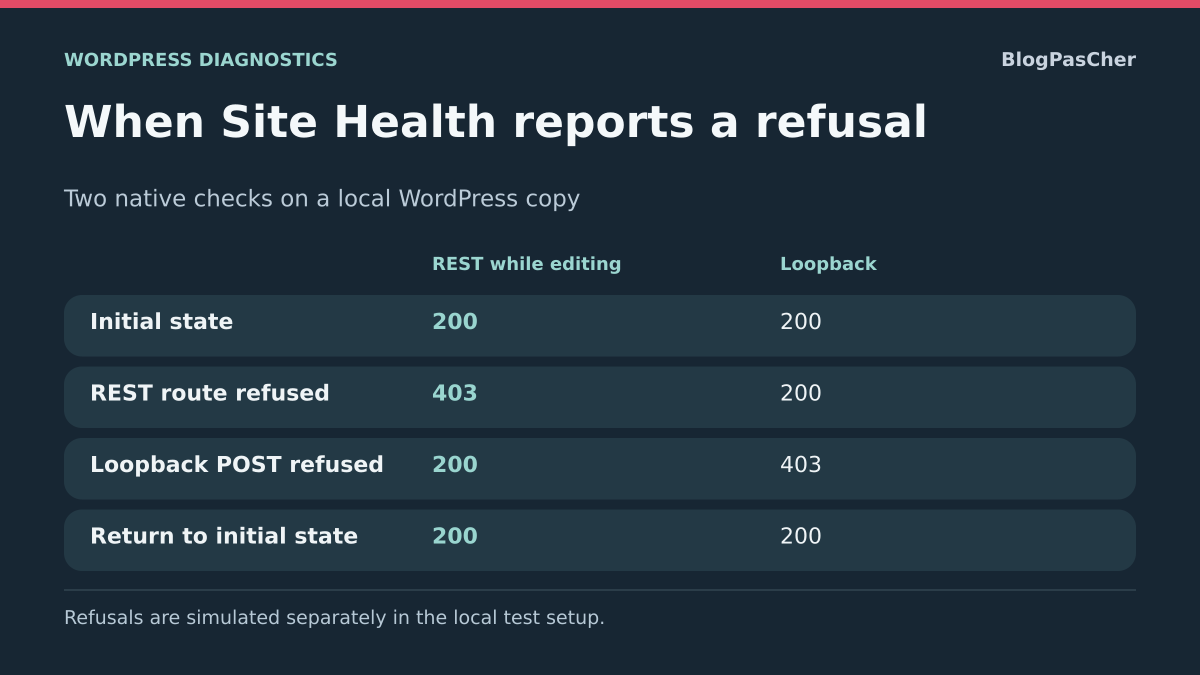
The following synthetic table illustrates why REST and loopback must be recorded separately. It does not report an executed test or predict codes on your installation.
An accessible public REST index does not validate an authenticated editing route. To understand an alert, compare the index with the native check in your session. If only loopback fails, investigate the route and rule applicable to Site Health’s POST.
Cas de test                         REST en édition    Loopback
État initial                        200                200
Refus de la route REST testée        403                200
Refus du POST loopback               200                403
Retour à l’état initial              200                200
Check that the correction remains targeted
After intervention on the copy, repeat both checks with the same account. Check that public reading still works and the editing route still requires expected permissions. The check POST is designed to finish without running scheduled tasks; validate their execution separately when part of the problem.
If the server logs a rejection, give the responsible person the code, time and relevant route. Keep cookies and tokens out of the record. If the correction moved failure to the other check, restore the previous setting before continuing the investigation.
Distinguish a test-environment limit from a site failure
A copy may impose restrictions absent from the real site: HTTP protection, limited outbound network or deliberately disabled Cron execution. If Site Health fails only on this copy, record the exact response and compare its hosting policy before changing WordPress. A demonstration environment does not automatically reproduce a classic installation’s server routes.
In Tools → Site Health, keep REST and loopback results separately with the time. If the response explicitly names a platform restriction, use its designated mechanism or another authorized test environment. Do not add a filter forcing the indicator green: that would hide the result without restoring the route.
The native loopback check uses a POST designed to finish without running scheduled tasks. Its success therefore proves this communication check, not publication of a scheduled post. After an actual fix, also verify the relevant function through its own workflow. Native diagnosis is free; Troubleshooting helps compare components but does not remove a hosting network limit. Revert any temporary exception that did not explain the fault.
Sources and references
Use these references to check the features, requirements and limitations described. Reading documentation is not a practical test.
View 18 references
- WordPress: Site Health ↗
- WordPress: precise REST check ↗
- WordPress: precise loopback check ↗
- WordPress: diagnosing loopback calls ↗
- WordPress: REST authentication ↗
- WordPress: discovering the REST root ↗
- WordPress: managing plugins ↗
- WordPress: address and HTTP configuration ↗
- WordPress: blocking external requests and local exemption ↗
- Troubleshooting: features and exiting the mode ↗
- Troubleshooting: requirements declared in current code ↗
- Troubleshooting: activation and deactivation interface ↗
- Troubleshooting: session context limits ↗
- curl: diagnostic options ↗
- curl: error codes ↗
- WordPress.com: plugin troubleshooting ↗
- WordPress: general settings ↗
- WordPress: Themes screen and activation ↗