

Start with the two dates
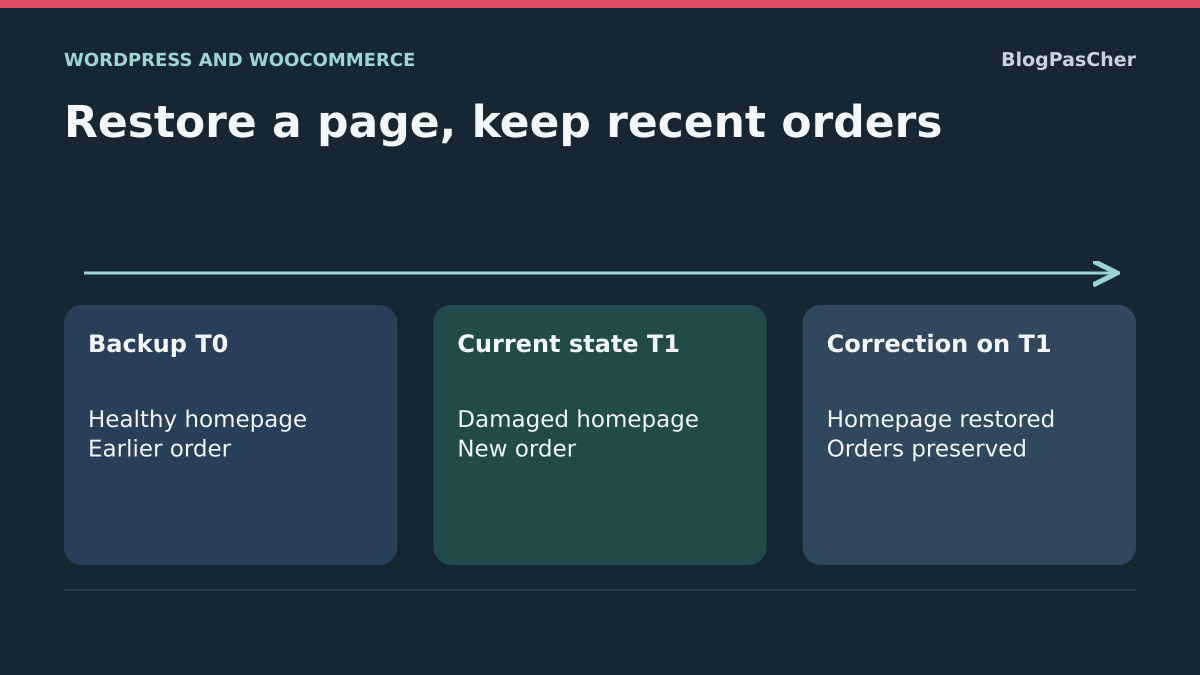
A Monday backup contains the healthy version of your homepage. On Tuesday, the store received orders and the team published a post. On Wednesday, you discover the homepage was overwritten. If you put Monday’s database back online, visitors recover the old page, but subsequent orders and the post disappear from the restored copy. An older order may also return to an outdated status even if it still appears in the list.
Call the exact backup-point time T0 and the current-state capture time T1. Use the same time zone for exports, editorial history and external systems, including the date and UTC offset in your notes. If the panel says only “Monday,” open archive details and check database and file times. An archive generated at 02:00 and a database captured at 01:47 may correspond to two different states.
Then record the first known symptom and object to recover. For example, “the Home page content from Monday at 02:00, with Wednesday’s template, URL and new orders.” If administration responds and only one page is affected, a revision of that page or targeted recovery on a copy often suffices. If essential data is missing from several site areas, you need broader restoration and a record of writes to recover.
Back up what exists today
In the hosting panel or backup tool already used, create a new point from the current site before trying the old archive. Keep both points under explicit names with their time, time zone and environment address. For self-hosted WordPress, check that you have the complete database and necessary files, including media, theme and plugin versions and configuration elements useful for reconstruction. If images or documents are stored remotely, check how their objects and versions can be recovered and which access permits reading them from a copy. On WordPress.com, consult backup and restoration features available for the site before selecting a point.
Before starting capture, record whether the site still accepts writes. An order may arrive while files are copied. Follow the hosting provider’s consistent-capture method. For an active store, agree with the team on a brief write freeze if the method requires it. During a rehearsal with the store still open, treat capture as provisional and plan a final record of writes arriving after T1.
Check archive access and the ability to restore it elsewhere. Give the current capture a retention period covering diagnosis and post-recovery verification. An XML export through Tools → Export may supplement the content inventory. A complete archive remains necessary to recover data and files the site depends on together.
Prepare two copies that receive no real writes
Create two environments separate from production and each other. Restore T0 in the first and T1 in the second. In the panel or wizard, check destination address and database before confirming. Both addresses must open different installations. Leave original archives available to restart if a test changes a copy. Restrict access to these environments, because a store database may contain contact details and purchase history.
Before first startup, disable outputs and inputs that could interact with production. In the test environment, stop outbound email and tasks sending data. Use test payment credentials or deactivate the gateway and block outbound calls to real integrations. Check webhook receiving endpoints, fulfillment software and scheduled tasks. Staging protected from visitors can still trigger an action in another service.
On each, open the relevant page in private browsing and the administration order list if WooCommerce is installed. Record a marker specific to each point, such as the page opening and an order status. If both copies show identical data despite known activity during the period, first check each copy’s database connection and address before concluding the archive contains nothing useful.
Inventory creations and changes
On the current copy, open Posts → All Posts, then Pages → All Pages. Identify content added since T0 and older content that was corrected, unpublished, scheduled or trashed. For each object to retain, record type, title, URL or identifier, state and the change to recover. Include added images, captions, linked files, template and plugin-managed fields if the page relies on them. A scheduled post may be absent from the public site while still counting toward recovery.
In WooCommerce → Orders, record new orders in the interval. Also check orders already present at T0 and changed since. Depending on activity, look for confirmed payments, refunds, cancellations, address changes and shipments. Selection by creation date does not show every transition. Use order notes and gateway or shipping-software events to identify orders requiring individual checks.
For each, retain in a restricted location the displayed number, transaction reference if present, date, total and currency, expected status and what has already occurred in payment or shipping. Do the same for new registrations or forms if their plugin stores responses in WordPress. Identify the owner of each check. Two copies may use the same numeric identifier for different objects after recovery, so confirm references and context before matching.
Recover a page in the current copy
This method suits a still-usable current site when the old copy supplies the healthy element. It requires access to both environments and permission to edit content on the current copy. For an editorial page, open Pages → All Pages, then the affected page. If its local history contains the correct version, open Revisions in the editor, compare versions and select the one to restore. If additions made to the same page since that revision must be retained, recover only the relevant blocks from the old copy.
In the homepage example, start with a new T1 copy. Open the old page and copy healthy blocks into the candidate’s existing page editor. Check links, media, reusable-block settings and layout-plugin fields before saving. Retaining the existing page preserves its place on the site. Nevertheless, check its URL, template and homepage settings in Settings → Reading if the old version displays another page. Also reopen the post published after T0. It must remain visible in the same place as before.
If the test fails, return to the revision taken before correction or recreate the candidate from T1. After validation, repeat the targeted change in the current site page after one final state check. Avoid putting the candidate’s database online if the site received writes since capture. If failure occurs on the public site, undo the change only on the relevant page using the rollback point identified during testing.
Read the rehearsal’s three results
To construct an isolated exercise with WooCommerce and HPOS, prepare a T0 backup containing a healthy homepage and a fictional €12.50 order with Pending payment status. After T0, edit the homepage, publish a post, create a fictional €23.40 order and move the first order to On hold. The two statuses correspond respectively to pending and on-hold. Use no real payment.
The copy restored from T0 recovered the healthy homepage. The €23.40 order and recent post were absent. The €12.50 order remained with its old status. In a separate T1 copy, updating only homepage content produced the same healthy homepage, with the post and new order still present. The first order retained its more recent status. The current state used as the source remained identical at these checkpoints.
You can reproduce the comparison with a page, post and demonstration orders in an isolated environment. For each state, record the homepage opening, post URL and both orders’ reference, amount and status. Start by checking results on both copies, then keep the same list for the candidate. If a result changes unexpectedly, restart the test from T1 before intervening on the public site. Perform demonstration checks with the copy’s APIs, without real payment or import into production.
Rehearse full restoration if the scope requires it
Consider this approach if several essential components are lost and you verified that T0 contains a consistent site. You need restoration-tool access, the ability to suspend writes and people who can verify orders and integrations. On a candidate restored from T0, first list data you know how to restore using a testable method. For a small amount of content, create or update pages through the editor. For an editorial batch, use a WordPress export suited to the scope and try importing through Tools → Import → WordPress. If you encounter content already present, decide which to retain before repeating the import.
For orders, ask the backup, transfer or import tool developer whether the procedure supports your storage mode and payment, invoicing or subscription plugins. In WooCommerce, consult WooCommerce → Settings → Advanced → Features to identify storage used. With HPOS, WooCommerce may use dedicated tables as authoritative storage while compatibility mode maintains another representation. Avoid copying order tables between databases. Orders must remain associated with their items, notes, references and linked objects, with relationships expected by plugins.
Try the intended procedure on a new candidate. For a modified existing order, check that the operation updates the correct order. For a new order, check that repeating the operation does not create a second one. A tracking file or report CSV may support comparison. Check what the tool restores before treating that file as a recovery source. If you lack a verified method for important writes, keep the current site as the working base and continue recovering needed components.
Reconcile WooCommerce with operations already performed
In the candidate, open several reference orders in WooCommerce → Orders, including one present at T0, one created afterward and any order with uncertain state. Compare displayed number, transaction reference, items, quantities, fees, total, currency and relevant notes. For refunds, subscriptions or shipments, also check linked objects where present. Use payment and shipping systems to verify what actually occurred, with the expected reference on each side.
Record the decision for each discrepancy. For example, if the provider shows a validated transaction but the candidate still shows Pending payment, check that it is the same order and transaction before correcting its local representation according to gateway procedure. Avoid an action requesting another charge, sending a second email or launching another shipment. Test status-change effects on the isolated candidate. Also check stock when transitions or refunds may have changed it.
When matching several orders, separate in your record objects present and correct, those to restore and those whose reference or state needs confirmation. Assign each uncertain case to the person with the missing information. One unexplained discrepancy on a paid order is enough to stop production deployment. Recreate the candidate from T0 if import tests produced duplicates or local effects difficult to undo.
Suspend writes before switching the site
If full restoration passed rehearsal, prepare the switch with those managing the store, editorial work and integrations. Set a time and identify who can suspend and reactivate each input. Close order taking and stop administration changes. Also check API applications, forms, scheduled tasks and systems sending payment notifications. A visitor maintenance screen may leave these paths open.
Agree on handling events received during the pause. Follow each integration’s documented behavior for queuing, retrying or recording events. Include in-progress transactions and already received operations in the log. Avoid resending a whole series of events before processing and deduplication have been checked. If you do not control a channel still writing, postpone the switch and retain the tested copy.
Once the freeze is effective, take a final production capture and complete the record with writes arriving since T1. Give this capture a distinct name and time. Apply only the rehearsed procedure to the candidate with finalized data, then repeat checks. For an editorial batch, check at least the recovered page, recent content, media and an internal link. For a store, check the order list and every previously flagged sensitive case before permitting an address or database change.
Adapt the approach to a WordPress.com restoration
On a WordPress.com site with integrated backups, open Jetpack → Backup in the dashboard. Select the point, then display items the tool offers to restore. If the fault concerns only files and the selection actually matches affected files, you can retain the current database. Check on the copy or through available staging that restored code works with the current database. Keep a capture of the whole set for rollback if versions are incompatible.
WordPress.com states that its restoration service keeps WooCommerce orders and products current. Editorial content and settings, however, may return to the selected point’s state. The service also distinguishes orders from subscription records. Database restoration may return a subscription record to a state before an already paid renewal. If the site offers automatic renewals, have them suspended before the operation and reconcile records and payments before restarting them, following WordPress.com and relevant plugin procedures.
Check the scope shown in your own panel. This behavior concerns WordPress.com’s integrated restoration. This guide’s local example replaces an entire database and illustrates a raw copy’s behavior. In both cases, record posts and settings to preserve and retain access to the recent point throughout verification.
Reopen the store and prepare rollback
Once the candidate is verified, switch while writes remain suspended. In a private window, open the homepage and restored pages. In administration, find the recent order, check the older order whose status changed and confirm linked files are accessible. Check queued events and notification destinations before reactivating tasks or notification processing. Reopen order taking after recovery-critical checks, then monitor initial writes.
If a check fails before reopening, retain the freeze and restore the last consistent production capture or switch back to the untouched instance. Check the address, homepage and orders before reactivating inputs. If the store already received new orders on the reopened instance, pause again. Record those writes and capture this new state before deciding on rollback. Otherwise, rollback itself risks deleting orders just accepted.
To hand over the case, retain both point times, restored scope, checks performed, resolved discrepancies and latest capture location. Another administrator must be able to find the expected page and order states in this log without rerunning the procedure. Also keep the contact able to verify a payment, delivery or form if a delayed event appears after recovery.
Have orders validated by their business reference
Total order count is insufficient to validate restoration. Two lists may contain the same number of entries while losing a recent order and retaining a duplicate. Prepare a reconciliation including each order in the interval, its payment reference, currency, amount, expected status and delivery state. Keep personal contact details out of the shared report.
With HPOS, let WooCommerce read orders through its interface or APIs: directly reading only the posts table may yield an incomplete inventory. Do not change order storage during restoration to simplify an export. An acceptable result is no unexplained discrepancy on selected references, not merely a correct homepage. If a payment exists with the provider without a matching order, stop recovery of that operation and have the systems reconciled before any creation or status change.
Sources and references
Use these references to check the features, requirements and limitations described. Reading documentation is not a practical test.