

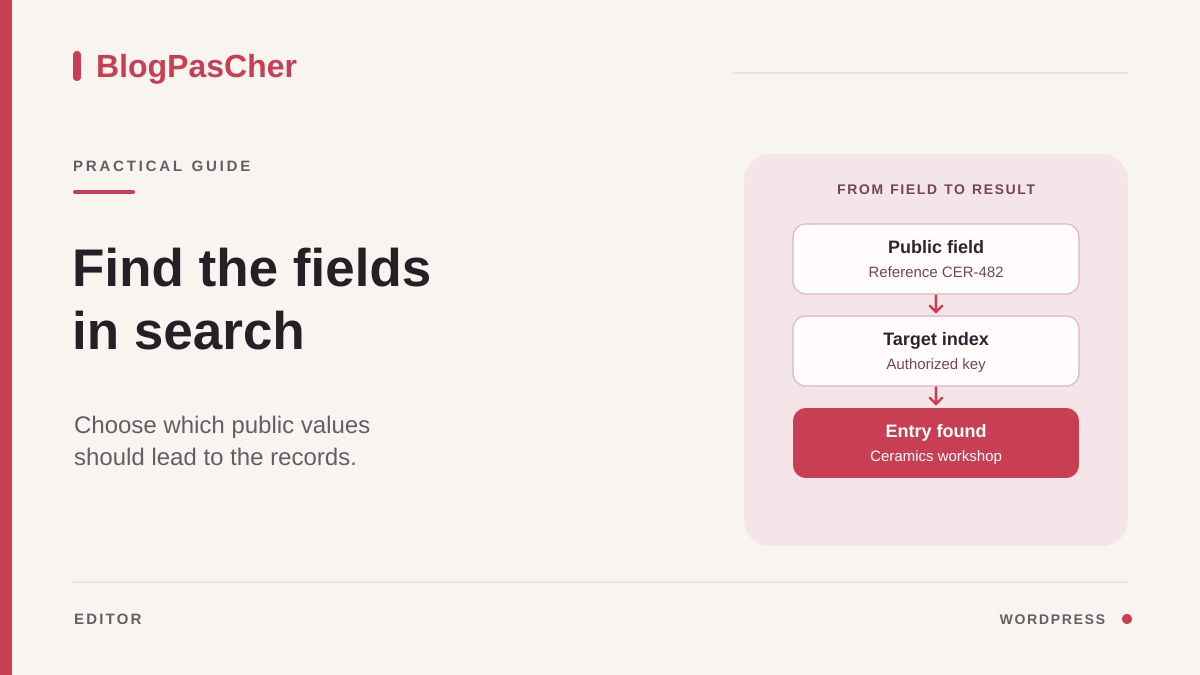
Check whether the entry is missing or only the field is ignored
A workshop entry displays the code CER-482 in a box, but the site's form cannot find it using that code. Start by opening the entry directly as a visitor. Identify its title, content type, and the field supplying the code. Then run two searches from the same form. First use a distinctive title word, then the field value alone. Record the resulting URL and results for each test.
If the entry appears for its title but not its code, the engine already accepts this document. Next check the data it uses to recognize words. If the entry appears for neither term, check its publication, type, and engine restrictions. If the same result appears after two different searches, first examine the query and caching. The defect may occur before field selection.
Standard WordPress search examines the stored title, excerpt, and content by default. A value displayed by a dynamic block may come from a separately stored custom field. Visitors see it on the page while the engine does not use it to find that page. Rearranging the result card or adding the field to that card does not change the data examined by search.
Keep a reference entry and an ordinary search that already works. After the change, the code should lead to the correct entry and the ordinary search should continue returning useful results. Prepare these tests with dummy values on a copy if you need to edit fields or build an index.
Identify the form and query providing results
Open the page where visitors enter searches. A native Search block, a theme-provided form, and a product search bar may look the same. They may nevertheless send requests to different engines. Submit the form, then note whether a results page opens or suggestions appear below the field. Test both paths if the site offers them.
In a classic WordPress search, the results URL often includes an s parameter, possibly accompanied by a content type. Check the URL actually obtained, accounting for the site's subdirectory and language. If you know how to use the browser's Network tab, observe the request sent when selecting a suggestion or submitting the search. An API URL or a builder-specific request may indicate separate processing. The URL's shape remains a clue, because a replacement engine may also handle the main search.
With a block theme, check under Appearance > Editor > Templates that the public page displays the loop intended for results. An independent loop that ignores the current term may return entries unrelated to the search. Compare two very different terms before adjusting an index. In a classic theme or builder, identify the results template and the component supplying its content.
Use a visitor account for the final comparison. Some dashboard searches and catalog forms apply their own rules. If the results page finds the entry but the suggestion list ignores it, target the suggestion configuration. Rebuilding the main index may leave this independent component unchanged.
Record the key and text to make searchable
Open an entry in administration and compare the field's editorial label with its technical name. In a field plugin, find the field definition in the group associated with this content type. A line labeled “Public reference” may use the key reference_publique. Ask the person responsible for entries for the technical name if you can edit values but cannot access definitions.
Next check an entry containing a value and another whose field is empty. For a reference, check hyphens, spaces, and leading zeros. For a relationship between content items, distinguish the displayed title from any stored ID. A field displaying “Atelier du Canal” may store a number corresponding to another entry. Indexing that number is insufficient to find the displayed label.
Create a short list of fields that should participate in public search. A catalog reference, collection name, and visible material may meet this need. An import ID, team note, and private address stay outside it. Also check restricted-access entries. A match, result title, or excerpt may reveal a value even if the entry's template omits it. For public search, also validate indexed types, access permissions, and suggestion-engine rules. A theme display condition is not an index access rule. If the same key contains public values on some entries and internal values on others, leave that key out of the public index and use a key dedicated solely to publishable values.
Finally, choose the item that should appear as a result. If the word describes a workshop linked to a course entry, determine whether the reader should open the workshop or course entry. When a value is calculated from other content, describe the need to the engine maintainer. This distinction avoids indexing a random key and lets you define a control checking the correct result.
Make public information searchable in the content
For a few stable entries, add the useful value to the public content WordPress stores with the entry. Open the reference entry, then add a short passage readers can understand, such as “Workshop reference CER-482.” Place it in the practical information section. Depending on presentation, a manual excerpt may also suit. Choose a field editors can keep up to date and that your engine actually uses.
Keep the label visible and consistent with the custom field's value. If the same reference already appears beside the title through a template, check that the new location remains useful. An entry can present the reference once in its main text and remove the duplicate from a local template when that adaptation is intended. A value hidden in the layout makes matches difficult for visitors to understand.
In a draft on a copy, save the entry, then examine the preview. Public search then requires content available to visitors in the test environment. Use a staging entry and search for the value. If search now reaches the correct entry, this solution may be sufficient when changes are rare. Check that a future editor knows which value to update if the field and passage coexist.
When the value changes often or hundreds of entries are imported, this duplication requires synchronization that may become fragile. In that case, prefer an index configuration reading the maintained source. To restore the initial editorial workflow, remove only the added passage or restore its previous excerpt. Check the preview and result after rollback.
Index only useful fields with Relevanssi
If the main search must read simple fields across many entries, use the existing engine when it offers key selection. Relevanssi provides custom-field search in its free edition. Installing another engine changes general search behavior. On a copy, record the active engine, included types, and sorting settings before activating another solution. Avoid running two replacement engines together during comparison.
With the necessary permissions, open Relevanssi settings in the dashboard, then the Indexing tab. Its English label is Indexing. Depending on the version, settings may be accessible through the Relevanssi entry or WordPress settings. Select the relevant entry type. In the custom fields section, choose the option for specifying a list. Enter approved technical names separated by commas, such as reference_publique, collection_publique.
The “visible fields” option excludes keys beginning with an underscore. The explicit list instead selects keys for indexed types. Check that every selected key's values are intended for public search. Keep excerpt settings unchanged during the first test. Check whether search logging is active and use only synthetic staging terms. A query may leave its term in the URL, site logs, or Relevanssi log. Relevanssi offers a separate setting for using indexed fields in generated excerpts. Even without that display, an entry's appearance in results may reveal a match.
Save settings, then run Build the index on the copy. This action rebuilds the engine's index. On a large database, ask the person responsible to check available space and choose when to run processing. Keep the browser window open until the interface indicates completion before judging the result. Updating the key list alone does not demonstrate that all previously saved entries have been reprocessed.
Continue diagnosis if the value is still missing
If title search also fails after rebuilding, check that the entry type is among indexed types and engine settings allow it to appear. Compare visitor permissions, publication status, and any language or type filters. Do not remove a site-wide exclusion for a single entry. First determine what it protects and which search should include the content.
If the title appears but the value is missing, check the key, actual field contents, and completion of index building. Compare a simple alphabetic term with a punctuated reference. Word length, excluded words, and punctuation splitting may influence matching. For a hyphenated reference, record whether visitors search for the complete reference or one part. A setting that changes tokenization may affect many other searches.
Repeating fields, relationships, and calculated values deserve a separate test. Relevanssi documentation indicates that some ACF subfield configurations require Premium. A key list for simple text fields does not guarantee that repeated rows, linked content titles, or a calculated value will be indexed as desired. For these cases, ask the maintainer for a documented solution selecting the public text to index for each result.
If the correct result appears in the main search but is missing from a builder widget, check that widget's integration with the engine. The expected step is to identify which engine processes each query. Without a compatible setting, linking the form to the already validated results page may provide a usable flow with fewer changes.
Check search as a visitor
Prepare four searches before comparing. Search for a value present only in the public field, a distinctive title word, an absent dummy value, and a dummy value placed in an excluded internal field. Use the same form and language. Check the result link, its position in the list, and its excerpt text. An entry found at the correct URL may still show an inconsistent excerpt.
Test the excluded value with synthetic data, then check that those terms do not find the entry through another source, such as a paragraph or another indexed field. On a public staging entry, check that an internal dummy value stored under an excluded mixed-use key produces no result for that entry. Also check restricted content anonymously and, if the site provides differentiated access, with the relevant accounts. Entry permissions, the index, and the excerpt may be managed by different components. If a configuration has already made internal data searchable, remove the relevant key or source, rebuild the index, and refresh affected result and suggestion caches. Confirm removal with synthetic controls. Have logs and copies that may have retained the value examined separately.
Repeat a search after changing the public value on the staging entry. Check results for the old and new values. If an import updates fields, also check an entry processed through that workflow. A change saved from the editor and an import may trigger different index updates. Record the reindexing method that produces the expected result.
If an earlier version returns only in a visitor session, compare the URL and response in a new window. Then examine result caching and suggestions. Keep a record of tested terms with the time and results page. It will distinguish an old response from a configuration that never included the field.
Restore settings and retain a checkpoint
Before changing an existing engine, retain the useful values from its panel. Record content types, the key list, and excerpt or sorting settings if you need to change them. On a copy whose settings were changed, restore this list, save, then rebuild the index if the engine requires it. Removing the key from the interface is insufficient to establish that its values have disappeared from the previously built index.
If you tried a new engine, return to the starting configuration in the test environment and check forms that depended on standard search. Verify the title control word and the site's most common terms. Deactivation may change suggestions, sorting, or pagination. Keep test notes until these flows have returned to their initial behavior.
If the intervention added visible text to a few entries, restore only those texts or excerpts. Check versions to preserve other editorial changes made in the meantime. For a field managed by an import, also pass on its source name and the person responsible for updates. The next change can be checked on the same entries.
Record the form, engine, entry type, selected key, control searches, and rollback procedure. Finally, check how readers reach these entries without search, such as through a category or list page. Search can then supplement a navigation path readers already understand.
Check the source value before rebuilding the index
For a reference entry, the maintainer can read the exact metadata with WP-CLI. This example assumes the reference_publique key contains an identifier intended to be public; replace the path, URL, and 123 with those of the copy and entry.
The command reads the value and does not reindex anything. With ACF, a key beginning with an underscore may serve as a technical reference to the field: do not confuse it with the value to search. If the result is empty or absent, first check input, saving, and the actual key name. Rebuilding the index does not create missing data.
If the value is correct, record it as a control, select only this key in Relevanssi configuration, and rebuild the copy's index. Use the same form before and after. Then change the dummy reference in the editor and check that the new one becomes searchable after the index is updated. A confidential internal reference must not be used for this experiment. Without a terminal, the ACF screen and a synthetic control are enough for the free workflow. To roll back, restore the indexed-field selection, then rebuild the index to actually remove the added data.
wp --path='/srv/recette/wordpress' --url='https://recette.example' post meta get 123 reference_publique --format=jsonSources and references
Use these references to check the features, requirements and limitations described. Reading documentation is not a practical test.