

Recognize an orphan page without confusing it with a private page
An important page is published and works when you type its address, but no route through the site seems to lead to it. It may receive a visit through a bookmark, an external link, or a sitemap while remaining isolated in your navigation. The issue addressed here is the absence of incoming internal links: links from other pages on your site.
The desired result is concrete: a visitor can start from an accessible page, understand why the content is being suggested, and open it through a working link. Adding outgoing links to the isolated page is not enough; you must also work from another page toward it. Indexing and ranking remain separate observations.
The native methods apply to self-hosted WordPress and the WordPress.com content editor. You must be able to edit the source pages; menus require additional permissions. In multisite, work on the correct network site. Start with genuinely useful public content, without making account pages or deliberately discreet preparation pages visible.
Build an inventory of verifiable candidates
In Pages, then All Pages, record the published content important to your activity. Do the same in Posts if necessary. For each item, keep its title, public address, and role: service, procedure, resource, or category page. This initial list provides destinations to examine; it does not yet demonstrate their isolation.
Add URLs known from your sitemap or an old site map if they still belong within the public scope. Compare final addresses, since two redirected old URLs may refer to the same content. Exclude drafts, tokenized previews, and pages that deliberately require login.
For each candidate, record the incoming sources actually found, their location, and the check date. On a large site, a crawler may miss an inaccessible area or one not linked to its starting point. Absence from its inventory must therefore be compared with your list of expected content, rather than taken as proof that the page does not exist.
Compare two local records to prepare checks
For a large batch, prepare two local UTF-8 CSV files separated by commas. The first line of inventaire.csv must be URL. The first line of liens-observes.csv must be Source,Cible. Keep only addresses you have checked as a visitor. Record the final destination of expected redirects. Use the same address form in both files, without credentials, tokens, parameters, or fragments. If a parameter actually distinguishes two public content items, check those cases separately. A page linking to itself provides no incoming route from the rest of the site.
Save the script as comparer-liens.ps1 beside the two CSV files, then run it under your organization’s execution policy. It reads files in its own folder, compares exact addresses, and lists those without an eligible incoming link in the record. Case, trailing slash, and protocol matter. An empty value does not create a link. An entered address outside the expected format stops the check without being displayed. The script does not open any address. The link record may contain only the header if no source has been observed.
Test three fictional destinations A, B, and C. Point a public category page to A, add a link from B to B, and leave C without a recorded link. The output must contain B and C. Add a link from the category page to B and run again. Only C should remain. Then change the case of B’s path in the record. If the two addresses differ, B must reappear. With only the record header, all three candidates must appear. In a real record, check source coverage and address format before editing WordPress. Correct the CSV and repeat the check if an address was prepared incorrectly.
Set-StrictMode -Version Latest

function Lire-Releve([string]$Fichier, [string]$Entete) {
    $chemin = Join-Path $PSScriptRoot $Fichier
    if ((Get-Content -LiteralPath $chemin -TotalCount 1 -Encoding utf8 -ErrorAction Stop) -cne $Entete) {
        throw "En-tête inattendu dans $Fichier."
    }
    Import-Csv -LiteralPath $chemin -Delimiter ',' -Encoding utf8 -ErrorAction Stop
}

function Verifier-Adresse([string]$Valeur) {
    if ([string]::IsNullOrWhiteSpace($Valeur)) { return }
    $uri = $null
    if ($Valeur -cne $Valeur.Trim() -or
        -not [Uri]::TryCreate($Valeur, [UriKind]::Absolute, [ref]$uri) -or
        $uri.Scheme -notin 'http', 'https' -or
        -not $uri.Host -or $uri.UserInfo -or $Valeur -match '[?#]') {
        throw 'Adresse hors du format public attendu. Vérifiez les CSV en local.'
    }
}

$pages = @(Lire-Releve 'inventaire.csv' 'URL')
$liens = @(Lire-Releve 'liens-observes.csv' 'Source,Cible')
$entrants = [System.Collections.Generic.HashSet[string]]::new([StringComparer]::Ordinal)

foreach ($lien in $liens) {
    Verifier-Adresse $lien.Source
    Verifier-Adresse $lien.Cible
    if ([string]::IsNullOrWhiteSpace($lien.Source) -or
        [string]::IsNullOrWhiteSpace($lien.Cible) -or
        [string]::Equals($lien.Source, $lien.Cible, [StringComparison]::Ordinal)) {
        continue
    }
    [void]$entrants.Add($lien.Cible)
}

foreach ($page in $pages) { Verifier-Adresse $page.URL }
$pages | Where-Object {
    -not [string]::IsNullOrWhiteSpace($_.URL) -and -not $entrants.Contains($_.URL)
} | Select-Object -ExpandProperty URL
Choose which content to link before editing the site
The goal is not to automatically link every URL retained in the database. Open each candidate and check that it still provides a current answer at a stable destination. An old announcement without lasting relevance does not necessarily deserve a place in general navigation. A useful guide forgotten after a redesign, however, can regain a link from its category page.
Then choose the appropriate method. Content that explores a subject further fits naturally as a link from a relevant article. A contact page or main category may belong in the menu. A collection of resources can be presented on an overview page, provided that overview is itself accessible.
Keep the text or structure that will be changed. For a link added to a paragraph, record the original sentence. For a shared menu, keep the current order, labels, and location. This preparation lets you remove only the addition if navigation becomes confusing, without restoring the entire site or erasing changes made in the meantime.
Find a source page already integrated into the visitor journey
Look for content that answers a related question and already receives links from the site. Searching Pages or Posts helps identify titles, but also read the relevant passages. Similar words do not guarantee that two content items complement each other. The reader must understand the benefit of continuing to the destination.
In a fictional example, a workshop preparation page can link to its equipment list. The link fits at the point where the reader needs to prepare supplies. It would be less useful in an unrelated old news item chosen solely because it contains the word “workshop.” Also check that the source page is public and still part of an active journey.
Record the route leading to that source, then the intended location of the new link. If you find no suitable source, consider a category page or navigation entry. Avoid creating two isolated pages that link only to each other: their small group would remain hard to reach from the rest of the site.
Add a contextual link in the WordPress editor
- This method requires only editing permissions for the source page. Open its published content and find the chosen paragraph. Write a short, useful invitation if no existing passage fits. Select the words describing the destination, then use the Paragraph block’s link button or Ctrl+K, Command+K on Mac.
- Search for the published page in the picker or paste its complete final address. Confirm insertion with the confirmation button or Enter, depending on the interface, then save the source page. An internal search result’s title may resemble that of another content item; check its address before confirming.
- Then open this source publicly and click the link. The destination must be the correct page, without login or a private preview. If the insertion was unsuitable, return to the same paragraph and remove only the link, preserving useful words. Save and check again. Reverting through a revision is possible, but could also undo other content changes.
Check the generated link and the meaning of its label
A standard link uses an HTML a element with an href attribute containing a real address. A click triggered solely by a script can be less reliable for crawling. In the browser, inspect the created link or view the page source: the expected destination must appear in that attribute, not just in script text.
Choose a short label that announces the destination in context. Avoid strings of adjacent links, empty text, or artificial keyword repetition. Read the sentence as a visitor: the link should answer the question arising at that point. No universal link count replaces this check.
Check the correct version of the address, especially after a domain or path change. If a link works through a known old redirect, replace its target with the validated final destination when you control the source. Do not remove parameters useful for functionality or language merely in pursuit of a shorter URL.
Add a destination to a block theme’s menu
- For a category deserving permanent access, open Appearance, then Editor with an authorized account. Find Navigation and select the menu actually used by the relevant header. Several menus may coexist. Compare their content with the public site before choosing one; adding an entry to an unused menu will not repair the journey.
- Before adding it, check whether the menu contains an automatic Page List. If it already displays the destination, instead check which menu is used and how it appears publicly. To choose entries manually, select that Page List in Navigation, then Edit in its toolbar and Edit again in the confirmation. This conversion creates individual links and stops automatically adding future pages. Run it only if this behavioral change is intended.
- In the Navigation block, use the plus button to add an existing page. Search for its title, select the destination, and adjust the label if necessary. Do not choose Create page: the content already exists. Save and read the list of items proposed for saving, since navigation or a template part may be shared.
- Check the entry on an inner page and on mobile, with the menu collapsed and expanded. The link must remain readable and reach the correct content. To undo only the addition, delete this new entry from the correct menu and save. Removing an entry does not restore the automatic list if you converted it: that separate change must be prepared and retained in your initial record.
Use the classic menu when the theme provides it
- With a classic or hybrid theme that exposes this screen, open Appearance, then Menus. Select the existing menu and check its display location. Names such as Primary or Footer depend on the theme. Keep a record of the current structure and do not create a new empty menu solely for this repair.
- In the Pages panel, choose View All or search for the published page. Check it, use Add to Menu, then place the new entry at the desired level. A slight indent creates a submenu; check that this hierarchy matches the intended journey. Correct the label without changing the page’s own title or address, then click Save Menu.
- Open the public site and check the location actually displayed, including on mobile. If the change does not appear, first check the assigned menu and known cache, without randomly assigning the menu to every location. To roll back, open only the added entry, choose Remove, and save. Removing this entry does not require deleting the linked page.
Create a readable category page instead of an endless menu
When several resources belong to the same subject, a category page can explain their roles and guide the reader. Choose a suitable existing page or prepare new content according to your editorial organization. For each selected resource, explain in one sentence what it offers, then add its link using the editor controls.
Then link to that category page from an already accessible page or a justified navigation entry. Without this second action, the new grouping could simply form a larger isolated set. In your record, write both journey stages: source to category, then category to resource. Test each separately.
The Page List block can automatically display published pages. Its Parent setting also allows listing only the child pages of a chosen page. It is useful when that list truly matches the intended scope; it is not always an appropriate editorial selection for a large site. Preview its content before saving. To remove the test, delete only the added block or links, then check that useful preexisting journeys remain. Avoid a large unexplained list that makes important resources harder to spot.
Rule out false isolation diagnoses
A link present in a menu but absent from the text may escape a counter focused on editorial content. Conversely, a link saved in a private or undisplayed page does not necessarily offer a usable public journey. Examine where the link actually exists, along with its source’s publication status and visibility.
Presence in a sitemap helps search engines discover URLs without creating navigation for visitors. A page can therefore be known to Google while remaining difficult to access on the site. An address found in an analytics tool proves visits, not necessarily a current internal route.
In Search Console, open Links, then the Internal links table, Top linked pages. Use More, then choose a URL to see the pages linking to it. This report supplies an additional clue: pages are grouped by canonical URL, tables are limited to 1,000 rows, and the data may include old links. A missing page must therefore not be declared orphaned on this basis alone. Cross-check this sampled record against publicly verified links and the expected content in your inventory.
Use the Yoast counters already available
If Yoast SEO is already active, its text link counters can help sort candidates. The Text link counter feature is in Yoast SEO, Settings, Site features, in the Site structure section. Record its initial state before enabling it if needed, and save when the interface requests it. It does not require Premium suggestions.
In the posts list, identify the outgoing and incoming link columns by reading their tooltips, then examine content with few incoming links. A high outgoing-link count does not solve a lack of incoming links. Open each candidate before changing anything: navigation links or content produced in other ways may require a separate check.
The documentation review for Yoast SEO 28.8 lists Yoast as the publisher, minimum WordPress 7.0 and PHP 7.4, and testing declared up to WordPress 7.1.4. This declared compatibility does not replace checking your installation. Do not add a second SEO manager to obtain a counter. The manual method remains sufficient for a small set; disable the feature if you want to restore its initial state.
Use suggestions if Premium is already in use
Internal link suggestions belong to Yoast SEO Premium, which requires a paid license. They remain optional for this repair. If your site already has this version, they can help find related content; they do not choose the useful relationship or correct link direction for you.
The documentation calls for prior analysis through Yoast SEO, Tools, Start SEO data optimization. If needed, perform it within your usual backup procedures. Keep the window open until completion and the green checkmark, without blindly resetting tables. Then open a page in the editor, the Yoast panel, and Internal linking suggestions. Examine each proposal, use its copy icon, then insert the link in the chosen passage with the editor’s link command.
To create an incoming link to an isolated page, edit a relevant source so it points to the target. Adding all suggestions to the target creates only outgoing links. Save the chosen source and check the public result. To undo it, remove only that link; SEO data analysis is not a text revision that removing the link would erase.
Check the complete journey after saving
Start from the homepage or a category that the public can reach normally. Follow the route to the source page, then the new link to the destination. Perform this check without your administrator session: content visible only because of your permissions could mask a problem. Also verify the correct site and language if several environments coexist.
The destination must open without an error or unexpected redirect and display the promised content. Reread the link in context, test the menu on a small screen, and check that an entry is not hidden behind an inaccessible submenu. If the old rendering persists only publicly, use a targeted purge of the identified cache, then repeat the journey.
Record the result for each target: public source, label, final address, and verification date. The local success criterion is a useful, working route. It does not require waiting for an external counter to update. If the page remains excluded from the index, handle its access, noindex directive, or canonical separately; multiplying links does not correct these other mechanisms.
Prevent new omissions and keep rollback targeted
When publishing important content, immediately plan where a reader already on the site can discover it. Perform the same check after a redesign, a category removal, or a menu replacement. A page can retain its address while losing the last link leading to it.
Keep a lightweight register of essential resources and their incoming sources. When a source must disappear, find a coherent location before removing it. Do not automatically copy the same link throughout the footer: a global addition increases clutter and should meet a permanent navigation need.
If a series of added links worsens the journey, revisit your record and remove the relevant additions from their sources, then save and check. Preserve the target pages until their editorial fate has been decided. Deletion, redirection, or exclusion from search addresses a different decision from repairing missing links. Then repeat the audit on the small remaining group, using dated observations rather than chasing numbers.
Compare the XML sitemap with a journey from the homepage
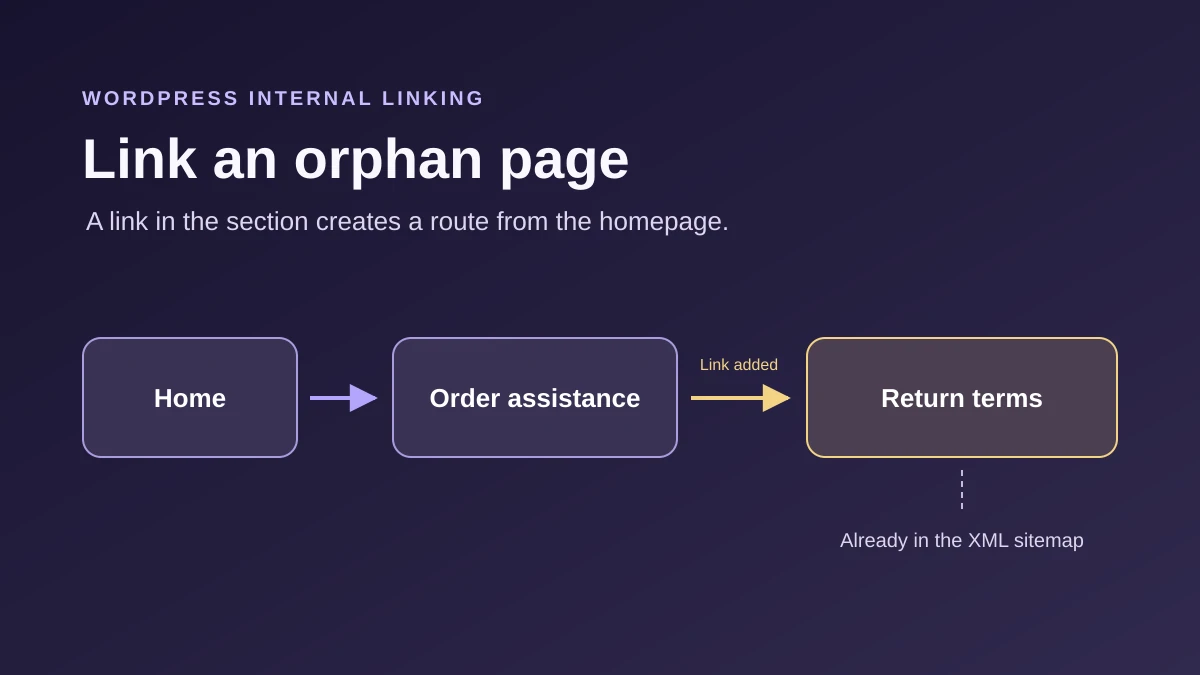
On an authorized copy, prepare a “Return policy” page and an “Order help” category page. Link the category page from the homepage without yet adding a link to the return policy. Separately check that the policy page is public and present in the sitemap, then try reaching it by following links from the homepage. This proposed test illustrates the difference between an XML inventory and a public journey; it does not report a test performed on your site.
To check a page on your site, first open its address in a private window and record the final URL and title. Then open the public XML sitemap, followed by the corresponding page sitemap if the first document is an index. Search for the final URL in a loc tag. Record its presence or absence in the Inventory column. Then return to the site homepage and follow visible links as a visitor. Record the pages traversed in a separate column. You can thus keep two different results for the same URL.
If direct access returns a 404, resolve the address or access issue first. If the XML sitemap will not open, use the WordPress sitemap guide suggested below this article and keep your inventory of published pages to continue working on the journey.
Check that the page carrying the link is itself accessible
Start with a destination and source category page already accessible to the public. On the copy, add a contextual link in the category page to the destination, then start again from the homepage. The expected result is a complete journey to that page. Then remove only the added link to verify your rollback. The address’s prior presence in the sitemap must be recorded separately: it does not prove that an HTML journey exists.
To reproduce the test in the editor, select a sentence in the category page that introduces the destination. Link the words describing the expected answer, paste the public URL, and save the category page. In the private window, start again from the homepage instead of opening the preview. Click the link to the category page, then the new link. The expected result is the correct final page with the promised text. If the check fails, restore the original sentence or remove only the link, save, and repeat the same journey.
A counter can report an incoming link from a page that itself belongs to an isolated group. To sort these cases on a larger site, distinguish sources found in the record from sources reached from the homepage or another agreed public entry point. When a source is absent from the journey, check it before marking the destination as connected. An intermediate category page helps a visitor only if there is already a route to open it.
Keep a record that allows the correction to be checked
For a small site, record the starting page, link label, and destination actually displayed. For a larger batch, add the scope traversed and record date, then compare it with the public inventory. If a URL parameter actually identifies a page, such as ?page_id=73 with plain permalinks, keep it in a record separate from this guide’s CSV script. Removing that parameter would make several different pages look like the homepage.
If your crawl reads only the received HTML, separately identify menus or lists that appear after JavaScript executes. Check these journeys in a logged-out browser, then record which are confirmed and which remain to be inspected. For a multilingual category, make a record for each edition when menus and destinations differ. You can repeat the same clicks after a redesign without mixing entry points.
Once the link is published, record the route again from the starting page. If the category appears in several menus, keep the example that matches the visitor’s need. The measured result here is opening the destination through a public HTML link. To track indexing, keep a separate measure in your SEO monitoring.
Distinguish observed links from genuinely accessible sources
The local script supplies candidates, not exhaustive proof of isolation. It accepts a link whose source appears in your CSV without demonstrating that a visitor can reach that source from the homepage. Two pages A and B linking to each other can therefore disappear from the results while their group remains isolated.
To check this case without installing a plugin, add a “route from the public entry point” column to your notes. Start at the homepage or a genuinely accessible category page; record every intermediate page through to the link’s source. A source whose route remains unknown does not yet validate the destination. Do not mix a link seen in a draft with one rendered on the public page.
A developer automating this check must retain Source/Cible pairs, not merely a list of destinations. The calculation involves traversing links from the selected entry points and comparing the reached pages with the expected inventory. Handling of languages, public parameters, and redirects must be defined separately; normalization that erases their meaning can manufacture false results.
After adding a link, repeat the journey from its starting point and verify the final content while logged out. To undo it, remove that link from its source while preserving the target page. Yoast’s free counters can help sort candidates if they already exist on the site, but do not replace this check of the complete journey.
Sources and references
Use these references to check the features, requirements and limitations described. Reading documentation is not a practical test.
View 17 references
- Google: HTML links and context ↗
- WordPress: Paragraph block ↗
- WordPress: Navigation block ↗
- WordPress: classic menus ↗
- WordPress: Site Editor ↗
- WordPress: Page List ↗
- Google: the role of a sitemap ↗
- Search Console: Links report ↗
- Yoast: link counters ↗
- Yoast: features ↗
- Yoast: link suggestions ↗
- Yoast SEO: compatibility ↗
- WordPress: revisions ↗
- WordPress: backups ↗
- Microsoft — Import CSV files in PowerShell ↗
- Microsoft — Ordinal string comparison ↗
- WordPress — Content URLs in the native XML sitemap ↗