

Check what the update actually overwrote
After a theme update, a particular color, added text or custom behavior has disappeared. If that change was made directly in the parent theme’s files, replacing those files may have overwritten it. The desired result is to recover the addition, then place it somewhere intended for your customizations.
Start by recording the active theme, its version and the missing element. Check whether a child theme was intended but is no longer active. Also distinguish a file change from a setting saved in WordPress: Additional CSS, global styles and custom templates may belong to the database. A different appearance alone does not prove code was deleted.
This guide concerns a self-hosted site with an identified customization. The native CSS approach requires administration access. File recovery and a child theme require authorized access to archives and files, plus skills appropriate to the code involved. Do not restore the entire site to look for a single visual change.
Preserve the current state and find matching versions
First keep a current backup of the files and database, along with the updated parent theme. It protects fixes and data added since the old customization. Record the exact parent folder name, any child theme and their versions before replacing a file.
Then look for a file backup predating the update, a ZIP kept by the administrator or a version-controlled copy. A database-only backup does not contain the theme’s old PHP and CSS files. Conversely, a theme-only archive does not restore styles and templates saved in the database.
Download or extract the required items into private storage and examine a copy. Complete archives may contain secrets and data: do not put them in a public directory or send them to an online comparison tool without understanding their contents. Prepare tests on a site copy whose real external operations are disabled.
Separate parent files from saved customizations
An addition in the parent’s style.css or footer.php follows the files distributed by its author. Additional CSS entered in WordPress and editor customizations may be associated with the theme in the database. If the active theme changed, these settings may no longer appear in the same context without having been erased.
Before recovery, open the location where the change was made. For a classic theme, examine Appearance, Customize, Additional CSS. For a block theme, check Appearance, Editor, Styles and the relevant template. Remain read-only at this stage and note what is still present.
If the setting exists but no longer produces the intended effect, the new version may have changed its structure or CSS classes. Adapt the addition to the current theme rather than blindly copying an old file. If an editor customization takes precedence over a template file, a file change may also remain invisible. Identify that layer before concluding there is a permanent loss.
Approach 1: recover old files without restoring the entire site
This approach applies if you have an earlier file archive and authorized access to its data. From the backup tool or local archive, recover the relevant parent theme folder into a private working directory. The goal is to find additions, not put that old version back on the public site.
Keep three sets separate: the old customized parent, the unmodified official distribution of that same old version and the current parent. The first comparison must be between the two old versions with the identical version number; otherwise the author’s normal changes will mix with your additions.
- Identify the earlier backup and extract a copy of only the relevant theme without executing its files.
- Find the official distribution matching that exact version, from an authorized source or an archive already kept.
- Compare the files containing the customization and record added or changed lines.
- Prepare to port only these differences to the current version and their appropriate destination. If no old source is available, ask the administrator for copies; do not reconstruct unknown code from a screenshot.
Compare a file locally with Git, if already available
You can use a local comparison tool or an existing Git installation with the --no-index option. This command compares two files without creating a repository or applying differences. Run it in your private working folder; the example paths are fictional and must identify the old official file followed by its customized copy from the same version.
Lines prefixed with minus and plus show differences between the two files. They may also reveal changes unrelated to the customization: review the context. Exit code 1 means differences were found; it is not by itself a read error.
The example options disable external comparison and conversion helpers. Do not execute PHP to see the result or publish the diff if it reveals private information. Keep the original intact; no site change has been applied yet.
git --no-pager diff --no-index --no-ext-diff --no-textconv -- "reference-ancienne/footer.php" "sauvegarde-personnalisee/footer.php"Choose a destination for each recovered customization
Classify differences by role before restoring them. A few CSS rules often belong in native Additional CSS. A template change may belong in the editor or a child theme file. A PHP function requires checking its role and dependencies; its presence in the old functions.php does not mean you should copy that entire file.
Start with native settings that actually reproduce the need. The current parent may now offer an option replacing your old workaround. Check that option on the copy with the same content, then retain before-and-after values. If it meets the need, document the change rather than reintroducing unnecessary code.
- For a color, spacing or targeted visual rule, use Styles settings or Additional CSS after checking selectors.
- For a template, start from the current file and port only the compatible difference into the child, or prepare its customization in the editor.
- For PHP, recover only your identified addition; have parent-dependent functions adapted before loading them.
- For functionality that must survive any theme change, arrange a separate maintained location outside the parent rather than a wholesale copy.
Recover CSS in a classic theme’s Customizer
This approach suits identified visual rules compatible with the current structure. It requires permission to customize appearance. Additional CSS is associated with the theme; keep a private copy before any change. A later theme change can therefore alter the context in which those rules apply.
Do not paste the parent’s entire old style.css. That file may contain thousands of rules that have since changed, plus the theme header. Take only the recovered personal additions and check their selectors on the site copy. A class that no longer exists will not regain its effect by repeating the same rule.
- Open Appearance, Customize, then Additional CSS if your classic theme offers this screen.
- Copy the current contents into private storage, then add one identified customization.
- Examine the preview on affected pages and small screens before publishing this setting.
- Save when the result is correct, then check the public site in the intended context.
- To undo the addition, restore the CSS contents recorded before the attempt. No parent file needs replacing.
Restore CSS in Styles with a block theme
For a block theme, start with native Styles settings when they meet the need. Global Additional CSS lets you restore a remaining rule. Since WordPress 6.9, its access is in the three-dot menu in the Styles page header; its location therefore differs from some old screenshots.
Choose global CSS if pasting a complete rule with a selector and braces. A block type’s CSS fields may expect only property declarations. Do not put PHP or a complete parent stylesheet in any of these fields.
- Open Appearance, Editor, then Styles and the three-dot menu in its header.
- Choose Additional CSS, then keep a copy of the existing contents.
- Add only the recovered, adapted rule, then check its preview with the affected blocks and templates.
- Save the prepared setting and check the target page. To roll back, restore the field’s previous contents.
- If the rule does not apply, check the theme’s structure and context before changing another location.
Approach 2: prepare a child theme for the necessary files
A child theme is suitable when the customization must remain in theme files. First use the product’s official child theme if supplied and appropriate. If one already exists, preserve its files and add only necessary items. The following example concerns a simple new child, to prepare on a copy with file access and knowledge of their organization.
In the confirmed themes directory, usually wp-content/themes, create a separate folder such as atelier-enfant. In cPanel, Files then File Manager lets you create this folder; you can also transfer files through authorized SFTP. In this folder, create style.css as UTF-8 text with the header below.
Replace mon-theme-parent with the exact folder name of the installed parent. The displayed product name may differ. Do not merge folders or activate the child on the public site yet. Its CSS will not necessarily load automatically: check the following case. The parent remains installed; the child becomes available in Appearance, Themes. If recognition fails, check the filename, header and parent before continuing.
/*
Theme Name: Atelier enfant
Template: mon-theme-parent
Version: 1.0.0
*/
Load the child’s CSS only in the confirmed case
Examine how the parent loads its stylesheets, according to its documentation and wp_enqueue_style calls. If it already loads the child’s stylesheet, add nothing. The code below applies only to a parent loading its own stylesheet but not the child’s style.css. It is not a universal recipe for every classic or block theme.
Only in the child’s functions.php, use this block to load its stylesheet after the identified parent stylesheet. Replace HANDLE_PARENT_CONFIRME with the handle actually registered by the parent. Without that verification, do not paste the example; use native CSS or have loading adapted. Keep the atelier-enfant-style name unique.
For a new file, retain the PHP opening shown. For an existing file, add the block within its PHP context without a second opening or deleting other functions; keep a private copy before adding it. Then port your rules into the child’s style.css, check their loading on the copy and remove the added block if the result is incorrect. The child’s Version number can be increased when its stylesheet changes to refresh its cache version.
<?php
add_action( 'wp_enqueue_scripts', function () {
    wp_enqueue_style(
        'atelier-enfant-style',
        get_stylesheet_uri(),
        array( 'HANDLE_PARENT_CONFIRME' ),
        wp_get_theme()->get( 'Version' )
    );
}, 20 );
Port a template from the current parent version
For a template supported by the override mechanism, start from the current parent file, not the entire old file. This preserves the author’s changes. Port the identified personal difference after checking it remains compatible with current functions and structure.
Classic templates and parts loaded through WordPress mechanisms may be searched for in the child. An arbitrary file included directly through a fixed parent path does not necessarily follow that rule. Check how it loads before concluding that copying the same name is sufficient.
- On the copy, copy the relevant current template into the child while preserving its name and relative path, for example template-parts/footer/site-info.php if that is genuinely the product’s file.
- Port only your recovered change, without replacing the whole file with its old version.
- Activate the prepared child on the copy and check the page using this template.
- To undo this override, restore the previous child file or remove only the identified new file. For a block theme, also check for a custom template saved in the database, which may override the file.
Recover a functions.php addition without duplicating the parent
The child’s functions.php loads in addition to the parent’s, not in its place. Copying the entire parent file into the child can redeclare the same functions and cause a fatal error. Recovery must therefore concern only your addition identified in the old comparison.
On the copy, preserve the existing child functions.php, then prepare the personal addition in this file only if it truly belongs to the theme. Check its function names, calls, dependencies and when hooks are used. A parent function not designed for replacement cannot simply be redefined under the same name.
If the addition relied on a removed function or behavior changed by the new parent, have that point adapted before loading it. Do not disable updates to keep an old file indefinitely. When product-specific development is required, send the diff and context to the technical administrator; this guide cannot invent a replacement for code that has not been identified.
After the prepared addition, check administration loading and the relevant function on the copy. If an error occurs, restore the previous child file through the retained file access.
Test on the copy, then plan a return to the previous state
Check the home page, an inner page and views where the customization applies. Also check the administration area, small screens and the affected function. If you activate a child while the parent was active, examine theme-associated settings and CSS: do not assume they automatically transfer into the new context.
Rollback depends on the change made. A native rule is undone by restoring the field contents recorded before the attempt. A child file is undone with its previous copy. A theme switch can be undone in Appearance, Themes by reactivating the one that worked. These rollbacks do not undo every import or other data change made meanwhile.
If the child causes a PHP error that closes administration access, use the retained file access to restore only the modified file, then check the site. Do not put the entire old parent back online to erase an addition error. Once tests succeed, apply only the prepared changes to the live site during the agreed window, with its backups and the same checks.
Preserve the customization during the next update
Keep a brief record: need met, file or field used, parent and child versions, recovered difference and result check. Keep the child and its additions in your backups, separate from official distributions. The parent should remain as close as possible to what its author supplies.
A template overridden in the child does not automatically receive changes to its parent counterpart. During subsequent updates, compare this template with the new parent and maintain your difference. A child protects the addition’s location; it does not guarantee permanent compatibility with every product evolution.
If no copy of the old change exists, gather screenshots, descriptions and any files held by the administrator. They can help reconstruct the need, but cannot support a promise to recover disappeared code exactly. In that case, prepare a new controlled adaptation instead of replacing files with those from a similar theme. The goal is a recovered or rebuilt customization, documented and maintainable without editing the parent again.
Observe what replacing the parent actually changes
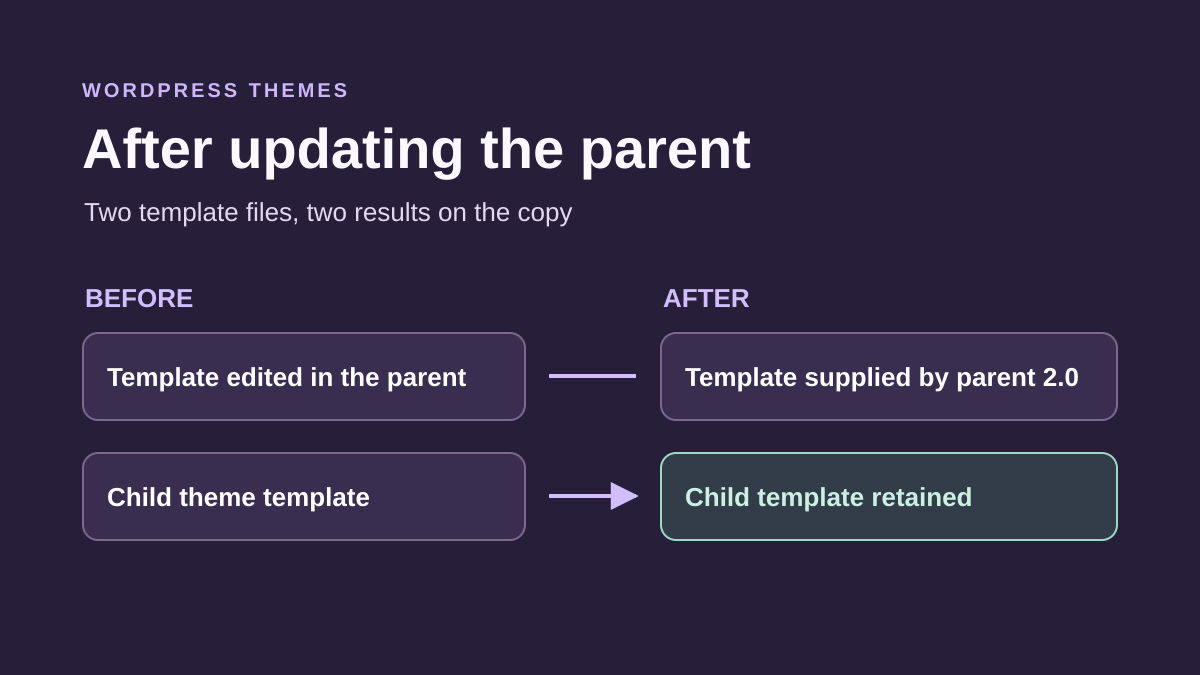
When an update replaces the parent folder, a change made directly in a distributed file may disappear. A setting retained in the database follows another mechanism. To verify your case, compare the file before and after, and check the active theme’s Additional CSS separately.
To verify the case on your copy, record the active theme’s name and version in Appearance, Themes. In the backup, locate the file that rendered the affected text, class or block. Compare it with the current version of the same file and, if available, the original package matching the backup. The desired result is an identifiable change with its location and page effect. Record the filename and a reference phrase. You can search for that phrase after changing the theme or updating again on the copy.
Test overrides and inheritance in the child theme
To check inheritance, choose one part overridden in the child and another left to the parent on the copy. After a prepared update, the first should retain your change and the second should follow the new parent version. Record the actual result and the child file’s fingerprint; do not assume an arbitrary file included directly by the parent follows standard lookup.
On a classic theme copy, identify the call loading the template part. When the parent uses standard template lookup, create the file at the same relative path in the child. Start from the current version’s template and port the identified change. After activating the child, load the reference page and then a second page using the same part. Check both the custom marker and a part the child leaves inherited. If the parent uses its own path pointing directly to its file, look for the theme’s intended extension point before creating another copy.
Then replay the update on the copy. If the custom marker disappears or the parent template’s structure changed, compare the override with the new file version and check the data it expects. To undo the activation test, reactivate the previous theme and check the page again. Restore the copy’s complete snapshot if you also need to restore file versions and their settings.
Record theme-associated CSS before switching
WordPress Additional CSS is associated with the theme context. Before switching from parent to child, record that setting’s contents and compare after activation. Stylesheets loaded from files follow their own mechanism and must be checked separately.
Before switching your copy to a child theme, keep a copy of the active theme’s Additional CSS. After activation, open the new theme’s CSS setting, port only necessary rules and check their effect at usual widths. If a rule distorts another page, remove the addition in the new theme and reload the reference pages. This targeted rollback preserves other customizations present on the copy.
Plan maintenance of the overridden template
The child theme protects your file from direct parent replacement, but it can also preserve an old structure too long. For each copied template, record the parent version used as the basis and the purpose of modified lines. At the next update, compare the new parent template with that reference before porting your difference.
If the customization only adds text or a class, first look for a setting or hook documented by the theme. A targeted extension point can avoid copying an entire template and reduce maintenance work. Do not move business code into the child theme without review: order or permission functionality must remain independent of visual choice when necessary for the site.
After activating the child on the copy, check menu locations, theme-associated CSS and saved custom templates. The recovered file and final output are two distinct pieces of evidence. No child theme generator can automatically recover a disappeared change for which no copy exists.
Sources and references
Use these references to check the features, requirements and limitations described. Reading documentation is not a practical test.
View 18 references
- WordPress: child themes and limitations ↗
- WordPress: loading theme assets ↗
- WordPress: native Customizer CSS ↗
- WordPress: Styles and current Additional CSS ↗
- WordPress: theme functions ↗
- WordPress: loading child files before parent files ↗
- WordPress: template parts and overrides ↗
- WordPress: CSS dependencies and versions ↗
- WordPress: theme header ↗
- WordPress: editor templates ↗
- WordPress: backups ↗
- WordPress: Themes interface ↗
- cPanel: targeted files and folders ↗
- Git: comparing files outside a repository ↗
- WordPress: saved templates followed by child files ↗
- WordPress: template hierarchy and page context ↗
- WordPress — Replacing a theme from a package ↗
- WordPress — Reading Additional CSS by theme ↗