

Identify the problem before moving sections
In a table of contents, you click Pricing and land at the top of the page, in another section, or far enough down that the heading is hidden by the fixed menu. These three results do not indicate the same cause. Start by recording the resulting address and the location actually displayed.
A section link address consists of a page and a fragment after the # character. The path opens the page; the browser then interprets the fragment and searches for the target in the document. An accessible page can therefore contain an anchor link that does not work.
If the browser reaches the correct page and adds the correct fragment, check whether the target exists and appears only once. If the browser lands near the correct heading but it is under the header, the destination may be correct: the final scroll position needs correction.
Record whether the link is in the body, a generated table of contents or the shared menu. A link that works from its own post can fail from another page when it contains only the fragment. This guide distinguishes that destination error from the visual offset.
- Wrong page: correct the link path.
- Correct page, wrong location: inspect the target identifier.
- Correct section, hidden heading: check the header and scroll margin.
- Different result by device: compare the template, menu and public rendering.
Preserve existing links and identify the scope
The first procedure suits an author authorized to edit the document. For a menu, template or shared styles, involve someone who already has the corresponding permissions. Adjusting a single target does not require changing the entire publication's theme.
Record the page, link label, full destination and block intended to receive the jump. Keep a page copy or the template's original values. A table of contents may be in the text while the heading is rendered by a shared pattern; locate both places before saving.
Identify links already distributed to this section, especially in neighboring pages, navigation or documentation. Changing the target identifier can break those links without changing the page's main address. Because the fragment is not sent with the page request, an ordinary server redirect cannot choose a new section by reading that old fragment.
Choose a control page and a second screen width. On a computer, record the header visible at the top of the page and after starting to scroll. On a phone, check whether the menu collapses or leaves a fixed bar. These differences guide the correction without adding unnecessary spacing everywhere.
The expected result is a reproducible case with initial addresses and settings. Rollback restores the affected anchor and links, plus CSS if you add any. It requires neither a full restoration nor changes to the site's permalinks.
Method 1: correct the right block's anchor
Open the document and enable List View. Select the Heading block that should serve as the target. In the block settings sidebar, open Advanced, then HTML anchor. If this field is missing, check that you have not selected text in another area, an incompatible block or a locked template part.
Enter a short, stable identifier, for example tarifs, without the # character. A simple lowercase value, separated by hyphens if necessary, is easier to review and avoids differences in case or spaces. The identifier must remain unique in the rendered document, including elements added by the template.
Next, select the table-of-contents text or button and open its link setting. For a target on this same page, enter #tarifs. Confirm the link change, save the intended document and check its authorized public version. Do not rely only on the jump within the editor.
A heading's wording can change without changing the anchor. If a fragment is already in use, keep it whenever possible. An explicit, stable identifier lets you update heading text without depriving already distributed links of their destination.
The expected result is a link reaching the correct block. To roll back, restore the previous anchor and destination together. Check that no other heading uses the same value before concluding that the old behavior is restored.
Correct a link originating on another page
If the link is in the shared menu or another document, a fragment alone targets the currently open page. On the page where the heading exists, this may work by chance. From another page, the browser will search for the same identifier in the wrong document.
Open the target page and record its current public address. In the link setting, enter that page's path followed by the fragment, for example /prestations/#tarifs on the same site. If a different domain, subdirectory or language version is required, use the full address corresponding to that destination.
For a native menu, open its navigation under Appearance, Editor if the theme uses blocks, or Appearance, Menus if the classic theme provides that screen. Select the existing link and replace its address without recreating the entire navigation. Check that the correct menu appears on computers and phones.
Compare opening the link from two different pages. If the target page moved, first correct its path in links you control. A path redirect may retain a fragment in some flows, but it does not recreate the corresponding identifier in the destination document.
The expected result is opening the same section from every intended location. To roll back, restore the saved destination in the relevant menu or button. Keep address correction separate from identifier correction.
Method 2: find a duplicate or generated target
If the address is correct but the jump reaches another heading, inspect the public document. In browser tools, open Inspect or Elements and search the document for the fragment's identifier, for example id="tarifs". Check results instead of relying only on heading text.
Two visually different headings may share an identifier after duplicating a block. A footer block or repeated pattern may also add an unexpected target. One occurrence in the page editor does not prove uniqueness once the template is assembled.
In the responsible document or template, assign a different anchor to the occurrence that should not retain the old link. If both sections have a table of contents, also correct the link associated with the second. Keep the historical identifier on the section existing links were intended to reach.
For a generated table of contents, first determine whether the component creates identifiers from headings or uses already saved anchors. Check its current settings and compare one page. Do not create a second table of contents or new identifier series without understanding what is rendered.
The expected result is one element matching the fragment on this page. Rollback restores the values recorded on the copy. If the duplicate returns through a synced pattern, correct its source or detach the affected occurrence only after checking the pages sharing it.
Compare both anchors before and after rewriting
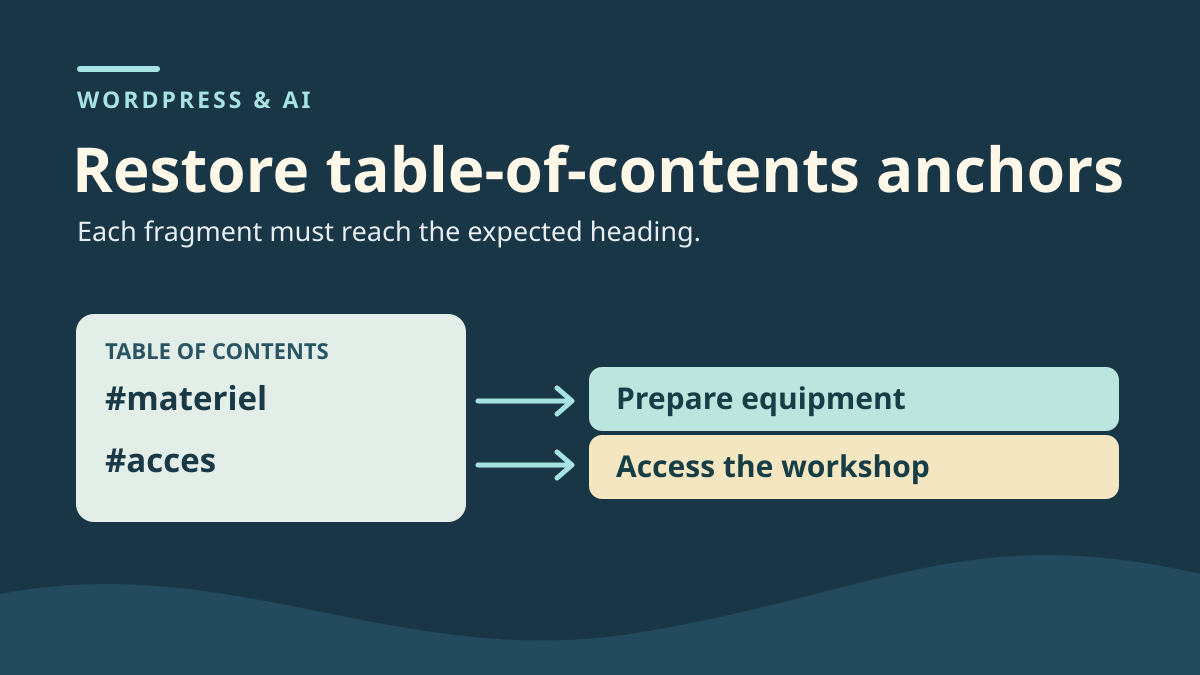
In a fictional post, the table of contents contains ‘Préparer le matériel’ and ‘Accéder à l’atelier’. Initially, the headings have anchors materiel and acces respectively. Keep the block body and both full addresses with their fragments. These are the addresses another page or reader may already use to reach the correct heading directly.
On a copy, simulate a rewrite that assigns the first heading the acces anchor and points both table-of-contents entries to #acces. The second heading retains its identifier. The ‘Accéder à l’atelier’ link still displays the correct fragment in the address bar, but the browser reaches the first heading carrying that identifier. The old address ending in #materiel no longer finds a target. In this case, changing only the link text or adjusting scroll offset leaves the conflicting identifiers in place.
Keep two reference points in the staging record. The first is the requested fragment. The second is the heading actually reached. For the Accéder à l’atelier link, these reference points can contradict each other even if the address has not changed. Check both table-of-contents entries and the old addresses with their fragments. You can then repair identifiers from the healthy version while retaining the approved rewritten text.
Restore the initial identifiers in the editor
In List View, select the ‘Préparer le matériel’ Heading block. In the block's advanced settings, open HTML anchor and restore materiel. Check the second Heading block. It must retain acces. Then return to the table of contents and correct the ‘Préparer le matériel’ link to target #materiel. Leave ‘Accéder à l’atelier’ targeting #acces. In the anchor field, enter only the identifier. The # sign belongs to the fragment of the link address.
If the block comes from a generated table of contents, correct the headings and identify the component calculating the links. Then check the regenerated table of contents. In this exercise, it is a manually editable list of links. When the Heading block is normally editable, use its anchor setting to avoid changing its comments or other blocks' structure.
To diagnose a pasted fragment or a result that remains unexpected, open the block code or inspect the visitor DOM after saving. Search for both exact values in id attributes and compare the table of contents' href destinations. In the faulty state, id="acces" appears twice and id="materiel" is missing. Search the entire page for the same identifier outside the post. The fragment resolves within the document even if the duplicate comes from another block or the template.
<a href="#materiel">Préparer le matériel</a>
<a href="#acces">Accéder à l’atelier</a>
<h2 id="materiel">Préparer le matériel</h2>
<h2 id="acces">Accéder à l’atelier</h2>
Check both paths and restore the healthy version
Reload the copy after saving. Click each table-of-contents entry and identify the heading actually reached. Also open both old addresses in a new tab. If #acces remains in the address bar but arrival is wrong, inspect the target and search for the identifier again. In the corrected staging example, each value appears once, both links and both direct visits reach the expected headings, and the new introductory sentence remains in place.
To undo the test, restore the copy's reference revision. If the document received other changes, restore only the affected blocks and links from the record. Repeat all four paths. Returning to the reference must restore both anchors and, if you restored the entire revision, the original introductory text. Check that the body and rendered fragment return to their starting values. This rewrite is a demonstration scenario to reproduce; no execution screenshot is provided here. Check targets in the browser after saving. The editing interface and offset beneath a fixed header remain separate checks.
Method 3: reveal the heading beneath a fixed header
If the correct heading is reached but remains hidden, compare the header's height at the moment of the jump. Do this in the public view without the administration bar and at several widths. A header may become taller, shrink or stop being fixed depending on screen size.
In the editor, select a Group block that actually contains the target heading. Under Advanced, Additional CSS class(es), add parcours-visite without a leading dot. Check that the heading has the tarifs anchor. Both values are examples to adapt to your document.
With permission to edit styles, open Appearance, Editor, Styles, then Additional CSS in the Styles area menu. For a classic theme providing it, use Appearance, Customize, Additional CSS. Save the existing CSS before adding this rule to the site's CSS area, where a complete selector is expected.
Adjust 6rem to the space actually occupied by the header and the desired reading gap. The rule targets only the heading within the identified Group. If height differs substantially between phone and computer, adapt the setting narrowly after measuring. Do not add visible margin to every section to correct one jump.
The expected result is a visible heading after opening the link without changing its destination or the page's normal layout. If the theme scrolls an internal container or a script imposes its own position, inspect that mechanism before increasing the value. Rollback removes only this rule and, if used for nothing else, the added class.
.parcours-visite #tarifs {
  scroll-margin-top: 6rem;
}
Handle hidden sections and intercepted jumps
If the target is inside a closed panel, click-loaded area or tab, check its presence in the document on arrival. A fragment does not tell every component to open its content. If reading the section is essential, put the anchor on a visible heading or use the component's intended mechanism.
On a copy, add a simple text link to the same anchor outside the suspected menu or table of contents. Compare its behavior with the original link and with opening the address directly in a new tab. If the simple link works, the fault may lie in behavior added by the menu rather than the identifier.
On a phone, also check that the menu closes after clicking. A panel left open can cover the section even when scrolling is correct. Do not correct this with an enormous margin: it does not close the panel and offsets other paths too.
If a script controls the jump or animation, record the first console error and compare with native behavior on the copy. Reactivate tested components at the end of the comparison. Do not add a second scrolling script to hide the first.
The expected result is an isolated cause: hidden target, menu covering the page or replaced jump behavior. Rollback removes the test link and restores component configuration. Keep the correct anchor setting during this comparison.
Check the destination by keyboard and at several widths
First open the full address with its fragment in a new session. Check that the heading is visible and the expected text follows immediately. Repeat from the page's table of contents, then from another page if a shared link should reach this section.
Navigate the table of contents by keyboard. The link must be reachable, have a meaningful label and allow reading to continue after activation. Check focus position and the visibility of its indicator in the browser actually used. A scroll-margin rule alone does not correct lost focus or an inaccessible link.
On a phone, try a width where the heading wraps onto two lines. Also test enlarged text if the site supports it. A header height measured at one width may still hide part of the heading when the menu changes size.
Compare a section that was not changed. The targeted CSS rule must not needlessly shift other anchors or the normal layout. If you notice an effect elsewhere, check the selector and Group before adding a stronger override.
The expected result is a reliable jump with a readable heading and usable navigation. If anything differs, record the width, address and exact behavior to adjust only the responsible layer.
Keep a list of useful anchors for future edits
Document the page, old fragment and selected fragment, then the places linking to it. For a generated table of contents, state which setting or component creates identifiers. The next person can then change a heading without accidentally renaming an already used destination.
If you added CSS, keep the selector, chosen value and measured result at the main widths. Rollback must be able to remove only that rule. If the header changes later, recheck the margin instead of duplicating settings on every page.
The issue is resolved when intended links reach the correct section and its heading stays visible. Keep useful historical anchors and remove only diagnostic elements no longer needed. A final check on neighboring pages confirms that shared links retain their destinations.
Count targets in the assembled document
To check an anchor without modifying the page, open the browser console in the visitor view and adapt the target value. The code counts every occurrence of that identifier, including template occurrences.
Zero results mean the target is missing from the current DOM; one result lets you check the text and tag; multiple results confirm a duplicate identifier. The code tests neither scrolling nor focus. An area loaded after interaction must be examined after it appears.
Use this record before adding CSS: scroll-margin-top does not distinguish two elements with the same identifier. Correct the erroneous occurrence's source in the free editor, then reload and repeat. Next test the link from another page and the full address with its fragment. To undo the correction, restore the affected anchor and link together; this read-only probe leaves no change in WordPress.
(() => {
  const cible = 'tarifs';
  const elements = [...document.querySelectorAll('#' + CSS.escape(cible))];
  console.table(elements.map(element => ({
    balise: element.tagName,
    texte: element.textContent.trim().slice(0, 120)
  })));
  console.log('Nombre de cibles :', elements.length);
})();
Sources and references
Use these references to check the features, requirements and limitations described. Reading documentation is not a practical test.