

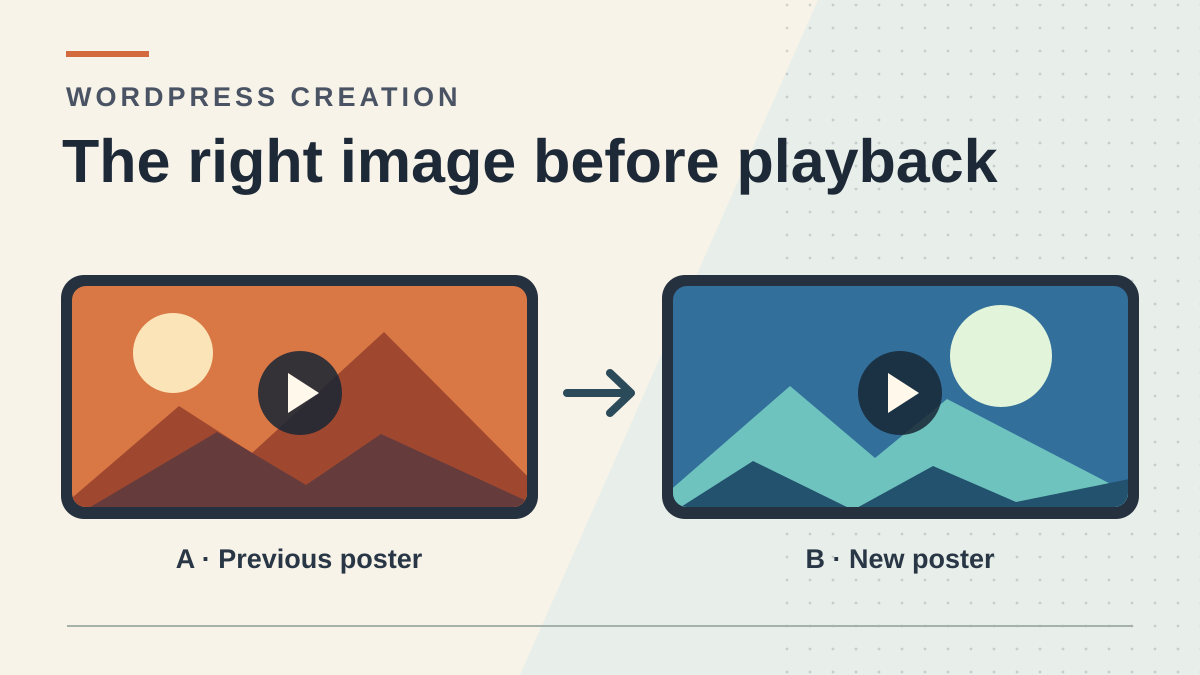
Identify what appears before playback
Your video plays correctly, but the image visible before clicking is old, black or different from the one selected. Start by identifying what displays this image. On a WordPress page, the same photo can serve as a post cover, a player poster and a thumbnail in a video service. These locations have separate settings. Changing the page's featured image may fix the blog card without affecting the player.
In the page editor, open List View and select the block actually containing the video. If WordPress identifies it as “Video” and the block plays a file, look for the poster image setting in that block's settings. A Cover block with background video creates a visual section. A YouTube block or an embed in an external frame delegates display to another player. If a thumbnail appears in a grid before the page even opens, check the grid template and featured image instead of the player.
In the native Video block, the poster is the image the browser may show before playback. Its URL is saved in the poster HTML attribute of the video tag. Without a usable poster, the browser may show another image, such as a first frame when available, or leave a blank area. A preview that starts immediately leaves little time to observe the poster. To isolate this point, disable autoplay on the test page. Keep the video and its text tracks unchanged.
Next, distinguish three situations. The poster address is absent from the rendered page, the address is present but points to the wrong file, or the address is correct but the received file differs from what you expected. Each leads to a different check. Two unmistakably different images make this comparison faster than a series of blind reloads.
Prepare two images that cannot be confused
Run the test on a local copy with a short video whose content and rights are known. A dummy video is sufficient. Prepare two images of the same size and proportions close to the video's. For example, use an orange rectangle marked “A” and a blue rectangle marked “B”. Give them distinct names, such as affiche-a-orange.png and affiche-b-bleue.png. Do not replace a file's bytes while retaining the same name and URL for this test. Otherwise, an old cached copy and a setting error would be difficult to distinguish.
Create an “Essai affiche vidéo” page and insert the native Video block. Select the short file from the copy's media library. Avoid external services for this control case. Enable player controls so playback can start manually, and check that autoplay is off. Publish this page only on the local copy if you want to compare the logged-out visitor view. A draft provides its logged-in preview but does not give you the same response as a page visible to visitors.
Record the video filename, block used and page's local address. Also note its text track if it has one. The only variable to change in the first comparison is the poster. Start with A, display the page and observe the orange rectangle before clicking. Only then replace A with B. The expected result is a blue rectangle before playback and the same video after clicking. Return to A to verify that you can undo the test.
If starting from an existing page, keep the old image in the media library and record its URL before replacing it. Several pages may share that file. Change only the selection in the affected block, without deleting the media or reimporting it elsewhere. A page copy or revisions may help compare the original block, but first take a precise reference so you do not restore an entire page when only the poster needs reverting.
Choose the Video block's poster
In List View, select the Video block, open the Settings sidebar and make sure it shows the Block tab. Find the Poster image section, or its translated label. The exact name or location may vary with version or language. If you see only page settings, select the block again. If it is a Cover block or external player, follow the procedure for that component.
- In the selected Video block, use the poster image selection button and choose
affiche-a-orange.pngfrom the media library. Save the page. Open its preview before clicking anything and check that the orange image fills the player area. - Return to the same block, choose
affiche-b-bleue.pngas the poster image and save again. Check the name or thumbnail in the setting. Leave the video file and its other settings in place. - Open the local page in a logged-out window if it is visible to the copy's visitors. Wait for the page to display without starting playback. The blue image is the expected result. Then start the video once and check that the file played is still the original.
- If the video also changes, undo the block change and check that you used the poster setting. The “Replace” command associated with the video file may affect the movie source. Return to the poster image setting to limit the change to the thumbnail.
Compare the preview with the HTML actually received
If the correct thumbnail appears in the editor but the page still displays A, inspect the page where the problem occurs. In Chrome, open developer tools with F12 or the browser menu. In Elements, use the element selector and click the video area. Locate the correct video, especially if the page contains several. The poster attribute may contain a relative path or full address. Compare its filename and path with B's. This is a read-only check. An edit in this panel would disappear on reload.
To distinguish a browser transformation from an already-different response, also examine the HTML document actually received. In Network, open the document-type request for the page, then the Response tab, and search for the video filename or B's name. Do not use the first poster occurrence on a page with several players. Associate each occurrence with the block containing the expected video file. If the address is correct in the response but different in Elements, code loaded by the page may have changed the player after receipt. The theme, player or lazy loading may then be involved. Compare on the copy instead of immediately disabling optimization across all pages.
If B's address is also missing from the page HTML, check that you saved the correct page and are viewing the correct path. A logged-in preview and visitor version may represent two different states. If the visitor response still shows A although B was saved correctly, a page cache or template generating another player becomes a lead. Compare both responses before acting. If a purge is necessary, target the page address in the existing cache tool and repeat the visit under the same conditions. A private window changes the browser context; it does not force a shared cache to regenerate its page.
If the HTML contains B and B remains in Elements, move to the file itself. The next check distinguishes a correct reference to a missing image from a response actually containing the new poster.
Here is the tag to locate in the inspector for this exercise. The video file stays the same and only the poster address changes.
<video controls src="/clip.webm" poster="/affiche-b-bleue.png"></video>Check the file in the Network panel
In Chrome, leave Network open, select “Disable cache” for the browser and reload the page without clicking Play. You can filter by the exact name affiche-b-bleue.png. If nothing appears, first clear the filter and check that request recording is running. Scroll to the player if it is lazy-loaded. No row during this single test does not prove the file is missing. Check that the attribute is present and, if needed, open its address on the copy to make a separate direct request.
Open the image row and examine its final address, status and preview. The expected address must return a decodable image. A 200 status may also correspond to an HTML login page, an error dressed as a page or the old image served at the same address. The Preview tab distinguishes orange from blue. A redirect may be legitimate if it ends at the correct image accessible to the visitor. If it leads to a login page or different file, check the address's origin instead of reusing it. A 304 means the previous response may be reused; it is insufficient to judge its color or content.
If the response is not found, select a file present in the copy's media library and check its new address. If it is denied to visitors but works when logged in, check whether the file is restricted to the private copy, another role or a temporary URL. Keep intended restrictions in place. The poster must be accessible to the same audience as the video and follow the same distribution rules. Do not replace a protected file with an open version merely to eliminate a loading error.
If the response contains A at an address intended to serve B, try a new image with a previously unused filename, then check that the HTML adopts its URL. If renaming resolves the test, you have isolated a difference between two addresses. This does not, on its own, identify the responsible cache. Hosting, a CDN or an image plugin may be involved alongside browser caching. Keep old files while they are used elsewhere. After checking, clear “Disable cache” to revisit with normal settings.
Handle embedded players separately
If List View identifies a YouTube block or another player in an external frame, the native Video block's poster does not control its thumbnail. Inspect only the element surrounding the player on your page. If you see an iframe, thumbnail settings belong to the player provider or the component placing an image in front of that frame. If you see an image with a Play button before the frame appears, instead look for the facade or lazy-loading setting in the block, theme or plugin creating that button. A facade can hide a player whose internal thumbnail is correct.
Without access to that setting, you can provide a local image on your own page with an explicit “Watch the video” link instead of the embed. If the link leads to an external service, make the destination readable. To check the principle without any service, use a second local page as the destination on the copy. This approach suits cases where the embedded player is optional. It changes visitor navigation: clicking opens the destination instead of playing the video in place.
If you own the video and can host it with its tracks and rights, the native Video block is another option. However, replacing an external player with this block changes distribution, hosting load and possibly subtitle or video-quality functions. Compare on a content copy without touching the original embed. To roll back, restore the saved embedded block in the same location. Change neither the post cover nor the entire theme to correct a setting belonging to another player.
Validate rendering and restore the old poster
Repeat the visitor flow on the copy. Open the page without interaction and check that the new image fits the player area. Compare phone and desktop widths. An image correct in Network may still look wrong if the theme crops the video or the file already contains dark bands. Look at the same file opened directly on the copy, then in the page. If only the embedded rendering cuts off the composition, bring the image proportions closer to the video's and check the main subject's position. Rollback consists of reselecting the original file in this block.
Then start playback. Check controls, audio if present and an already-configured subtitle track if it is part of your page. The poster giving way to the movie is normal. Stopping or returning to the beginning does not necessarily reproduce the very first display. For each pre-playback comparison, reload the page and wait for it to display without clicking. If the fault affects only the movie after starting, leave poster diagnosis. You must then check the video source or player according to the symptom.
To restore the initial state, open the Video block and select A, or the image recorded at the start, then save. If no poster was defined, remove the poster selection in the block while retaining the video. Reload the same address as a visitor. In Elements, check the old poster value or its absence; in Network, check the corresponding image when requested. If manual restoration is impossible, compare the previous revision while checking that it does not restore other changes. Keep the current page version safe before a full restoration.
Keep the video and both files until comparison is complete. If you want to remove B after the test, first check that no other block or content on the copy references it. Deleting the image from the media library to see whether the page changes would leave a broken link and is not a rollback check.
Document what must stay independent
Record the page address, block type, intended poster name, value found in the HTML document, final image address and visual result before playback. This record helps isolate the fault if the page changes on the next save. For the exercise, the expected comparison is A with its orange file, B with its blue file, then A after rollback. The video must remain identical throughout. If you could not access the visitor view, state that only the logged-in preview was checked.
For an inconsistent result, use the first diverging observation. A block indicating A calls for an editor correction. A block indicating B with an HTML response still using A calls for comparison of rendering or page cache. Correct HTML and element values with an orange image in the request preview identify the file actually delivered. Keeping this sequence in order avoids reconfiguring the media library when the page still uses the old address.
Finally, keep other settings in their proper places. Alt text for an image used elsewhere belongs to that context. The video name, subtitles and text introducing its content remain necessary according to the viewer's needs. An attractive poster can announce the subject, but it does not make the video accessible without its controls and alternatives. If a photo also serves as the featured image in the post list, check that list separately. You will then know which setting to change if either location changes later.
Record each player's source and poster without changing them
On a staging page containing several videos, this browser-console read displays one row per video element. It does not start playback or change settings. The poster field shows the address resolved by the browser, while sourceDeclaree indicates the attribute directly present on the element.
An empty selected source before media loads is not, by itself, an error. Compare the relevant player's row with the filename and poster in the media library. If affiche is empty, return to the block setting; if it points to B, then check the image response in Network. The result does not prove that the received bytes represent B.
This diagnostic uses free browser tools. Simply close the console to end it. If a URL contains a temporary signature or private access, do not share the full row in a public ticket.
console.table(Array.from(document.querySelectorAll('video'), (video, index) => ({
  lecteur: index + 1,
  affiche: video.poster,
  sourceDeclaree: video.getAttribute('src'),
  sourceChoisie: video.currentSrc,
  lectureAutomatique: video.autoplay
})));
Sources and references
Use these references to check the features, requirements and limitations described. Reading documentation is not a practical test.
View 8 references
- WordPress — Video block poster image and settings ↗
- WHATWG — The poster attribute and video behavior ↗
- Chrome — Network panel reference ↗
- WordPress — YouTube block and external embedding ↗
- WordPress — Media library ↗
- Chrome — Inspecting a request in the Network log ↗
- WordPress Gutenberg — Video block poster attribute declaration ↗
- Official documentation — Record each player's source and poster without changing them ↗