

Define what stopped working
After updating two plugins, a form no longer responds, a block disappears or a screen returns an error. Both changes occurred close to the incident, but that chronology does not automatically identify the culprit. The desired result is a reproducible comparison followed by a correction that restores the feature without deleting its data.
Record the precise action, address or screen, expected result and observed result. Distinguish viewing a form from actually submitting it, opening an order from refunding it and displaying a page from saving it. A troubleshooting attempt must not repeat a business operation whose outcome remains uncertain.
This guide assumes the administration area remains accessible and the problem concerns an identified feature. A critical error blocking the entire site first requires the corresponding recovery process. On a multisite network, have network-level activations checked; deactivating a component may affect several sites and their dependencies.
Record versions and state before changing the site again
In Installed Plugins, record the exact names, versions and states of the two updated components. Call them A and B in your notes to keep the comparison readable, but retain their real names in the intervention record. If you know the previous versions and update times, add them.
In Tools, Site Health, Info, record WordPress, PHP and the active theme. Also note other changes around the same time: a cache setting, theme deployment or template change. A test copy with a different PHP version or configuration does not provide exactly the same comparison.
Keep a screenshot of the message or behavior, without personal data or secrets. For a visual problem, describe what is missing and on which page. For a refused action, keep the exact wording and time. This record will help choose a useful test and avoid repeatedly returning to the same state without knowing what changed.
Prepare a copy and preserve effects already produced
Prefer a copy of the site with its current files and database, plus a restorable backup from before the intervention. Disable payments, emails, synchronization and other external effects on the copy before testing. Changing its address alone does not prevent a connection to a real service.
The native approach changes plugin states on the copy through the administration area. It is suitable if you can reproduce the feature in that environment. A second optional approach uses Troubleshooting to assemble a set of components in the current session; it does not create another database or replace this preparation.
Preserve recent additions to the public site. Restoring an old backup directly to an active store can overwrite orders when the problem concerns a script. During testing, keep a record of every state and result. If no copy is available, prepare a limited intervention with the administrator rather than globally deactivating both plugins for visitors.
Choose a reference feature that exists in the compared states
First identify who provides the feature: WordPress, the theme, plugin A, plugin B or their combination. If A creates your form, deactivating A and observing that the form disappeared is not evidence of a conflict. For a useful comparison, retain the provider and dependencies necessary for the observed feature.
Fictional example: A supplies a form and B changes script loading. On the copy, you can compare the same form with A active and B active or inactive, provided B is not an essential dependency. Use the same account, page and viewing action as the reference. Do not submit the real form merely to observe its display.
If both plugins are required for the feature, a comparison without one deliberately removes part of the system. Record that limitation instead of concluding the remaining one is defective. You will then need to examine shared version requirements and the authors’ compatibility procedure, using a consistent copy of their data.
Approach 1: deactivate only one component on the copy
This approach requires no new plugin. It needs a prepared copy, administration access and identification of the component you can remove without making the reference feature disappear. Deactivation affects this installation: do not confuse its screen with the public site’s screen.
Deactivation may run component-specific actions. It is not an uninstall, but does not guarantee that every setting and task remains identical. Therefore retain the initial state and a backup before testing. If WordPress prevents deactivation because of a dependency, do not bypass that protection in the database.
- In Installed Plugins on the copy, check that A still provides the feature and its necessary dependencies remain active.
- Click Deactivate for B only, if removing it is consistent with the planned test.
- Reload the same reference page and repeat only the viewing action or disabled-effect verification action.
- Record the result and exact component states. Reactivate B to return to the starting point and check whether the symptom reappears.
- If the attempt changes data or settings beyond the active state, restore the consistent copy before another comparison.
Interpret results without blaming a plugin too quickly
A reproducible difference when B is activated or deactivated shows that its presence contributes to the observed scenario. It does not alone prove that B contains the entire defect: A may rely on changed behavior, an integration setting may have become necessary or a third component may be involved.
Also compare both authors’ release notes. Look for changed requirements, dependencies, resource loading or migration. Do not apply a fix intended for another version simply because its title resembles your symptom. Keep the reference and scope of any proposed setting.
- If the feature returns with B inactive and fails again with B active, keep that sequence as evidence of participation in the conflict.
- If it remains broken in both states, examine A, other components and data or environment changes; B is not cleared by a single attempt.
- If the test no longer makes sense without B, mark the comparison as inconclusive rather than a repair.
- If the result varies without a state change, examine caches and test conditions before multiplying toggles.
Record a browser error without repeating a business operation
For a display feature or browser interaction, built-in tools can provide a useful trace. Open Chrome developer tools on the reference page and choose Console. Keep messages related to the load you are comparing; the first red message is not automatically the source of the whole problem.
The Network panel shows resources and calls recorded while it is open. Its Disable cache option concerns the browser cache, not every server or CDN cache. Keep conditions identical between states and restore the option afterwards if you changed it.
- On the copy, open Console, reload the reference page and record the available message, file and line for the relevant error.
- In Network, identify the failing script or request and record its status and component path without publishing private parameters.
- Compare these observations with B active and then inactive according to the prepared approach.
- Do not resend a payment or submission request from the tools. Share only useful evidence, with cookies, tokens and personal data removed.
Compare previous versions only in a consistent state
If you need to know which update introduced the change, prepare a copy from an earlier complete backup. It must include matching files and data, with external effects disabled. Restoring only an old plugin folder on an already migrated database does not reconstruct that situation.
From the same initial state, a comparison can apply only A’s update, then, in another copy or after restoring that starting point, only B’s update. These intermediate states must be permitted by both authors’ requirements. Coupled updates may require versions to advance together; a deliberately unsupported state is not a valid control.
Record versions, step order and result in each branch. The goal is a reproducible scenario to share, not retaining an old unpatched version on the public site. If the backup is unusable or migrations cannot be cleanly undone, have the technical administrator prepare this comparison and continue observations on the current copy.
Approach 2: Troubleshooting as an optional session tool
The standalone Troubleshooting plugin, by Marius L. J., lets you temporarily assemble a set of plugins and a theme for your session. Downloading it from the official directory is free. Check the offered version’s requirements before installation; these details do not guarantee every component combination. The illustrated approach below separately specifies the environment actually used for its screenshots.
Continue to prefer the prepared copy. On the live site, limit this approach to viewing without an expected business effect, after backup and checking cache management with its administrator. The tool attempts to restrict the change to your session; it does not provide a separate database or disable payments, emails or writes by the tested component.
Install the plugin from its official listing through Plugins, Add New Plugin, then activate it through the normal prepared procedure. If you need a ZIP because the server download fails, use only its official package. Explicitly exit the following mode after the attempt. It is unnecessary when native comparisons on the copy suffice.
Enable troubleshooting mode and check its scope
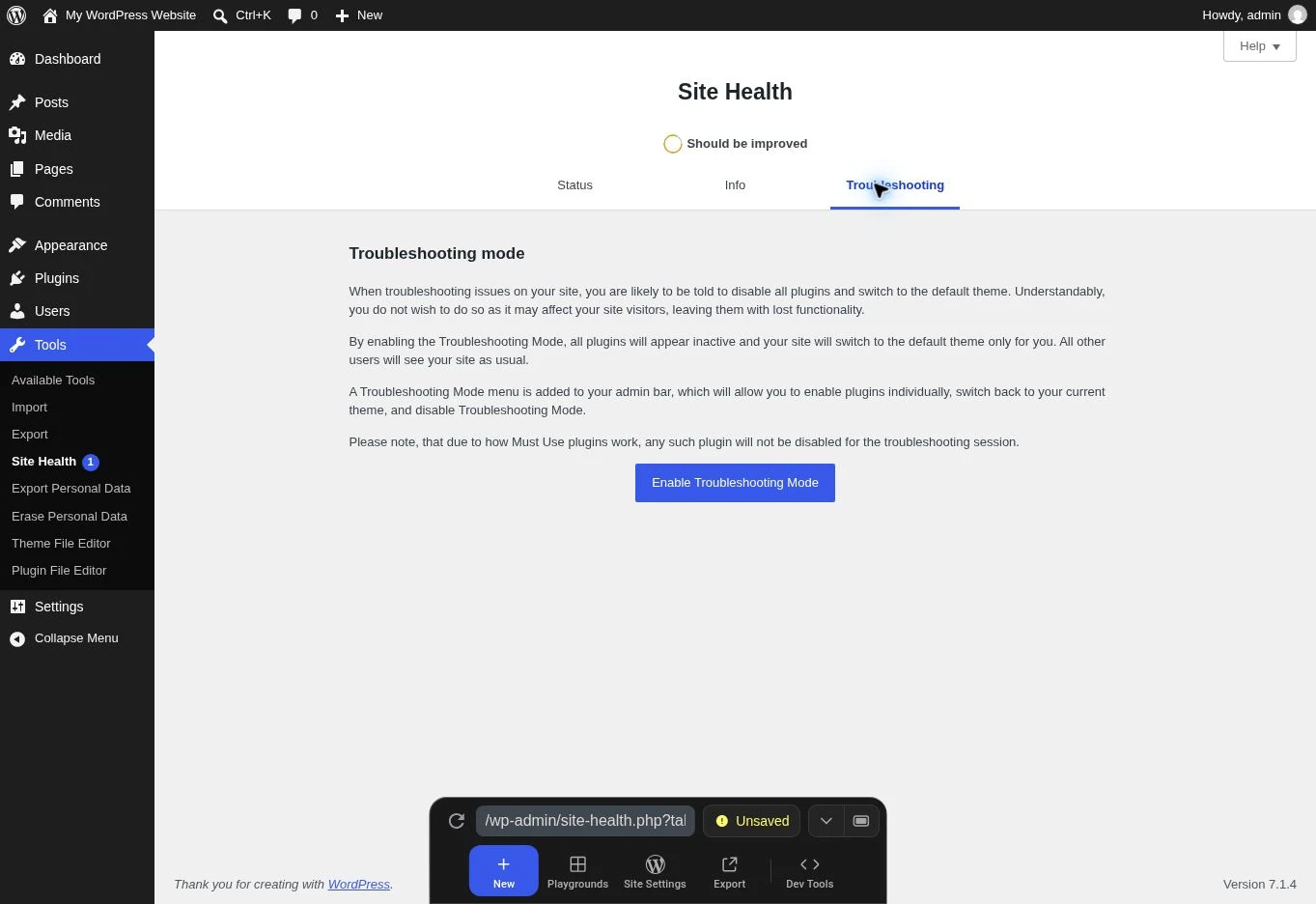
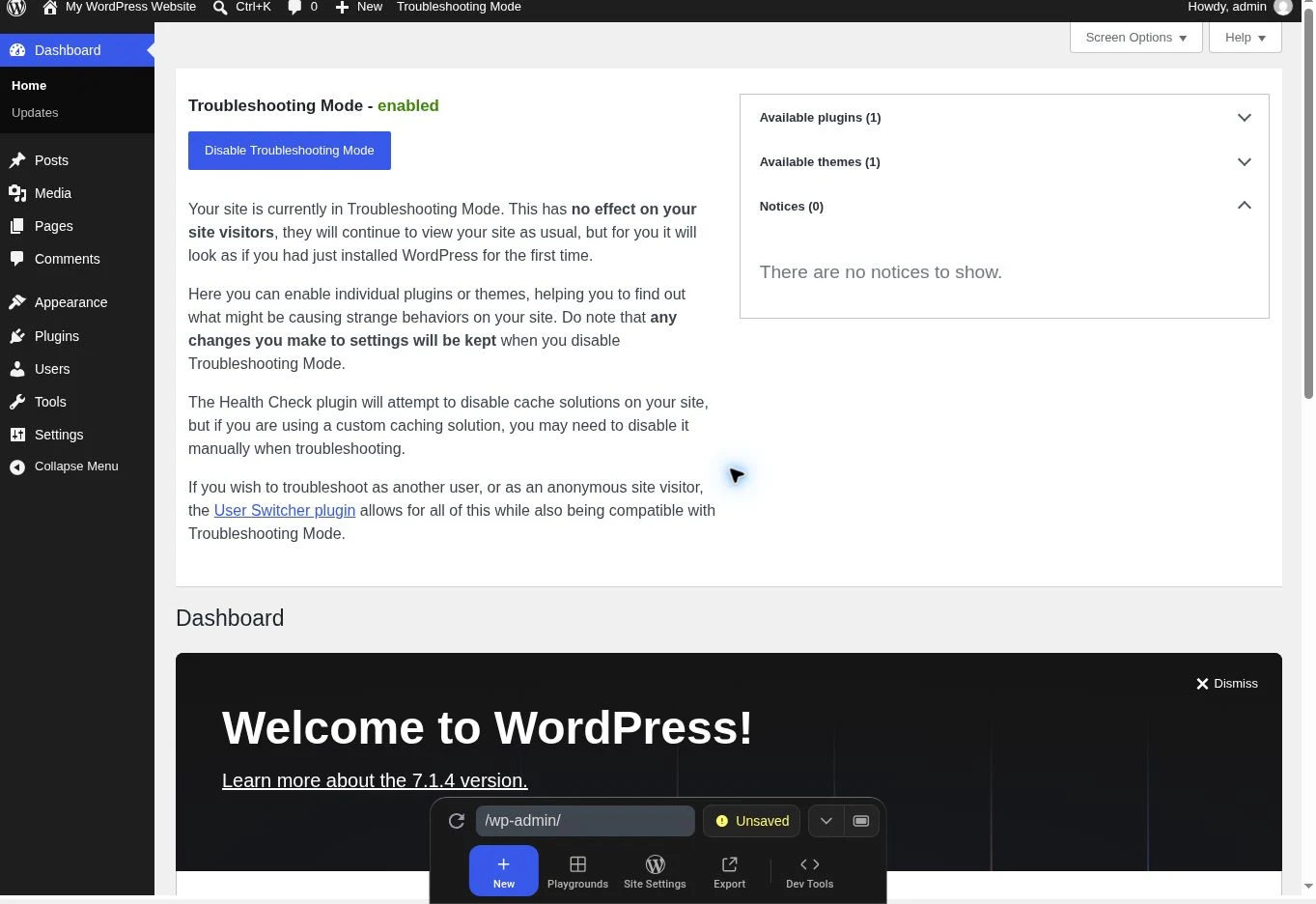
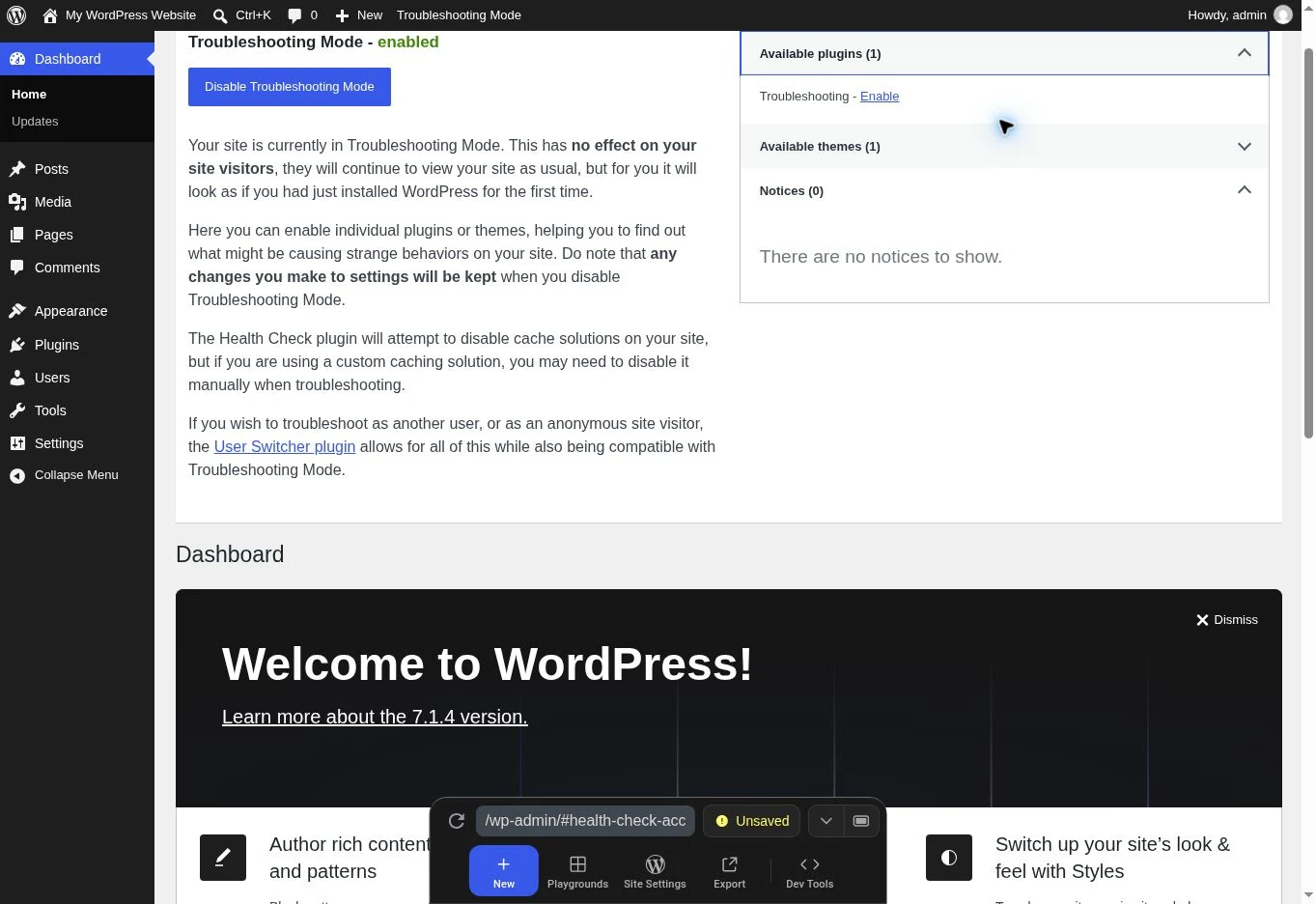
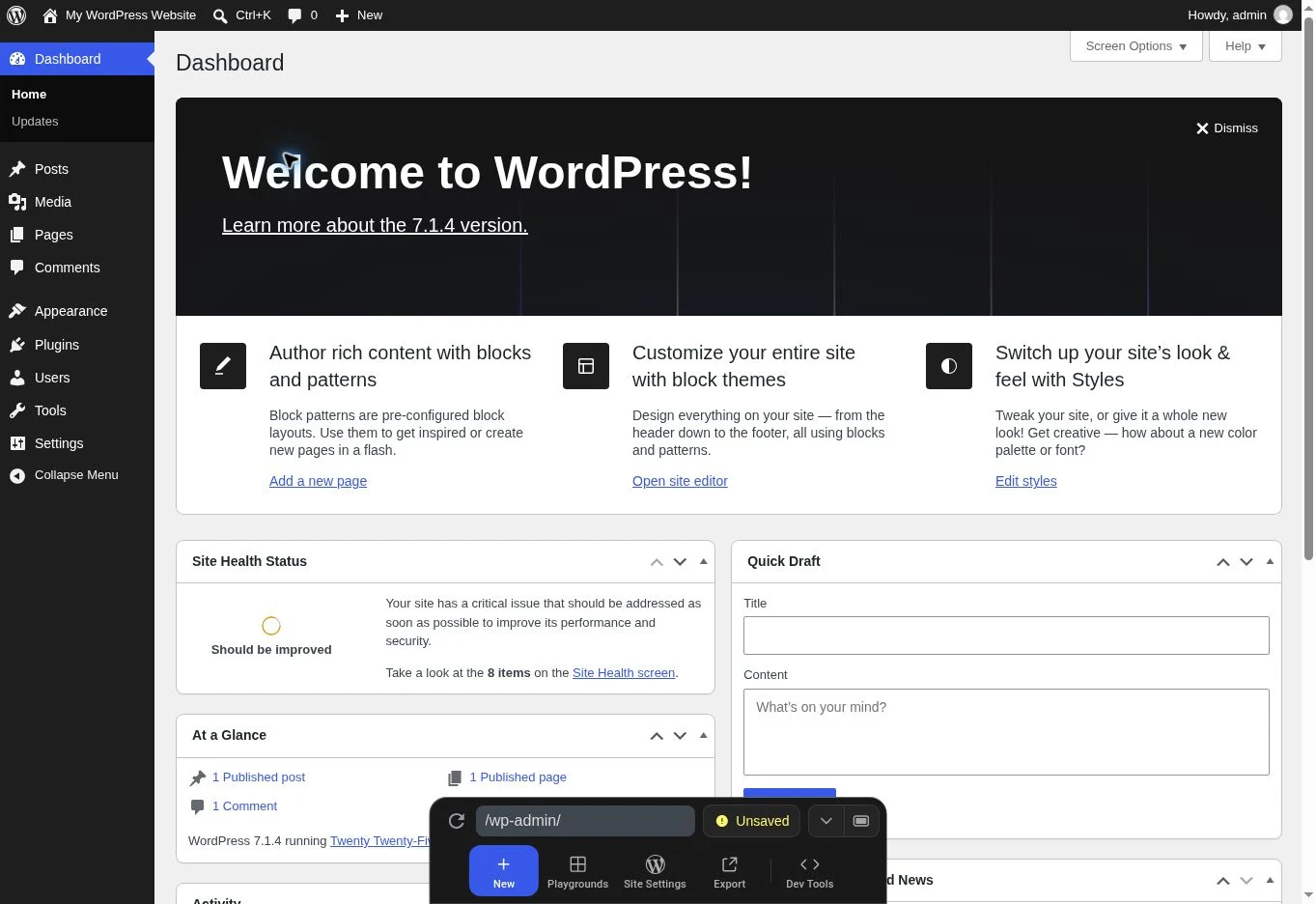
The screenshots in this approach come from our demonstration installation on November 13, 2026: WordPress 7.1.4, PHP 8.3.36 and Troubleshooting 1.0.2. We verified access to the tab, entering the mode, opening the plugin panel and the mode disappearing after deactivation. These views show the controls to find; they are not a test of the conflict between your two plugins.
The account must be able to access Site Health and install the file required by the mode. If the tool reports a file-access problem, keep that message; do not loosen site permissions to force preparation. This approach remains optional and does not replace a site copy.
The mode makes ordinary plugins appear inactive and uses a default theme for your session. Before testing the feature, you therefore need to restore the theme and components providing it within that session. A feature absent in this initial situation may simply depend on something no longer loaded.
- Open Tools, Site Health, then the Troubleshooting tab added by the plugin.
- Click Enable Troubleshooting Mode, or its displayed translation, and wait for the troubleshooting session dashboard.
- Check for the mode indicator and the Troubleshooting Mode menu in the administration bar.
- If the mode is not clearly active or the displayed state seems inconsistent, exit and return to the native approach on a copy. Do not continue assuming your changes are isolated.
Rebuild the required set, then compare the second component
The Troubleshooting Mode menu in the administration bar lets you choose the theme and activate plugins individually for the session. Use it to restore the feature’s provider and dependencies. Avoid activating the entire set, which would lose the benefit of this comparison.
Must-use plugins, often called mu-plugins, remain loaded according to their behavior. Hosting-provider code or other layers may therefore continue acting. Success in this session does not prove the same scenario succeeds for an anonymous visitor, in another theme or with all other integrations.
- In the mode menu, restore the theme from your starting point if it is necessary for the test.
- Activate A and required dependencies in the session, then check that the reference feature exists.
- Perform the prepared check, then add B in that same session and compare once more.
- Record the state, theme and result. If a dependency or must-use component makes comparison impossible, mark it inconclusive and prepare a consistent test on a copy.
Exit the mode and check the normal state
In our Playground demonstration, deactivation removed the mode but led to an incorrect return address displaying a page not found. Reopening the normal dashboard address confirmed that the troubleshooting panel and menu had disappeared. If you encounter this case in this laboratory, therefore check the actual state after returning to the dashboard. This observation does not prove the same defect exists on your hosting.
Exiting the mode is a diagnostic step. Closing a tab is not enough to document the site’s final state. Explicitly exit the mode, then compare plugins and theme with your initial record. This also distinguishes a session-limited result from restored normal operation.
Troubleshooting documentation notes that some caches may not fully respect its indications. If a page seems to retain the test appearance, have the relevant cache checked and a limited purge performed according to its administrator’s procedure. Do not permanently disable protections or all caches to conceal that difference.
- From the administration bar menu or Site Health tab, use Disable Troubleshooting Mode.
- Check that the mode indicator has disappeared and verify the theme and normal component states.
- View the reference page in the context intended for the normal site; record the result separately from the session test.
- Deactivate the temporary tool when finished. Writes and effects already produced during attempts require their own recovery; leaving the mode does not undo them.
Apply the established correction with the matching versions
Once the scenario is reproduced, choose a correction explained by the author for the affected versions: a precise compatibility setting, corrective update or maintained combination. Check its scope on the copy. A code snippet for another product or a core file modification is not a generic conflict fix.
If an official corrective version is available, back up the copy’s state, then update only that component from its row in Installed Plugins or using its verified official package. Repeat exactly the sequence that failed. If a setting is proposed, record its menu, initial value and target value according to product-specific documentation; do not change several functions simultaneously.
Temporarily deactivating B may help preserve a service, but its role must be examined before applying that decision publicly. A login, security or order-processing component should not be removed simply because a display returns on the copy. Prepare the consequences, duration and rollback with the administrator. Do not retain a vulnerable old package as a permanent solution.
Validate the correction and provide a reproducible case
After success on the copy, apply the selected change during the prepared window on the live site and check the same features. Verify the administration area, reference page and necessary integrations. Keep the final versions and theme state, then check the expected behavior for affected visitors.
To contact the authors, provide a short scenario: initial and final versions, expected feature, exact action, A and B states, and result with and without the compared component. Add the useful Console, Network or server error with its time after removing private data. Specify whether the result comes from a copy or a Troubleshooting session and which layers were not disabled.
The record should make the case reproducible without interpreting an isolated screenshot. An inconclusive test remains information to keep; it does not justify blame or a general restore. Keep the backup and rollback plan appropriate to data that has changed. Resolution is achieved when the feature and required dependencies work in the intended final state, beyond merely restoring a button.
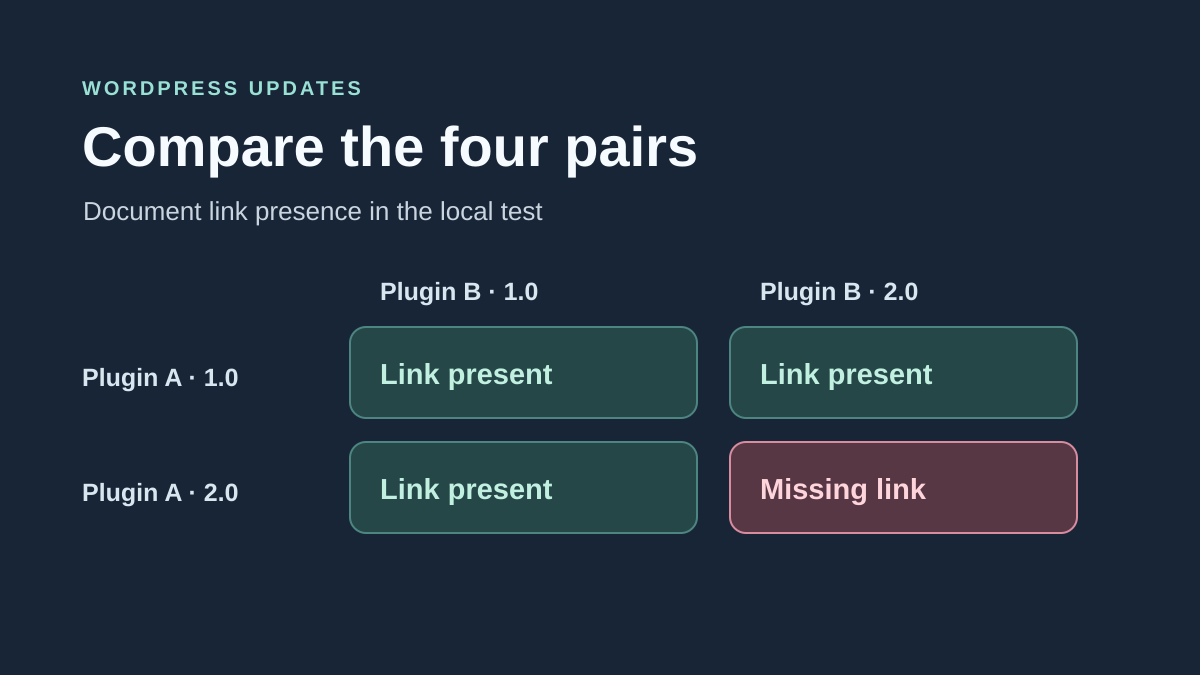
Replay the four pairs on the same reference page
To build a four-pair comparison, record A1/B1, A2/B1, A1/B2 and A2/B2 only when these states are compatible and reproducible from consistent backups. Choose a feature whose presence and result can be observed in every pair. This matrix is a diagnostic protocol, not a report of tests on your plugins.
To reproduce this check on a copy, choose a feature that both plugins can leave visible in every pair. Record the page, exact action and expected result before starting. For example, open a record with a test account and check whether the download link appears and leads to the test document. If deactivating one plugin removes the entire feature, move to version comparisons and keep both plugins active.
If you use WP-CLI, record the active versions on the copy before each attempt. From that installation’s folder, run the following command and note the two rows corresponding to your plugins. The list does not replace checking the reference feature. On multisite, also record network-activated plugins.
- First test the pair that worked, if you have a compatible file and database state. Record both versions in Installed Plugins and the reference feature’s result.
- Change only A, then repeat the action with the same account, page and data. Record the result and attempt time.
- Change B to reach the recent pair, repeat the test, then return A to its previous version to check the other combination.
- Restore the copy snapshot matching your starting state. Check the version pair and reference result. Keep all four observations before choosing a fix.
wp plugin list --status=active --fields=name,version --format=table --skip-update-checkAdapt the comparison when an update changes the database
If an update runs a data migration, prepare a consistent copy for each pair you can construct from the same snapshot. Replay updates in the chosen order and wait for migrations to finish before comparing. A result obtained by placing an old file over a new schema may reflect an intermediate state that cannot be maintained. Record the pair you managed to reconstruct, migration state and cells still without results.
A demonstration limited to a shortcode and stable data does not validate a schema migration. For a real order, subscription or form, work with fictional data and check effects already produced. When the action requires an external service, prefer that service’s test mode or a scenario stopping before submission. Keep the comparison point identical across all pairs.
Choose the correction based on the observed result
If the feature fails with A2 and B1 as well as A2 and B2, send these results to A’s maintainer with exact versions and steps on the copy. If both recent versions work separately with an old version of the other plugin and only the recent pair fails, send all four results to both maintainers. While awaiting a compatible fix, prepare the selected pair on the copy and also validate other features the plugins share. Any lasting restore is decided after comparing files, database and operations that occurred since the update.
Distinguish a temporary fix from a maintainable pair
A combination working on your copy may remain unsupported by one publisher. Before adopting it, check declared dependencies and applied migrations. Record “feature restored in the reference scenario” separately from “maintained combination for the site.” The first observation does not establish the second.
For beginners, native comparison on a copy is free and often produces a useful support case. Troubleshooting adds a session view; it does not guarantee data rollback. For the developer, provide the first relevant error and the minimum conditions triggering it, with a reusable fictional example. An entire log or a screenshot of the plugin list does not explain the failing action.
After applying the fix, reintroduce caches and optimizations normally used, then replay the reference case. If the feature works only with an optimization disabled, document that dependency before publication.
Sources and references
Use these references to check the features, requirements and limitations described. Reading documentation is not a practical test.
View 17 references
- WordPress: managing plugins ↗
- WordPress: effects of deactivation ↗
- WordPress: backups ↗
- WordPress: requirements and dependencies ↗
- WordPress: technical site information ↗
- Troubleshooting: official listing and compatibility ↗
- Troubleshooting: Site Health tab ↗
- Troubleshooting: mode description and scope ↗
- Troubleshooting: mode controls and interface ↗
- WordPress: must-use plugins ↗
- Chrome: observing the Console ↗
- Chrome: observing network requests ↗
- WordPress: comparing packages before replacement ↗
- WordPress: private debugging ↗
- WordPress: Health Check deprecation ↗
- WordPress — Running shortcodes ↗
- WP-CLI — Listing plugins ↗