

Reproduce the visitor's precise blockage
A booking window opens over the page. The pointer may sometimes close it, but Tab moves behind it, or the frame closes and the page remains impossible to scroll. Record the URL, the button or action triggering the window, the screen width, and the first action that fails. These symptoms may originate in different parts of the component. The setting that displays the window may work while closing or returning to the page fails.
Test a complete flow in a visitor session. With the mouse, open the window and find its close control. Then reload the starting state and repeat using the keyboard. Reach the trigger with Tab, activate it, and observe where focus arrives. Move through the visible controls and try Escape. If the window disappears, press Tab once and observe the focus destination. Also check scrolling and a page link after closing.
A modal dialog normally limits interaction to its window while open. The flow must offer a keyboard exit. Focus remaining inside the window while it is open can therefore be expected. Focus wandering behind the window or remaining trapped without an exit needs correction. On a phone, check whether closing remains reachable after scrolling the dialog and opening the virtual keyboard.
Prepare a working copy and keep screenshots of the trigger, window, and result after closing. Note whether a second dialog is open at the same time. This lets you verify a return to the starting state after each test.
Find the tool that opens the window
Identify the window's source before editing the page. If it appears at only one URL, open the page in its editor and find the block, widget, or link triggering it. On a block-based page, use List View to find a nested component. If the window appears on several pages, examine the header, footer, a synced pattern, or a popup module's rules. Some components are injected across the site without appearing in the page body.
With a block theme, open Appearance > Editor and identify the template or template part containing the shared trigger. With a classic theme, consult theme options and the list of authorized plugins. In a page builder, check the window template and display conditions. A change to this template may affect several URLs. Record its name and scope before opening settings.
An enlarged image, a full-screen menu, and a booking dialog can all cover the page. Examine the content and purpose before changing settings. If only the image is affected, look for the block's enlargement settings. If the mobile menu is involved, examine its navigation component. For an action dialog, check its own title, controls, and the trigger that opened the window.
If you can edit only the page, give the maintainer the URL, trigger, and list of failing actions. A screenshot of the frame and the plugin name are better than a global deactivation test on the public site.
Make closing reachable in the existing component
On the copy, start with the setting matching the symptom. Display a close control as soon as the window opens and place it inside the window in an area visible on a small screen. An icon alone needs an accessible name such as “Close window.” If you can use a button with this visible text, it is easier to identify. Avoid making a background click the only exit, because that action does not provide a keyboard-usable close control.
If the site already uses Elementor Popup Builder, open the template from Elementor > Editor > Templates > Popups, depending on the installed version's wording. Select the window, then open its settings. Check whether the close button is displayed and whether its appearance is delayed. In advanced settings, check the option preventing closure with Escape. Restore the ability to close with that key when the dialog should follow the usual modal flow. Documentation reserves this popup builder for certain Elementor Pro plans. A site that does not use it can apply the same checks in its own component.
Compare automatic triggers. Working closure can appear faulty if another rule immediately reopens the same window. On the copy, disable only the suspected trigger or restrict it to a test page. Then open the window with its button and close it. Keep the frequency and scope settings before testing.
Finally, check that the button closes the correct dialog. If two windows share the same class or trigger, isolate the rule selecting the target. The expected result is immediate closure of the visible window, followed by a usable return to the page.
Check focus, the overlay, and scrolling after closing
In the open window, focus should arrive at an appropriate dialog element. For a short message, the close control or a first action may suit. For long, structured content, the title may provide a better entry point if the component makes it focusable through its script. The person can then read before choosing an action. Check that the window has a name, ideally derived from a visible title.
Using Tab and Shift+Tab, observe the control order. In a modal dialog, the sequence should stay within the window's controls until it closes. If focus reaches links beneath the overlay, identify the component managing modality. An ARIA label can describe the dialog to assistive tools. It does not, by itself, make the background inactive or manage the keyboard. Correct the component's behavior at its source.
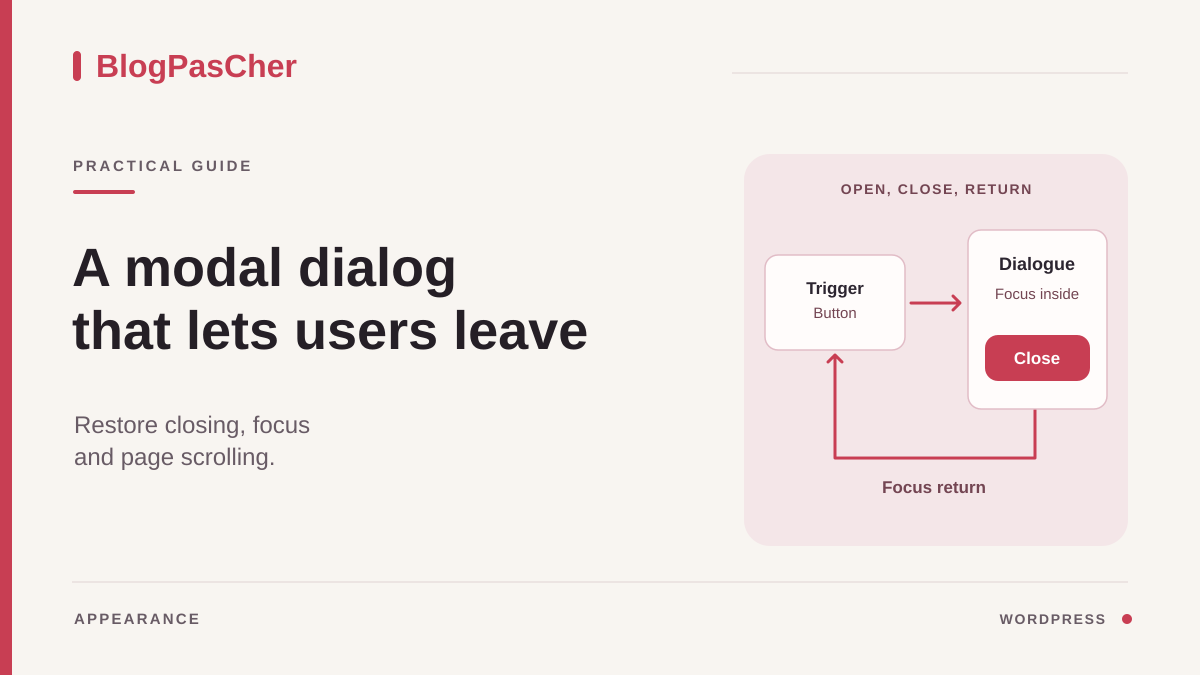
After closing, focus normally returns to the trigger. If that button disappeared following an action, provide a logical element on the page, such as the updated area's title. A closed dialog that keeps focus on an invisible button makes it seem as though the keyboard stopped working. Check the focus outline and the next control reached.
If the frame has disappeared but the page remains blocked, ask the maintainer to check a remaining overlay, scroll locking, and the state that makes the background inactive. Compare closing with the button and with Escape. A component may clean up its state along one path and forget along the other. Keep the control that blocks the background while open and restore the page when closing.
Replace the window with an in-page flow if the task allows it
When the window contains only opening hours, visiting conditions, or help text, consider whether this information can remain accessible on the page. Create a section with an explicit heading and place the text there. The original link can lead to that section or a dedicated page. Readers then retain the URL, context, and their usual navigation tools. Check that the destination is visible and identifiable after activating the link.
In the block editor, you can insert Details for supplementary information that should expand in place. Give the summary a clear label and add the text inside the block. Check opening, closing, and moving to the next section using the keyboard. Information essential to the main action deserves to be directly visible. For an important document or long form, a dedicated page may offer more suitable space.
Before deleting a window trigger, inventory its uses. The same window may open from a post button and a header link. Replace each intended access point with the new destination on the copy. Check whether the old automatic opening remains active. If the window is used on other pages for another purpose, remove only the condition or trigger relevant to your flow.
For rollback, keep the button's original version and the window's conditions. First restore the route to the content, then verify removal of the temporary link if necessary. For a shared window, test another use after the change. This lets you correct the targeted flow while preserving other pages.
Prepare a native dialog for a theme-maintained window
If the component belongs to your theme and must remain modal, ask the theme maintainer to examine the HTML dialog element and opening it with showModal. The browser then places the dialog above the page and makes the background inactive for this opening. Simply adding the open attribute does not produce the same modal behavior. Keep a title naming the window and an explicit exit control. In the example, the close control receives initial focus for short text. The script then describes the keyboard flow for this example's two controls.
Place this markup in the copy's template at the location maintained by the site. Both “View opening hours” links must lead to the same already accessible opening-hours page. Copy that page's public URL into both href attributes. The /horaires/ path is an example to replace, particularly on a site in a subdirectory. The code fragment is designed to open another page. If opening hours are in a section of the current page, use the direct link described in the flow without a window. The external link remains accessible without JavaScript or in a browser that does not support showModal. The opening button starts hidden and becomes usable once the script is ready. Choose unique IDs if the template repeats.
The method dialog form below contains only a Close button. It closes the dialog locally. Place the component outside any existing form to avoid nesting. If the window must contain a real form, separate its close control and have handling of entered data examined. To restore the previous state, restore the previous markup in the same area with its script, then check the normal link.
<a id="lien-horaires" href="/horaires/">Voir les horaires</a>
<button id="ouvrir-horaires" type="button" hidden>
  Ouvrir le rappel des horaires
</button>
<dialog id="dialogue-horaires" aria-labelledby="titre-horaires">
  <h2 id="titre-horaires">Horaires de visite</h2>
  <p><a href="/horaires/">Voir les horaires</a> pour connaître les créneaux disponibles.</p>
  <form method="dialog">
    <button type="submit" autofocus>Fermer</button>
  </form>
</dialog>
Connect the button to the dialog in the theme script
The maintainer can place the following fragment in the component's JavaScript file and load that file only on affected pages. In WordPress, use the theme's script-loading mechanism, such as wp_enqueue_script, and execute this code after the markup is present. The fragment suits one trigger and one dialog containing exactly the link and Close button. If you add controls, adapt management of both ends of the tab order. A repeated template or a window populated after loading requires adapting element selection and initialization timing.
The trigger stays hidden while the component is incomplete. If the dialog has meanwhile been removed from the page, the trigger disappears and focus returns to the link. The native dialog retains Escape closing and its mechanism for returning to previous focus. The script prepares this return by focusing the trigger before opening. If closing leaves focus on the page body, the script restores it to the trigger. If the trigger has disappeared, the fallback link receives focus. Tab loops between the dialog's two controls. Check scrolling separately, because it also depends on layout and theme styles.
On the copy, check that the file loads and the console reports no dialog error. If Console indicates that an HTTP JavaScript resource was blocked on an HTTPS page, correct its URL before changing the close handler. First try the link without the script. Then enable the script and check the button, entry into the dialog, closing, and focus return. To restore the previous state, restore the file and its loading consistently with the markup. A page still served with the old script may require comparing versions before making further changes.
const lienHoraires = document.getElementById('lien-horaires');
const ouvrirHoraires = document.getElementById('ouvrir-horaires');
const dialogueHoraires = document.getElementById('dialogue-horaires');
const lienDialogue = dialogueHoraires?.querySelector('a[href]');
const fermerHoraires = dialogueHoraires?.querySelector('button[type="submit"]');

if (
  lienHoraires && ouvrirHoraires && lienDialogue && fermerHoraires &&
  typeof dialogueHoraires.showModal === 'function'
) {
  ouvrirHoraires.addEventListener('click', () => {
    if (!dialogueHoraires.isConnected) {
      ouvrirHoraires.hidden = true;
      if (lienHoraires.isConnected) lienHoraires.focus();
      return;
    }
    if (dialogueHoraires.open) return;
    ouvrirHoraires.focus();
    dialogueHoraires.showModal();
  });

  dialogueHoraires.addEventListener('keydown', event => {
    if (event.key !== 'Tab') return;
    if (event.shiftKey && document.activeElement === lienDialogue) {
      event.preventDefault();
      fermerHoraires.focus();
    } else if (!event.shiftKey && document.activeElement === fermerHoraires) {
      event.preventDefault();
      lienDialogue.focus();
    }
  });

  dialogueHoraires.addEventListener('close', () => {
    if (dialogueHoraires.open) return;
    if (!ouvrirHoraires.isConnected || ouvrirHoraires.hidden) {
      if (lienHoraires.isConnected) lienHoraires.focus();
    } else if (document.activeElement === document.body) {
      ouvrirHoraires.focus();
    }
  });

  ouvrirHoraires.hidden = false;
}
Check the complete flow and prepare rollback
On the copy, first test with a physical keyboard. Reach the trigger with Tab, open the window, then move through its controls in both directions. Close with the button, repeat with Escape, then reopen the window. Each time, check return to the trigger, continued navigation, and page scrolling. Reopen the window and check that its link leads to the public opening-hours page. Compare that URL with the fallback link's, then also open the fallback without JavaScript. If the trigger is removed while the window is open, check that focus returns to the remaining link. If closing preserves a message or data in progress, verify the expected behavior before declaring the correction ready.
On a phone, compare a portrait screen and a wider screen. Test window scrolling when its content is long. Also enlarge text or the page and check that closing remains reachable. If a field opens the virtual keyboard, check access to the field and dialog controls. With a screen reader available, check announcement of the title, control order, and return to the page. These checks concern the flow tested. They are not a complete site evaluation.
Check another URL if the template or plugin is shared. Use a fresh visitor session if the window depends on display frequency. Compare the result with the initial screenshot. If the test fails, restore the relevant condition, template, or file from the recorded values. Check navigation after this rollback and leave the fallback accessible when the window blocks the main action.
Record the component, exact change, and flows checked. The next theme or script change can be compared with the same opening, closing, and page-return scenario.
Load the dialog script on the intended page
To use the dialog example in a maintained child theme, create assets/js/dialogue-horaires.js and place the JavaScript shown above inside it, without <script> tags. The dialog HTML and its button must be present on the targeted page. Then add this fragment inside the existing PHP block in the child theme's functions.php; do not duplicate a PHP opening tag.
Replace horaires with the page's actual slug. This condition suits one specific page; a dialog in every page's header needs a different scope. The final argument loads the script in the footer, after the HTML in a properly built theme. Increase the version after changing the file if the asset cache uses this parameter.
In Network, check that the file responds correctly, then test opening, closing, Escape, and focus return. On another page, the file should not be requested. To roll back, remove this loading code and restore the initial HTML. The fallback link provided in the example must remain usable if JavaScript is unavailable.
add_action('wp_enqueue_scripts', function () {
    if (!is_page('horaires')) {
        return;
    }
    wp_enqueue_script(
        'bpc-dialogue-horaires',
        get_stylesheet_directory_uri() . '/assets/js/dialogue-horaires.js',
        array(),
        '1.0.0',
        true
    );
});
Sources and references
Use these references to check the features, requirements and limitations described. Reading documentation is not a practical test.