

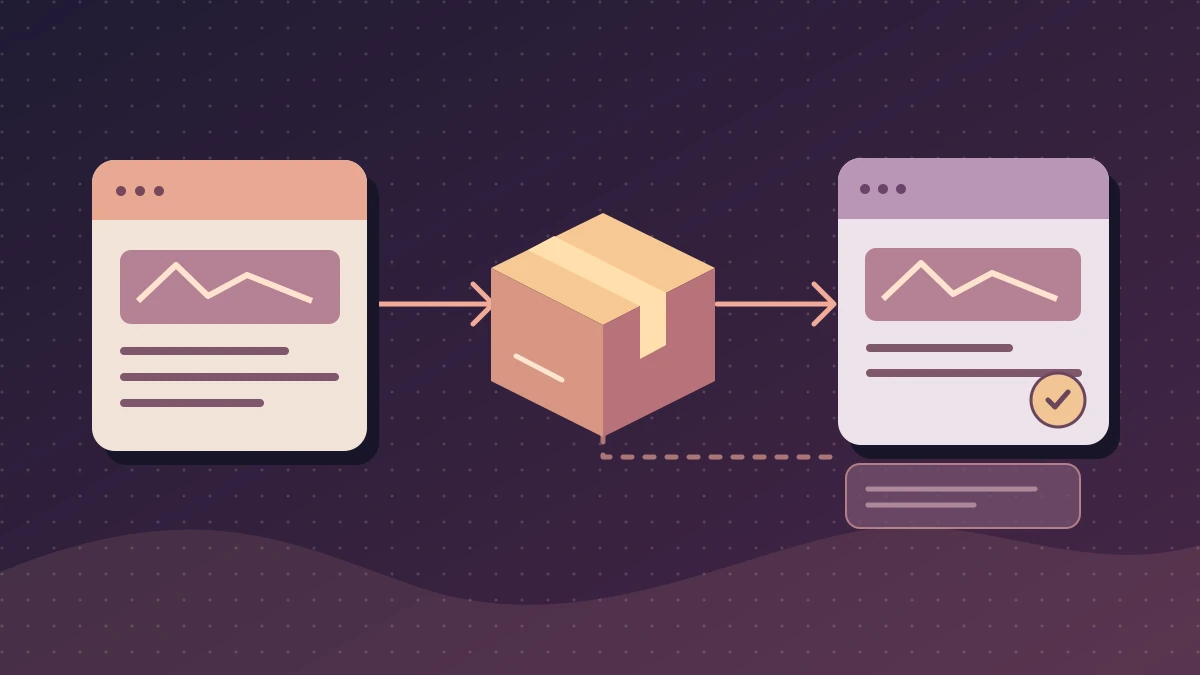
Determine which version the domain serves
A page changed in WordPress and the export reports completion, but the public site still shows the previous text. This is the symptom in a Simply Static forum report. The thread author also observed 404 responses for pages in the log. Check these clues together: a copied-file count indicates a transfer occurred; it does not say every file contains the correct document. The forum does not confirm the final cause. You can nevertheless locate it by comparing the WordPress-rendered page, exported copy and response actually served.
In this guide, the public site is intended to serve an HTML copy. WordPress remains the editorial source, often at another address. You do not need to open the dashboard on the destination to check or publish an already-prepared static package. However, an export file cannot recover a change existing only in an inaccessible WordPress database. If the change is missing from the source or package, obtain a new version from the source owner. Do not manually edit old HTML to conceal the absence: the next export would overwrite it.
Start with two specific pages: the homepage and a changed internal page. Add a control page that should remain unchanged. Record final URLs and a short public sentence unique to the new version. In staging, prefer a dummy marker such as VERSION-RECETTE-42. A file number or modification date is insufficient: a recent archive may contain an old page, and file dates may change during copying. Record the HTTP code and content obtained after redirects. An error page returning 200 does not pass if it lacks expected content.
- In a private window, open the three destination URLs. For each, record the final address, status in Network and expected visible text.
- Identify the source address and folder or deployment ID intended to supply the destination. If the public domain and generation address differ, do not swap them.
- Touch neither cache nor files before this comparison. If changed pages give different results, record which ones: an updated homepage does not prove the rest of the site is current.
Check that the export contains actual pages
If you can access the source dashboard, open source URLs in the context that should be able to read them. Check that the page is public for its intended audience and its HTML contains the change. A logged-in preview may include a draft or private version the generator does not receive. If the source site is protected, use only the generator's designated access mode or ask its team to check the request from its context; do not open the source to everyone to bypass an error.
For Simply Static, documented versions expose an export log with each processed resource's URL and status, separate from the progress log. Search for the exact page path and code returned during generation. A series of 404s for otherwise-working pages may indicate that the exporter requests another address, wrong subdirectory or unexpected virtual host. A 403 may indicate protection. A redirect to login can end in 200 while delivering the wrong document. Compare the final response and generation-source configuration; correct neither DNS nor permalinks without confirming which path differs.
If you already use Simply Static and need a package to hand over, its publisher documents Simply Static > Deploy, the ZIP Archive method, then Push and download from Activity Log. Labels may differ by version. First check in staging that the chosen destination is an archive: another method may transfer to configured hosting. Before generation, check URL rewriting for the final domain or prefix. A package intended for offline opening does not necessarily have the same links as one intended for a website.
- Compare a correct source URL with its log entry. If the log reports an error, correct that point on the source and regenerate the package before going live.
- Open the archive extracted into a fresh folder. Find the homepage
index.htmland file corresponding to the internal path, such asa-propos/index.htmlif the export uses page folders. - Check that files contain the expected text and linked resources sit at the correct paths. An archive containing only CSS and images cannot publish missing pages.
Preview the copy through a local HTTP server
Opening an HTML file directly may hide path problems: root-relative links and relative URLs do not always resolve as they would on a website. With Python installed, open a terminal and start the server below on the extracted folder actually containing index.html. Replace the example path with your copy's. The 127.0.0.1 address limits this preview to your machine. Serve only the export folder: the test server must expose neither a backup nor source files.
Open http://127.0.0.1:8765/, then http://127.0.0.1:8765/a-propos/ if that page exists. In the browser's Network tab, also inspect a required stylesheet and image. If the public site belongs under /vitrine/ and the package contains links starting with that prefix, reproduce it by placing the copy in a test folder named vitrine under a parent reserved for this test, then serve that parent. Do not manually edit every link to make the preview pass.
The test server does not reproduce Apache, Nginx or static-host rules. An absolute link to the public domain may also leave the preview and show the old version: always check the address after clicking. This test verifies files and their structure; redirects and paths still need checking on the chosen hosting. To stop, return to the terminal and press Ctrl+C. You have changed neither package nor site.
python -m http.server 8765 --bind 127.0.0.1 --directory "/chemin/vers/export"Publish through static-host access
If the package is correct on your machine, compare it with the active deployment. This route suits someone with access to the static host's panel or version system, without a WordPress account on the destination. In the project's deployment list, find the one associated with the public domain. A version may exist at a preview URL while the domain remains associated with the previous version. Check the project name, domain and input folder. If you extracted a ZIP, upload the folder directly containing index.html according to host rules. An extra folder around the export shifts every path by one level.
Create a preview using the complete package. Use the same local paths: homepage, changed page, control page and resource. Test a deliberately nonexistent URL. It should receive the intended error handling, rather than an apparently valid homepage for every path. On a platform managing versions, record the active version ID before promoting the new one. If it fails after promotion, reactivate the previous version in the panel, then recheck both reference pages. Keep the faulty package outside the published folder for analysis.
If the preview URL is correct but the public domain remains old, first compare the domain/version association in the panel. Purging will not reveal a package the project does not use. If the correct version is active and only the public domain retains previous content, identify the cache layer and purge confirmed URLs after correction. A cache header is a clue; received text and the version actually served are the evidence.
- Record the current version ID and confirm that you can reactivate it. Upload the folder starting at the correct level.
- Check the package through the project's preview address, then activate that version through the intended publishing flow.
- Open the public domain in a session without an account. Compare paths, statuses and expected text. If a critical test fails, restore the previous version and check that it is actually served.
Publish through file access and handle a mixed setup
If you have a file manager or SFTP access, first read the public root in the panel mapping the domain to its folder. Do not assume it is always named public_html. Find the old version's index.html, an internal-page file and the CSS resource that page uses. Download these controls to your machine for comparison with the public response and new package. If you cannot demonstrate the folder's relationship to the domain, stop copying: a successful transfer to the wrong folder does not change the site.
On conventional static hosting, prepare a complete new folder outside the public directory until ready. Arrange an authorized preview or staging copy with the same rules. If the host permits switching the domain root between folders, confirm that this switch is supported by your hosting and keep the old path for rollback. If the panel offers no switch and you cannot publish without mixing versions, ask for the supported mechanism before overwriting the active folder. Do not start synchronization deleting files absent from the new package until root and backup are confirmed.
In another WordPress forum case, participants identified a plausible mix of static pages and WordPress in the same folder. If you find both index.html and index.php, inspect actual homepage configuration. Apache may serve the first available file in the DirectoryIndex list; Nginx may use the index directive. Order depends on the site and can be modified by redirect or rewrite rules. A file's presence therefore does not prove priority. Compare index.html contents with the response at /, then verify the active folder and rule with the hosting owner.
If the destination should remain static, correct the publication folder and check that the new version's index is served. If WordPress should take over the homepage, treat that as a separate configuration change. On a site copy, keep the previous static index and test the setting or targeted removal allowing WordPress to respond. Also check deep pages: changing homepage priority does not replace HTML files masking other paths. Remove no WordPress startup file to force display of the copy.
- Identify the root and back up the served version. Upload the new package into the preparation folder and compare control files with the local package.
- Use the authorized switching method for this domain. Where HTML and PHP coexist, check the path actually served before and after the change.
- If a reference page or resource fails, restore the previous folder or rule, then check rollback on the public domain.
Validate a deployment you can undo
A completed check compares the same page at every step. If the source lacks the text, work returns to the editorial team. If it contains the text but the exported file does not, correct generation. If the local preview is good but hosting preview fails, examine the uploaded folder, prefix, filenames and host rules. If both previews succeed but the public domain returns the old version, check domain association, active deployment and cache. Each result calls for a different action; do not repeat the export at every step.
Also check what depended on WordPress at visit time. An HTML file does not process login, server search, a cart or contact form. Some copies use an external service for these features: their presence on screen does not prove they work. If the page contains a form, run an authorized staging test with dummy values and check the result end to end. If payment or a private area is required without a tested solution, keep that part on the dynamic site and check the path leading to it.
Record the domain, active folder or version, package used, change time and results per URL. Keep the previous package and references needed for rollback. Repeat checks after the known cache interval if you purged. For deployment under a subdirectory, test internal links from a deep page and resources with root-relative URLs. You can close the case when the destination serves expected content to a visitor, the control page remains correct and rollback has been verified in staging.
Choose the free workflow and retain the package identity
Simply Static's official listing distinguishes ZIP export and publication to a local folder, available in the free edition, from deployment and automation integrations in paid plans. For this guide's diagnosis, a downloaded ZIP checked locally is sufficient. No subscription is required to compare source, archive and destination HTML; any hosting costs remain separate.
Give each archive a name containing the date and a content marker, then keep it intact. In your record, identify the chosen archive, extracted folder and deployment intended to serve it. On a staging control page, use a different marker between A and B. If A remains in package B, the problem precedes publication. If B is in the package but A at the domain, inspect the active deployment and served response.
A static site eliminates neither maintenance of its WordPress source nor risks from third-party scripts. Keep the source updated and separately check added forms or search. To undo, republish the complete previous package instead of mixing a few old and new files.
Sources and references
Use these references to check the features, requirements and limitations described. Reading documentation is not a practical test.
View 8 references
- WordPress forum — Website doesn’t go live ↗
- WordPress forum — Need help understanding existing site ↗
- Simply Static — Push your static site ↗
- Simply Static — Create a ZIP file ↗
- Python — http.server ↗
- Apache HTTP Server — DirectoryIndex ↗
- NGINX — index module ↗
- Official documentation — Choose the free workflow and retain the package identity ↗