

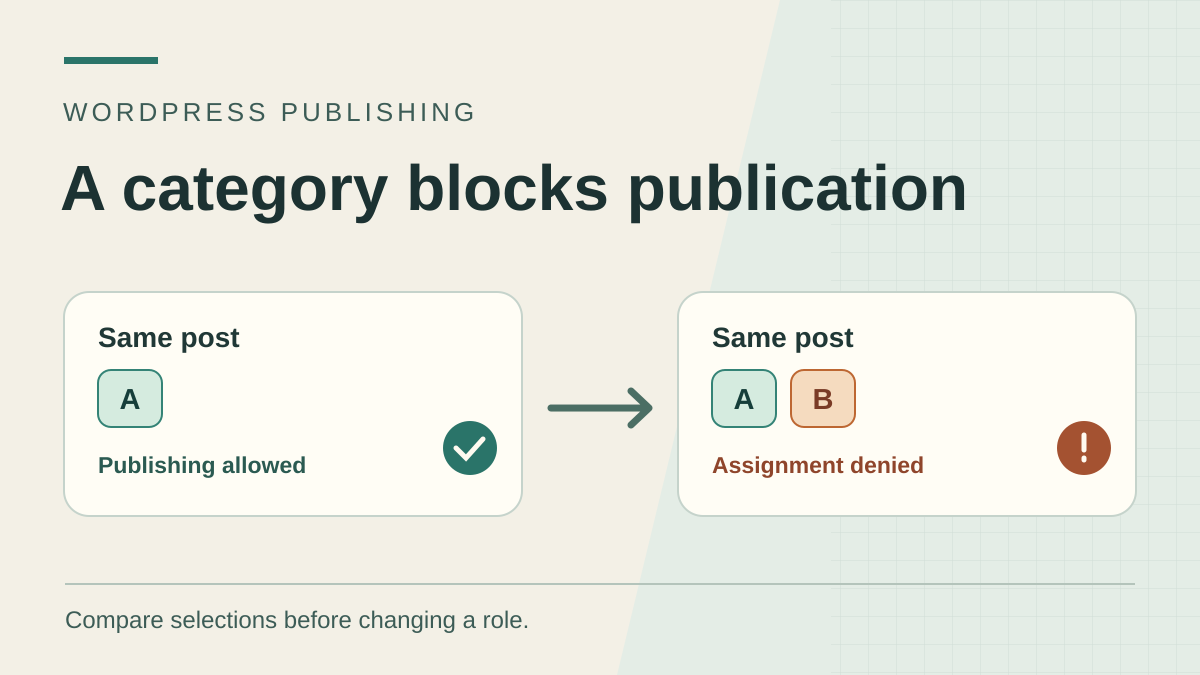
Recognize a category-related rejection
You can save a WordPress post, but publishing fails when you select a specific category. Before changing permissions or text, check that this selection is what changes the outcome. An inactive button, a draft submitted for review and a published post missing from the blog page have other possible causes. Here, the control is the same post saved by the same account, and the error appears when assigning a particular category.
A category is a term in the Categories taxonomy, a classification of posts. WordPress identifies it by a number. Its displayed name and URL identifier, or slug, help you recognize it, but two sites may assign different numbers to identically named categories. A category can exist and be readable on the site without the current account being allowed to assign it to this post. Permission to publish a post and permission to associate a term are checked separately.
Start in the editor if you can isolate the category without technical tools. If the error remains vague, observe the save response in the browser's Network panel. If the same rejection occurs without the category, leave this diagnosis: check the post status, publishing permission, API response or a broader block. If only an already-public post is missing from a list, first check its direct address and the list filters. The goal is to correct this post's classification without broadening the entire team's permissions.
Protect the draft and prepare two control categories
Before any manipulation, save whatever you still can as a draft. If the screen also refuses saving, copy the text into a local file. Retain the blocks, already-saved category, post ID, status and editing language. Do not leave the only tab containing an unsaved version to run a test. Open a new page or test on the local copy. Do not copy cookies or request logs into an external service.
For the exercise, create the categories “Notes de démonstration” and “Atelier de démonstration” on an isolated local WordPress installation under Posts → Categories. Use the slugs notes-demo and atelier-demo. The first is A, the second B. Check that both exist under Categories, with the expected parent if one is defined. Add a dummy post and assign A. To simulate rejection, use the copy's existing assignment-restriction configuration or have a test rule prepared that prohibits only B for the staging account. On a fresh WordPress installation with an author who can assign both categories, both tests may succeed. That result is a baseline and does not reproduce the fault.
If you cannot create categories, ask the editorial owner to identify two existing categories and a copy for testing. Use the same posts, roles and conditions between A and B. Do not create a second almost-identical category to bypass rejection, because that adds competing classification and possibly an archive. Nor should you change the site's default category to avoid an error on one post. A replacement category is useful only if authorized and correct for this content.
Compare from the editor
Open your dummy post under Posts → All Posts. Display the settings sidebar using the top-right icon, then open the Post tab and Categories panel. Depending on the interface, you may need to scroll the sidebar. Check that you are editing a Post and see a list of selectable terms, rather than the selected block's panel. A page or custom entry type may not offer core's Categories taxonomy.
- On the local copy, keep only A and save the draft. Reopen it to check that A was saved. Record the result before continuing.
- On that same draft, add B while retaining A and try publishing on the copy. Record the time, message and actual post status after the attempt. If the screen reports rejection, check the status in the post list or a new tab. Do not rely solely on B remaining selected in an unsaved form.
- If the post remained a draft, remove B and repeat the same action with A alone, still on the copy. If A alone works and A plus B fails, the added category is a useful difference to examine. If A plus B succeeded on the first attempt, compare with a second equivalent draft in the same initial state or record what differs from the failing environment.
- To check another category, return to the starting state on the copy or use another equivalent draft. Keep the account, post type and action identical. Saving a draft and publishing do not check exactly the same permissions.
Find the term actually selected
In a new tab on the local copy, open Posts → Categories. Search for the name, then compare the slug and, if necessary, parent. If you can access Edit for this term, that screen's address often reveals the number following tag_ID=. Remain read-only. If you cannot see this menu, an owner with screen access can confirm the name, classification and number. The menu's absence for your account does not prove that the category is absent from the site.
You can also check the term on the copy through a read request. If its number is 3 in your test and the site serves its API under /wp-json/, open /wp-json/wp/v2/categories/3 on the same local address. If the installation uses plain routing, the equivalent may be /?rest_route=/wp/v2/categories/3. Start from the REST root observed on this installation, retaining any subdirectory. The number is an example. A JSON response with the same id, correct slug and correct parent identifies the term. A response indicating rest_term_invalid for that number signals a term unknown to this route. An HTML page, access denial or unavailable route does not allow the same conclusion.
A category may have been deleted or recreated since the draft opened. Its name can stay the same while its number changes. In that case, retain the text, reopen a fresh editor version on the copy and select the existing term from the list. On a multilingual site, also check the chosen term's language and association according to the installed tool. Do not send the API a number recorded on another site or copy. The same value may identify a different term.
If the category is genuinely absent, ask which existing term should replace it or whether recreation is planned. Recreation is a classification choice that may affect archives, menus and already-published links. For a simple selection error, reassociate only the post with the approved category.
Read the save response
Open F12, then Chrome's Network panel on the copy. Clear recorded requests. Filter by “Fetch/XHR” or its equivalent in Chrome's language, then repeat the failing action once. In the list, find the modification request targeting the post ID, often /wp-json/wp/v2/posts/123 with additional parameters. Do not confuse it with an autosave under autosaves, initial category loading or term creation. The status, payload and response must all belong to the same action.
Under Payload, find categories. In a WordPress request for a native post, this field contains numeric category IDs. The block below represents a fictional example of what you might read with A and B selected. It is not intended to replay a write. A name or slug in place of the number is a data problem if a tool sends that value. If the request concerns another content type or uses a custom field, confirm that route's schema before drawing the same conclusion.
Under Response, record the error code, such as rest_cannot_assign_term. This points to permission to assign at least one submitted term. In the control, the same author can publish with A alone; publishing with A and B receives this rejection and leaves the draft intact. A rest_invalid_param targeting the categories field instead indicates a value of the wrong type or format. A 403 without a WordPress code, accompanied by a server HTML page, does not establish a category permission issue. A login screen, redirect or interrupted response warrants checking context and session before altering roles.
For team review, record only the method, shortened path, response code and dummy or necessary numbers. Keep information within the authorized team. Do not copy authentication headers, cookies, the security token or the full request. If your team inspects the payload, comparison between A and A plus B often suffices to show which value changed.
{
  "status": "publish",
  "categories": [2, 3]
}
Correct assignment without changing every permission
If B exists and rejection concerns assignment, ask the permissions owner to check the rule applying to this account, category and content type. The role name provides a clue, but effective capabilities and added restrictions may determine the result. Core's API checks permission to assign the requested existing terms. Permission to create or edit a category in its management screen is a different operation. Granting all category-management access to permit one classification may therefore broaden permissions beyond the need.
On the copy, ask for the current role to be compared with the team's reference role while keeping the same post and term. If B's assignment is prohibited by an intentional editorial rule, retain that rule. An authorized account can handle the intended classification, or the post can retain A if that classification is correct. If the restriction is an error, correct the responsible rule in the tool managing it, on the copy first. Do not combine several role and plugin changes. Record the original state so you can restore the precise rule.
In the exercise, the test rule then allows B for the same author while leaving a third category protected. The post can be saved with A and B, while adding the third category remains denied. This negative control avoids concluding too early after a change that might have allowed all assignments. The principle can be reproduced with the two initial terms and, if necessary, a third term from which the account must remain excluded.
If the editor sends an incorrect ID, correct the editor selection before trying a permission change. If an import or internal publishing tool builds the request, check the field mapping the source site's term to the copy's term. Correct that mapping and repeat on the dummy post. The expected result is the correct number in the request and correct category in the reloaded post.
Check the result and roll back
After correction, save the same dummy post with the expected categories, then reopen it. Check three things separately: actual post status, saved categories and text presence. A success message is insufficient if content remains a draft or B was not retained. In the exercise, the published post must retain A and B after reopening. For a local post whose category forms part of its permalink, also record whether its address changed and check the address you want to retain.
Then open the post without a session on the copy if the expected status is Published. If the editorial objective includes B's archive, check it too. Some custom lists do not include every post in a category; absence from that list alone does not prove assignment failed. Compare the category visible in the editor with the list's rule. If the post must remain a draft, instead check that it is invisible to visitors.
To roll back, restore the original categories recorded before the test, then reopen the post. If you created a dummy draft to check a status, also restore its initial status or retain it as a local control according to its intended use. If a rule was changed for B, restore its old setting and repeat the test with the affected account. Restoring revision text is not a reliable way to restore a category association or permission rule. Check these elements in their own screens.
Retain a negative test after correction. In our example, the author can classify the post under B after the targeted change, but protected category C remains prohibited. If categories that should stay protected become assignable, return to the previous setting before applying the correction elsewhere. Restoration must be observed through a new save, not merely a displayed checkbox.
Keep useful evidence for the team
To document the problem, give the copy's owner the post type, status before testing, result with A alone and then A and B, and B's number recorded on the same site. Add the WordPress code if you could read it, along with evidence that B exists. A note such as “category B present, publication denied with A plus B, successful with A alone” explains the difference to reproduce without requesting recreation of an entire account or a site export.
On multisite, specify the exact subsite. The same term ID may mean something else on another subsite. For a plugin-added content type, check that the taxonomy used is the one you are inspecting and its field is exposed in the observed route. A list titled “Categories” in another tool may represent a different taxonomy. Keep the comparison on a native post while reproducing this exercise.
You have isolated the cause when you can show which value triggers rejection or which rule prevents assignment. You have checked the correction when the reopened post shows its expected status and categories, the protected control still behaves as intended and you know how to restore the initial state.
Read the effective capability without granting new permissions
For a maintainer with WP-CLI, this read command checks the term and chosen account's capability. Run it from the confirmed copy's folder. Replace the address, user 123 and term 3 with their identifiers on that same site.
The result describes the loaded WP-CLI context, including its plugins and filters. A rule specific to REST requests may produce a different editor result: always compare with the observed save response. The command neither publishes the post nor changes a role.
If rejection comes from an outdated number, reselecting the native category is sufficient and free. If an editorial rule genuinely prohibits this term, have that specific rule corrected or use the designated approval process. Adding manage_categories to an entire role is not a targeted correction. After the intervention, also check protected term C, which must remain denied.
wp --url="https://recette.example" --user=123 eval '$t = get_term(3, "category"); if (!$t || is_wp_error($t)) { echo "Categorie introuvable
"; } else { echo current_user_can("assign_term", 3) ? "Attribution autorisee dans ce contexte
" : "Attribution refusee dans ce contexte
"; }'
Sources and references
Use these references to check the features, requirements and limitations described. Reading documentation is not a practical test.