

Identify what the block should display
You open a WordPress entry and the collection room is missing, or the block displays another entry's room. Yet the field appears populated in the editor. Before retyping the value, examine what data the block requests from Pods. A target error can produce a perfectly readable but incorrect value. A field error can produce the same blank as genuinely empty data. Rendering alone does not distinguish these cases.
This workflow concerns the Pods Field Value block with a simple text field on an entry's individual page. It starts when the field exists. If you see no field in the editor, first check content-type and field configuration. If the entry is absent from a results page, the problem lies earlier in entry selection. This test assumes both pages open and you can identify the block displaying the value.
Establish the rule before trying a change. In a template serving all entries, the displayed room should follow the opened entry. An information page may instead always cite a reference room: a fixed target is useful then. Ask which rule applies where you observed the fault. Removing a fixed target from a page intended to retain the same value would create another problem even if the room displayed during the test looks correct.
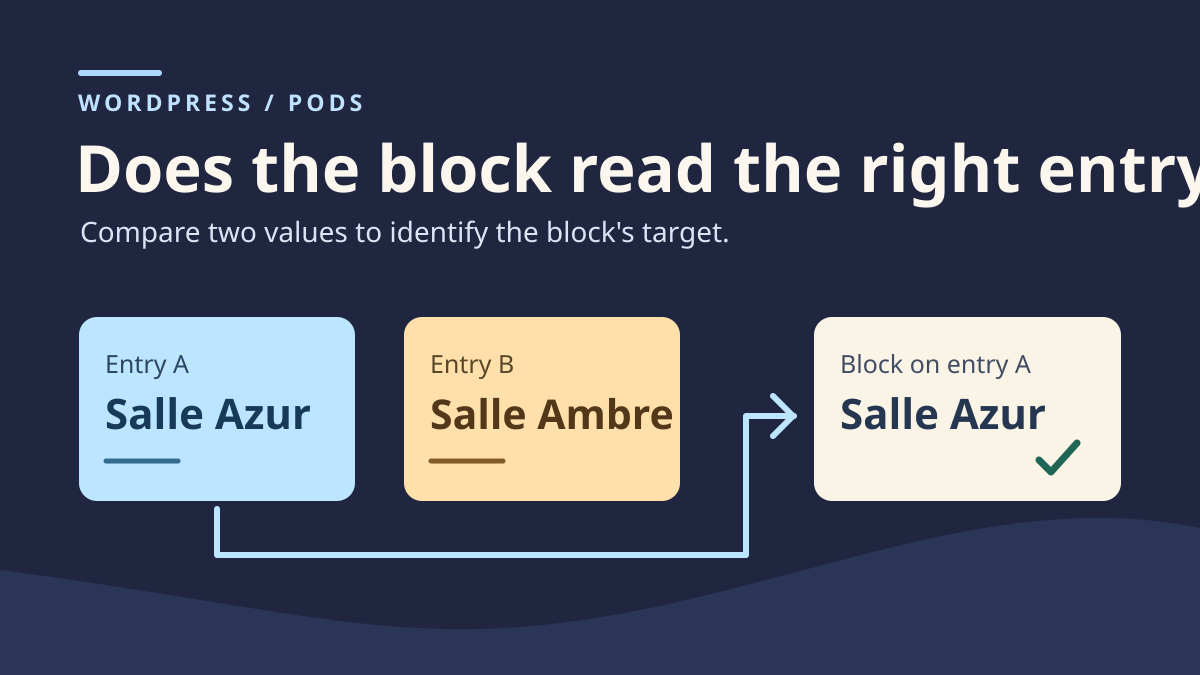
For the exercise, page title and room text are independent markers. On “Fiche fictive A”, expect “Salle Azur”. On “Fiche fictive B”, expect “Salle Ambre”. Seeing the correct title and wrong room on the same page indicates that the opened page is correct but the value's source needs checking. Retain this distinction in screenshots or notes.
Prepare two entries with recognizable values
In a working copy, prepare a test Pods content type or select two dummy entries of the same type. The exercise field is labeled “Salle de retrait” on screen. Its technical name is salle_retrait. Enter “Salle Azur” in A and “Salle Ambre” in B. Save both entries, reopen them and confirm both values were saved. Different values let you trace the source. With “Salle 1” on both sides, the block can read the wrong entry without the test revealing it.
Find a URL for each entry and record its title, type and ID on the copy. A visible name such as “Fiche A” is neither its slug nor its ID. Even if a title resembles the slug, record the actual value. An ID on the copy may differ from another environment's. Keep IDs in staging notes instead of presenting them as configuration to copy elsewhere.
Add the same block to A and B or record the one already used by the template. Copy settings before touching them: Pod name, slug or ID, field name and block location. If the block sits in a shared template or synced content, duplicate that element in the working environment before experimenting. One shared-element change can affect every entry. Control B is useful only if you know which settings it shares with A and which are its own.
Then open each entry as a visitor at an address corresponding to its individual page. Record the value directly below the tested block, rather than a word found anywhere on the page. The room may also appear in a title, card or manually entered paragraph. In the exercise, an entry title confirms the requested page and a distinct rendered area confirms block output.
Record the field name and entry Pods should read
In Pods Field Value settings, find the Pod name, slug or ID box and field name. Labels may be translated. “Salle de retrait” helps people entering records, but the block expects the technical field name. Compare that name with the actual Pods setting. In our control, salle_retait is an easily overlooked typo. The block becomes empty while “Salle Azur” remains saved in the correct field.
Next examine the target. For a fixed test, supply the Pod and an entry slug or ID whose value you verified. If A's block uses B's ID, “Salle Ambre” may appear on page A. The field itself works: the evidence is that the text exactly matches the other entry. If you duplicated an entry or moved a block from a reference page, first look for an ID retained in the copy.
To read the current entry's field in the exercise, leave Pod set to the choice using current context and supply neither a fixed slug nor ID. Retain the technical field name. The example below is the dynamic block's saved representation in staging. You can compare this reference with a copy's code. For correction, prefer block settings over manually rewriting its comments.
Distinguish the entry containing the block from the entry the block should read. The test concerns an individual entry. A block inside a loop, builder template or editor preview may receive another context. If the fault exists only in one of these locations, reproduce that exact location on your copy and test two rows or pages. An individual-entry result does not establish behavior in these configurations.
<!-- wp:pods/pods-block-field {"field":"salle_retrait"} /-->Distinguish three causes by comparing with the baseline
Start with the correct field and current entry. A displays “Salle Azur”, B displays “Salle Ambre”. Record this result before creating a fault. On A's copy only, keep the correct field and give the block fixed target B. Output on A becomes “Salle Ambre” while “Salle Azur” remains saved in A. If B continues displaying “Salle Ambre”, you have an example of incorrect targeting without data loss. Return to baseline settings for the next test.
On A, replace the technical name with deliberate typo salle_retait. Leave everything else at baseline. In staging, the block area stays empty while A's data remains present. Check the settings difference and restore the exact name. If your interface shows an error message, retain it in notes and also observe the visitor page. The test examines the relationship between the block's request and public result.
For the third test, keep the correct field and target. Empty only A's value on the copy, retaining “Salle Azur” in notes. A becomes empty again and B retains “Salle Ambre”. Reopen A and observe that the field exists but no longer contains a value. You now have the two checks missing to explain the blank: the requested field is the configured one and the entry actually read has no value. Immediately restore “Salle Azur” before continuing.
These tests compare results; they do not create three fixes. On your working site, choose the branch matching the observation. If the correct field contains a value and the block already targets the correct entry, stop changing data. Try an identical block on an isolated entry. If it works, compare location and template. If it also fails, check whether display depends on role, entry status or a Pods setting before changing another field.
Choose the setting matching the page
If the room should follow the entry, remove the fixed target and use current context, then check A and B. Moving from A to B proves that rendering follows the entry. Testing only A after restoring A's ID may hide the fault until the next duplication. For a shared template, save the change in its copy, then check at least two pages using it and one not using it. The latter verifies that the intervention stayed in the correct location.
If the room must come from a designated entry, retain a fixed target and correct it. Check the Pod, then the ID or slug of the entry this page should cite. In staging, explicitly targeting A on page A returns “Salle Azur” again. To prove that a fixed target meets your need, choose a second page where the same block should read this source. Its own field may differ. You must be able to explain why output remains identical. Also document what needs rechecking if the reference entry moves or is replaced.
If the setting is correct but data is missing, have the entry completed from verified information. An empty room may also mean the location is not yet determined. Agree on behavior for an unknown value. Inventing a value or copying B would remove the blank while introducing an error. If the field name is responsible, change the block setting. Renaming the Pods field to match a typo risks breaking other uses.
Make one justified change, then open both entries logged out. When editor and visitor page differ, check that you are comparing the same version and location before suspecting permissions. Pods may restrict certain data's display. Confirm the value is intended for visitors and request verification of the relevant setting. Broadening access to the entire type or all fields does not prove the block was reading the wrong entry.
Check output and restore the initial configuration
To separate data from display, prepare a real content type and dynamic Pods block in a local instance. Record each entry's field value through the Pods API, the block's saved setting and the visitor page's HTTP output. Compare the rendered area with the entry title without using one observation as proof of the other. In each test state, entry B must remain the stable control. This is the protocol to reproduce; no execution results are provided here.
Rollback depends on what changed. For a target or field-name test, restore baseline block settings. In staging, the fixed block on A is replaced by the original markup using the current entry. A's output remains “Salle Azur” and B's “Salle Ambre”. Compare saved content as well as rendering. If data changed during testing, restore it separately and reopen the entry. Restoring the page body does not prove that a custom field's value was restored. Read both.
When the block lives in a shared template, restore the setting where you changed it. If others modified the template meanwhile, avoid restoring an entire copy without comparing differences. Restore only the target or field setting when sufficient. After rollback, retest A and B. If A remains wrong while its data is correct, retain old and new settings for whoever takes over. This record lets them start from an observable difference instead of repeating the same changes.
Keep evidence together: the entry and test URL, two expected values, settings before and after, and value read by a visitor. This protocol covers neither relationships between entries nor nested loops. If your fault occurs in a loop, record what changes between rows before trying another fix. This record is ready for review when someone can explain why the value is empty or where the foreign value comes from, then reproduce the setting and rollback.
If the control works but the original entry does not
First compare the request as it reaches the block. Record the exact address, entry title, type and saved setting. If one test page reads “Salle Azur” and another remains empty, finding the same onscreen options does not prove they come from the same block. In the editor, find the location producing the observed area. On the visitor page, inspect that area. If the correct value is in HTML but invisible onscreen, the block produced output. Continue with display investigation before correcting Pods data.
If the value is absent from HTML, compare both pages under the same conditions: visitor permissions, entry type, template or block location. If the isolated copy works but the shared template fails, restore the block to its original location on the copy to see whether the fault returns. For a help request, provide technical names, block settings, expected dummy values and both observed results. This describes the fault without transmitting a real entry or account credentials.
Prepare the staging field with free Pods
If you do not yet have the exercise content type, install “Pods – Custom Content Types and Fields” through Plugins > Add New Plugin on a local copy. In Pods Admin, create a custom content type for test entries or open the type already reserved for staging. Avoid changing the structure of a production-used type for this exercise.
Add a Plain Text field: give it a readable label and the technical name salle_retrait. Save the field, then the Pod. The label may be translated; the technical name must remain exactly the one requested by the block. Then create entries A and B, enter their distinct values and save each before inserting the Pods Field Value block.
This free plugin supplies the required type, field and block; a paid builder is unnecessary. Do not replace the field with a manually written paragraph to conceal incorrect context: that would freeze the value. To undo staging created from scratch, remove its blocks and entries before deleting its Pods definition; never delete an existing Pod on which other content depends.
Sources and references
Use these references to check the features, requirements and limitations described. Reading documentation is not a practical test.