

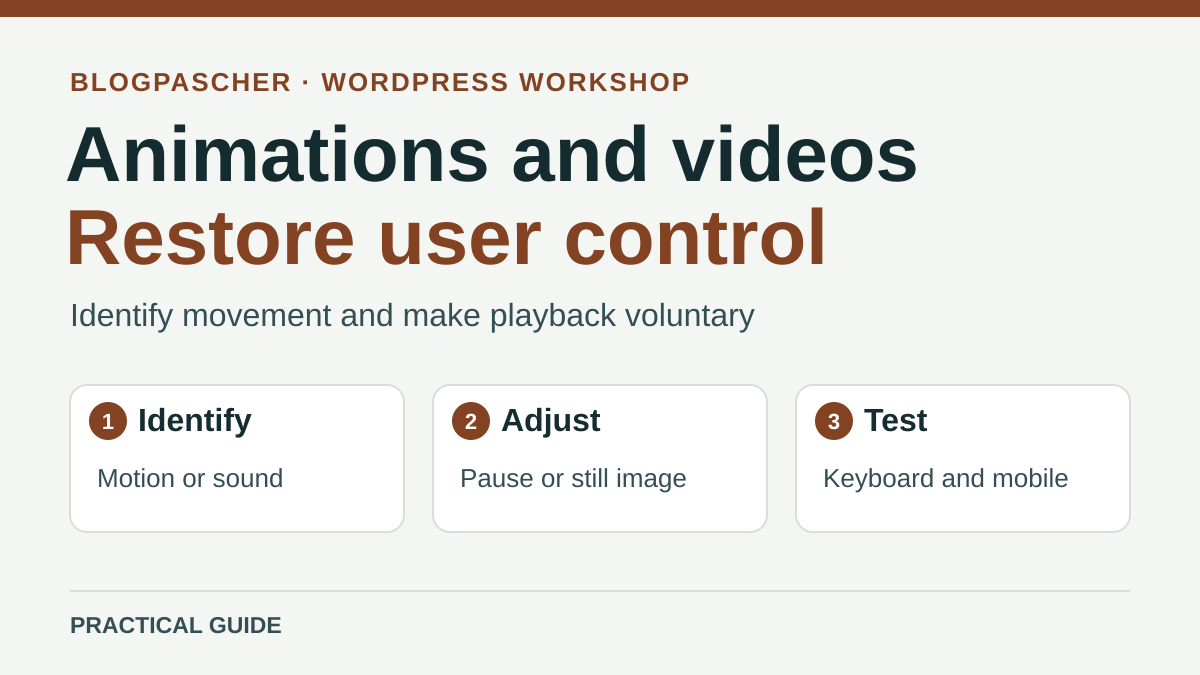
Observe what starts before your first action
Open the page in a visitor window at a screen size where the problem was reported. First let it load without clicking. Record what moves, what starts playing, what changes on scrolling, and whether sound is audible. A heading that slides once, a carousel advancing every four seconds, and a muted video looping behind text require different settings. Record the time before starting and how long the effect remains visible. For a carousel, measure total rotation time, not only each slide's duration.
Then check the same page using keyboard navigation. Identify the first link or button you want to reach. Observe whether the area changes content before you can use it, whether text remains readable, and whether a control stops motion. On mobile, also look for a control accessible without hovering. A browser may block audible autoplay according to its rules and session history. A silent visit for one person is therefore insufficient to establish that the video waits for action everywhere.
W3C distinguishes several situations. For moving content that starts automatically, lasts more than five seconds, and is presented alongside other content, provide a way to pause, stop, or hide it unless movement is essential. For information updating itself alongside other content, control may also concern frequency, and the five-second threshold does not apply. Sound that starts automatically and lasts more than three seconds requires another control. Users must be able to stop it, pause it, or adjust its volume independently of overall system volume. If sound or animation adds nothing to the flow, you can also remove it at the source.
Find the block, template, or script producing the effect
In the WordPress editor, open the block list and locate the observed area. Click the block closest to the movement. If the selected frame contains only a heading or button, move up to its parent. A background video sometimes belongs to a Cover block, while a video intended for viewing is often a Video block. Externally hosted media may be embedded. A carousel or entrance effect may come from a theme- or plugin-provided block. Record its name, path through the block list, and setting location.
If the same effect repeats across several pages, compare an affected page with one that should remain still. Look for a shared template, synced pattern, or common style rule. Check that you are opening the element producing the public rendering. If the page has no corresponding block while the effect appears beneath the same header everywhere, a template or shared script deserves examination. For a change on the copy, duplicate the page or work on the smallest representative template before extending the correction.
Make an initial record of the effect-triggering setting, visible content, and a reference page. An animation embedded in an image remains animated when the block's transition setting is disabled. Conversely, a static image may move if its container receives CSS animation or a script changes its position. If the effect occurs only when entering the viewport or on pointer hover, record that precise trigger to reproduce it.
Approach 1. Configure playback and background media
With page-editing permissions, select the Video block and open Settings in the sidebar. Disable Autoplay and keep Playback controls enabled. Also disable Loop if the clip's end should mark a pause or allow time to read what follows. In block settings, open Poster image and choose an image. Check that the media title or nearby text explains what the video shows. The poster image presents the media before playback. Controls come from the player.
On the copy, reload in a new window and wait a few seconds. The video should remain stopped. Start it with its button, pause it, and resume playback. Then use controls with the keyboard and touchscreen. Also check captions or the equivalent text provided for the content, especially if the video explains a procedure. If sound is useful, check that the player allows adjustment. A muted video may still move behind text, and a volume setting does not address that visual effect.
If media is embedded from another platform, look for the playback setting in the component creating the player. The WordPress block may merely host a frame, while the player's own configuration is defined elsewhere. Ask the component maintainer to confirm the corresponding setting. If you maintain native player HTML directly, remove the Boolean autoplay attribute to disable automatic start. An attribute written autoplay="false" remains present and may permit starting. For a remote embed, check the result after the player fully loads.
Replace an animated background while keeping text and buttons
When a video serves only as the background of a Cover block, try a static image on the copy. Select the parent block and use media replacement in its toolbar if offered. Keep inner blocks, overlay, and focal point under control. If you must rebuild the cover, first record headings and button destinations. On a phone, check that the important part of the image remains visible and buttons stand out from the background. A different image may require adjusting overlay opacity.
If the video contains a useful demonstration, move it to an identifiable nearby Video block and leave the main banner still. Visitors can read the heading, then choose to watch the demonstration. If the old file was an animated image, use a genuinely static image or media available on demand. For an image carrying essential information, preserve that information in accessible text or an element conveying it even when the background fails to load.
Check the public template after changing. If a video continues loading, the file may remain attached to another block, a mobile variant, or a theme script. Compare both screen sizes and ask the maintainer to check resources loaded on the page. Visually hiding a player with CSS does not remove its trigger. To stop automatic media or downloading, act on the component launching it or replace the source media.
Approach 2. Correct component rotation or triggering
For a card carousel, first look for an automatic advance or rotation setting. Try manual mode on the copy while retaining previous and next controls. Give buttons understandable names and check that the visible card remains usable. If rotation is retained, provide a pause and resume control accessible from the start of the carousel flow. Arrange for rotation to stop when focus enters the area and on mouse hover. A hover-dependent pause leaves keyboard and touchscreen users without an equivalent means.
After a visitor-requested pause or a stop triggered by focus entering, check that rotation waits for an explicit action before resuming. On the copy, enter the carousel with Tab, wait longer than one interval, and check that the card stays in place. Advance one card, follow its first link using the keyboard, then leave the area and confirm rotation remains stopped. Next test the resume button. If the component cannot produce these results, manual mode or a static card list may preserve access to the same information. Check links and their order after replacement.
For a scroll-linked effect, examine whether the heading, text, and controls are already visible when animation is removed. Some blocks make an element transparent until it enters the viewport, then use a script to show it. Removing movement alone may leave the text invisible. Disable the effect in component settings where possible, or have the maintainer adjust static state and triggering together. In both cases, text must be available as soon as visitors reach the area.
Approach 3. Respect the reduced-motion preference
When the theme adds decorative CSS motion, the maintainer can reduce it for people who requested less motion in their system. The example targets one section with class agenda-animation and a heading with class agenda-animation__titre. Classes must match actual elements. In the editor, enter an additional block class without a leading dot. With a block theme, you can try the rule under Appearance > Editor > Styles, then Additional CSS in the three-dot menu. This setting applies site-wide, while the selector limits its effect to the two classes. If the site manages styles in files, add the rule to the child-theme or component stylesheet loaded on the staging page. Keep a copy of previous CSS.
The rule suits a heading already visible where transform serves only the decorative effect. If the transformation also controls heading alignment, remove only movement and retain the expected position. If another declaration hides the heading, adapt its visible state with the maintainer. Do not apply the rule to every page element. Menus, panels, and other interactive components may rely on a transition or transformation to make their state understandable.
The motion preference allows a display variant. Pause, sound, and intentional-playback controls must also be checked with the system's ordinary setting. If a script advances a carousel or starts a video, the three declarations below do not control that script. Adjust component behavior instead. Test normal and reduced preferences after reloading, with the same URL and content.
@media (prefers-reduced-motion: reduce) {
  .agenda-animation .agenda-animation__titre {
    animation: none;
    transition: none;
    transform: none;
  }
}
Test a still page without losing its functions
On an authorized copy, prepare a reference page with a short dummy video, poster image, and button leading to another section. First check the initial state in a visitor session. Change one trigger, then repeat in a new session. For on-demand video, wait the same time before the first click, start playback, pause, and resume. For a manual carousel, wait several intervals that would have caused rotation, then use its controls. For the CSS variant, check that the heading remains visible and navigation reaches the button.
Repeat the flow in a narrow view, then using the keyboard on a wide screen. For the CSS variant, first check the intended effect with the ordinary system setting. Then enable reduced motion in system accessibility settings, reload, and confirm that the heading stays still and visible. Check that controls and links remain reachable and compare with a page not using the targeted classes. If the stylesheet is shared, this second page is a control. Also check the player, pause, and sound adjustment with both preferences.
If the preview is correct but visitor view still shows the old effect, confirm the URL, page version, and stylesheet or media actually used. A page or asset cache may explain the difference. Identify the layer before applying a targeted purge. Then repeat the same flow under conditions that made the problem visible.
Return to the last verified behavior
Keep the original media, block state, and rotation or playback settings. If the correction impedes access to information, restore only the changed component and repeat the reference flow. For a style adjustment, remove the CSS block or restore the previous stylesheet version. For a cover, restore the agreed media and check overlay and buttons. For a shared pattern, compare at least two pages after rollback because the setting may affect several uses.
When manual playback works and text remains accessible, record the chosen setting, relevant template, and test conditions. Add a simple check for future pages reusing the component. For example, the editor can confirm that video waits for a click, pause remains available, and the first link is keyboard-reachable. Also retain added class names if a maintainer edits styles.
The useful result is a page whose content remains readable on load and whose media starts according to the intended choice. The record makes it easy to locate the cause of returning motion, particularly after a template, media, or theme-setting change.
Compare both preferences without changing the whole system
Chrome developer tools' Rendering panel allows a local comparison. Open tools on the staging page, then the command menu and search for Rendering. In that panel, locate emulation of prefers-reduced-motion. Choose reduce, reload the page, and observe the targeted heading. Then compare with no-preference, and restore the option to its no-emulation value.
Record three distinct observations: the heading stays visible, decorative motion is absent in reduced mode, and buttons remain usable. This check does not demonstrate that a JavaScript carousel stopped: also wait several intervals and try its controls. For a native video, check separately that autoplay is disabled and the play button works.
This method is free and practical for the maintainer. An editor can keep the tool-free route using system accessibility settings. Emulation supplements that test; it does not replace a phone visit or keyboard check. If stopping motion leaves the heading invisible, correct the component's static state before extending the CSS. For rollback, remove only the staging rule and ensure emulation is no longer active for subsequent observations.
Sources and references
Use these references to check the features, requirements and limitations described. Reading documentation is not a practical test.
View 11 references
- WordPress — Video block ↗
- WordPress — Cover block ↗
- W3C — Pause, stop, or hide ↗
- W3C — Audio control ↗
- W3C — Reduce animation according to system preference ↗
- W3C — Carousel animation ↗
- W3C — Animation triggered by interactions ↗
- MDN — Media autoplay ↗
- W3C WAI APG — Carousel rotation and keyboard behavior ↗
- WordPress — Styles and additional CSS ↗
- Chrome — Emulate CSS preferences ↗