

Identify the discrepancy between a product and its list
A product page displays the new price, but sorting places it among more expensive products. Another is visible through its direct address but disappears when visitors choose a color. Both results may stem from derived data used by the catalog. They may also be explained by product configuration, the filter used or a cached response. Record the precise page, sorting, search or active filters and expected result. Also keep the time of the import or edit preceding the problem.
Start with one affected simple product, a comparable working product and a variation if variable products are affected. For each example, record the ID, reference, price, stock status and attributes useful to the test. Open the same page with identical criteria in a logged-out window. A difference from the administrator's view may indicate account-related differences in caching, visibility or pricing. Your first goal is a reproducible discrepancy for a precise query.
Reproduce the query giving the wrong result
On the starting list, remove filters and check that the product belongs within its scope. An item in another category may remain absent even with a correct index. Then add one criterion. Test price sorting, then the reference in a screen or search that actually accepts references, then an attribute filter. Record which operations reproduce the discrepancy. If the address changes with filter settings, keep each address with its expected result.
If possible, compare the problematic element with a native store list on a copy. An external search tool or custom block may use its own data, and not every public search accepts references as a criterion. If behavior differs only in that component, identify its search mechanism before rebuilding WooCommerce indexes. If the discrepancy also occurs in the native query, check products and their variations. A recurring problem with the same attribute across several products justifies checking the filtering path.
Choose a term and identify the three controls
Start with an attribute filter producing a precise response. For example, choose the store with color Bleu, without a price filter or second attribute. Record the URL, component displaying the list and where visitors apply the filter. In a catalog, the expected response is generally a card for the parent product matching the term. The variation itself is then selected on the product page. Therefore do not assess a filter displaying parents by looking for a separate card for every size or color.
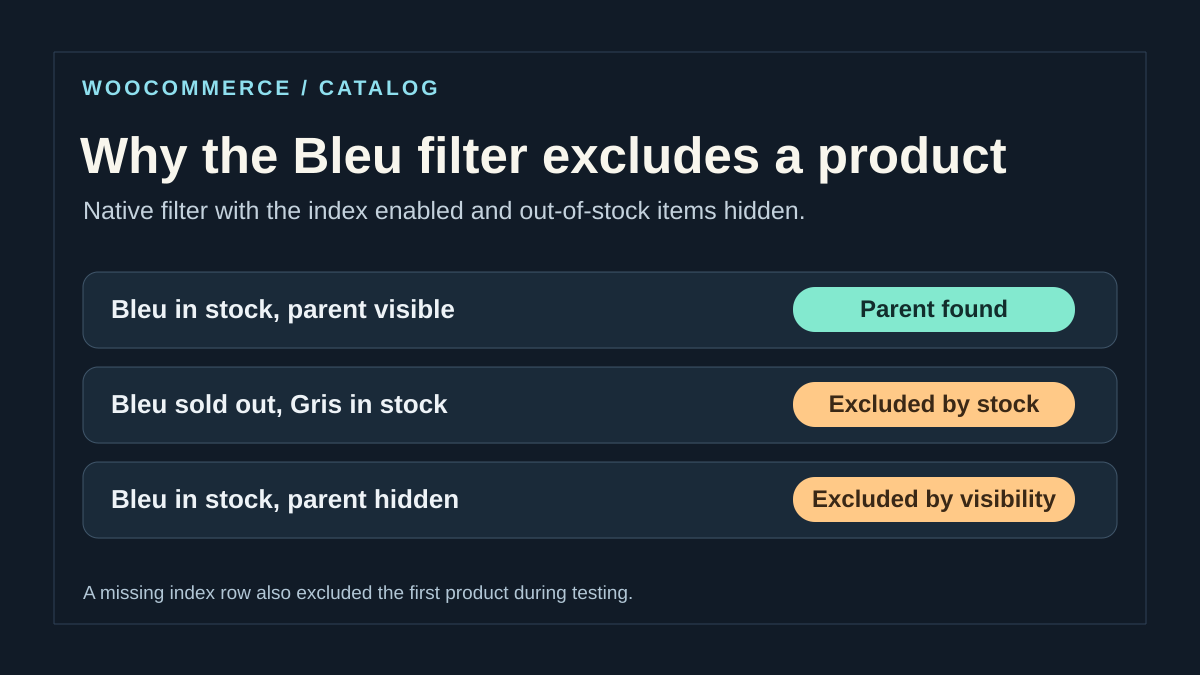
On the copy, choose a visible product that should appear and record the parent ID and blue variation ID. Add two useful counterexamples. The first has a visible parent and sold-out Bleu, with another color in stock so the product remains visible without filtering. The second has Bleu in stock but a catalog-hidden parent. Run tests anonymously in the same list with the same term and settings. The hidden parent must remain absent from the store even if its direct URL works.
First record the unfiltered list, then the list with only the term. If the parent is missing in the first reading, check its status, visibility, category or collection conditions before looking for an attribute row. If it appears only after removing the term, examine which variation actually satisfies it. A parent may be in stock thanks to Gris while Bleu is sold out. The result then depends on the hide-out-of-stock setting and filtering mechanism.
Approach 1 — Correct the attribute, stock or visibility at the source
With product-editing permissions, open Products → Attributes and find the global attribute used by the filter. Under terms, record the label and slug, for example ‘Bleu’ and bleu. Then open the variable product under Products. Under Product data → Attributes, check that the parent uses this global attribute, contains the intended term and uses it for variations. A local value entered as text on the product may carry the same label. It does not provide the global filter with the same taxonomy or term.
Under Product data → Variations, open the exact variation. Check its assigned term, enabled state and price. For a Bleu / M combination, check that combination's stock. Bleu / L stock and the product's total stock do not answer the question. If the variation manages its quantity, record quantity, stock status and backorder permission. If stock is shared at parent level, also record its inventory settings. When an import maintains these values, correct the source that should supply them on the next run.
Then check the parent product's Catalog visibility. A parent visible only in search may be missing from the store. A hidden parent may remain accessible through its direct URL. Check the intended scope before changing this setting. Also record WooCommerce → Settings → Products → Inventory, especially the option hiding out-of-stock items. Keep its value for the test and check that your store's filter respects it. To clarify uncertainty, compare the sold-out blue variation while changing this setting on the copy. The result change then becomes a control for this stock rule.
Correct only the demonstrated data issue, then save and reopen the parent and variation to confirm retained values. Repeat the test without filters, with Bleu and, if the product uses several attributes, with the exact combination on its page. The expected result is the parent's return to lists where it should appear and a variation selectable under intended sales rules. To roll back, restore recorded values in the same screen or supplying integration. A visibility or stock change applies to other lists and may affect customers. Test on the copy before repeating elsewhere.
Identify which of the two tables is involved
WooCommerce maintains a wc_product_meta_lookup table, preceded by the installation prefix, to make certain searches and sorting more efficient. It contains data related to product references, prices and stock, among other things. If product pages are correct but several imported products are sorted by old values, this table is a lead. A price filter and color filter do not necessarily read the same data.
The wc_product_attributes_lookup table serves catalog attribute filtering. It helps represent attribute terms and their relationships with products and variations. If the ‘Bleu’ filter fails while price sorting and display are consistent, check the attribute, variation and filter configuration before targeting this table. Both names ending in lookup is not enough to choose the tool. Order lookup tables and other derived data also exist. Limit intervention to the result type you actually reproduced.
Check data before rebuilding
In the WooCommerce editor, record the values the product should actually use. Check publication status and catalog visibility. For a price, check the sale period and the difference between parent and variation prices. If tax or currency varies by visiting context, compare results in the same context. An available and a sold-out variation may also influence the price range customers see.
For an attribute filter, confirm the global attribute and exact term are used where the filter expects them. Two ‘Bleu’ labels may represent a global term and text entered only on the product. For a variable product, check the match among term, variation and availability, then compare with the hide-out-of-stock setting. If source data is wrong, correct it through the editor or responsible integration. A table regenerated from incorrect data may reproduce the problem without displaying an error.
Use a control product to locate the break
On a copy of the discrepant state, compare affected products with one created or updated through WooCommerce's usual workflow. Choose comparable examples. A simple product does not replace testing a variation when only variations are affected. Record which products come from the same batch, when they were updated and by which tool. Ask whether the workflow uses WooCommerce interfaces or writes directly to WordPress data.
On a control product in the copy, save the intended correction through the editor, then check the list. If an ordinary update works for this product while other batch products remain inconsistent, the import workflow becomes a priority lead. Attribute updates may be deferred depending on configuration, requiring task checks before conclusions. When the product remains inconsistent after saving and its actual data is confirmed, choose the regeneration tool based on the failing query.
Regenerate the general product table
If several reference, price or stock discrepancies concern the general table, open WooCommerce, then Status, then Tools. Locate Regenerate product lookup tables or its translated label. Before starting, confirm a usable backup and a working window appropriate to catalog size. On an active store, coordinate regeneration with imports or synchronizations updating the same products. Prepare controls for the final check.
Run the tool once on the copy. WooCommerce indicates that regeneration may continue through tasks. The button changes to a processing state with a link to track progress or view queued updates when WP-Cron is disabled. Keep the start time and observe whether processing progresses. If tasks finish and control queries remain wrong, recheck data and the search component. Successful rebuilding confirms completion of the intended processing. It does not guarantee the public query used this table.
Regenerate attributes for only the affected product
If discrepancies concern an attribute filter, locate Regenerate the product attributes lookup table on the same screen. When the tool offers a product selector, choose the control product first. WooCommerce then rebuilds attribute data for that product. Afterward, repeat exactly the same filter test with the same category and visibility state. If the product returns, check an available and a sold-out variation under your store's rule.
For a demonstrated widespread inconsistency, the tool without a selection rebuilds the entire table through scheduled tasks. Plan for the impact on filters. During complete rebuilding, WooCommerce disables use of this table and does not permit reactivation then. After processing, check the option in advanced product settings and compare it with the initially recorded state. If the tool reports an interruption, read its state and messages before resuming. Do not force activation of a potentially incomplete table. Choosing resumption or a new rebuild depends on what has already been processed.
Approach 2 — Check and regenerate the targeted product's data
When product data and visibility match expectations, identify the engine applying the filter. First repeat the test on the native store list if available on the copy. A collection block, external search engine and filter plugin may alter the query or use their own index. If the fault is limited to one of them, record its name, collection and query. Follow its verification procedure before regenerating the native table.
For the native index-based path, open WooCommerce → Settings → Products → Advanced. In the attribute lookup table section, record whether table use and direct updates are enabled. A catalog may use another filtering path when the table is disabled. Checkbox state indicates store configuration. A technical administrator can confirm in the native query whether the attribute table was actually consulted. Deferred updating may explain a brief discrepancy after an import or save. Check scheduled actions and processing times before concluding the index is incomplete.
When the query uses wc_product_attributes_lookup, compare variation data with derived rows. For the color used by a variation, identify variation ID, parent ID, global-attribute taxonomy and term ID. The in_stock column indicates whether the row is indexed as available for this filter. On a copy, check whether the expected row is missing, targets another term or retains an outdated state. Record the installation's actual prefix for this technical read. The wc_product_meta_lookup table, used for other searches and sorting, is not the index for these terms.
With WooCommerce management permissions and a usable backup, open WooCommerce → Status → Tools on the copy. Locate Regenerate the product attributes lookup table or its translated label. In the selector, choose the identified parent product. Ensure the product remains selected before starting. An empty selector can trigger regeneration of the entire table. If your version lacks this selector, check the available procedure for your version on the copy. General product lookup table regeneration is a different operation.
After execution, reread the variation's term and stock, then repeat the original query. The expected parent should return if its attribute row was the sole cause. The hidden parent must remain absent and the sold-out variation must follow the inventory setting. If the index becomes inconsistent again after the next import, compare an editor update with an equivalent import update. Then check whether deferred updating ran. Regeneration rebuilds derived data. To return to a precise test state, restart from the copy's snapshot. To reverse product data, correct it in the editor or source system and check the index again.
With WP-CLI and a WooCommerce version providing wc palt, you can run the same targeted rebuild from the WordPress directory. Replace 123 with the parent product ID and the URL with the copy's site or subsite URL. The --disable-db-optimization option uses the path without optimized regeneration queries. After completion, revisit the same list with the same filter.
wp --url=https://boutique.exemple.test wc palt regenerate_for_product 123 --disable-db-optimizationCheck three causes with the same filter
On a copy, prepare three fictional variable products: a visible parent with Bleu available, a visible parent with Bleu sold out and Gris available, and a hidden parent with Bleu available. Record out-of-stock hiding and attribute-index use before testing.
Compare the unfiltered list, then the list filtered by Bleu. The first control checks expected presence; the other two check that correction does not remove stock and visibility rules. An available variation does not make an intentionally hidden parent visible.
If a derived row is actually inconsistent, regenerate the affected parent with the native tool, then repeat exactly the same query. Do not remove a production SQL row to manufacture a fault. Record the actual result and your copy's versions. For a Bleu and M combination, then check the variation on the product page: the parent's presence in results alone does not prove a complete combination can be purchased.
Track tasks in the incident's context
Open scheduled actions from WooCommerce's status screen or the progress link supplied by the tool. Record names, times and states of actions associated with this rebuild. Pending tasks decreasing progressively may be normal. A failed task warrants reading its message. Also check whether other catalog processing occupies the same window. For a site whose WordPress tasks use a server trigger, have the maintainer confirm it works.
On a copy, you can reproduce starting and record how long progress remains observable. On the live site, adapt the window to batch size and normal task behavior. Avoid restarting the tool at every reload while operations are already running. Do not bulk-trigger other similarly named tasks. A queue may contain notifications, synchronizations or payments outside this incident. When progress stops, preserve evidence and resolve the targeted task's blockage before judging catalog rendering.
Validate using the same products and queries
Wait for processing to finish before comparing results with the initial record. For price, repeat sorting in both directions on a few products with clearly different prices. For a reference, repeat the exact search on the affected screen and check that the result opens the correct product. For an attribute filter, apply the term alone, then add the second filter visitors use. Check a product that should appear and one that should remain absent. Repeat these checks with a variation if the fault concerned variation stock or attributes.
Compare the result in a public window and on the reference copy. If only public visitors receive the old result and the site offers targeted invalidation, test affected addresses after invalidation. If an external search application still reproduces the discrepancy, compare its last synchronization date with the correction date. Sorting restored in the native catalog but still wrong in that application indicates which component to examine next.
Prepare rollback suited to the correction
Keep the initial filtering settings and backup taken before regeneration. The tool rebuilds derived data. It does not undo an incorrect import or recover an original price. If investigation revealed incorrect source values, restore them through WooCommerce or a tested corrective import. Then compare the selected products and verify that derived data follows. If you only changed a filtering setting and the table is healthy, restore the recorded value and repeat control queries.
If complete processing was interrupted, leave attribute-table use in the state intended by WooCommerce until resumption or a new regeneration succeeds. Full restoration of an active store involves data that may have changed meanwhile. Have those writes assessed before any complete restoration. New-order times and ongoing synchronizations determine what needs reconciliation. Prefer a correction whose scope matches the observed discrepancy and whose result can be verified with control products.
Prevent recurrence on the next import
Give the import administrator the affected-product record, date, field type and result of editor saving. Ask them to check how the integration creates and updates products and variations. Run a small reference batch on the copy through the same mechanism as production. Compare values in product records and lists after scheduled actions finish. Include a variable product, price change and global attribute if all three occur in the import.
The regeneration tool is part of the free WooCommerce plugin. An additional search plugin may help with a different need, such as business-specific search in an external catalog. For inconsistency appearing immediately after import, first stabilize updates to the existing catalog. Document which screens read references and which use attributes. At the next check, this map avoids treating two similar-looking results as necessarily depending on the same table.
Decide when to resume updates
Set a resumption criterion before reactivating a suspended catalog workflow. If regeneration has finished but the first test batch recreates the discrepancy, keep that batch as evidence and return to the import mechanism. If controls stay consistent after the batch, monitor the first normal run with the same checks. Identify someone responsible for each result when several tools intervene between the product and list.
- Compare affected and control products in the editor, public product page and query that reproduced the fault.
- Confirm completion of affected actions and the attribute-table usage setting.
- Run a small controlled batch through the import workflow and wait for WooCommerce's intended processing.
- Repeat search, sorting or filtering with the same parameters and retain the check time.
- If the discrepancy returns, record the first affected product and suspend the workflow updating it before undertaking another general rebuild.
Prepare the targeted command before starting a rebuild
The wc palt command family was introduced with WooCommerce 9.1. Before using the example, run wp help wc palt on the copy and confirm that your installation provides the command. An ‘unknown command’ error calls for checking the version and WooCommerce loading; it does not justify manually deleting the table.
Targeted rebuilding expects the parent ID, including for a variable product. Record command duration and result, then check the term and variations motivating the intervention. The --disable-db-optimization parameter selects the path without optimized queries; this choice is not a general compatibility fix and may change processing cost.
WooCommerce's native tools are free and sufficient to rebuild this derived data. A third-party search plugin remains another layer: if it has its own index, validate its synchronization separately instead of rerunning the native rebuild until its screen changes.
Sources and references
Use these references to check the features, requirements and limitations described. Reading documentation is not a practical test.
View 10 references
- WooCommerce system tools ↗
- Data indexed by the catalog ↗
- Attribute index regeneration ↗
- Attribute index settings and status ↗
- Prices and references in the lookup table ↗
- WooCommerce plugin ↗
- WooCommerce — configure variations and their stock ↗
- WooCommerce — stock and catalog visibility ↗
- WooCommerce — product fields and parent visibility ↗
- WooCommerce — regenerate a single product and optimized updates ↗