

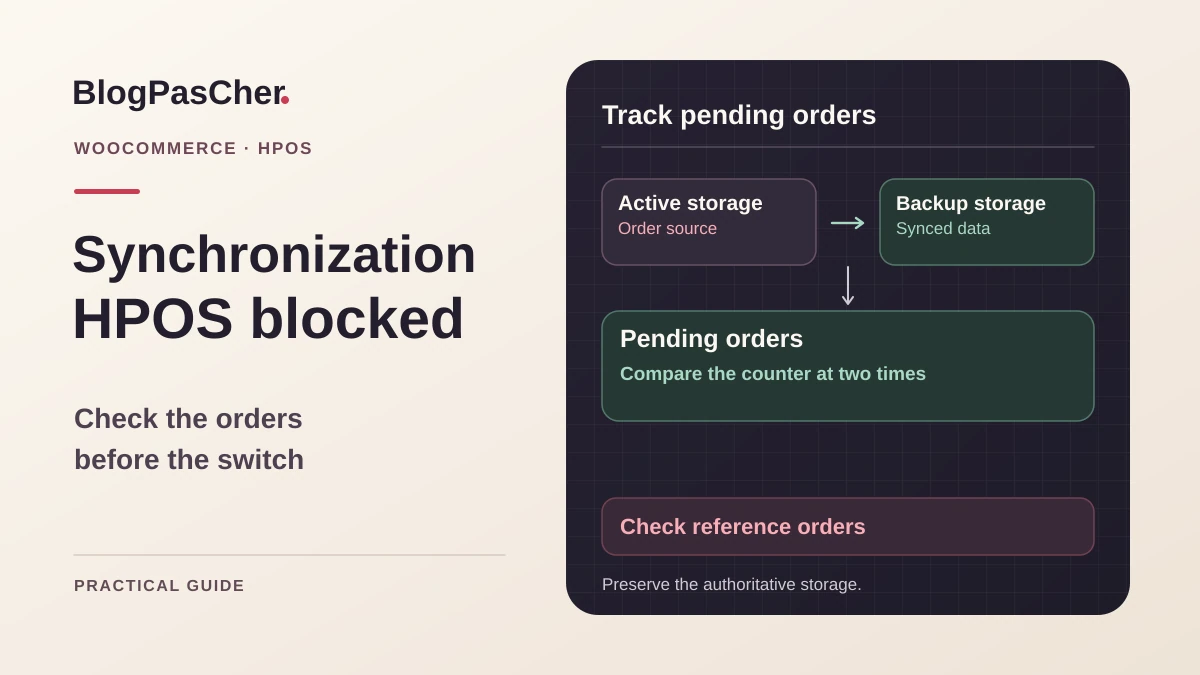
Identify the authoritative storage
WooCommerce indicates that orders remain to be synchronized. The high-performance storage option, called HPOS, remains unavailable or the counter no longer decreases. Before restarting processing, open WooCommerce > Settings > Advanced > Features. In the order storage area, record the active selection, compatibility mode state, and pending-item count where displayed. Take a dated screenshot in a private location. An incompatible-plugin notice first requires addressing that dependency. Here, you are investigating why data that should be copied no longer converges.
The active storage is authoritative. When legacy WordPress post storage is selected, synchronization prepares the HPOS order tables. When HPOS is active, synchronization may update the legacy copy. The same counter may therefore correspond to two different directions. Before any test, record the source and destination. If Features shows automatic switching once synchronization finishes, record its state immediately. An enabled option may change authoritative storage without another manual selection. A table containing recent rows does not replace this check. Depending on active storage and mode, some writes or intermediate rows may exist in both sets.
Prepare a usable database backup and recent copy if an intervention will write data. On an open store, record which orders and refunds may arrive after the backup. Restoring the entire database could discard those writes. For testing, disable payments, emails, and webhooks on the copy. You need an account authorized to view WooCommerce. Terminal commands also require SSH access and a WP-CLI installation able to load the correct WooCommerce version.
Compare progress at two times
Record the counter on the first visit. Wait an interval appropriate to the queue's pace and check whether actions finish between readings. Avoid repeatedly reloading a heavy screen on an active store. A falling pending count and increasing completed actions are useful indicators. A stable count may signal an interruption, but also new orders arriving while older ones are processed. Compare action times and recent volume before concluding.
The following example is fictional. A copy moving from 800 to 400 items with completed actions following one another is processing its queue. On another copy, the counter stays at 800 and the same task fails on every attempt with a database error. The priority is then to identify that error. If the counter falls to zero but a check reveals differences on an order, verify the data before considering a storage change. Pending count and data comparison answer two different questions.
- In Features, record active storage, compatibility mode, time, and counter.
- Compare with a second reading after an interval in which the scheduler had a chance to work.
- Also record recent orders and completed actions. If the counter stagnates and tasks stop progressing, open the scheduled-action log.
Approach 1. Read scheduled actions and their logs
Under WooCommerce > Status > Scheduled Actions, use status filters and search. Depending on installation, the screen may also be available under Tools > Scheduled Actions. Record the action name, sometimes called a hook, scheduled time, and log. WooCommerce documentation describes, among other things, detecting and processing batches through wc_schedule_pending_batch_process and wc_run_batch_process. Names may change with version. In current WooCommerce code, interval-based background processing also uses woocommerce_custom_orders_table_background_sync. A batch action may serve several processing types. Check its context and arguments before attributing it to HPOS.
Statuses illuminate different situations. A pending action scheduled for a future time may be normal. Actions pending long after their due time, with other WooCommerce tasks also overdue, point toward scheduler triggering. An in-progress action calls for checking its activity before any new execution. A failed action requires reading its log and, if necessary, the PHP or database log at the same time. Distinguish task triggering from the operation it tries to perform.
- Open the scheduled actions screen and look for tasks related to order processing.
- Consult Pending, In-progress, Complete, and Failed views around the latest reading. Read a specific action's log.
- If several task types no longer start, check the installation's scheduler before changing storage.
- If a task starts but fails, record its ID and first error before deciding the next test.
Handle a failed action without restarting the whole queue
If the log names a PHP error, resource shortage, or database write failure, record the first complete message and its time. A long sequence of attempts may repeat the same consequence. On the copy, find the affected order or group without reproducing external effects. If the log always identifies the same component, check its compatibility and version. If failures affect different task types, correlate them with a scheduler, PHP, or resource change rather than storage alone.
Before a manual restart, check that the previous task has actually stopped. An action marked in progress deserves checking its corresponding processing. Starting another copy of the work while the first writes may make the result difficult to interpret. If the scheduler uses external tasks, asynchronous requests, or WP-CLI commands, have the mechanisms actually present on the copy identified. Stopping one mechanism does not guarantee the others have stopped.
Once the cause is corrected, retain authoritative storage and observe normal resumption. The first useful result is an action completed without the same error, accompanied by a consistent counter change. If the same event fails again, stop manual restarts and retain the log. A failed action may help identify an ID or cause without exposing customer data in the shared record.
- Identify the recurring error and correct its cause on the copy.
- Check that only one mechanism is responsible for resuming synchronization during the test.
- Compare the log and counter before and after. If the same failure occurs, keep the evidence and restore test settings.
Approach 2. Measure synchronization with WP-CLI
With SSH access and an identified copy, WP-CLI lets you record active storage and the counter without the interface. The commands below use the wc hpos group documented by WooCommerce. Check that the installed version provides it. If the command does not exist, read that version's help or return to Features. An absent command does not signal a missing WooCommerce order in the database.
Replace the dummy path and URL with those of the copy. In multisite, specify the subsite URL owning the store. Check the selected installation and site before reading results. The status command indicates, among other things, whether HPOS and compatibility mode are active. count_unmigrated displays the pending-item count. These two commands provide diagnostics. The counter alone does not verify every field across both storage systems.
- Record the state on the copy and compare it with the WooCommerce panel screenshot.
- Record the counter and time. Repeat the read after a period of normal processing.
- If the counter is stable, compare this result with queue activity and the last recorded error.
racine='/chemin/vers/la-copie'
site='https://copie.exemple.invalid'
wp --path="$racine" --url="$site" wc hpos status
wp --path="$racine" --url="$site" wc hpos count_unmigrated
Use manual synchronization with a single operator
The wc hpos sync command performs writes. According to WooCommerce, it applies changes in the direction determined by the currently selected storage. Before using it, check this direction, the backup, and compatibility mode state. On a copy, disable automatic switching if the option exists and your goal is to measure synchronization while retaining active storage. A switch triggered as soon as the counter reaches zero could change the direction of subsequent tests.
Use this command only if the person responsible for the copy has prepared a test with a single active synchronization mechanism. They must be able to prevent the copy's automatic processing and terminal command from writing simultaneously. Keep the live site outside this example's scope. On a large store, prepare the time window, resources, and stopping procedure separately with the operator. During testing, record suspended mechanisms and the initial automatic-switching value. After confirming the command has stopped and completing checks, restore only mechanisms and settings authorized for the copy. If processing remains in progress, wait until you can attribute it before reactivating another runner.
- Confirm source and destination in WooCommerce, then check the copy and its restore point.
- Run one manual synchronization within this scope. Keep its result and any first error.
- Reread the counter and log. If the command fails, keep authoritative storage and determine which writes already occurred before choosing how to resume.
wp --path='/chemin/vers/la-copie' --url='https://copie.exemple.invalid' wc hpos syncCheck differences and reference orders
A zero counter indicates that the synchronizer sees no pending work. It is insufficient to establish agreement across all useful fields, particularly if an integration wrote outside WooCommerce mechanisms. On a copy where compatibility mode is active and both storage systems should match, wc hpos verify_data compares their data. Verification may take time on a large store. Run it after synchronization resumes, during a separate test, and read its report.
The command shown below requests a comparison. The --re-migrate option performs writes and may replace an order version in destination storage. Keep it out of initial verification. If the report flags a difference, identify the active source and affected fields. A different status, total, or plugin metadata requires specific checks. If the installed version provides wc hpos diff <id_commande>, use this targeted comparison on the copy before touching data. It displays differences without correcting them. Its output may contain order values. Keep it in the authorized location. An unexpected technical row does not justify manually copying the entire table. Have the order and code that modified it examined before considering a targeted correction.
Choose several reference orders in addition to the report. Take a recent order, an older order, and a representative refund if the site handles them. In WooCommerce administration, record IDs, statuses, amounts and currencies, line count, discounts, and expected refund. Check export screens or tools using these data. A plugin may still read an old source even when administration displays the correct value. This check distinguishes a storage difference from an integration reading the wrong location.
- On the copy, wait for processing to finish and record both storage systems' state.
- Run verification, then read the report and flagged IDs. Keep customer data in the store's authorized space.
- Compare reference orders in administration and required integrations. For a refund, check its association with the correct order and expected amount.
- If there is a difference, retain authoritative storage and identify the responsible write or integration. Repeat comparison after a confirmed correction.
wp --path='/chemin/vers/la-copie' --url='https://copie.exemple.invalid' wc hpos verify_dataDecide whether to wait, correct, or prepare switching
If completed actions continue and the counter falls, retain the active configuration and plan another reading. Record times and volumes instead of promising a duration based on one batch. Copy performance, data per order, and store activity may differ. If actions no longer start, first restore the scheduler. If they fail on the same data, keep evidence and have the cause addressed. In both situations, changing authoritative storage would complicate diagnosis.
When the counter reaches zero, verification shows no unexplained difference, and reference orders are consistent, prepare switching according to your version's procedure. Reread active storage and compatibility mode immediately before changing. Also check integrations reading orders and those writing their own metadata. On an active store, confirm which processing may continue during the window and how orders received after the last check will be verified.
For rollback, first check synchronization direction and the state of the copy to which you want to return. While HPOS is authoritative, confirm that compatibility mode has brought the legacy copy up to date before selecting it. Also check changes, cancellations, and refunds since switching, as well as new orders. If the counter remains positive, controls differ, or WooCommerce blocks selection, keep current storage and address the difference without forcing a switch. A recent backup file may help investigation. Restoring it fully on the store may nevertheless remove subsequent writes. Prepare a rollback with the operator that accounts for these new orders. Keep storage records, action logs, and observed differences until validation.
If the decision must be handed over, provide the WooCommerce version, active storage, compatibility mode state, two timestamped readings, and first relevant error. Add reference checks performed, including IDs only if sharing is authorized. The next operator can resume the investigation at the correct point and distinguish a progressing queue from a discrepancy still preventing switching.
Connect each HPOS reading with a decision
Complete one row per observation instead of copying only a number. The following table describes fictional scenarios, not measurements from your store.
| Observation on the copy | Interpretation to verify | Next action | | --- | --- | --- | | 800 then 400 pending, recent completed tasks | The queue is progressing | Keep the active source and take another reading | | 800 then 800, tasks failed with the same error | Processing starts but fails | Read the first error and correct its cause | | 800 then 800, all tasks overdue | The runner may be faulty | Check the scheduler before HPOS | | Zero pending, differences in verify_data | The counter and agreement do not say the same thing | Examine affected orders without switching |
Attach active storage, compatibility mode state, and time to every row. On a store receiving new orders, a stable counter may hide actual processing: correlate it with activity without extrapolating throughput from one reading. The WP-CLI commands already presented are a free alternative to reading screens when a terminal is available. Neither route justifies an automatic --re-migrate. After correction, success combines progress, data comparison, and checks of reference orders.
Sources and references
Use these references to check the features, requirements and limitations described. Reading documentation is not a practical test.
View 8 references
- WooCommerce: High-Performance Order Storage ↗
- WooCommerce: HPOS CLI commands ↗
- WooCommerce: HPOS command reference ↗
- WooCommerce: advanced settings ↗
- Action Scheduler: scheduled actions screen ↗
- WooCommerce: synchronizer implementation ↗
- WooCommerce: compatibility and synchronization ↗
- WooCommerce: authoritative storage and the backup copy's role ↗