

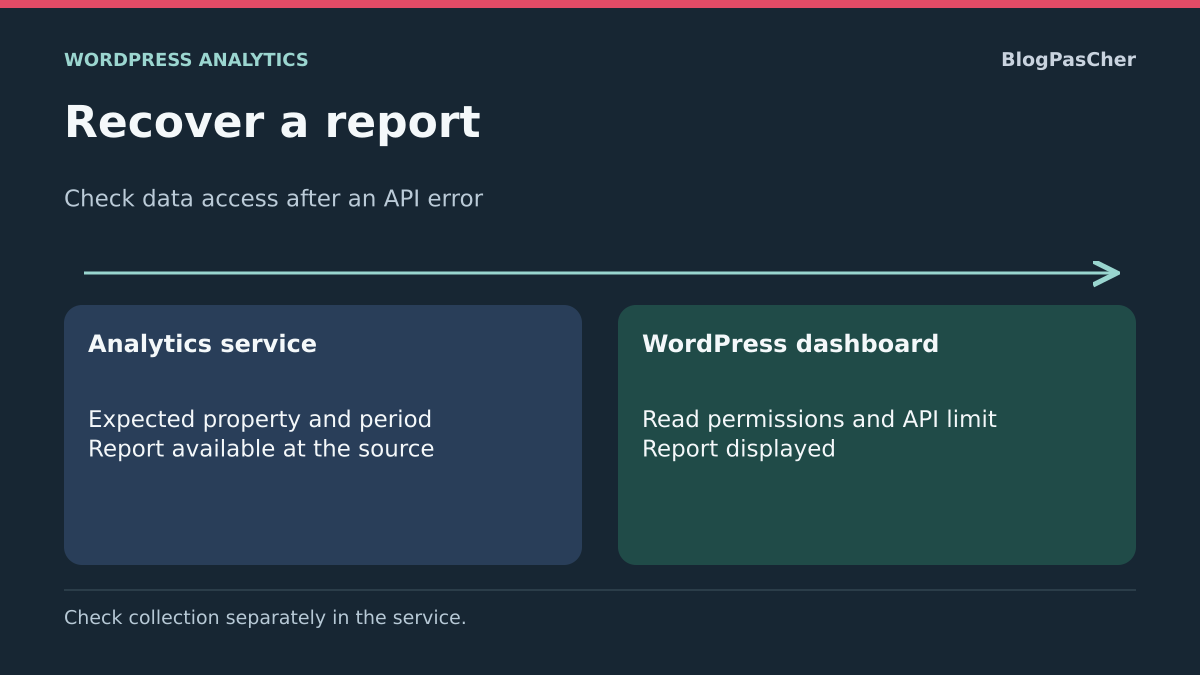
An empty dashboard does not demonstrate stopped collection
The statistics dashboard no longer finishes loading after an API error, or a card displays access denied. This may concern the connected account, selected property, request limit or local display. The site may continue transmitting events while WordPress can no longer read reports.
The desired result is restoration of expected data for the correct service and date range with suitable access. It is not creating a new empty property to remove an error. Visit collection, service processing and report retrieval in WordPress are separate stages. Failure of the last does not justify replacing site tags.
The detailed approach uses Site Kit by Google when already installed, with Analytics as the source example. For another dashboard, retain this separation and use its own settings. Start without adding a plugin: directly consulting the service compares data and permissions before touching WordPress.
Record the exact error, time and affected service. Specify whether only one dashboard user or the whole team sees it. This distinction is useful: one person’s Google permissions are not automatically another WordPress administrator’s permissions. Keep identifiers and report screenshots in a private location appropriate to their data.
Record the account and property currently used
In Site Kit → Settings → Connected Services, expand Analytics and inspect its settings. Edit opens account, property and web data stream parameters. Record these references and the Place Google Analytics code state without changing them. The aim is to know which dataset the dashboard requests and who currently supplies the site tag.
In Site Kit → Dashboard, the account photo or initial at the top right identifies the connected Google account. Check its complete address. A WordPress administrator session grants site-settings access but does not guarantee this Google account has permission on the team’s selected Analytics property.
At the November 3, 2026 check, Site Kit by Google is offered by Google in version 1.191.0, with WordPress 5.2/PHP 7.4 minimum and declared compatibility up to WordPress 7.1.4. The plugin is free. This information describes the existing tool; it is not a test on your installation or an obligation to change version during the incident.
If another administrator replaced the connected property, do not immediately revert to a reference found in an old screenshot. Confirm with the team the intended property and stream actually collecting the public site. A test copy may have the same title while requiring another configuration. This reading must produce a clear correspondence between site, account and property.
Approach 1: consult the direct source and compare a consistent date range
From an Analytics dashboard card, Source: Analytics opens the service. You can also open Google Analytics through your usual address with the same Google account. In its property selector, find the reference recorded in Site Kit. Compare a date range corresponding to the dashboard instead of a Realtime report with a several-week summary.
If data exists in the service but not WordPress, collection and storage for that period are at least available in the property. Now examine retrieval permissions, connection or dashboard display. If the property is not directly accessible to this account, first fix that access. If accessible but missing expected data, check reference, date range and stream before blaming the dashboard API.
Current Site Kit versions may include current-day data. They still do not provide real-time monitoring: services process data and recent values may change. Current documentation indicates typical delays of a few hours and periodic retrieval. A visit performed just now must therefore not serve as the sole proof of failure.
The expected result is a comparison of the same source and dates. This approach changes no setting and needs no rollback. You may continue consulting the direct source while repairing the dashboard without replacing the property or erasing history.
Approach 2: restore account permissions on the intended property
This approach suits Insufficient permissions in the service or the same account being unable to open the property directly. Ask the property owner to verify the Google address actually used in Site Kit. Granting a higher WordPress role does not grant external-service permissions.
In Google Analytics, a property administrator opens Admin → Property → Property access management. They find the user or use + → Add users, enter the Google account address and choose the suitable role. Viewer may meet the need for report reading. Some configuration operations or advanced features require more: distinguish them from simple data display.
Grant access at this property level when the need is limited there rather than across every account property. Also check data restrictions that may hide some metrics. After adding or correcting access, reopen the direct source with the relevant account, then return to Site Kit. The expected result is access to the intended property and reports available to that role.
Retain the initial role and assignment level. To undo an unnecessary change, the owner restores permissions at the same level, accounting for inherited access. Do not remove the user from the entire organization to undo permission granted to one property. If Site Kit offers Request access, it helps request access from the correct owner; it does not automatically grant it.
Use a shared view when the team only wants to read figures
If someone only needs to consult the WordPress dashboard, Site Kit sharing may be an alternative to full direct service access. The connection owner or administrator authorized to manage sharing opens Site Kit → Dashboard and the sharing icon in the header.
Under the relevant service, Edit roles selects WordPress roles allowed to read its statistics. Confirm with Apply after checking who holds those roles on the site. The setting concerns users with these roles, not only the person whose error you are examining. Therefore do not broadly open reports to bypass an individual problem without examining this scope.
Log in again with the relevant reading role and check the restricted view obtained. The expected result is the shared services and intended information without permission to modify the Google property. This approach does not grant direct Google Analytics data access or replace permissions needed for service configuration.
To undo, the manager returns to Edit roles, deselects the added role and uses Apply. Restore the initial choice without resetting all sharing. If service retrieval itself fails for its owner, fix that connection: sharing the dashboard does not create data the service fails to return.
Approach 3: reconnect only the user whose authorization became invalid
This approach suits correct property permissions but Site Kit reporting invalid account authorization. Retain connected-service references and confirm the expected Google address before intervention. Personal reconnection and disconnection of the shared Analytics module have different scopes.
In Site Kit → Dashboard, open the account photo or initial at the top right and choose Disconnect. Documentation distinguishes this user disconnection from actions removing code snippets and site settings. It allows reconnection of this account on this site. It removes personal access to services within Site Kit, so plan to verify them after returning.
Then follow Site Kit’s Google connection flow and choose the intended account. Examine requested permissions. Do not create a new property to finish faster or delete every Site Kit connection from the Google account: that separate action may affect several sites.
On return, check services, references and reports with this same user. The expected result is restored personal access to already configured data. If you connected the wrong account, disconnect this user and retry with the right one; a removed old token is not restored by recopying a setting. If permissions are still missing, return to the property approach instead of repeating connection.
Handle a quota or limit without multiplying requests
If the response mentions a quota or RESOURCE_EXHAUSTED, stop repeatedly refreshing the dashboard. The Analytics Data API applies limits related in particular to property, project and concurrent requests. Other tools connected to the same property may contribute to usage. New user authorization does not automatically remove these limits.
Keep the exact message and affected service. An error during account or property creation is not necessarily the same quota as a report-reading error. HTTP code alone is insufficient: some services use several codes according to the limit encountered. Follow supplied timing or instructions instead of an invented universal duration.
Close unnecessary dashboard tabs and suspend manual refreshes during examination. If several external reports query the property very frequently, their maintainer must compare frequencies, requested ranges and response reuse. The aim is to reduce redundant requests without disabling site collection.
After the delay appropriate to the reported quota, perform one check. The expected result is restoration of the report request. If the limit immediately returns, provide the timeline and known tools using the property. Do not recreate properties and keys in an attempt to bypass the limit.
If the source works but the WordPress dashboard stays blocked
Open the dashboard in a clean browser profile with the same authorized WordPress account and compare loading. This helps isolate a browser extension or local session data. Do not confuse this with making the dashboard public: statistics and their administration routes must retain intended permissions.
In developer tools, open Network before reloading once. Select the failed dashboard request and record status and response. An HTML block or login page instead of expected data points toward the WordPress route or protection in front of the site. An explicit Google-service error points toward that service or its permissions.
If Console reports a missing file or error appearing after an update, provide the file name and relevant versions to the maintainer. An old local copy of dashboard resources is not fixed by deleting Analytics data. Do not purge site tables or every service history to refresh a screen.
A certificate or outbound connection error must be corrected in the server environment. Do not disable TLS verification to make the call succeed. Have the requested host, time and precise error examined, then check the same report. The useful result is restored data with access controls and a valid encrypted connection.
Avoid a reset that also changes collection
Reset Site Kit is broader than repairing personal permission. Reset removes preferences and code snippets placed by Site Kit, then requires new configuration. If the plugin was the only component inserting a measurement tag, removal may interrupt new data during reconfiguration.
Disconnecting a service in Connected Services and disconnecting a user through their menu must not be confused either. Before any broad action, record references, connection owner and existing tag locations. Do not deactivate a shared module simply because one user cannot read its report.
A new property contains a different history. Selecting it in the dashboard does not automatically merge old property data and may also change collection configuration depending on the tool. If the intended property was deleted or its stream truly unavailable, replacement belongs to a measurement plan verified with the team.
Troubleshooting must therefore retain property and tags while no evidence implicates them. An access API error is first repaired at its own level. Any chosen reset needs reconfiguration references and collection validation, without being presented as a universal repair button.
Validate the return of an identifiable report
Return to Site Kit with the user who encountered the problem. Check the service, property and date range recorded initially, then open a card whose data was already available in the direct source. The expected result is a loaded report without the initial error and with a consistent scope.
Compare metric definitions before demanding perfect equality between two screens. A card may show a different metric or filter from the report opened in Analytics. Date range, time zone and provisional recent data also matter. A returning number is insufficient to validate that you are viewing the correct site.
If you changed permissions, check the relevant account and ensure other members retain intended access. If you used a shared view, validate its limits with the targeted role. If personal reconnection was necessary, check other services this user needed to consult in Site Kit.
Retain corrections with an established effect and revert unnecessary tests. A dashboard-read check does not require generating fake conversions, purchases or repeated visits. Collection itself must be examined separately if comparison with the source revealed an actual data shortage.
Prepare a technical handoff preserving history
If the report remains inaccessible, provide Site Kit version, affected service, property reference, relevant account and error time. Add direct-source consultation results and the failed request’s status and redacted text. State whether other dashboard users encounter the same problem.
The responsible person can then distinguish removed access, request limits and a local response replaced with a blocking page. Share neither tokens nor a complete export containing session cookies. A screenshot of an empty dashboard without its references helps much less in preserving the correct history.
- Data present at the source: examine retrieval and display in WordPress.
- Property inaccessible to the account: restore permissions at the required level.
- Reading view wanted: use sharing whose roles and scope are accepted.
- Invalid personal authorization: reconnect this user on this site.
- Reported API limit: reduce unnecessary calls and follow the relevant quota.
- Source actually missing expected data: start collection diagnosis before any new property or tag.
Read three responses without changing property
In Network, retain only status, response type and service name. Hide cookies, authorization headers and identifiers before transmitting a record. Start with the property and period recorded in the direct source.
On a WordPress copy, a viewer account received rejection before any call to the fictional service. For the authorized account, the local service successively returned rejection, a limit and an available report. This check verified the read route and distinction between errors. Google permissions, your property’s figures and collection state are checked in your own service.
- A WordPress rest_forbidden response points to the account role on the site or dashboard-sharing permissions. Check who should read this report before modifying access.
- A service-returned PERMISSION_DENIED message points to account permissions on the property. Compare direct-source access. If the response indicates RESOURCE_EXHAUSTED, instead follow timing and quota guidance.
- After correction, reload once and find an identifiable metric for the same period and property. Status 200 alone is insufficient. An empty report, HTML page or another property’s figures require different checks.
Check cumulative permissions before removing sharing
A user may hold several WordPress roles. Removing sharing for one therefore does not necessarily remove access if another role they hold still permits this service. In Site Kit sharing, check roles selected for Analytics, then compare them with the reference account’s actual roles. For custom roles, documentation specifically requires the edit_posts capability for selection.
Test with an account intended for reading, not the owner connected to Google, who may have another access route. If the dashboard becomes visible after correction, open only a known period and verify the relevant service. Rollback must restore this service’s sharing at the modified role level; a general permissions reset would also remove unrelated choices. This check adds neither a tag nor a property and therefore preserves existing collection.
Sources and references
Use these references to check the features, requirements and limitations described. Reading documentation is not a practical test.
View 16 references
- Site Kit: Analytics settings ↗
- Site Kit: Analytics errors ↗
- Site Kit: account menu ↗
- Site Kit: disconnection scope ↗
- Site Kit: dashboard sharing ↗
- Site Kit: current-day data ↗
- Site Kit: dashboard and date range ↗
- Site Kit: connection errors ↗
- Site Kit: reset ↗
- Analytics: adding permissions ↗
- Analytics: property roles ↗
- Analytics Data API: errors ↗
- Analytics Data API: quotas ↗
- Site Kit: archive1.191.0 ↗
- Site Kit: official directory ↗
- Chrome: network requests ↗