

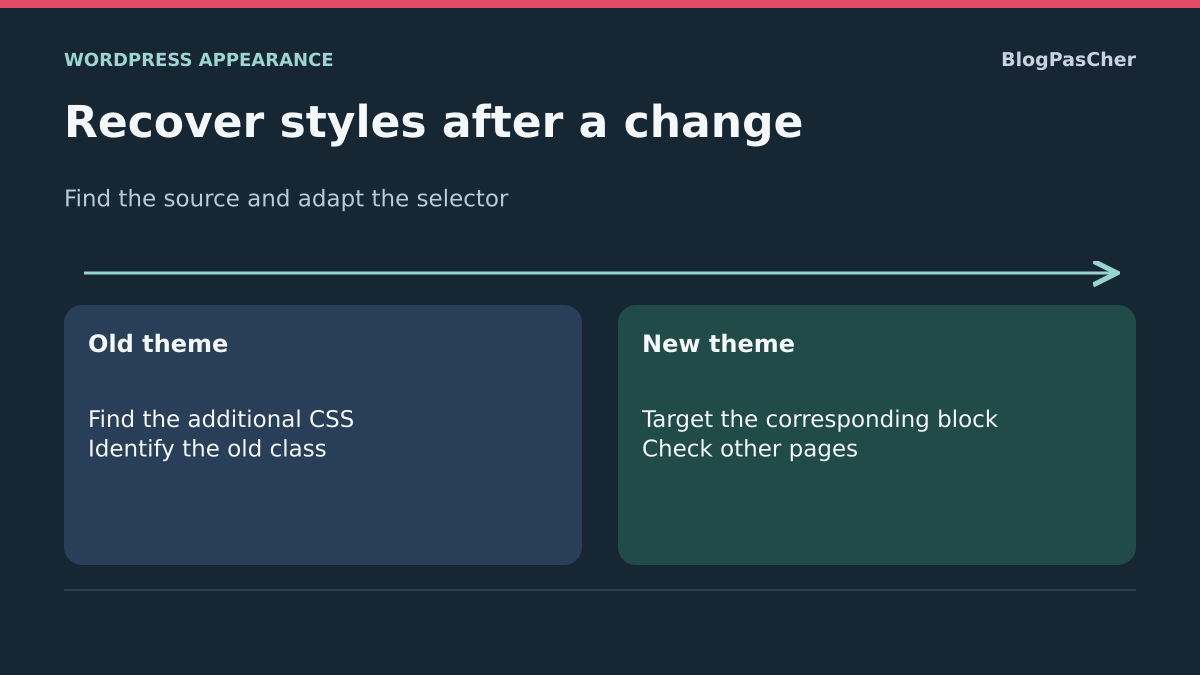
Distinguish a missing style from one that has become incompatible
After a theme change, a custom color, border or layout no longer applies. The CSS may still be stored with the old theme without being used by the new one. It may also load but target elements the new theme no longer produces. The goal is to recover useful settings, then adapt them to the current structure.
A theme provides its appearance, structural blocks and its own style choices. Changing themes does not automatically transfer every customization from the old one. A rule targeting its header or a particular class may no longer match anything. Copying all its CSS could therefore introduce unwanted effects.
Prepare the old and new theme names and two reference pages. Keep a backup of the current state and work on a copy first. The public site does not need to temporarily return to the old theme to conduct the search.
- Choose a specific element whose style is missing.
- Note its previous appearance and the desired result with the new theme.
- Record theme names, including any child themes.
- Keep a backup and a copy of the CSS currently present.
- Separate recovery of the old code from the decision to reapply it.
Choose between a native setting, CSS adaptation and independent storage
Start with the new theme and block settings. If the desired color or border exists in native controls, restoring it directly may be simpler than reusing an old rule. This first choice requires no plugin.
The second approach retrieves the old CSS and adapts a small rule to the correct element. It applies when the need remains relevant and no equivalent setting exists. An example limited to one paragraph lets you verify scope before addressing a series of customizations.
The third approach offers theme-independent storage through a dedicated plugin. It may help if you maintain styles tied to stable components, such as your own editorial class. It does not make a particular theme’s selectors universal or reconstruct lost rules.
- First check whether the new block or theme offers the expected setting.
- If a rule remains necessary, find its source and test it in isolation.
- Adapt the selector to the current structure.
- Choose one storage location.
- Use a plugin only if theme independence suits your organization.
- Check a target page and a page that must not change.
Find the old CSS on a copy
This procedure suits an administrator with access to the old theme and a backed-up copy. On that copy only, open Appearance → Themes and activate the old theme to view its customizations. Note the copy’s initial theme before testing. You may need to recover old theme files from your backup if they have been removed.
For a classic theme, open Appearance → Customize → Additional CSS. For a block theme, examine Appearance → Editor → Styles, then the three-dot menu and Additional CSS. Also keep a record of visual settings that were not written as CSS.
The expected result is a local copy of the code and its context, rather than putting the old design back online. An empty field does not prove that all customizations are lost: they may be in a child theme, builder or plugin.
- Confirm the copy’s domain and active theme.
- Activate the old theme on that copy.
- Open its Additional CSS location and copy the content without changing it.
- Note useful native settings and each rule’s source.
- Return to the copy’s initial theme after viewing.
- Keep both states and continue adapting with the new theme.
Read saved classic CSS without reactivating the theme
This optional check is for a technician who already has WP-CLI and authorized access to the copy. WordPress lets you read classic Additional CSS for a given theme identifier. You need its stylesheet identifier, generally the directory name of the theme active at the time, not merely its commercial title.
Replace the example address and ancien-theme-enfant with verified values. Run the command from the correct installation. It displays the CSS obtained for that identifier; site filters may affect this output. It does not automatically find block-theme global styles or code stored in a plugin.
The expected result is content to save locally for examination. The command reactivates no theme and changes no option. Empty output is insufficient to prove deletion: check the identifier and other storage locations. No setting needs undoing for this read.
- Confirm the installation directory and copy address.
- Find the exact identifier of the old theme or child theme.
- Run the command with those values.
- Keep the result in your authorized local notes.
- Compare it with your backup and the location where the CSS was entered.
wp --url="https://copie.exemple.fr" eval "echo wp_get_custom_css( 'ancien-theme-enfant' );"Recreate a native setting instead of retaining an unnecessary rule
The new theme may directly offer the color, border or spacing previously obtained with CSS. Select the relevant block in the editor and open its settings. Available panels vary by block and theme features. A native control may suffice without reusing an old rule.
Start with the individual block. The Site Editor’s Styles → Blocks panel generally configures all blocks of one type; choose that scope only if it meets the need. A local customization and global definition should not be layered without reason.
The expected result is an appearance produced by one source. Keep the old rule in your archive, but remove any active copy after confirming that the native setting replaces it. To undo, restore the recorded value and the single necessary rule.
- On the copy, select the target block.
- Open its style, color, border or dimension settings as needed.
- Note the initial value and change one property only.
- Save, then check the public rendering.
- Check another page using the same block type.
- If the native setting is suitable, delete only the now-redundant active rule after saving it locally.
Recover rules from an old child theme without changing its parent
If customizations were written in a child theme, changing themes may simply stop them from loading. First find a copy of its files. The file wp-content/themes/ANCIEN-THEME-ENFANT/style.css is one lead, but the code may also reside in another file loaded by its functions. Replace the placeholder name with the verified directory.
An old child theme depends on its parent. Arbitrarily attaching it to the new theme does not transfer its structure or functions. Nor should you copy its entire functions file into another theme to recover a few colors.
For a few useful styles, keep the source file, then transfer only adapted rules into the new theme’s Additional CSS, following the previous approach. The expected result is a limited, readable customization without hidden dependence on the previous theme. To undo, remove only the transferred fragments.
- Access backup or copy files with authorized permissions.
- Find the old child theme’s actual directory.
- Read its stylesheet and references to other CSS files.
- Copy only the useful rule into your notes, with its origin.
- Adapt its selector, then test it in the new theme’s native location.
- Keep original files intact; migrating an entire child theme is a separate task.
Keep a small amount of theme-independent CSS
Simple Custom CSS and JS, published by SilkyPress, can store snippets independently of the theme. This option suits rules you deliberately maintain outside it. It does not recover old code or fix incompatible selectors. Start with the free simple-CSS features; this approach requires no paid feature.
An authorized administrator can try it on a backed-up copy after comparing the directory listing’s requirements with the installation. The documented menu is Custom CSS & JS → Add Custom CSS. Official screenshots show Internal, Header and In Frontend choices. Activation may also create a Web Designer role; keep snippet management with the intended accounts.
The expected result is application of only the published snippet on the public site. To undo, move only this new snippet to Trash from All Custom Code, without globally disabling other useful styles.
- Under Plugins → Add Plugin, search for the exact name and verify SilkyPress.
- Install and activate the plugin on the copy if compatible.
- Open Custom CSS & JS → Add Custom CSS and enter a descriptive title.
- Paste only the validated fragment, without a style tag.
- Choose Internal, Header and only In Frontend for this public-site requirement.
- Publish the snippet, then check the target and reference pages.
- If you retain this location, remove the active copy of the same rule elsewhere to avoid loading it twice.
Avoid duplicates and rules inherited from the wrong theme
After recovery, the same customization may exist in several locations: Additional CSS, a plugin snippet and a child-theme file. The result may vary with load order or selector specificity. Keep one active location for each rule you maintain.
Do not import all the old theme’s CSS as though it were an independent layer. Some rules assume its classes, variables, dimensions or images. A now-unnecessary rule may also accidentally target a different element in the new theme. Reintroduce customizations in small, understandable groups.
The expected result is knowing which rule produces each effect. If an old copy remains visible, check the cache actually used after confirming that the CSS saved. The plugin’s Internal option places the style in the page; it does not remove that page’s cache.
- List the locations where the rule still exists.
- Choose the one to maintain.
- Keep inactive copies in your local archive.
- Remove one redundant active copy at a time.
- Reload the page and check computed values.
- Restore the removed copy if necessary in another context, then separate the rules instead of multiplying priority overrides.
Account for WordPress.com and network permissions
On WordPress.com, access to custom CSS depends on the plan and enabled features. The consulted help includes it in Personal, Premium, Business and Commerce plans. Before buying anything, check whether the block’s native setting already meets the need and whether CSS access is available in your account.
The path also depends on the theme: Styles in the Site Editor or Additional CSS in Customize. Code retained in history does not mean it is applied under current conditions. Review the rule and its context before making a new version.
In multisite, permission to manage the site does not automatically grant every code or plugin-installation permission. Have the authorized account perform the review or test without sharing its credentials. Authorizing a plugin for a site must remain consistent with network policy.
- Check the site, account and features actually accessible.
- Try the equivalent visual setting first if you cannot add CSS.
- If CSS is available, use the location appropriate to the active theme.
- On a network, confirm who can manage snippets and their scope.
- Do not change plans or roles solely because a style is missing.
Validate the recovery and keep the migration understandable
The correct result is not the automatic return of the entire old design. Useful customizations must work in the new theme with clear scope and without degrading other pages. Check at least one page carrying the class and another that must remain unaffected.
Also check small widths, links and text contrast if the rules concern those elements. Fixed spacing suited to the old theme may be unsuitable for the new one. Remove abandoned rules only after keeping a copy and their original purpose.
Keep a note with the selector, changed property, active location and pages checked. Add the old and new theme names. During the next change, this record will help distinguish theme-design dependencies from independent editorial customizations.
- Open the target page in a logged-out session.
- Check the rule and its origin in browser tools if needed.
- Check the reference page and a narrower screen.
- Confirm that only one active copy of the rule remains.
- Remove test classes and snippets that are no longer useful.
- Keep the original CSS, current content and rollback steps before any separately approved production deployment.
Find each rule’s target
A CSS selector identifies the elements a rule applies to. A class specific to the old theme may have disappeared from the new page code. In that case, CSS can load correctly without having any effect. Inspect the current element in the browser before changing rule priorities.
In Chrome, right-click the element, then Inspect. The Elements panel shows its classes; Styles and Computed show candidate rules and the values applied. Also note whether a rule is crossed out because another takes precedence. Routinely forcing priority does not repair a selector that no longer matches anything.
The expected result is a match between the useful rule and a current target. For a local editorial need, a class you assign to the block is often easier to track than an old chain of theme classes. Limit its use to the intended blocks.
- Choose a rule and the element it was intended for.
- Inspect that element in the new theme.
- Compare its markup with the old rule’s classes.
- Check whether the rule is missing, no longer matches or is overridden.
- Adapt only this target on the copy.
- Reload after temporary browser tests to return to the saved state.
Test a local class in the new theme’s Additional CSS
The following example adds a border to one specific paragraph. It tests the complete chain: class present, CSS saved and rule applied. You can replace the values with those you need after this check. It does not automatically recreate the old header or previous theme’s layouts.
In the page editor on the copy, select the Paragraph, open its Settings → Advanced and add avis-editorial to the Additional CSS class(es) field. Enter the name without a dot, keeping any existing useful classes. Save the page.
Then add the code in the site’s Additional CSS: Appearance → Customize → Additional CSS for a classic theme, or Appearance → Editor → Styles → three-dot menu → Additional CSS for a block theme. This is not the field limited to all blocks of one type. Keep the existing CSS before adding it.
The expected result is a border only on blocks carrying this class. To undo, remove the added fragment and only the test class, then save.
- On the copy, add the class to the reference paragraph.
- Open the new theme’s Additional CSS and keep its current content.
- Add the fragment without surrounding HTML tags.
- Save, then view the public page.
- Check a page that does not carry the class.
- If the test works, then adapt only the necessary properties.
.avis-editorial {
  border-inline-start: 4px solid #334155;
  padding-inline-start: 1rem;
}
Compare the loaded rule with the class actually present
On a WordPress copy, an old child theme’s Additional CSS gave a paragraph a four-pixel border. After activating the new theme, the border disappeared. The read command retrieved the CSS associated with the old identifier while the new theme remained active.
Before transferring a rule to production, record its old location, new selector and the area that should change. The expected result is a useful rule on the target page with an identifiable source and limited rollback.
- On the new theme, check whether the recovered rule still matches the element. A copied rule may remain ineffective if its selector depends on a class from the old container.
- On the copy, adapt the rule to a stable paragraph class. Check that the four-pixel border returns and another reference paragraph’s spacing remains unchanged.
- Remove only the added rule. The test border disappears and other settings remain. Reopen the old theme on the copy if you need to check the CSS origin. Then check that its settings reapply as expected.
Keep the correct identifier for the parent and child themes
The title displayed under Appearance → Themes is not always the identifier used to retrieve CSS. When a child theme was active, its stylesheet identifier may differ from the parent’s. In your record, keep both directory names and specify which was active when the customization was made.
If reading classic CSS returns an empty string, check this identifier first before concluding that anything is lost. Do not create a new theme with the same commercial name: that does not guarantee the same storage. Site Editor styles, child-theme CSS files and plugin snippets must be sought in their respective locations. After recovery, keep one active rule and its documented origin; storing it outside the theme protects its storage, but not its compatibility with future markup.
Sources and references
Use these references to check the features, requirements and limitations described. Reading documentation is not a practical test.
View 11 references
- WordPress: custom CSS associated with a theme ↗
- WordPress: custom_css content by stylesheet ↗
- WordPress: styles and CSS in the Site Editor ↗
- WordPress.com: CSS, screens and access requirements ↗
- WordPress: child theme styles ↗
- WordPress: additional CSS class on a paragraph ↗
- Chrome: CSS rules and computed styles ↗
- Simple Custom CSS and JS: features, scope and retention ↗
- Simple Custom CSS and JS: official CSS editor screenshot ↗
- WP-CLI: read-only PHP expression ↗
- WordPress: themes and activation on a copy ↗