

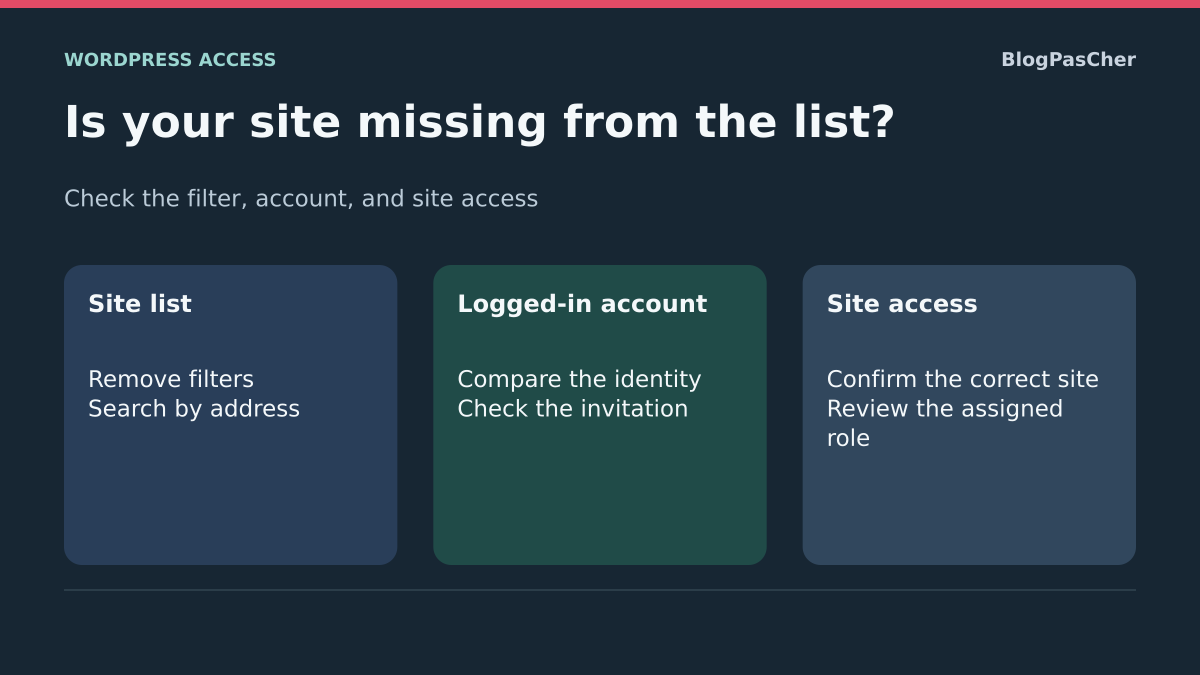
Confirm the missing site and the list being viewed
You can open a WordPress site’s public homepage, but its name has disappeared from the list in your signed-in account. You may also see two identical titles without knowing which to open. Record the complete public address, the administration address the team used and the name of the list being viewed. In a subdirectory installation or network, the path after the domain may distinguish two sites. A staging copy may share the public version’s title.
First check the known address as a visitor, then open administration from a verified bookmark or the link supplied by the site team. Note whether the screen opens, requests login or displays access denied. Enter credentials only after checking the exact domain. If a received link leads to an unfamiliar form, return to the official address you know and ask the administrator to confirm the destination.
Keep another reference address visible in the list. If it remains present, the problem may be limited to one site, invitation or filter. If the whole list has changed, start with the identity and view used. The goal is to recover the correct site with intended permissions and clear evidence of where access is managed.
Start from the complete WordPress.com list
From WordPress.com, open the hosting dashboard using the WordPress logo at the upper left. If viewing a single site’s page, return to the general list. Clear the search, open active filters and remove those limiting results. The table can filter by plan, visibility, staging status or deleted sites, among other things. Labels vary by language and filters available to your account.
Search for the complete address, then a distinctive part of its name. Also examine similarly titled sites and their addresses. An old free address may still be associated with a site whose public domain changed. If a result is staging, note that before continuing. Opening a site’s details from the list changes neither its visibility nor content.
If the site returns as soon as the filter is removed, access already existed. Keep the general list or a verified bookmark to return without changing its users.
- Note the displayed search and filters.
- Return to the general list, remove filters and search for the domain or known address.
- Compare addresses of results sharing the same title.
- Open the correct site details and check the displayed address before moving to WP Admin.
- Restore the original filters only if that view remains useful.
Compare account identities without interrupting a useful session
Open your profile from the dashboard and record your account name and displayed address without sharing them publicly. Compare them with the team’s instructions or original invitation. Similar personal and professional addresses may belong to different accounts even when the same name and photo appear. Signing in through an external provider may also open a different identity from the expected one.
If you have two accounts you are authorized to use, compare them in separate browser profiles. Preserve the session already working. Open WordPress.com directly in the second profile, sign into the intended account and repeat the unfiltered-list check. Search for the site address, then verify your profile before opening WP Admin. A separate window allows this comparison without clearing other sites’ cookies.
For example, two teams may see a site titled “Atelier” on different domains. Check which profile contains the desired domain and whether a filter hides a result. These checks provide different clues. Keep only the identity and address relevant to your intervention.
Check an invitation still pending
If someone was supposed to add you to a WordPress.com site, ask an authorized administrator to open Users and that site’s user list. Depending on the interface mode, pending invitations may appear in the team area or login-status column. Have the exact site, invited identity and intended role confirmed. A pending invitation does not provide the same access as completed registration.
Open the invitation in the intended account after checking its sender and destination. Reread the displayed account name before accepting. Then return to the general list and search for the address. The expected role must support the agreed work. Someone reviewing or writing a post does not necessarily need domain or billing settings.
If the invited address was wrong, ask the administrator to verify and, where appropriate, remove the incorrect invitation before issuing another to the confirmed identity. Avoid automatically creating duplicates or resending several invitations. Then check invitation status and the site’s actual presence for the intended account using the service’s procedure.
Identify ownership or team changes
If you previously saw the site, ask what changed since your last access. Record any team departure, transfer, agency takeover or account-address change. The domain owner, site owner and person paying for the plan may differ. An invoice or DNS-zone access is therefore insufficient to establish your WordPress role.
Have the current owner and administrator able to view users confirmed. Request access limited to the intended work rather than ownership transfer. If a transfer was actually planned, the responsible person checks its result and retained roles. Reuse an existing account when the team has already approved it. Correcting editorial access generally does not require changing subscription settings or domain ownership.
If the legitimate owner lost access to their own WordPress.com account and cannot use ordinary login methods, follow the service’s official recovery procedure. Gather requested evidence only in its authorized form. Avoid attaching passwords, one-time codes or keys to a support message. Another person retaining the required permissions can first confirm account status without changing the site.
Check a self-hosted site’s local administration
A self-hosted WordPress site may have its own administrator account. It may appear in the WordPress.com dashboard when an intended connection exists and works. If you normally use local administration, open the WordPress address confirmed by the installation administrator. Check that you are on the correct site and your local account has the expected role. A site’s presence or absence in a hosted list alone does not establish whether that local account works.
If local administration opens and usual operations work, note whether you actually need the centralized list. Connecting a site to an external service may serve several purposes and be managed by someone else. Ask the administrator to check the existing connector’s status and associated identity before attempting reconnection. Global disconnection may affect other people and features already in use.
If local administration also rejects login, first confirm the usual address and access method. Ask the administrator to find your account on that installation. This case concerns local identity or site permissions. Avoid creating a second installation, registering a new address or changing domain configuration to recover the list.
Check membership of a multisite subsite
In a multisite network, open My Sites with the affected account and locate the expected subsite’s domain or path. An account may exist in the network and work on one site while being absent from another. Access to the network administration dashboard is a distinct role. Ask the network administrator to confirm the subsite exists, is active and the account is a member of that specific site.
Compare the expected role with the planned action. If the user needs to edit subsite pages, verify the agreed role on that site alone. If the account already exists, an authorized administrator can add it to the subsite through network functions, accounting for invitation policy. They can then check the list with that account and test one intended action. Do not grant super-administrator rights simply to make a subsite appear in My Sites.
An archived, deleted or spam-marked subsite may be absent from the ordinary list. If site status explains the discrepancy, have the reason and administrator’s decision confirmed before any change. A site appearing after role assignment does not prove other restrictions are resolved. Test the useful action and leave other sites intact.
Read the inventory and role on the copy with WP-CLI
If you already administer this network with WP-CLI, you can record the subsite’s presence and status, then check account membership. The following commands are intended for an authorized copy. Replace the workshop address and account name with confirmed values. First check the directory where you run WP-CLI. Two networks may use the same account name.
The first command provides the subsite address and flags. The second indicates whether the account belongs to the subsite identified by the url parameter. An account recognized by the second command may still have no role there. Keep results in your private folder and replace real names with placeholders before sending an example to support.
These checks read the copy’s state. No account reset or DNS change is necessary. If the list displayed in administration differs from this record, check the account, network, site status and any custom rules building the display.
A “membership not confirmed” result must be considered alongside the first command’s archived, spam and deleted flags, then network rules. It does not alone prove missing assignment or automatically justify adding a role. A positive result does not validate every account capability.
wp --url="http://atelier.example.test" site list --fields=blog_id,url,archived,spam,deleted --format=table
wp --url="http://atelier.example.test/atelier/" eval '$u=get_user_by("login","lecteur-exemple"); if (!$u) { echo "Compte absent du reseau\n"; } else { echo is_user_member_of_blog($u->ID,get_current_blog_id()) ? "Membre du site\n" : "Compte present, appartenance non confirmee : verifier etat du site et affectation\n"; }'
Confirm the correction with two test identities
On a multisite copy, prepare two fictional accounts with independent assignments. Add the editor role to the first on the target subsite only. Check that its list changes and the second account’s list does not. Then remove only the added assignment: lists must return to their initial states and the account must remain in the network.
On your copy, choose two accounts and a reference site, then define the expected result for each person. Check the list before and after, administration address and an action allowed by the role. If testing WordPress.com, check the invitation and identity through its dashboard with the site administrator. Fictional comparisons illustrate the process. They do not reproduce the hosted interface or your team’s policies.
If a role was added mistakenly, remove only the assignment created, checking preservation of content authorship and existing access. Avoid deleting the global account to correct a subsite association. If the correction was limited to a filter or profile change, simply return to your usual view after checking.
Provide the record if the site remains missing
Prepare the service or network name, complete address, result of opening administration directly and filters checked. State whether access previously worked for this same account and the date of the latest known change. A team member can then investigate the invitation, another identically titled site or a role change without reopening every possibility.
If the invitation is active and the administrator confirms the correct account on the correct site, note the exact difference between direct access and the list result. If the site itself is unreachable, first ask for its status to be confirmed at the host or in the network. Disappearance from the list and a public outage may coincide. Check those two results separately before deciding on recovery.
Close diagnosis when the confirmed address is visible, the user enters through the intended route and usual capabilities are restored. Note the path to use in future and the person who can check a role or invitation. These details avoid password changes or proliferating accounts during the next confusion.
Verify a real capability after the site returns to the list
Presence in My Sites does not prove that the account can perform every intended task. After finding the subsite, choose a read action or demonstration draft corresponding to the expected role. An editor does not need to install a plugin for access to be considered correct.
If the list is visible but the action is refused, record the affected capability or screen and have roles and network rules checked. Keep this diagnosis separate from the site’s archived, spam or deleted status. The WP-CLI membership check already provided can return negative in those states; it does not alone demonstrate absence of a role. To undo an erroneous assignment, remove only the association added to the subsite after checking attributed content, without deleting the shared network identity.
Sources and references
Use these references to check the features, requirements and limitations described. Reading documentation is not a practical test.
View 10 references
- WordPress.com: find a site in the dashboard ↗
- WordPress.com: manage several sites and their owners ↗
- WordPress.com: invitation status and management ↗
- WordPress.com: account recovery and hosting identification ↗
- WordPress.com: proof of ownership ↗
- WordPress: sites a user belongs to ↗
- WordPress: membership of a network site ↗
- WordPress: add a user to a subsite ↗
- WordPress: remove subsite membership ↗
- WP-CLI: network site inventory ↗