

Identify the old URL in the dashboard
After moving to HTTPS or relocating, Site Kit may display an unexpected URL, a reconnection request, or a dashboard no longer matching the site's pages. Start by recording the exact screen. A message saying the URL changed, an authorization refusal, and a period without data are three different observations. For each, state the administration URL, expected public URL, and displayed module. This guide concerns search data associated with Search Console. A discrepancy in Analytics requires recording its own property and settings.
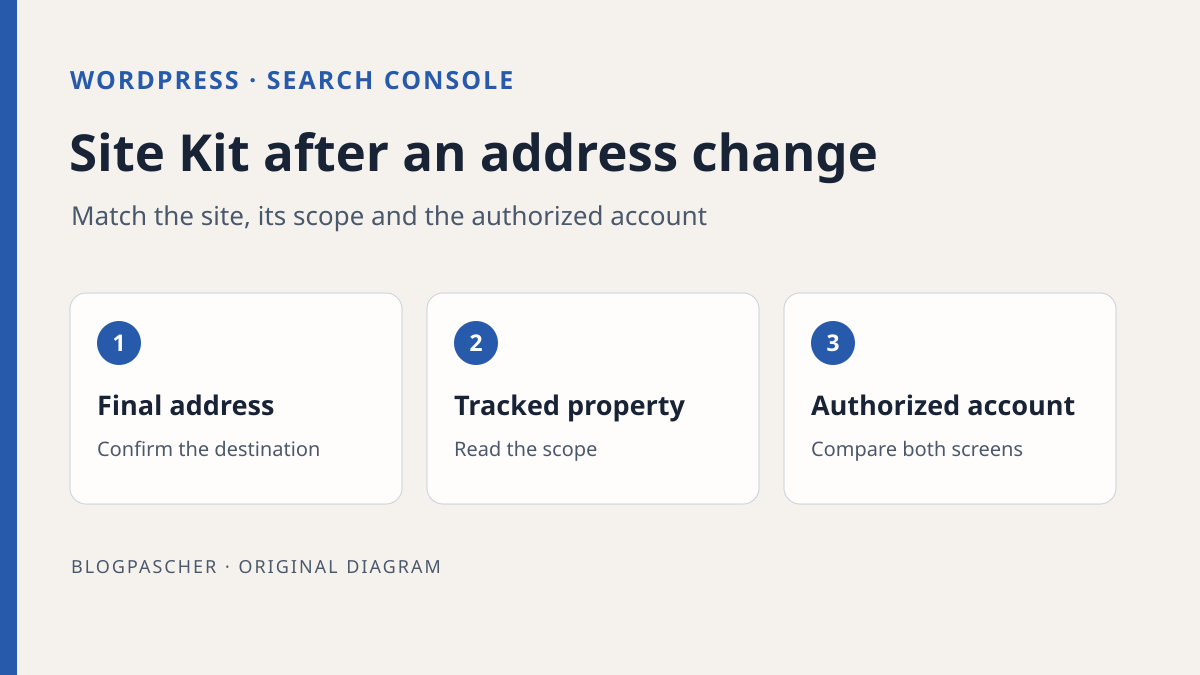
Open a representative site page from a known link and record its final URL. Compare protocol, hostname, and path with the address validated by the owner. A temporary redirect to the old site or a session open on another WordPress installation may explain the symptom before any Site Kit change. In WordPress, URLs under Settings > General may intentionally differ if files are in a subdirectory. Read them to understand the setup. Making both values identical without checking that setup may prevent access.
With viewing access, record the message and period without requesting additional administrator permissions. With WordPress access allowing Site Kit management, also record configuration. The Google account viewing Search Console data and the WordPress role allowing Site Kit configuration involve different permissions. Ask the owner to reconcile them instead of borrowing a session.
Compare scopes before changing property
In WordPress, open Site Kit > Settings > Connected Services > Search Console. Record the displayed property. In Search Console, an already authorized user can open the selector and read the scope of accessible properties. A domain property includes that domain's protocols and subdomains. A URL-prefix property covers URLs beginning with the specified prefix, including protocol and any path. A property covering more URLs may show more data for the same period.
Fictional example: an HTTP URL-prefix property tracked the old address. The site now responds over HTTPS. Compare this property with the one actually covering HTTPS pages. If the team uses a domain property, filter the direct report to a representative page or URL before comparing results. Domain and prefix totals may legitimately remain different. Keep the same interval and a comparable page scope.
The Site Kit dashboard displays a subset of data. To verify the correct source, prioritize property name and report context over exact click-for-click equality between two screens. A recent period may be incomplete. A collecting-data message may also appear temporarily after a new connection. Choose a past period with a known control in Search Console if accessible. If no authorized account sees the desired property, resolve that access first.
Approach 1. Choose another property when offered
This approach applies when the installation's dashboard works and the desired property is available in module settings. Before changing, record the current and expected properties. Check that one is actually the intended target. A team property may be broader than one dedicated to a subsection. Selection should match the reports' intended use even if both cover the homepage.
Open Search Console settings under Connected Services, then select the available property matching the validated scope. Save if requested, reopen settings, and record the displayed identifier. The Search Console module is required for Site Kit. Its setting may allow choosing among several properties for the same site but does not provide independent disconnection like some optional services.
If the expected property is absent, first check the associated Google account and its ability to open that property directly. If the account lost access or changed while another service was added, involve the owner. Record the authorization message without transmitting a token or screenshot containing private data. While the property remains unavailable to this account, a global reset risks replacing an access diagnosis with several services to reconnect.
Distinguish denied access from a period without data
When Site Kit reports insufficient permissions, ask the account holder to open the same property directly in Search Console. Compare two cases. If direct access is also missing, the property owner must check account permissions. If direct access works with the same account while Site Kit still refuses, record the account actually associated with the plugin and the service after whose addition the problem appeared. Connecting another service with a different account may have changed the associated account.
If permissions are correct and both screens show an empty period, expand toward dates whose data should be consolidated. Site Kit documentation says display may take approximately 48 hours to start filling after a recent connection. This delay is a reference point. It guarantees neither data for a new prefix nor report availability for an uncovered URL. Record the connection date to decide the next check.
Finally, ask whether the person reporting the discrepancy sees a shared dashboard or the administration dashboard. Sharing allows certain roles to view data without connecting their own Google account. That screen disappearing after a reset may reflect lost local sharing while the owner still sees reports directly in Search Console. First compare both paths and record which roles should regain viewing. Adding an administrator role solely to display metrics would unnecessarily broaden its powers.
To hand over these findings, prepare a record distinguishing three states: whether the module is configured, whether the owner sees the property, and whether the WordPress viewing profile accesses the shared dashboard. These checks point respectively toward local configuration, Google authorization, or dashboard sharing. Repeating the test with the same role after correction verifies the expected result for the affected person.
On a copy, avoid using the dashboard as proof that this copy is indexed. Google documents a staging mode in which Site Kit intentionally displays public-site data. If this mode is used, check with the person responsible that test configuration targets this viewing. A local copy unable to reach services does not reproduce the connection flow. It remains sufficient to check URLs, roles, and screen presentation without acting on a real property.
Approach 2. Prepare reconnection when the site URL actually changed
If the plugin explicitly says the site URL changed and blocks configuration, first confirm that the move is complete for the pages used. An ongoing redirect, temporary URL, or unconfirmed hostname change calls for a record before reconnection. Site Kit support documents resetting the plugin for this case when the old URL must be cleared from configuration. Reserve this for the owner able to restore services.
Before choosing this operation, inventory connected services, properties, containers, and dashboard sharing settings. For services placing tags on the site, record who supplies them and check whether Site Kit inserted them. A reset removes the plugin's local settings, disconnects its users, and removes code snippets it placed. It does not delete the Search Console property or reports already stored by Google. Collection may nevertheless stop if its tag depended on Site Kit and is not restored.
With the authorized administrator, use Tools > Available Tools > Reset Site Kit if that path is available. If plugin settings remain usable, documentation also indicates Site Kit > Settings > Admin Settings. Review the action's scope and confirm that the team is ready to reconfigure necessary services. During subsequent setup, read the proposed URL and property. If the desired property is unavailable, record the discrepancy and return to permission checks before authorizing other services.
Reconnect intended services and verify their source
First connect the installation to the search property covering the validated URL. Site Kit may choose an existing verified property and may create a URL-prefix property in some cases where none is associated. Do not treat the first automatic selection as proof that its scope meets team needs. Check the property actually retained under Connected Services. If the team needs a historical prefix for comparisons, leave that report accessible to authorized people in Search Console.
Next return to the additional-service inventory. Restore only intended connections using approved accounts and properties. For a service placing a tag, have the tag's presence and source checked afterward. If another plugin already places it, avoid enabling a second placement without examining this setup. Finally restore dashboard sharing settings needed by roles that used them before the operation.
Compare the old and new URLs in the handoff record. State which data is historical, which property covers current pages, and which observation will be repeated after collection. If configuration remains blocked, preserve messages and the list of restored services. A second reset before understanding the first failure may interrupt services already restored.
Perform a reproducible comparison on an authorized copy
Prepare a staging table with two dummy URLs, such as an old HTTP prefix and an HTTPS URL in a subdirectory. For each, record protocol, host, and path. Ask another team member to determine which URL-prefix property covers each URL and whether a domain property covers both. If you have staging connected according to the site's intended procedure, repeat with authorized property IDs. The expected result is the ability to explain the displayed property's scope without moving the public connection.
With the viewing account, open a past period and reference page. Record whether visible data comes from the expected property. With a copy administrator who also has the necessary Google permissions, try an alternative property only if both properties are explicitly reserved for this test or the person responsible approved their read use. Restore the first choice and check that its identifier returns. A copy without a test service can support a documentary comparison. In that case, record that changing a connection was not tested.
On the affected site, correction is verified through three observations: the public URL is the intended one, the module displays the correct property, and an authorized account can read a representative period or explain why it has no data yet. If additional services were reconnected, verify them separately. A restored search report does not prove that other modules' tags or sharing are restored.
Plan rollback before any reset
If you only changed property, return to the previous value if still offered and access remains valid. Then compare the module screen and direct report. If the account lost permissions, the old choice may no longer be available. The owner must address that access instead of multiplying URL changes or recreating a property.
A complete reset requires restoring configuration service by service. Documentation describes reconnecting and reconfiguring services after this action. Therefore prepare the property and setting list, along with the person able to repeat each step. An old WordPress file or database is insufficient to guarantee restoration of Google authorizations. For a still-reversible migration, coordinate the URL rollback with the site manager before reconnecting modules to the wrong domain.
Keep the initial message, URLs, property before and after, permission-check result, and next-reading date in the handoff. If a collection period or authorization remains pending, identify it. Someone taking over can verify the remaining open cause without resetting services already working.
Scope examples that explain an old URL
To read a property name without relying solely on its domain name, compare these fictional examples.
| Search Console property | Covered URL | Uncovered URL | | --- | --- | --- | | Prefix http://example.com/ | http://example.com/guide/ | https://example.com/guide/ | | Prefix https://example.com/fr/ | https://example.com/fr/guide/ | https://example.com/en/guide/ | | Domain example.com | https://blog.example.com/guide/ | https://example.net/guide/ |
An HTTPS migration may thus make the old prefix unsuitable while a domain property retains the correct scope. A property containing the correct domain but only /fr/ does not cover a future translation under /en/. Compare the entered URL with the entire prefix, including protocol.
In Site Kit, first record the displayed choice and open the same property directly in Search Console with the authorized account. Free viewing of both screens may suffice to explain the discrepancy; no reset is needed for this exercise. If you change an available property, keep its initial ID and check the new choice after reloading. If the WordPress URL is actually wrong, have that configuration handled separately before reconnecting services. Success means a justified scope for current pages, not artificial equality between totals from two different reports.
Sources and references
Use these references to check the features, requirements and limitations described. Reading documentation is not a practical test.