

Identify what the visitor actually sees
You open a page in your administration session, but its intended readers see nothing, encounter a not-found page or remain at an access request. The goal is simple: allow authorized recipients to read while continuing to deny access to other visitors.
First ask for the exact address and message encountered, without requesting the password. Distinguish a page missing from the menu, an address that does not open, a login request and a password form. These symptoms do not necessarily come from the same mechanism.
Under Pages, find the original document and its viewing link. Compare the domain and path with the address supplied. A preview link, old address or editor link does not replace the address intended for readers. If the page works directly but is missing from the menu, examine navigation separately.
Denial may be normal for someone who does not yet have the intended authorization. Do not make the page public to see whether that unblocks access. Instead, record who should read it, by what means and until when: that decision will guide an appropriate correction.
Record protection before making any change
Open the document with an account authorized to manage it. In the page settings, inspect its status and visibility. Depending on the editor and version, choices appear near Status or under Visibility. In the classic editor, they are in the publishing panel.
Record whether the page is private, password-protected, still a draft or scheduled. Also check whether the whole site requires login. A membership restriction can add to document visibility; identify its name and rule before acting.
Keep initial values without copying secrets into screenshots, tickets or shared documents. For a general rule, template or component change, arrange a recoverable backup and test copy with the person responsible. Simply observing the state requires no installation changes.
On self-hosted WordPress, accounts and settings depend on the site. On WordPress.com, some permissions also concern the platform account. In multisite, check the subsite and assigned permissions there. Record versions if labels or behavior differ from those described.
Reproduce the menu link as a visitor and an editor
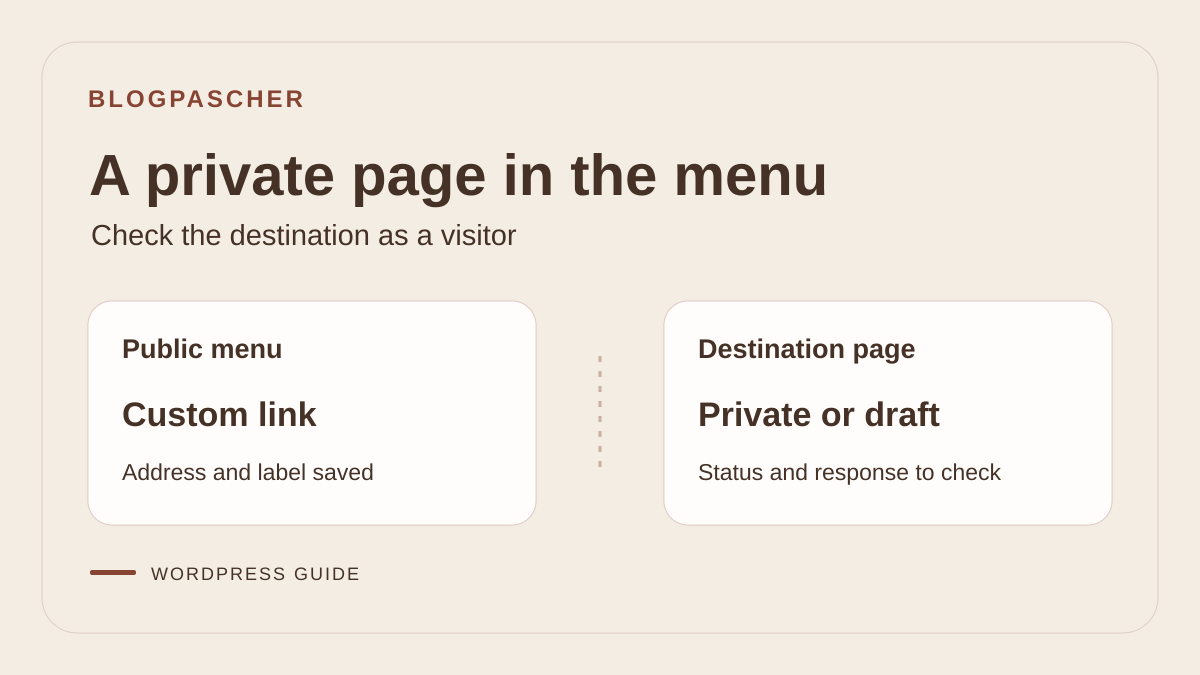
On a copy, create a ‘Dossier d’atelier’ page and add its address as a custom link in a Navigation block. Add a second link to a page that must remain public, ‘Plan public’. Keep a third public page, ‘Présentation de l’atelier’, if you want to test a replacement destination. Open both initial menu entries while logged out. Record the menu name, labels and addresses actually served. Record the Dossier page's status before trying another state.
On the copy, change this page to Private, then repeat with Draft status. For each test, open the same starting page as a visitor and follow the menu link. Also try the direct address in an authorized editor's session on the copy. For the draft, compare the preview if that command is available. The staging menu retains the custom link in both states. The visitor receives a 404, while the fictional editor opens the page at the same address and can also preview the draft. The Plan link remains the public control.
Keep the status observed in the page record independently of the text displayed by the theme. A 404 in this staging exercise indicates what the visitor receives. By itself, it does not establish that a page was deleted. If the entry disappeared from the menu instead of leading to an error, check the navigation source. An automatic page list may follow visible publications. This exercise concerns a manually added link.
Correct the public link or restore publication
If the page must remain private or a draft, open the menu producing the public entry. Change only the relevant entry. If a public page serves the same purpose for visitors, use its address and a label announcing its destination. Otherwise, remove the menu entry. In the staging exercise, ‘Dossier d’atelier’ becomes ‘Présentation de l’atelier’. For visitors, this entry opens the presentation. The draft dossier's direct address still returns a 404, and the Plan link is unchanged. You have corrected the public path while preserving the dossier's status.
Check where the menu is reused before saving it. The same menu entity may serve several templates. If visitors should see the new link everywhere this menu appears, edit the entry in that source. If another area must retain its own navigation, identify the menu or block actually affected before changing it. Replacing an entire header or menu is unnecessary for one entry.
If the editorial decision confirms that the dossier should be public and was removed accidentally, review the version to republish on the copy. The draft may contain work in progress that is not part of the approved version. Then restore Published status and public visibility on the page itself. Check that the menu link still points to its actual address. In the test, the page returns a 200 response to visitors again with the same saved link. The dossier marker is visible and Plan still opens its page. This test restores intended access to a document that genuinely should be public. It does not change access rules for pages that must remain restricted.
The two fictional menu fragments show the initial link followed by the link to the public presentation. The second link, ‘Plan public’, remained identical. Check these two fields in the settings of the menu actually displayed.
<!-- wp:navigation-link {"label":"Dossier d’atelier","url":"\/?page_id=4","kind":"custom"} /-->
<!-- wp:navigation-link {"label":"Présentation de l’atelier","url":"\/?page_id=6","kind":"custom"} /-->
Return to the previous state on the copy
If you corrected the menu, restore its old label and destination on the copy. Compare both entries with the record. The dossier must retain its starting status. In staging, restoring the original entry brings back the visitor's draft 404. This result is expected in the restoration test and shows that the page's status did not change with the menu.
If you restored publication, return to the status recorded before the test and check the direct address again while logged out. The staging exercise returns to Draft and the visitor's 404 returns. Menu markup and page body are identical to the state preceding republication. Compare those two elements separately in the record, then check the control link. The test covers the Navigation block with custom links and the core Editor role's permissions. Automatic lists, redirects and restriction plugins may produce other responses.
Choose the procedure matching the access method
A private page uses account permissions. A page protected by the native password uses a secret associated with the document. A private site or membership area adds its own conditions. Do not treat these three arrangements as variations of the same button.
Choose the first procedure if the document has Private visibility. It checks the account and permissions without turning a reader into an administrator. Choose the second if a page password is intended: the check then concerns that secret and its form.
The third procedure suits a barrier applying to the whole site or a group of members. Start by identifying the system already in place; installing another access tool during diagnosis would make results harder to understand.
If several restrictions overlap, inspect them in the order the reader encounters them. Someone may pass the site login and remain blocked by page visibility. After each authorized correction, check the same address with the same account. Keep a record of the change so you can restore the previous rule precisely.
Approach 1: check the account for a private page
For a private page, ask the person to log in to their own account on the relevant site, then reopen the direct link. Confirm which account they use without asking for their credentials. A successful login demonstrates a recognized identity; it does not guarantee permission to read that page.
On standard WordPress, Administrator and Editor roles have default permissions to read other people's private pages. A basic Subscriber account does not gain that access merely by logging in. Custom roles and plugin-added rules may change this behavior; the document author's case also warrants a separate check.
With authorized account-management access, check under Accounts or Users that the person belongs to the correct site and inspect their current role. In multisite, do not infer subsite permissions solely from their presence in the network. Involve the relevant administrator if this check exceeds your scope.
If intended permissions are already present but the address remains denied, keep the message and time, then inspect additional restrictions. Do not cycle through several roles to see which works. The expected result is a precise explanation of the denial with the minimum necessary change.
Distinguish a site viewer from a private-page reader
On WordPress.com, an entirely private site can accept approved readers designated by the Viewer or Lecteur role depending on the interface. This mechanism concerns access to the site. It should not be equated with an individual page's Private visibility, documented separately for administrators and editors.
First check that the invitation concerns the correct site and WordPress.com account. If the person sees an access request for the whole site, the owner must check that authorization through the intended procedure. If they can enter the site but not this page, return to the document's state and other restrictions.
Subscribing to posts does not automatically make someone an approved viewer of a site that becomes private. Likewise, having a WordPress.com account does not mean belonging to every site on the platform. Do not ask someone to create multiple accounts to compensate for an invitation sent to the wrong identity.
Record the level where access fails: platform, site or page. This distinction avoids changing the whole site's visibility for a single resource. New site authorization must remain limited to the intended people, with the ability to remove it later under the owner's rules.
Correct access without granting excessive permissions
If recipients only need to read a document, native Private status may not suit your organization. Do not assign an Editor or Administrator role just to provide that reading access: those roles grant much broader management powers.
Have the content owner confirm the requirement. A page password may suit simple sharing when its limits are acceptable. Individual authorization, per-person revocation or sensitive documents require an appropriate access system, defined with the person responsible rather than improvised during troubleshooting.
If a role correction is genuinely necessary because the person already performs the corresponding responsibilities, have the authorized administrator make it. Record the previous role, approved role and affected scope. Then verify reading access and the permissions granted without using a colleague's account.
To roll back, restore the recorded role or rule and check the expected denial. Do not change the default role for all new accounts. If preparing another sharing method, retain the original page and its protection until the complete path is validated; avoid an interval of open publication between configurations.
Approach 2: check the page password
If sharing relies on the native password, open the page in the editor with the required permissions and confirm that protection is saved. Then visit its reading address in a separate session. The expected path includes a form before protected text appears.
This password belongs to the document, not the visitor's WordPress account. Password protection does not itself require creating a reader account. If login is also required, look for an additional site restriction instead of sharing an administration password.
Check that recipients received the current secret through your usual sharing channel. Old instructions, different input or autofill may explain the failure. Do not put the secret in the public link, menu, screenshot or support-ticket comment.
If the password is lost or needs replacement, an authorized person can set a new one in the protection setting, save and notify affected recipients. Keep protection enabled throughout. Verify the new secret in a clean session; access still open in your usual browser is insufficient to validate sharing.
Compare browser sessions and cookies
WordPress uses a cookie to recognize that a document password was entered. This is information stored by the browser, separate from account authorization. It can explain why one person sees the text without another prompt while someone else remains at the form.
First compare the same address in your usual session and a fresh private window. Close other private windows if you want a separate session. Respect the site's required restrictions: an account-private page still requires authorized login even in this browsing mode.
If the problem affects only one browser, check site data and settings that prevent cookies from being saved. Follow the browser's help to act on the relevant domain instead of erasing all browsing data. This targeted deletion may log accounts out and prompt for passwords again; notify the person before testing.
On a shared computer, close the session used to read the document and follow local data-removal rules. Do not treat closing a single tab as revoking access. If per-person confidentiality is essential, a shared secret alone does not provide that individual management.
Also check actual attachment protection
A document's native password does not protect the files it contains. An uploaded image or other media file may remain accessible through its direct address. Requiring a secret to view the text therefore does not establish that its attached download is restricted to the same audience.
With the owner's authorization, identify the affected attachments and their actual addresses in the library or download link. Check access from an unauthorized session without sharing them with an additional person. Distinguish document denial from file denial; record these as two separate results.
If a confidential file remains open, stop using this sharing method and involve the person responsible to protect or remove it under the site's procedure. Changing only the page password does not repair direct access. Do not duplicate the file under a supposedly secret new address as a substitute for authorization checks.
The title, the page's existence and other presentation elements also deserve an external check. Protecting the text body does not promise invisibility for everything around it. Adapt displayed information to the audience actually authorized to know it.
Approach 3: examine a site or membership restriction
If every page requests access, first check the whole-site rule. On WordPress.com, the corresponding setting is under Settings, Reading, in the site visibility section. Inspect its value without switching it to Public to unblock one person.
For a private WordPress.com site, the owner can examine viewer invitations and access requests. Check that the approved identity matches the account the person uses. After correction, check an ordinary site page, then the relevant document: individual private visibility may still impose an additional condition.
On a site with a membership area, identify the rule applied to the page and the mechanism evaluating it. With that tool's administrator, compare the denied account with a working account in the same category: group membership, authorization status and any expiry date. Labels and conditions depend on the installed system; follow its official documentation.
Correct only the association or rule that is actually wrong and record its previous value. Do not simulate a real purchase or renewal to restore access during diagnosis. If payment or manual approval is part of the process, have an authorized person inspect its state without artificially changing data to obtain a favorable result.
Look for a display problem after checking permissions
If rules are consistent but the form is missing or loops, record whether the problem affects every protected page or just one template. The native path can display a form when a password is required. A custom presentation must be examined with the theme's maintainer before concluding that protection itself is broken.
Keep the current structure and reproduce the case on a backed-up copy with nonconfidential test data. The person responsible must disable notifications, payments and other external effects on that copy. Compare one suspected component at a time and restore it if the test does not confirm its involvement.
Also inspect the existing cache if an old response seems to persist after a setting is saved. Use the site's or service's documented procedure according to available features. A possible purge does not replace checking the access rule and does not authorize distributing a copy of restricted content.
If an unauthorized visitor sees the text, stop making it available and immediately involve the site owner to restore the intended protection. Keep the address, time and context without multiplying screenshots of the content. A result more open than intended is not successful troubleshooting, even if the recipient can now read the page.
Validate authorized access and expected denial
Finish with two separate checks: the intended recipient can open the correct address and read what is intended for them; an unauthorized session remains blocked under the chosen mechanism. For a password, use a session with no prior cookie and check both correct entry and rejection of an incorrect entry.
Verify the path in the browser the person actually uses, including on a phone if needed. Check download links and the return to the page after login. Do not rely only on your administration session, whose permissions and browser data differ from readers'.
Record the correction, date and scope without storing a plaintext password. Remove any temporary accounts or access under the agreed procedure. Rollback must restore the precise visibility, role or rule value retained at the start, followed by another check of expected denial.
If the blockage remains unexplained, send support the versions, restriction method, address through an appropriate channel and exact message. State where the process stops and which comparisons were made. Keep secrets and confidential content out of the ticket; the person responsible can request necessary additional information through an appropriate method.
Compare three access levels without changing roles
Prepare a check matrix on a fictional page before any access change. Use three separate sessions: logged-out visitor, Subscriber account and authorized Editor account. For a native private page owned by another account, the Subscriber must not gain reading access merely by logging in; the Editor normally has the relevant capabilities. Plugins can change this rule, which is why a control is useful.
For a password-protected page, repeat with a session without a cookie, then after entering the correct fictional secret. Record the form, body text, visible title and direct access to a demonstration attachment. Body protection does not automatically cover that attachment.
These tests use free core features and avoid installing a second access system to diagnose the first. If you need individual reader revocations, prepare a membership system separately afterward, using test accounts. To undo the staging exercise, restore initial visibility and remove only the temporary access created; keep an unauthorized session to confirm denial after removal.
Sources and references
Use these references to check the features, requirements and limitations described. Reading documentation is not a practical test.
View 13 references
- WordPress.com: page or post visibility ↗
- WordPress: visibility in the classic editor ↗
- WordPress: roles and private-reading permissions ↗
- WordPress: permissions by document and author ↗
- WordPress.com: site member roles ↗
- WordPress.com: whole-site visibility ↗
- WordPress.com: approved viewers of a private site ↗
- WordPress: password and cookie checks ↗
- WordPress: protected-document form ↗
- WordPress: displaying protected content ↗
- WordPress.com: existing site cache ↗
- WordPress.com: finding a component conflict ↗
- WordPress: site backups ↗