

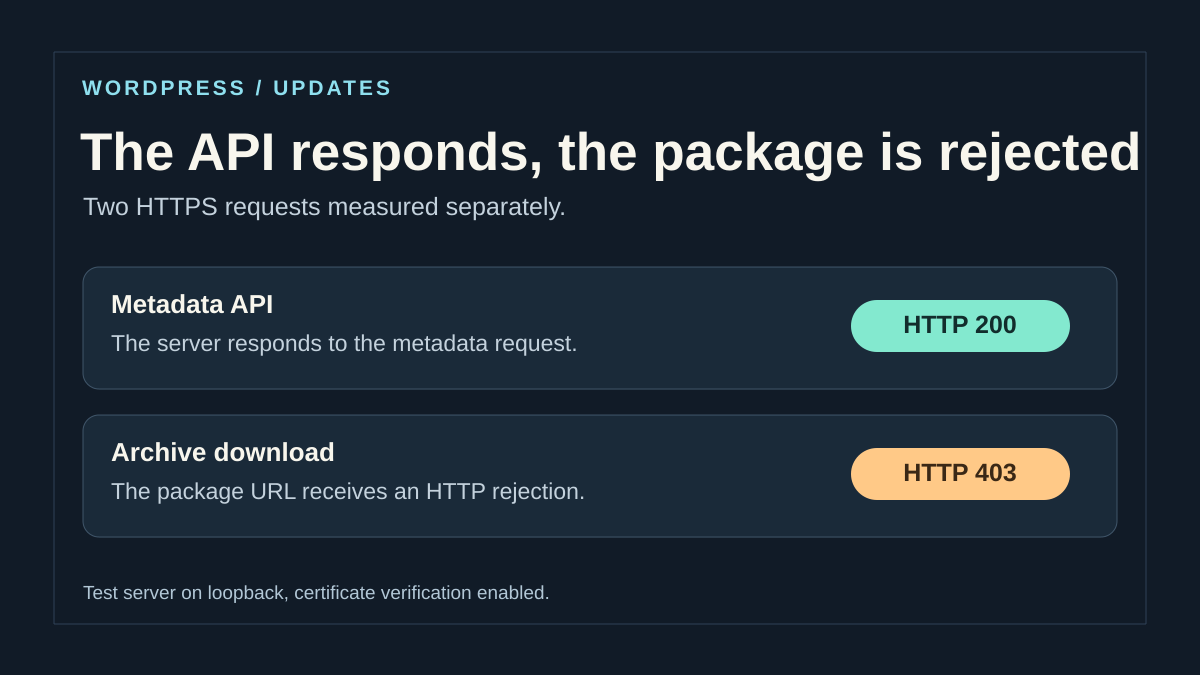
Record the version check and package download separately
Open Dashboard → Updates and note the component involved, its status and the detailed message. If WordPress offers a version, these metadata may have come from an earlier check. Also record the result and time of the communication test in Tools → Site Health. The Site Health test and the exact package download are two separate requests. One may succeed while the other is blocked.
In the detailed message, private log or HTTP trace, identify the host for the metadata request and the host for the package. Directory updates commonly involve api.wordpress.org and downloads.wordpress.org. Some URLs or redirects take a different route. Record the last permitted destination and the code it returned. If the component depends on another provider, ask its maintainer for the expected address. A plugin distributed elsewhere may follow a different policy.
With dashboard-only access, send these two findings and their times to the hosting administrator. On multisite, updates may require network administration permissions. On WordPress.com or a managed site, use the available checks and let the service administrators examine outgoing connections or managed core. With authorized terminal access, take measurements from the server or container running WordPress. A result from your computer only shows what your connection can reach. A successful curl request on the server must still be compared with the PHP HTTP API, proxy and host list WordPress uses.
Prepare access and choose your approach
Start with the built-in diagnostic available to administrators. Correcting the hosts is then appropriate if a WordPress restriction has actually been identified and you can edit its configuration. Advanced network checks require an authorized terminal on the hosting environment; without that access, send your observations to the provider. Uploading an official package provides a continuity option when server downloads remain blocked.
Before replacing code, prepare a backup of the files and database, check its date and how to restore it. Keep archives outside the public area. A test copy must prevent payments, emails and other real-world effects before you try an update. Record the current and target versions of each affected component.
Check that no other update is still running, including through the hosting provider’s tool. Reserve a maintenance window for the replacement and agree on a rollback. An old backup can overwrite recent orders or text: restoring it should not be decided solely because a screen appears stuck.
Approach 1: record the built-in communication test
This approach requires no new plugin. In the administration area, open Tools, then Site Health. The communication check contacts api.wordpress.org from WordPress. It does not install an update. A favorable result means no WordPress transport error was returned; it does not by itself guarantee HTTP status 200. A favorable result does not check every archive host, every URL or the ability to write files, so it should not be confused with a complete repair.
The Info tab helps you record WordPress, PHP and the server environment. Keep the information useful for diagnosis; do not publish the entire export without reviewing its contents. To compare two attempts, record their time, time zone and the same environment. A test copy may have a different network policy from the public site.
- Open the Status tab and wait for its checks to finish; examine both problems and passed tests.
- Expand the WordPress.org communication entry when it appears. Record its exact message, the host and any available technical details.
- Compare this result with the download failure you already saved. An accessible API with a refused archive points you toward that archive’s URL.
- After an identified correction, return to this screen to check again. This observation alone requires no configuration rollback.
Run a targeted check again after a temporary incident
If the provider confirms that a temporary interruption has ended, start with Dashboard, then Updates. Use the screen’s update-check control, often called Check again. Distinguish this check from buttons that actually install or reinstall a version. Do not choose Re-install Now simply to test a connection.
Then check the row for the affected component. An available version shows that information is present; it does not guarantee that the package will download. After preparing the backup, run a single targeted update and save its result. Do not use Update All for diagnosis: several replacements would make it harder to isolate the source of a new failure.
Success means this operation completed at that time. Another identical error warrants the next approach, without repeated clicking or an arbitrary wait presented as a repair. If the message changes to writing, extraction or maintenance, follow that new stage. Do not remove a lock or maintenance marker while another process is still working.
Correct an incomplete WordPress host list
This correction concerns a confirmed restriction in wp-config.php, accessed through SFTP or an authorized file manager. WP_HTTP_BLOCK_EXTERNAL set to true limits WordPress HTTP API requests; WP_ACCESSIBLE_HOSTS permits additional hosts. This setting does not change the server firewall.
The example shows a list limited to three hosts validated for the operation. It is not a universal list: also record any required redirect destination and retain existing justified permissions. Values are hostnames without a protocol or path. Configuration injected by the environment must be corrected at its source.
- Keep a private copy of wp-config.php and locate the existing definitions before wp-settings.php loads.
- If the blocking is intentional, add only the confirmed missing hosts to the existing WP_ACCESSIBLE_HOSTS value. Create this definition only if it is absent and this policy is indeed intended; do not duplicate it.
- Keep external blocking enabled. Save, then repeat Site Health and the targeted download check.
- If the addition was unjustified or creates a problem, restore the saved value. A syntax error requires restoring the private copy.
define( 'WP_HTTP_BLOCK_EXTERNAL', true );
define( 'WP_ACCESSIBLE_HOSTS', 'api.wordpress.org,downloads.wordpress.org,wordpress.org' );
Approach 2: take measurements from the hosting environment
This approach is for someone with authorized terminal access to the site’s server or container. A terminal on your computer measures a different route. The following command makes a public HTTPS read request without downloading a package or starting an update. It keeps certificate verification enabled and does not automatically follow redirects.
On Linux, /dev/null discards the body; headers, status and duration remain displayed. On Windows, use curl.exe and replace /dev/null with NUL. The -q option, placed first, ignores curl’s own configuration file; environment settings may still apply. The timeouts are limits for this check, not a WordPress setting.
- Run the command once in the authorized environment and record the time and any error.
- For an archive, next compare only its exact official URL already recorded, if this read is necessary; it may transfer the entire package even to /dev/null.
- Keep results private if headers or a URL contain sensitive information. No configuration change requires a rollback here.
curl -q --connect-timeout 10 --max-time 20 -sS -D - -o /dev/null -w '\nHTTP=%{http_code} duree=%{time_total}s\n' 'https://api.wordpress.org/'Read the first failure in route order
First determine whether WordPress issued the request. The http_request_not_executed code may indicate that its HTTP policy prohibited this host before transport. Compare the exact address and required redirects with the site’s permissions. If a rule needs changing, request an addition limited to the validated destination. If a trace shows no server-side request, also check that the check really ran and that the log covers this context.
If transport was used, read the error details. The examples below provide starting points. The same number may mean something else if it is an HTTP status rather than a cURL error number.
If a direct check and the WordPress check differ, compare the route actually taken before looking for a fix. Terminal proxy variables, WordPress constants and the transport’s certificate store may differ. Keep the values private. A DNS, certificate or proxy change must target the layer that failed and retain the old value so you can restore the previous setting.
- cURL 6 indicates that the destination name was not resolved for this route. cURL 5 refers to the proxy name. Have the resolver checked from the site’s environment and specify whether the call uses a proxy that resolves destinations itself. Successful resolution from your computer or for another host does not explain the server’s result.
- cURL 60 signals a certificate the client cannot validate. Record the contacted name, the time and the certificate actually presented. Check the trusted authority chain used by PHP or WordPress and whether authorized TLS inspection is in place. cURL 77 points to an authority file the client cannot load. Keep HTTPS and certificate verification enabled during the check.
- A 407 associated with the
CONNECTtunnel identifies a proxy response. Check the host, port and expected authentication configuration with the network team. A cURL request can fail with a transport code while the message reports the relay’s 407. The package server may never have received the request. - A 403 received for the package is an HTTP response. Identify the service returning it. A proxy, an outbound policy or the package server may refuse this URL. Ask for the reason before changing DNS or TLS settings. A timeout or refused connection also requires specifying the destination and the stage reached.
Address TLS while preserving HTTPS verification
TLS helps verify the identity of the contacted service. A trust error requires identifying the certificate presented and the authority store used, not replacing HTTPS with HTTP. The certificate installed for visitors to your own domain does not automatically repair the trust PHP uses for an external service.
WordPress can provide its own certificate file to its HTTP transport. Successful system curl output therefore does not prove WordPress read the same file. Request a check in the site’s PHP context, including read permissions on the relevant file and any authorized inspection proxy.
- Record the complete message and the name of the service actually contacted; also have the server time checked.
- Have the file or trust store actually used identified before making any correction. If it is missing, unreadable or outdated, the administrator restores or updates only that item from its trusted source.
- Repeat the WordPress test after this correction, then the planned operation. Keep the previous state so a misdirected change can be undone.
- Do not add sslverify=false or an --insecure option as a permanent solution.
Correct an explicitly identified old proxy
This branch applies after a migration when the network team confirms the new mandatory proxy and authorizes editing wp-config.php. WordPress uses WP_PROXY_HOST and WP_PROXY_PORT in particular to enable its HTTP proxy. Do not remove these settings if the server is required to use this relay.
The snippet is fictional: HOTE_PROXY_CONFIRME must become the real name, without a protocol, and 3128 must be replaced by the supplied port even if it is different. Keep any authentication settings in their private storage; this example contains no password. A system proxy or infrastructure-enforced relay has its own settings.
- Back up the configuration privately and find the two existing definitions; do not add duplicates.
- Replace only the old host or port confirmed to be incorrect. If an environment variable supplies the value, have its administrator change that source.
- Repeat the built-in check, then a targeted update after making a backup.
- Restore the old values if the hypothesis was wrong. For an outbound firewall denial, have the rule corrected only for the required destination, without opening the entire server.
define( 'WP_PROXY_HOST', 'HOTE_PROXY_CONFIRME' );
define( 'WP_PROXY_PORT', 3128 );
Query Monitor: observe a call from the current page
Query Monitor, by John Blackbourn, can help identify a URL, duration and the component making an HTTP call. Compare the requirements of the version offered on its official listing with those of your copy before installing it. These details do not guarantee every plugin combination. It remains optional; Site Health and server records are often sufficient.
If server downloads are blocked, its standard installation may fail too. On a prepared copy, you can use its official ZIP through the following approach. Its purpose is observation: it does not repair DNS, certificates or firewalls.
- After authorized installation and activation, open an administration page that completes normally and triggers the request to examine.
- In the administration bar, open the Query Monitor menu, then HTTP API Calls. Record the available host, duration, result and caller.
- Examine only calls from this page load. No entry does not prove the earlier download succeeded: there is no history of that incident.
- Do not run a payment again to obtain a trace. Disable the tool after diagnosis if its temporary use has ended.
Check the archive without applying the update
When the API responds, use the exact official package URL recorded in the error or trace. A result from the API root shows that a host responded. It does not show that the archive server accepts this file. If you use the hosting terminal, replace the example URL with the validated package URL. Start by examining the status and, where applicable, the redirect header. Verify the destination before continuing. A headers-only request can be useful for an initial observation, but some servers respond to it differently than to a download.
If the administrator needs to confirm an actual download, do it in a private temporary folder with TLS verification enabled and the exact package specified by the provider. Keep the final status, received size and, if an official checksum is available, its result. Delete the test file after examining it. A 200 response containing an HTML login page or an incomplete archive does not validate the package. If a URL has a token or signature in its parameters, keep it private and share a redacted record.
After correcting outbound network access, repeat the metadata check and then the package check. Verify that both reach their destination from WordPress or the same transport environment. A successful download is a separate result from installation. If the error becomes “unable to write the temporary file,” “unable to extract” or “unable to copy the file,” keep this new message. Diagnosis then moves to the stage it identifies.
Approach 3: use a plugin’s official ZIP
This approach lets you apply a prepared update when your computer can retrieve the official package and the administration area accepts its upload. It does not restore future outgoing connections. It requires installation and update permissions, a package for the same product and a restorable backup. An archive found on an unknown mirror is unsuitable.
Download the installable ZIP from the product’s WordPress.org listing or your official account with its publisher. Check the name, author, target version and requirements. Do not confuse a full documentation archive, a free version and a commercial version. If files in this plugin have been customized, preserve those changes before replacing it.
- Open Plugins, Add New Plugin, then Upload Plugin. Choose the official ZIP without extracting it and click Install Now.
- If WordPress recognizes the existing plugin, compare the old version’s details with those of the package.
- Confirm Replace current with uploaded only if the details match. Cancel if a different product or an unexpected downgrade appears.
- Wait for the result, check the version in Installed Plugins and follow the final checks. Do not uninstall the plugin first to force the upload through.
Update a theme without replacing your customizations
The same logic applies to a theme, with particular attention to parent and child themes. The child theme often contains customizations; it must not be replaced by the parent archive. A change made directly in parent files will be overwritten by its update, regardless of the download method.
On the prepared copy, preserve the installed theme and identify its exact folder name, author and version. Prepare the corresponding official installable ZIP and a backup of its customizations. A simple screenshot of its appearance does not back up modified files.
- Open Appearance, Themes, Add New Theme, then Upload Theme. Select its ZIP and click Install Now.
- Review the comparison when WordPress detects the installed theme. Check the product, version and displayed requirements.
- Confirm replacement of the matching theme. Do not change the active theme just to finish this upload.
- Check the home page, an inner page and the mobile display, then menus and templates in use. If a customization disappears, recover it from its copy; do not reimport the entire database unnecessarily.
WordPress core: reserve manual replacement for the right context
Core is not uploaded through the Plugins screen. The following approach is for a standard self-hosted installation with authorized SFTP access, a verified backup, a maintenance window and a target version prepared on a copy. A managed deployment, complex network or large version jump requires its own process; involve its administrator instead of mixing two methods.
- Download the official WordPress package and extract it on your computer. Record active plugins before their planned deactivation.
- In the confirmed WordPress folder, fully replace the old wp-admin and wp-includes folders with those from the package so no old files remain.
- Transfer core files to the root. Preserve wp-config.php, site-specific rules and site content. Do not replace or delete all of wp-content; merge only required distributed items while preserving existing media, themes and plugins.
- Open /wp-admin on the intended domain and follow any database upgrade. Restore plugins to their recorded states and check the site before reopening it.
- If the transfer remains incomplete, keep the intervention open and restore a consistent state using the prepared backup; do not randomly combine files from several versions.
Compare responses in a local acceptance test
Keep responses in route order: name resolution, connection establishment, TLS validation, any proxy and finally the service’s HTTP response. A transport error and a server-returned status identify different stages.
For an isolated acceptance test, use only fictional services you control and a trust store reserved for the copy. Do not add a test certificate to production or remove TLS validation to make the demonstration succeed. Compare a metadata destination and a sample package; one may work while the other fails.
This protocol does not establish WordPress.org’s current availability. For the actual incident, keep the exact code and text, any HTTP status and the redacted URL. Final validation concerns the required official package from the environment running your site.
Verify success and organize rollback
For each package, check the version actually installed in the administration area, then the function it provides. A button marked complete is not sufficient to check an integration. On a store or membership site, prepare user-flow checks without unintentionally triggering real operations. Also compare private logs from the intervention time if a new warning appears.
Returning wp-config.php to its original value undoes a network setting, but not an update already applied. Likewise, restoring a plugin’s old files does not necessarily return its database to its previous state. A data migration may require a coordinated restore; preserve recent additions before any rollback.
If the local package installed while the remote download still fails, record two separate results: version updated, connection still to repair. Do not close the second incident. After network repair, repeat the built-in check and verify the next required download in the planned window, without reinstalling a healthy component merely to manufacture a test.
Provide a useful record and prevent recurrence
When the affected layer is beyond your access, request a precise intervention. Supply the site domain, environment, time with time zone, component, versions and failed stage. Add the cURL or HTTP number, the complete redacted text and the affected hosts. Distinguish the result from your computer from the result observed on the hosting environment.
Ask the provider to check the server’s DNS resolution, outbound HTTPS route, proxy policy and the trust store PHP actually uses. For confirmed blocking, request the corrected rule, its scope and the result after modification. No ticket should contain wp-config.php secrets, proxy credentials or a private license URL.
Finally, retain the cause and applied change with their date. After a migration, check inherited settings and the destinations required for updates. Keep a copy of the official packages used, with their versions, in your private storage. This record helps distinguish a new failure from an old setting reintroduced, while maintaining a verifiable update process.
Request precise network permission instead of general access
If hosting limits outgoing connections, provide the API host and the exact package host, the HTTPS port and any confirmed redirect destinations. The list must match the operation actually failing: allowing wordpress.org alone does not automatically cover all its subdomains in every filtering mechanism.
For a commercial plugin, the download may depend on a signed URL or a publisher-specific domain. Do not copy that complete URL into a public ticket; provide the host and have the details sent through the authorized private channel. An expired license or expired signature is not fixed by changing DNS.
After correction, request two results: the metadata check and the intended package download. Manually uploading an official ZIP may maintain continuity, but the next renewal remains vulnerable until outbound network access has been verified. Remove temporary permissions that are no longer needed according to the agreed policy.
Sources and references
Use these references to check the features, requirements and limitations described. Reading documentation is not a practical test.
View 23 references
- WordPress: Site Health ↗
- WordPress: scope of the communication test ↗
- WordPress: Updates screen ↗
- WordPress: version checks and API ↗
- WordPress: downloading to a temporary file ↗
- WordPress: restricting outgoing requests ↗
- WordPress: HTTP transport and certificates ↗
- WordPress: enabling the HTTP proxy ↗
- curl: command options ↗
- curl: error codes ↗
- curl: certificate verification ↗
- WordPress: backups ↗
- WordPress: manual updates ↗
- WordPress: extended upgrade procedure ↗
- WordPress: managing and uploading plugins ↗
- WordPress: comparison before replacing a plugin ↗
- WordPress: themes and ZIP uploads ↗
- WordPress: comparison before replacing a theme ↗
- Query Monitor: official directory and compatibility ↗
- Query Monitor: HTTP API Calls panel and scope ↗
- WordPress.com: plugin and theme updates ↗
- WordPress.com: managing core and PHP ↗
- WordPress — plugin version check request ↗