

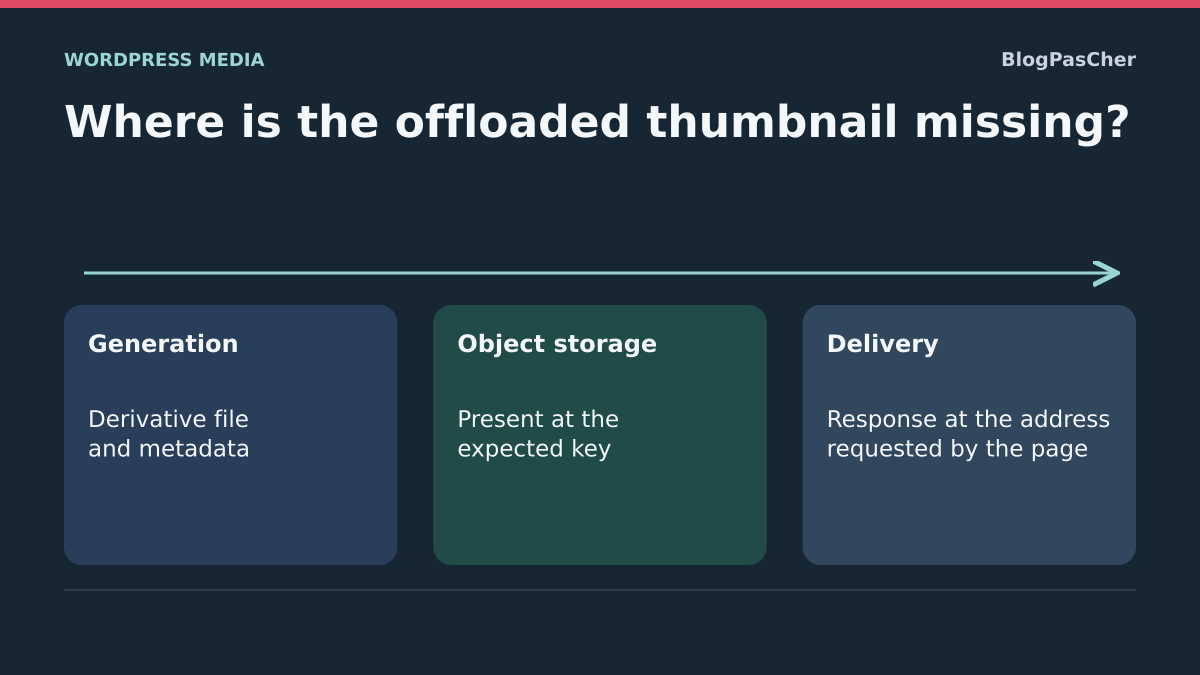
Find the stage where the thumbnail is missing
The main image opens from your object storage, but some smaller sizes remain absent in the media library, gallery or post card. The goal is to locate each necessary variant at its remote location and verify that the page requests the correct version.
Object storage keeps files under complete names called keys. A container, often called a bucket, groups these objects. The original’s presence does not guarantee a thumbnail’s presence: the latter must first be generated, described in WordPress, transferred and made accessible through the correct delivery address.
Therefore distinguish a file never created, one created but not uploaded, an object present under another key and an object inaccessible to the viewer. Rerunning the entire library does not address these four situations in the same way. First choose one reference media item and one specific size.
This guide concerns offloading already configured. It does not require changing providers or installing a second transfer system. If the defect comes solely from an old URL after migration or a new ungenerated theme size, start with that diagnosis. Here, checks focus on continuity between WordPress, the derivative file and its remote copy.
Compare the original, requested variant and remote key
Under Media → Library, open an affected image’s details and note its ID, main filename and the page using it. From the public page, record the failing variant’s exact URL in Network. Keep the domain, path, name, extension and response status.
In the storage console, use authorized access to find that same object in the relevant bucket. Compare the entire key, including any prefix, year, month and version added to the path. Searching only the filename may find another copy without proving that the requested address identifies it.
Also check whether the variant exists on the WordPress server when your organization retains local copies. Local absence may be intentional after offloading; it does not prove the remote file was lost. Conversely, a present local file does not demonstrate successful transfer.
At this stage, do not create an object under a key guessed from the CDN URL. A delivery domain may hide or transform its origin path. Record the bucket and key stored by the integration, then compare with the console. This read-only check should establish the variant’s confirmed location or its absence within the correct scope.
Preserve both storage locations before reprocessing
Before regeneration or recopying, preserve available files, the media item’s database metadata and integration information linking it to remote objects. A local-file backup may omit files removed from the server after transfer. Therefore verify that a recoverable copy also exists for object storage.
When working on a WordPress copy, isolate remote writes too. A database copy connected to the same bucket and keys can change or delete objects used by the public site. Have separate control storage or an effectively isolated scope prepared before running an action from that copy.
Identify who can act: a post editor, WordPress administrator and storage manager do not necessarily have the same permissions. In multisite, confirm the subsite and media identity with the network administrator. The same numerical value may identify another image in another context.
Start with one media item and keep previous setting values. Do not enable local-copy deletion during investigation. If already intended, arrange source recovery through the integration before processing. Rollback must restore files, metadata and remote mapping; deactivating the plugin does not reconstruct that set.
Read settings for the integration already used
With WP Offload Media, open Settings → WP Offload Media; on a network, use the intended administration context. Record the bucket, prefix and delivery domain. Under Support → Diagnostic Info, consult Names and Dimensions of Image Sizes in particular to verify that the expected size is registered.
This example is documented with WP Offload Media Lite 3.4.4, published by WP Engine, requiring at least WordPress 5.9 and PHP 8.1 and declared tested up to WordPress 7.1.4. It describes an existing integration without recommending adding it alongside another offloading tool.
Distinguish Lite’s automatic features from the paid edition’s manual tools. Initial copying of an entire old library, local-restoration tools and certain on-demand actions must not be assumed free. An inactive license or reached media limit may also make tools unavailable without stopping all new automatic transfers.
Do not edit the bucket or prefix to test a thumbnail. Such a change affects object organization and may require migration with reference tracking. Keep diagnostics in a private location, removing unnecessary secrets. The expected outcome of this review is the media item’s exact scope and the recovery method actually available in your installation.
Approach 1: recopy a known media item with the available manual action
This approach applies when the variant’s local files and metadata are correct but its remote copy is missing. It assumes WP Offload Media with a license and permissions exposing the corresponding manual action, plus a backup of affected media and objects. This is not a feature promised in Lite.
Under Media → Library, find only the reference media item. Use its Copy to Bucket action when available. Depending on library presentation, actions may be grouped in a menu. Check identity and scope before starting: do not select deletion or an action on the entire library.
This action recopies the media files from WordPress’s known state. It does not appear when the required main local file is missing; first have that source restored through the integration’s method. Do not substitute a new import that creates another media item.
After recopying, check the variant’s key in the console, then the URL actually requested on the page. If the file was incorrectly replaced, restore the affected object and metadata from the prepared copy. Do not delete the WordPress media item to undo transfer: deletion may also remove remote files. If the action is unavailable, use the appropriate generation approach instead of looking for a nonexistent free feature.
Check generation requirements before resuming transfer
If the size was never created, recopying is insufficient. Confirm its name, dimensions and whether the source can produce it. A size absent from the active definition must be restored by its responsible theme or component before processing.
In WP Offload Media diagnostics, the dimensions list describes registered sizes, not their existence for every media item. Compare it with the reference file and metadata. A physically present but undescribed variant may not be considered part of the media to transfer.
With WP-CLI already installed and authorized access, the command below lists active sizes. Run it in the correct installation and subsite. Do not disable the necessary theme or integration through startup options: you would lose the context you are examining.
Keep the exact technical name for targeted reprocessing. If the original is too small, missing or unreadable, stop generation and recover a suitable source. Object storage may retain the main image, but the engine creating sizes must be able to read it with that operation’s permissions.
wp media image-sizeApproach 2: generate the size, then let the integration transfer it
This approach applies to media already recognized as offloaded and missing a required size. With WP Offload Media Lite 3.4.4, the code provides special processing before wp media regenerate: it allows recovery of the necessary local source and waits for metadata generation before resuming transfer. This is not a universal Lite tool for importing an entire old library.
The example below requires existing WP-CLI, authorized access, an active integration and a recoverable source. Replace 123 with the media ID and carte-theme with the confirmed size. In multisite, explicitly select the correct subsite with --url as well. Retain the necessary theme and plugin context.
The command writes immediately and may trigger remote writes through the integration. --skip-delete prevents this command from deleting old thumbnails but does not govern every cleanup decision made by the storage plugin. It therefore replaces neither remote backup nor checks of affected objects.
After execution, read the report and transfer errors, then check the variant in the console and on the page. Successful generation does not prove successful remote copying. If the result is wrong, restore the media and its mapping from prepared copies. Do not remove the ID to rerun the entire library.
wp media regenerate 123 --image_size=carte-theme --skip-deleteApproach 3: correct delivery when the object already exists
If the variant exists under the correct key, check the path between that object and the browser before copying again. Under Settings → WP Offload Media → Delivery Settings, record Delivery Provider, Deliver Offloaded Media and, when used, Use Custom Domain Name (CNAME). Compare these settings with the expected public address.
If Deliver Offloaded Media was disabled while local copies had been removed, the site may request files no longer available locally. After confirming this case, retain the previous value, reenable intended offloaded delivery and check the new URLs. Do not randomly disable this mechanism to force an incomplete local return.
If the delivery domain is wrong, have the legitimate domain and origin confirmed before correcting only that field. Changing provider or bucket would exceed this troubleshooting. The expected result is a URL identifying the correct object with the intended access mode.
A CDN may still retain an old response. First check the object and origin, then purge only the affected resource or scope using the existing tool. To undo an ineffective change, restore the initial value and keep the observed result. A purge creates no missing thumbnail and fixes no incorrect key.
Distinguish a missing object, private access and a cross-origin error
Access denied does not always prove an object exists. Some storage systems hide absence behind a 403 response when the requesting identity cannot verify presence. Use the console and intended permissions to confirm the key instead of inferring existence from public status alone.
Then compare expected access for the original and variants. Private media may be served through signed URLs valid for a limited time. An old address copied into content or cache may have expired. Check address generation through the integration instead of manually copying its signature.
Do not make the whole bucket public to examine one thumbnail. Private storage served through authorized delivery may be entirely normal. The correction must preserve this organization and restrictions intended for documents or products sharing the space.
Finally, a CORS message concerns cross-origin access rules. Displaying an image and using it through JavaScript or canvas do not always require the same permissions. Record the failing request and use before changing this configuration. Adding a blanket permission creates no missing object and does not fix every URL error.
Expand reprocessing without creating competing media items
After the reference case succeeds, group cases sharing a cause: ungenerated sizes, incomplete transfers or an incorrect delivery domain. One batch may contain several defects; do not apply one operation simply because every card looks empty.
For a few media items, repeat the targeted procedure while preserving IDs. For a large collection, have a list and batches prepared to fit server and storage resources. Check errors and remote state after each batch before continuing. Fast local generation may be followed by remote copying that remains incomplete.
Do not reimport all photographs to obtain new IDs. Posts, galleries and settings would continue referencing old media while new copies occupy another location. Reprocessing must preserve useful associations or form part of an explicitly prepared migration.
Keep old variants and sources until important uses are validated. A size no longer registered by the theme may still be linked directly in old content. Cleaning up unused objects is a separate operation, to address after this repair with its own recovery option.
Check the result on the page and in storage
First verify the variant in the correct bucket under the expected key, then access through the domain used by the site. For public content, also compare a logged-out session. For private media, test with the authorized audience without making access public.
Reload reference pages at several widths and check actual requests. An image may work on desktop while requesting another variant on a phone. Also compare a card, gallery and media details: they do not necessarily use the same size.
Keep a record of the media, size, remote path, operation and result. If the file was created but not transferred, send the copy error to the integration administrator. If the object exists but remains refused, send the request and expected access mode to the delivery manager. This separation avoids repeatedly regenerating an already correct image.
Close the intervention only after undoing unnecessary tests or validating retained settings. A control copy must not remain able to write to the public site’s keys. Keep local and remote backups and necessary metadata throughout the useful verification period; they allow restoration of a consistent state if another use reveals a regression.
Trace a fictional thumbnail from WordPress to its remote key
On an isolated copy, choose a media item and a theme-registered size. In the test, the original image measures 640 × 400 and carte-theme must produce a 240 × 160 JPEG. Record the ID in the media library and the card’s actual address in Network. If WordPress serves the original by default when the size does not exist, also record its dimensions. A 200 status at that address does not demonstrate thumbnail availability.
Targeted generation with WP-CLI created image-temoin-240x160.jpg on the copy and added it to the same media item’s metadata. The page then requested the fictional key atelier/2026/11/image-temoin-240x160.jpg, still absent from test storage. The response became 404 even though the local file existed. This case shows where to check next: the exact object and existing transfer method. The original file remained available.
Check transfer and delivery address separately
In an isolated exercise, simulate storage with a dedicated directory and place the derivative under the exact requested key. Check its response and dimensions. Then change only the test URL prefix, for example ancien/ instead of atelier/, to distinguish a missing object from an incorrect address. Returning to the correct prefix must retrieve the same object without regenerating it. This local simulation does not validate a real provider’s permissions or CDN.
On your copy, perform checks in this order. First compare the name in metadata with the derivative file. Then verify its full key in the storage console. Return to the actually requested URL before any purge. If the object exists but keys differ, examine the saved mapping or delivery setting constructing that address. If they match but access is refused, check the delivery mode and intended permissions for this media.
Return the reference media item to its starting point
Keep the metadata backup, local file and copy of affected objects together. On the test copy, restore only that set and recheck dimensions and ID. Verify that restored metadata and removal of only the test variant restore initial behavior while preserving the original. On a live site, check writes made since the backup before restoring data.
The test uses WordPress and WP-CLI for generation. Transfer and delivery are simulated through a local directory without an access key or remote provider. WP Offload Media buttons and storage access conditions must be checked using the configuration you are authorized to administer.
If the thumbnail disappears days after creation
A thumbnail present immediately after upload but missing later also requires checking storage lifecycle rules. On S3, an expiration rule can delete objects within the chosen scope; a transition can change their storage class. Compare the rule’s prefix or criteria with the missing derivative’s exact path and record its creation date.
Have the bucket administrator examine the rule before regenerating thousands of media items. Regeneration recreating the same object under the same expiration does not fix the cause. Test the corrected rule on the test prefix and keep its previous configuration. Restoring the setting does not undo deletion already executed: object recovery depends on copies or versions actually available. Avoid broad storage changes simply because the original and thumbnail follow different paths.
Sources and references
Use these references to check the features, requirements and limitations described. Reading documentation is not a practical test.
View 15 references
- WP Offload Media: storage and delivery settings ↗
- WP Offload Media: transfer and update lifecycle ↗
- WP Offload Media: processing compatibility ↗
- WP Offload Media: license-dependent features ↗
- WP Offload Media Lite: official code 3.4.4 ↗
- WP Offload Media Lite: official directory ↗
- WordPress: image variants and metadata ↗
- WP-CLI: targeted regeneration ↗
- WP-CLI: registered sizes ↗
- Amazon S3: keys and permission-dependent responses ↗
- MDN: cross-origin images and canvas ↗
- Chrome: examine the received file ↗
- WP Offload Media: private access and signed URLs ↗
- WordPress: get a media size’s source and dimensions ↗
- AWS S3: lifecycle actions and expiration ↗