

Define what is no longer arriving
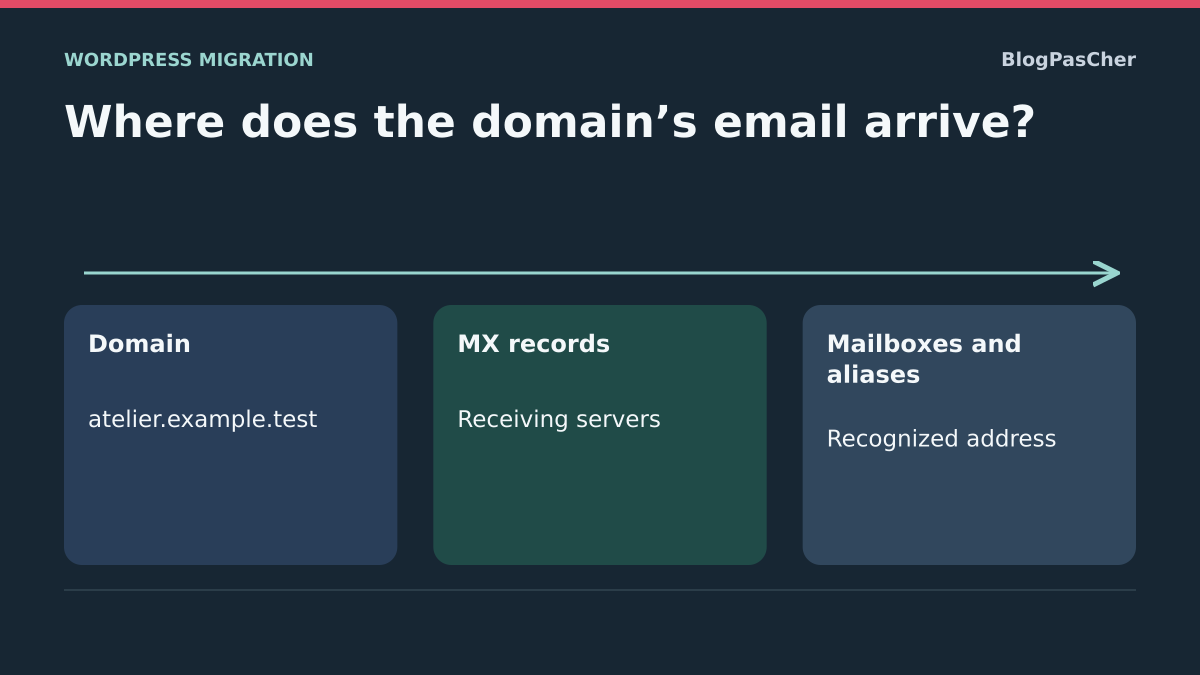
The site opens correctly after migration, but messages sent to contact@atelier.example.test no longer arrive. Start by determining whether the problem affects all incoming mail, a single mailbox or only WordPress notifications. Ask for the exact domain after @, approximate sending time, destination address and bounce-message text if one exists. The email domain may differ from the one in the browser address bar. Sending servers try to reach the destination address’s domain.
Open the webmail or portal of the provider already hosting the mailboxes with an authorized account. Check that a known mailbox exists and that you can see earlier messages. Ask whether other people lost incoming mail at the same time. If only one desktop application no longer retrieves mail but webmail receives it, examine that application’s connection or synchronization. If only WordPress forms or resets are affected, check the notification route using the corresponding guide.
Then note changes made during migration. Changing the web address within the same zone, changing nameservers and transferring the domain between registrars do not have the same scope. If the zone moved, find the previous DNS record and the email provider’s expected configuration. An accessible web page proves that its address works. Mail routing is checked separately through MX records.
Identify the active zone and mailbox provider
Find where the domain is registered and which nameservers are currently delegated to it. The account billing the domain may differ from the one hosting the DNS zone. If you changed nameservers, an old zone may remain visible in a panel while senders query the new one. Note which account actually controls the zone before changing anything. When the mailbox domain is a subdomain, check whether it has its own delegation.
From the email provider, obtain the complete expected MX list for this domain and their priorities. Also record other DNS values required for the service. MX records contain hostnames to publish at the appropriate name in the zone. In a panel, the root may be written as @ or represented by an empty field. For a subdomain, the panel may expect a name relative to the zone. Check the published record after saving to avoid accidentally creating a name that repeats the domain.
Keep values before any correction. Capture or export the mail-related part of the zone, including name, type, value, priority and TTL. Also note useful web settings. You can then repair incoming mail while retaining the values that make the site accessible. If the mailbox provider is also changing, obtain confirmation that mailboxes and aliases have been created at the intended destination before redirecting mail.
Read MX responses from outside
On Windows, replace atelier.example.test with the domain of the address no longer receiving mail. The commands compare MX records seen by the computer’s resolver, nameservers for the queried zone and the web address in the example. If the mailbox domain is a subdomain managed in a parent zone, look up that parent zone’s nameservers when a direct NS query shows no delegation. To query a specific authority, add -Server and that server’s confirmed address. With dig, similarly request MX records and specify the nameserver if needed.
Check each response’s exchange name and priority. A lower priority value indicates stronger preference. Verify that the advertised MX hosts match the provider’s hosts and have the expected addresses. Old and new MX records with equal priority can distribute attempts between two systems. Keeping an old MX as an improvised backup can also route messages to a server that no longer knows the mailboxes. Compare with the provider’s complete list.
The -NoHostsFile option ignores hosts-file entries during these measurements. It does not flush the DNS cache: always compare the resolver’s responses with the authoritative zone and TTLs.
Resolve-DnsName -Name atelier.example.test -Type MX -DnsOnly -NoHostsFile
Resolve-DnsName -Name atelier.example.test -Type NS -DnsOnly -NoHostsFile
Resolve-DnsName -Name atelier.example.test -Type A -DnsOnly -NoHostsFile
Restore MX records in the zone actually published
If the active zone does not advertise the intended MX records and your email contract has not changed, restore the values from the provider already used. In the active zone’s DNS panel, open records for the mailbox domain. Add exact values or correct erroneous entries with the right name and priority. Remove old entries from the same set when they are no longer part of the confirmed configuration. Do not copy a list found for another account. With some providers, the exchange server or number of entries depends on the configured domain.
On WordPress.com, if its nameservers control the zone, open the hosting dashboard, choose Domains and the relevant domain. Under Settings, open DNS records and use Add a record for the supplied values. If the zone is managed elsewhere, apply values at that DNS provider. The WordPress.com site connection and mailbox hosting can remain with two different providers. If the problem follows a new zone delegation, also examine other records required by the provider, including domain validations. Sender-authentication settings do not replace MX routing.
After saving, compare the authoritative response with your resolver’s response. If the authoritative response is correct but some networks still see the old value or an absence, keep the time and observed TTLs. Absence can also be cached. Editing the zone again does not clear remote caches. If the query fails instead of returning a list or an absence of MX records, first check delegation and zone status with the DNS provider.
Interpret an absent, unexpected or temporarily cached MX
An MX pointing to a server associated with the new web host may explain the failure if that server does not host mailboxes. An empty MX set is another case. Under SMTP resolution, a sending server may then try the domain’s own address if one exists and the lookup does not report another error. This is another reason to restore the provider’s explicit MX records. A 0 . record is different. It declares that the domain does not accept mail. If you see this value on a domain that should receive mail, confirm the service’s intention before replacing it with the prescribed list.
An exercise for an isolated lab: prepare an atelier.example.test zone and two fictional SMTP routes, mx-web.atelier.example.test and mx-boites.atelier.example.test. Configure the first to reject the test recipient and the second to accept it. Change only the test MX, then check receipt of the fictional message and preservation of the web A record. This exercise does not reproduce real senders’ caches or later attempts.
A 550 5.1.1 response typically indicates an unknown recipient in the responding system. It may occur because the wrong server was reached or because the address is missing at the correct one. Identify that server before creating a mailbox or changing DNS again. A temporary 4xx-class error requires a different reading of the bounce and logs. Attempts may remain queued at the sender according to its policy.
Check the mailbox, alias and records at the correct provider
When the expected MX records are visible, open email administration and check the domain, then the exact address. Distinguish a mailbox with login access, an alias to an existing mailbox, a group with restrictions and forwarding. An address may have been recreated in the wrong account, disabled or absent from the new destination. If only one address is missing, compare it with another working address on the same domain. Create or restore the intended object after owner approval and verify its destination.
To distinguish routing from mailbox existence, provide two fictional recipients behind the same MX: one accepted, the other unknown. The second may remain rejected even after routing is corrected. Do not change the MX again for that reason alone. On a real service, group conditions, quarantine or a transport filter can also explain the difference.
If the provider has a tracking tool, search for an authorized send by time, sender, recipient or message ID. A rejection, quarantine or delivery result leads to different checks. SMTP acceptance means the server took responsibility for the message at that stage. Then check its presence in the mailbox, quarantine or forwarding destination before declaring reception restored.
Validate reception with two reference addresses
Once DNS and objects are checked, arrange an authorized test with a sender outside the affected service. Use test text without attachments or personal data and note its time. Test a primary mailbox and an important alias or group if the domain uses them. For each address, record the provider handling the message, the result in its tracking tool and where the message is ultimately visible. A test sent from the same provider may follow an internal route and fail to check the MX seen by an external server.
If a test fails, wait for its corresponding record or nondelivery notice before launching several more. Check the distinction between rejection, waiting, quarantine and delivery elsewhere. An absent record at the expected provider may lead you back to DNS and the bounce message. It may also mean the sender has not yet attempted delivery or the log search does not cover the correct period. Keep a working reference address for comparison.
Then check that the site still opens at the expected names. In a zone shared with the web, the correction must leave useful website records intact. Separately address any WordPress-specific sending issue remaining after general reception is restored. A mailbox receiving external messages may still miss notifications if WordPress or its sending service has another failure.
Prepare rollback that preserves messages already received
If you changed MX records and the intended target does not receive mail, first determine whether the previous configuration remains operational. Restore the old working set only if mailboxes exist there and you can still view their messages. Restore recorded names, values, priorities and TTLs in the active zone. Changing MX records alone neither moves nor merges messages already received by either mailbox. If two providers accepted mail during the switch, keep access to both and arrange reconciliation with the responsible people.
Repeat the authoritative lookup after rollback. Senders may continue using the previous destination for the duration of their cache. Keep routes that may still be used operational when you control them. If the previous service has closed or no longer knows the mailboxes, restoring its MX could prolong the incident. In that case, first prepare a destination capable of receiving for the domain with the provider hosting it.
In the isolated test environment, restore the initial MX and verify the original behavior returns. This check does not define a suitable production state: on the real service, the chosen rollback point must be able to deliver mail and be validated with a mailbox and receipt record.
Identify messages that need resending
Check both systems if the provider also changed. Record messages delivered to the old service and those arriving at the new one during the incident. A message accepted by the old provider may still be viewable there. A temporary error may leave attempts queued at the sender. A permanent rejection may instead require the sender to send again. Do not announce that all missing messages will reappear after the DNS correction.
For an important message, ask the sender to confirm its delivery response or resend it after reception has been checked, avoiding extra copies if the first send was already delivered. Note the affected interval, validated MX set, reference addresses and where messages were found. This record allows diagnosis to resume if only one alias or correspondent continues having problems.
Identify when rejection occurs in the delivery response
Keep the complete nondelivery message in a private folder and record the responding server, time and SMTP code. A rejection at the recipient stage is not handled like an accepted message later placed in quarantine. A code copied without context can lead you to blame DNS for a mailbox or reception-policy problem.
After restoring MX records, perform one external test to the reference mailbox. If the provider confirms acceptance, then look for final filing in the mailbox or forwarding. If rejection still comes from the old server, compare the TTL and responses seen by the sender. Do not add a WordPress SMTP plugin to repair this route: a sending plugin changes neither incoming MX records nor provider mailboxes. Retain both systems until messages accepted during the switch have been reconciled.
Sources and references
Use these references to check the features, requirements and limitations described. Reading documentation is not a practical test.
View 9 references
- IETF: destination resolution and SMTP responses ↗
- IETF: Null MX ↗
- IANA: enhanced SMTP status codes ↗
- Microsoft: resolve DNS records ↗
- WordPress.com: enter DNS records for an existing email provider ↗
- WordPress.com: diagnose a domain and missing MX records ↗
- IETF: caching negative DNS responses ↗
- Official technical reference for diagnosis ↗
- IETF: SMTP protocol and delivery responses ↗