

Confirm a memory error during the correct action
You start an import, export or specific change, then WordPress displays an error containing “Allowed memory size” and “exhausted.” The log may show the same message while the screen displays only a critical error or status 500. Processing reached a memory limit; increasing an arbitrary number in WordPress does not explain why.
The goal is to complete the useful action with intact data and controlled consumption. Three routes exist according to the diagnosis: reduce the requested work, correct a component consuming abnormally or adjust the limit actually applied by hosting.
A slow screen or a 500 page does not prove memory exhaustion. Record the message matching the action’s time in private logs. If the entire site became inaccessible, first use the critical-error guide to recover access, then return here to the affected process.
Preserve the original and check what already happened
Stop automatic retries. An import may have created some items before stopping; an update may have changed files. Keep the original file, action parameters and report. Do not delete partial items without checking their use and the tool’s intended resume method.
If unsaved text remains visible, copy it to a private document. For a commercial process or sending operation, have its state checked before retrying to avoid duplicates. A memory message does not guarantee cancellation of every effect already produced.
Check available backups, dates and scope. The database and files are separate; restoring them may replace recent data. A private configuration backup makes reverting one setting easier without reverting the whole site.
Record the time with time zone, action, volume and last known success. These details let you compare equivalent tests instead of simultaneously changing size, component and limits.
Distinguish memory, upload size and storage space
A file’s size on your computer does not represent all memory needed to process it. A compressed image must be decoded; imported data may be transformed into many objects. A relatively small file can therefore require substantial memory during a particular stage.
The upload limit controls what the request can carry. Disk space indicates what the account can store. The PHP memory limit concerns what a script may allocate while running. Changing upload_max_filesize does not grant more memory to processing already received.
Also distinguish this limit from total server capacity. Several requests can consume resources in parallel. A PHP limit message and a process killed by the system do not provide the same diagnosis; the host may need to examine several logs.
If the message concerns an oversized file, denied write or exceeded time limit, choose the corresponding guide. Do not treat every import or image failure as proof that memory must be increased.
Connect the log entry to the failing request
Repeat the exact action once on a copy. Record its time and what you just asked WordPress to do, for example creating a thumbnail, exporting a data range or opening a specific screen. If the action triggers background processing, also record that process’s time when available. The screen may finish while the task continues in another request. The log must correspond to that execution.
In a PHP error formatted as Allowed memory size of … bytes exhausted (tried to allocate … bytes), the first number indicates the applied limit. The second is the final attempted allocation. It describes neither total memory already consumed nor how much you merely need to add. The file and line show where allocation failed. A plugin appearing there may have requested the last memory block while other processing had already consumed a substantial amount.
If administration works, consult Tools → Site Health → Info and retain the PHP version and indicated limits. If the error occurs in a command-line export, scheduled task or image-processing request, ask the administrator to record memory_limit in that precise context. A terminal command’s result may differ from PHP responding to the browser. If the PHP log has no entry but the process stops, also correlate server or process-manager logs. A process or account limit may intervene outside PHP’s usual message.
Choose reduction, correction or adjustment
The first approach reduces useful work when the operation involves substantial volume: enormous images, an overly broad export or an import the tool supports splitting. It sometimes completes the work without server changes while preserving the original.
The second looks for a regression: an action of usual size fails after a change, or a particular item triggers abnormal consumption. It requires a controlled comparison and, for component changes, a protected copy.
The third adjusts the effective limit when a legitimate, proportionate requirement exceeds the allowance. It requires the host’s agreement on capacity and method, followed by verification of the loaded value.
These three approaches are not settings to combine. Start with the best-established evidence and retain a stable comparison point. If reducing volume also changes the format and component used, you will not know which difference mattered.
Approach 1: reduce what processing must prepare
For an image, keep the original and prepare a copy with dimensions suited to its use. Reducing pixels can decrease decoding and transformation work. Changing only the filename or extension does not change this load. The image-processing guide details preparation and visual checks.
For a native post export, Tools → Export lets you limit content by type, author, category, dates and status according to available filters. Exporting one period reduces work but retains only that scope. The XML file is not a complete backup: media files are not packaged with the text. For another export tool, use only its documented filters.
For an import, look for the batching feature provided by its developer. Settings may depend on the version and data type. Do not arbitrarily split a migration archive or structured document into multiple files: its format may require a coherent whole.
Test a representative copy and record its volume. If it succeeds, you gain evidence about load and a possible method; this does not prove the entire site now has enough memory. For imported data, use only a targeted, documented undo of items actually created.
- If native export is the failing action, open Tools → Export and select Posts.
- Record the initial filters, then choose a short date range containing known posts and the relevant status.
- Click Download Export File; retain the file with a name identifying its period. Compare expected titles with its content in a local text editor.
- If the export still fails or is incomplete, retain the report. Restore initial filters before another test; do not concatenate several XML files to manufacture a global export.
Split processing only with a controlled resume method
Before processing several batches, check how the tool recognizes existing items. It may create a duplicate, update an entry or resume from a recorded point. These behaviors are not interchangeable. Consult documentation for the version used and retain the first batch’s identifier.
Start with a small representative set, on a copy when importing changes important data. Check item counts, relationships and associated attachments. An import that finishes without a message but omits images or associations is not a complete success.
Keep test and production data distinct. Importing orders, users or notifications requires disabling external effects on the copy. Do not resume an interrupted production batch before identifying what is already recorded.
If the first small batch fails with the same memory message, stop randomly reducing it. The initial operation or one particular item may already cause excessive consumption. Move to component analysis with this reduced case and preserved observations.
Measure whether batched processing succeeds
On a copy, keep a fixed input set and define how to verify the result before changing processing. For an export, record the expected item count and identifiers present in the file. For a conversion, open the result and compare size or relevant characteristics. If processing should return identical bytes, a checksum can confirm both methods produced the same content. Do not compare only elapsed time or disappearance of the error.
If the tool offers a batch size, reduce it for a test with the same data. When the operation writes to the site, record where it stopped before retrying. Resume from the point intended by the tool or erase only disposable test output before a new attempt. Check for duplicates, missing entries and partial results. An export that no longer fits in memory may succeed in several batches, whereas a process whose final stage assembles everything in memory may still fail. Compare this final stage before adopting the correction.
Approach 2: compare a regression on a copy
A previously routine action can fail after an update, PHP change or new setting. Reconstruct versions and the order of interventions. The chronology helps prepare a comparison without proving the last installed plugin is responsible.
Use a recent copy with its own files and database, protected access and external effects disabled before startup. Check that it reproduces the versions and limit relevant to diagnosis. A copy with much more memory than production may hide the symptom without revealing its cause. A domain alias using live data is not a test copy.
On this copy, open Plugins, then Installed Plugins. Record the suspected component’s state and deactivate only that plugin if it is not essential to the tested action. Reproduce the same reduced case, retain the result and reactivate it before moving to another. If the copy no longer performs the same operation without it, the comparison is inconclusive: restore its state and look for a component-specific setting or fix.
If a developer fix exists, verify it in this context. A version rollback must remain compatible with data and structural changes; do not randomly replace plugin files.
Measure a still-accessible page with Query Monitor
Query Monitor, by John Blackbourn, provides an additional reading on a copy that can still display pages. This free plugin does not increase memory. Version 4.1.1 checked on November 3, 2026 requires at least WordPress 6.3 and PHP 7.4, with declared testing through WordPress 7.1.4; use a PHP version maintained by the host. By default, results are visible to administrators or multisite super administrators.
The displayed memory peak corresponds to the current load. It is neither a history nor an exact breakdown of memory by plugin. The queries panel can group SQL by component, but SQL time does not measure all PHP consumption. A separate Ajax, REST or background process cannot be summarized by the peak of the page that triggered it.
The tool itself consumes resources, especially when collecting many queries. If it worsens the error, deactivate it and return to existing logs. A sudden termination may prevent its panels from appearing. Do not install a second measurement tool to compensate; provide the reduced case to the maintainer instead.
- On the protected copy, open Plugins → Add New Plugin, search for Query Monitor and confirm John Blackbourn as author. Install and activate with file access available for rollback.
- Logged in as administrator, load a representative page that still works. In the administration bar, the numeric menu shows the memory peak among other values; click it to open Overview.
- Record the address, processed volume and peak. Under Environment, record the PHP limit and version. Keep this technical information private.
- Repeat the same load after one correction on the copy. If the operation under investigation runs in another request, ask the maintainer to measure that request separately; do not draw conclusions from the initial screen alone.
- After collecting readings, deactivate Query Monitor under Installed Plugins and check the same case without this instrumentation. If activation blocks administration, rename only its query-monitor directory in wp-content/plugins through file access, then restore its name once access is recovered without reactivating it.
Give the maintainer a usable case
Reduce the example to necessary data while preserving the problem when possible. Supply volume, format, versions, effective limit and the error from the same test. Do not send a complete customer file publicly if a sanitized example is enough.
The maintainer must distinguish expected processing from disproportionate loading, repetition or conflict. A core filename in the log does not automatically mean core is faulty. A function may fail at the final allocation after accumulation started elsewhere.
Approach 3: adjust the limit through hosting
Ask the provider whether a proportionate increase is permitted for the domain and compatible with available resources. Provide the action, volume and observed limit. The proposed number must meet the demonstrated need, not a value presented as ideal for every site.
With cPanel, if the tool is available, open Software → MultiPHP INI Editor, then Basic Mode. Select the affected domain instead of Home Directory, which may target every site on the account. Before Apply, preserve initial values and a private copy of affected configuration files. The panel may write to php.ini, .user.ini and .htaccess according to the directive; do not replace any of these files wholesale.
- In Basic Mode, confirm the domain and record memory_limit and the time.
- Change only memory_limit to the provider-authorized value, then click Apply.
- Return to Tools → Site Health → Info → Server for the web context. For a background task or command, have its loaded configuration checked separately.
- Repeat only the planned case after checking writes already performed. If the value does not change, do not add a random second configuration.
- To undo the change, restore the recorded value in the same field and apply. Then verify the effective value; preserve other settings.
Adapt wp-config.php only if this method is intended
WordPress uses WP_MEMORY_LIMIT and WP_MAX_MEMORY_LIMIT, among other settings. The first acts during initialization; the second supports requests to raise memory for certain processes, including administration, images and tasks. They do not reserve RAM or allow a hosting-imposed ceiling to be exceeded.
This variant concerns self-hosting where the provider confirms WordPress can increase memory_limit at runtime. Use its panel if that is the intended method. The snippet below illustrates explicit agreement for 256M in both contexts, with the current effective value lower. This number is not a universal recommendation. If it is already reached or exceeded, copying this example will not resolve the incident.
WordPress initialization does not reduce an already higher PHP limit merely because WP_MEMORY_LIMIT is smaller. WP_MAX_MEMORY_LIMIT may also be modified by filters. Therefore check the process’s effective value after the change, not just constants written in the file. Remember that multiple simultaneous requests still burden the same hosting environment.
- Using authorized SFTP or a file manager, find this installation’s wp-config.php. Download a private copy outside the web-served directory.
- Search the entire file for WP_MEMORY_LIMIT and WP_MAX_MEMORY_LIMIT definitions. If present, edit the relevant lines; if supplied by another file or environment variable, have that source corrected.
- If definitions are absent and this method is approved, add the lines inside existing PHP code before the end-of-configuration comment and before wp-settings.php loads. Do not add another PHP tag or duplicate definitions.
- Adapt both values to the agreement received, save, then verify administration and the same context’s limit before one controlled retry.
- For a PHP error, immediately restore the private copy through the same access. To abandon this test, restore old lines or remove only the two additions, then check again.
define( 'WP_MEMORY_LIMIT', '256M' );
define( 'WP_MAX_MEMORY_LIMIT', '256M' );
Check the increase in the context that fails
After a backup and reproducible test, ask the administrator to record the effective value before any change. An increase may suit justified, stable processing compatible with hosting capacity. The value to check is what PHP uses during the affected request. The panel value, WP_MEMORY_LIMIT setting and ceiling requested by WP_MAX_MEMORY_LIMIT do not provide that result on their own.
On a copy, compare the PHP setting at the start of the request with the value after WordPress initializes. When processing uses a WordPress memory-raising mechanism, have the value recorded immediately after that call. If unchanged, check which PHP file or handler applies and whether runtime increases are allowed. An already higher ceiling may also explain no change. If the value changed but the request still fails, inspect the new log entry. An increase that turns memory exhaustion into storage exhaustion or process termination changes the diagnosis.
Keep the previous value and how to restore it in the same environment. Verify complete success with the expected result before considering retaining the setting. Also compare consumption when several authorized requests overlap if that is part of actual use. Each process may have its own limit. The provider must confirm the capacity all these processes can collectively use.
If the saved number does not become effective
Do not repeat the same value in several files to force application. Ask which engine handles the request and which configuration files it loads. Terminal PHP may read different settings from PHP called by the web server.
A .user.ini mechanism may exist under CGI or FastCGI with a configurable reread delay. It does not apply identically in all environments. Have its use, location and delay confirmed by the provider instead of creating another file alongside a panel already managing settings.
Since PHP 8.5, max_memory_limit can cap memory_limit values. Versions offering memory_hard_limit_percent also enforce abrupt termination beyond a separate threshold. Do not modify these protections to hide the error: have the reached threshold and host-authorized margin identified. A value displayed in WordPress does not guarantee the process can consume that amount without another account limit.
If effective memory increases but the action still fails, compare the message and volume for the same test. Reaching a new limit may reveal a greater requirement or abnormal consumption; it does not justify indefinite escalation toward an unlimited value.
Adapt the solution to WordPress.com and multisite
On WordPress.com, service documentation states a fixed memory limit customers cannot increase. Do not transfer cPanel or php.ini changes to that platform. Reduce the operation when appropriate and have support examine the affected component or case.
On another managed plan, ask what your contract and tools actually allow. An absent panel does not make a theme file an alternative solution. A plugin cannot create memory the provider cannot grant.
In multisite, involve the network administrator before changing shared configuration. Distinguish the affected site, network-activated components and context running the action. An increase or isolation may affect several sites.
Even with more memory per request, several simultaneous processes may remain too demanding for the account. Have their concurrency examined if the problem is a global service interruption rather than one PHP limit being reached.
Repeat the memory test on a disposable copy
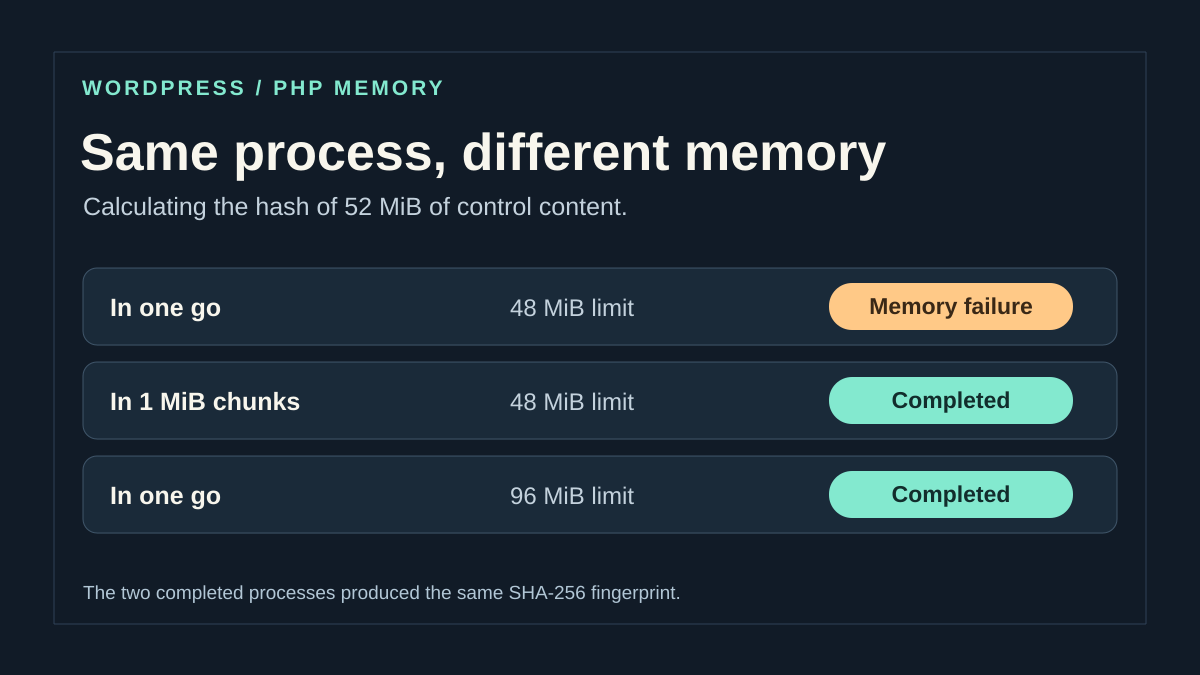
To illustrate a reproducible comparison, a developer can use fictional content larger than a small PHP limit selected on a disposable installation. Full loading and progressive processing should produce the same expected result. Record your versions, effective limit and actual error; no precise volume or benchmark result is supplied here as evidence for your environment.
Compare progressive processing at the initial limit, then an authorized increase in a separate test. Verify the result’s checksum and length, not just absence of an error. If examining wp_raise_memory_limit('admin'), record the value before and after the call: it requests an increase and must not be interpreted as a mechanism lowering an already higher limit. This control does not automatically reproduce consumption of an import, backup or image engine.
To repeat a comparison on your copy, choose one failing action and a result you can open or read. Test less demanding processing at the original limit. If adjustment is still needed, test the authorized value separately and repeat the action. After success, compare produced data with the expected result and verify other site operations work in their usual context. If the copy has become stable with lighter processing, retain that measurement to justify the correction.
Validate the complete operation and produced data
First repeat the retained representative case in the appropriate test environment. Verify useful results: imported items, fields, associations, images and any skipped rows. A log without memory errors does not prove the entire file was processed.
Before resuming in production, identify what already exists and the continuation method authorized by the tool. Keep the original and report until validation. If a batch must be undone, have targeted deletion of actually created items prepared with a backup; do not restore the entire database for convenience.
Then check the same usual volume with final settings. For a scheduled task, observe its normal run instead of restarting it to save time. Payment and sending operations require their own business validation.
Have temporary settings removed, necessary components restored and consumption confirmed with support if it was involved. The return of a completion page must be accompanied by complete data without duplicates or unexpected external effects.
Document the correction for future processing
Keep the action, processed volume, versions, initial message and limits actually applied before and after. Also state what changed: reduced copy, smaller batch, corrected component or provider-adjusted value. This record lets you reproduce a useful method when next needed.
Avoid unnecessary simultaneous batches and prepare files for their use. Keep originals so data are not degraded with each attempt. Before a major update of the affected component, check the same case on a comparable copy.
Sources and references
Use these references to check the features, requirements and limitations described. Reading documentation is not a practical test.
View 18 references
- PHP: memory limits and core directives ↗
- WordPress: initializing memory constants ↗
- WordPress: raising memory limits by context ↗
- cPanel: MultiPHP INI Editor ↗
- PHP: loaded configuration file ↗
- PHP: per-directory .user.ini configuration ↗
- WordPress: Site Health ↗
- WordPress: logging and debugging ↗
- WordPress: backups ↗
- WordPress.com: server environment ↗
- WordPress: hosting environment and interaction between limits ↗
- WordPress: native export and filters ↗
- WordPress: memory configuration ↗
- Query Monitor: official listing ↗
- Query Monitor: use and per-request peak ↗
- Query Monitor: Environment panel ↗
- Query Monitor: measurement scope ↗
- PHP — observing peak allocated memory ↗