

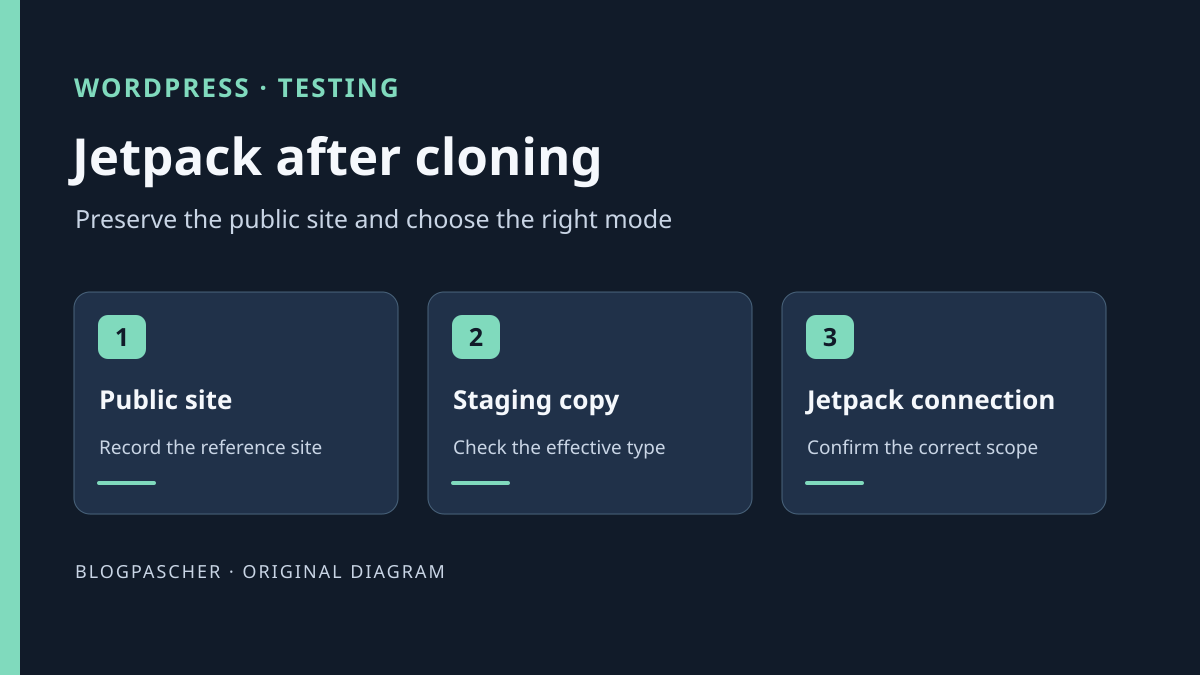
Recognize a copy and preserve the public site's identity
After cloning, Jetpack invites you to move settings, create a connection, or stay in Safe Mode. Before choosing, record the URL where you see the warning and the URL visitors should continue using. Ask whether the copy will be discarded after testing, become a second independent site, or officially replace the old domain. These operations sometimes begin from the same backup, but they do not give statistics and subscribers the same destination.
Jetpack associates its connection with an identity used by WordPress.com. The copy may have inherited connection configuration while responding at another URL. The warning indicates that Jetpack detected a situation it cannot resolve automatically. An empty history on the copy is insufficient to conclude that public-site data disappeared. Check the URL at which you view statistics and identify the reference site before any connection operation.
Editorial access is enough to record the URL and warning text. The choice in Jetpack belongs to the account administering the site and its connection. If the host supplied the copy, also ask how it distinguishes staging from production. Keep the time, both URLs, and intended use in the ticket. Leave connection tokens, cookies, and subscriber lists within their usual scope.
Determine which URL serves which installation
Open the copy's dashboard from its own URL. Record the final URL and check a staging marker, such as a title added by the host. Then open production in a separate tab from its usual URL. The same site name may appear in both administrations because it was copied. Therefore compare URLs, the environment marker, and hosting-panel information if you manage it. If the copy's URL redirects to production, have this path corrected before configuring Jetpack.
Also check the WordPress Address and Site Address under Settings > General when your role allows reading them. They may intentionally differ if WordPress is installed in a subdirectory. Use this record to identify the installation and document the discrepancy. An unexpected URL may come from configuration, a proxy, or a redirect. Editing these fields during Jetpack diagnosis would introduce a second cause of difference.
Take a public comparison point. With an account already authorized to view Jetpack for production, open that installation's statistics and choose a past period with data. Record the displayed URL and a period marker without copying traffic data into the shared record. You can later check that the same data remains accessible from production. If you do not manage this connection, ask the owner only to confirm continuity.
Approach 1. Keep a temporary copy in Safe Mode
For a copy intended for local testing and eventual deletion, choose to stay in Safe Mode when the warning offers it. Check once more that the browser shows the copy. Depending on the interface, the warning may appear on the Jetpack screen, under Settings > Connectors, or in a dialog reopenable from the administration bar. Jetpack documentation states that staying in Safe Mode hides the main warning. The message disappearing after this choice therefore does not prove that all connected functions have returned.
On the copy, try actions that do not require the Jetpack connection. Open a test page, change a dummy sentence if your staging test includes a write, and check the preview. With an authorized visitor browser, also check the copy's access protection. Safe Mode addresses the relationship with Jetpack services. It does not replace staging-site access control or isolation of emails and other plugins' integrations.
If the test depends on a connected Jetpack function, identify it before choosing another mode. When Jetpack detects an identity conflict, it suspends new synchronization to WordPress.com. A local editing or rendering test may succeed while synchronization of a remote function is unavailable in this context. Check the function you need before drawing a conclusion for production. An independent connection is justified only if the copy actually needs services associated with its own identity.
- Confirm the copy's URL before choosing Safe Mode.
- Compare a staging page and a past period of public-site statistics.
- Record connected features outside the staging test's scope.
Approach 2. Declare staging in its own configuration
If you retain staging for several cycles, ask the host whether it already defines the environment type. Some hosts do so during cloning. With administration access only, give support the staging URL and ask for the effective value. A copy named staging in the panel does not establish the value WordPress receives. If the panel offers a host-managed setting, keep that setting as the authoritative source.
With file access, first record the existing declaration and copy's deployment mechanism. In WordPress, type may come from an environment variable or constant. A valid defined constant overrides the system variable. Therefore check host-provided configuration before adding a line. If a declaration already exists and needs correction, edit it instead of creating a second one. Save a private copy of the file's previous version and record its associated installation URL.
On a self-hosted copy whose file you manage, place the following line in the copy's wp-config.php before wp-settings.php loads. It must be inside the existing PHP block. The staging type describes a staging environment. Keep the change outside files that may be pushed to the public site. If deployment uses shared configuration and per-site variables, apply the setting in staging's environment configuration. For a multisite network, check configuration scope before changing a file shared by all subsites.
define( 'WP_ENVIRONMENT_TYPE', 'staging' );Check the effective type and warning behavior
Reload the staging dashboard after the change. With already authorized technical access, you can ask WP-CLI to display the type WordPress resolves, for example with wp --path=/srv/recette/wordpress --url=https://recette.example eval 'echo wp_get_environment_type(), PHP_EOL;'. Adapt the path and URL. The expected result is staging on the copy. If the host's configuration differs between the terminal and web request, also confirm the web-side value with support. Terminal execution alone is insufficient to establish the value received by the process serving administration.
On a connected copy Jetpack recognizes as staging, the option to move settings to the copy should be unavailable if the dialog appears. There may also be no warning to resolve. In that case, check the type in the web context and the state displayed in Jetpack without provoking an identity conflict to produce a message. If the move option remains offered, check the URL, effective web configuration, and any customized detection. Record the discrepancy before changing the connection.
Document the deployment test before the next transfer from staging to the public site. On a copy, a wp-config.php change may be intentional. The same file deployed to production may cause the public site to be identified as staging. Compare both environment configurations before a transfer and ask the owner to verify production's effective type afterward. If the copy replaces another staging environment, check the type again on the new installation. The old test result depended on its old path and configuration.
Distinguish an independent connection from a site move
If the second site will exist separately, a new connection gives it its own Jetpack identity. On the authorized copy, identify the staging URL and open the Jetpack dialog. If a connected test is intended, the owner chooses “Create a new connection,” uses the account intended for staging, and confirms that the URL attached to the new identity is the copy's. They then reopen the production screen to verify its URL and reference history. For an editing or layout test, retain Safe Mode when the copy does not need connected services.
Moving settings corresponds to an actual site move. In that case, the new URL should replace the old one, and the owner wants continuity of statistics and subscriptions there. First check that the domain switch is planned and both URLs have been identified. Parallel staging and open production are two distinct environments. Staging being more recent is insufficient to justify a move.
If the wrong action was already confirmed, record what was selected, the time, URLs, and first observed production effect. Avoid repeated disconnections and reconnections that would make history attribution harder. The owner can then submit the findings to Jetpack support through their usual route. A WordPress database backup records local state at copying time, while connected statistics and subscriptions also depend on the identity registered with the service. Restoring the database alone is therefore not evidence that these data returned.
Test a complete operation on the authorized copy
On your authorized copy, create a draft page titled “Repère Jetpack recette 27”. With the intended editorial account, add the dummy sentence “Cette page sert à vérifier le rendu de la recette”, save it, and reopen its preview. Check that the address bar shows the copy and the sentence appears. In a visitor browser, also check that access protection behaves as intended. Delete the dummy draft at the end of staging testing or restore the starting version if you used an existing reference page.
With the owner, compare the production reference point recorded initially. Reopen the same statistics period from the production URL and check that the interface still identifies the correct site. If the installation uses subscriptions, ask the owner to confirm from their own screen that the service remains associated with the correct URL. This check does not require notifying subscribers. If staging requires an actual test send, do so in an environment whose owner validated the identity and test recipients, then record separately what that send proves.
If a discrepancy appears, find the first check that changed. If the staging page opens but production statistics show the wrong site, retain both URLs and the time. If production is correct and a copy function is unavailable in Safe Mode, compare it with the list of suspended functions. Distinguishing these cases lets you stop testing at the right moment or continue without touching the public connection.
Return to the intended setting for the copy
If you changed the environment type by mistake, restore its previous value through the same mechanism. For a host-managed variable, return to the panel setting. For a constant specific to the copy, restore only the line or file whose version you saved before testing. Check the URL and effective type after rollback. If the copy remains distinct from production, have the person responsible confirm Jetpack's intended behavior before removing a staging protection.
If the owner created an independent connection solely for testing, first check the copy's URL and identity. On versions offering Settings > Connectors, open the Jetpack card details and disconnect the staging site. Depending on version, this action is in My Jetpack. Then reopen production's Jetpack screen and compare the site and reference period. If settings were moved between URLs by mistake, keep observations and have the owner handle connected identity separately. Restoring wp-config.php restores local configuration and does not transfer service history.
To close staging testing, leave three details in the record: the copy's effective type, the Jetpack choice retained there, and the production comparison result. Also specify whether this copy should be reused, rebuilt, or removed. During the next cloning, these reference points will distinguish a legitimate new warning from an unexpected return to production configuration.
Read the dialog's three choices through a concrete example
Suppose www.example.com remains the public site and recette.example.com is a temporary copy. In that case, “move settings” does not mean “apply the tested theme”: it concerns connected identity, with associated statistics and subscribers. It therefore does not suit a simple layout comparison.
| Actual destination of the copy | Choice to examine | | --- | --- | | Temporary copy for testing a theme | Stay in Safe Mode | | New independent site | Create a new connection | | New URL officially replacing the old one | Move settings as part of the site move |
If the goal is only checking blocks, local editing is generally sufficient. If the goal is testing Subscriptions or Jetpack Search, that function's unavailability in Safe Mode must be accounted for in the protocol: a displayed page does not prove the remote service works. No additional plugin is needed to choose the correct identity.
After choosing, reopen both administrations through their explicit URLs and compare the historical production period recorded initially. For a copy declared staging, also check that moving is not offered. If an incorrect move already occurred, retain the record and have the owner handle the identity; restoring only a local file does not undo that remote choice.
Sources and references
Use these references to check the features, requirements and limitations described. Reading documentation is not a practical test.