

Recognize a missing image after a move
The site opens at its new address, but some photos have disappeared. In the browser, their requests return a 404 error. The goal is to recover the expected files at their correct addresses while preserving existing media and the pages using them.
A 404 response means the server does not provide the requested resource at that address. By itself, it does not prove the original was deleted. After migration, the browser may request the old domain, a moved directory, an uncopied variant or an address transformed by an image service. Start with a control image and its exact URL.
This procedure concerns published images failing after a move. If only the media-library grid stays empty, use that library's diagnostic procedure. If the browser blocks an HTTP resource on an HTTPS page, check mixed content. If all internal pages fail but image files open, examine permalinks instead.
Keep the old copy or migration backup until checks are complete. Do not immediately reimport all images into Media: that can create new IDs and leave old references broken. Targeted recovery of a file or its address often preserves the existing organization much better.
Record the requested address, response and source page
Open a page showing the problem, then the browser's developer tools. In Network, reload the page and locate the failed image request. Inspect its full address and status. Copy the URL into a private note with the page, filename and check time.
Open that address in a new tab. Make sure you are viewing the file rather than an attachment page surrounded by the theme. A 200 status accompanied by an error page's HTML is not a recovered image. Likewise, a redirect to a homepage does not validate the media file.
Compare domain, protocol, directory, name, extension and any letter case. These cases differ: an old domain requires a reference correction; the correct domain with a missing subdirectory requires examining the transfer. A URL containing a size name such as photo-768x512.jpg may identify a variant distinct from the original.
Record this for two or three images from different periods. If they do not follow the same pattern, retain several diagnoses instead of seeking a universal replacement. This step is read-only. It should produce a verifiable comparison between what is requested and what exists before any writes to files or the database.
Prepare the right access and a usable restoration
On self-hosted WordPress, editing a page, accessing files through SFTP and administering the database are three different powers. To restore a file, use the new hosting account and this installation's directory. To replace addresses in bulk, prepare a recent database backup and a confirmed way to restore it.
A working copy lets you verify a replacement before repeating it on the public site. It must contain representative media and remain protected from visitors. If it can send emails or run external commands, have those effects disabled before experimenting. A replacement test must not trigger business operations.
Choose the first approach if the expected address is consistent but the file is missing from the new server. Choose the second if the file exists at a verified new address while content retains the old one. If only certain formats or sizes fail, inspect the variant or intermediary service before replacing a domain.
In multisite, involve the network administrator: each subsite has its own context and may use a different directory structure. On managed hosting such as WordPress.com, use the access actually available or request targeted recovery from the platform. Do not infer from a WordPress administrator role that you can modify every server file.
Approach 1: restore the missing file at the expected path
This procedure suits a correct current URL whose corresponding file is missing from the new copy. It requires authorized file access, a known restoration source and confirmation of this installation's media directory. Usually it is under wp-content/uploads, but customization or a network can change that arrangement.
With your SFTP client or hosting file manager, open the target site's directory and then the folder corresponding to the recorded URL. Compare the exact name with the backup, including extension and uppercase letters. For example, an image expected under uploads/2025/04 will not be repaired if you place it only at the root of uploads.
First copy only one file confirmed missing into its original subdirectory without overwriting an existing file. If the transfer reports a conflict, cancel and compare both files before deciding. Do not rename an original to a thumbnail's name: that would misrepresent the file's dimensions and purpose.
Reopen the exact failing URL, then the page using it. The expected result is the correct file with its actual content and a normal response, not a new media entry. If this restoration solves nothing, keep evidence of the added file and have the mapping between the domain and served directory checked. To undo the test, remove only this added copy after checking that it has not acquired a new use.
If the file already exists, examine the served directory and intermediaries
A file present on the server but missing at its URL requires a mapping check. Make sure the domain opens the new installation rather than an old folder or working copy. Two directories with the same site name can coexist in an account; a successful transfer to the wrong one does not change the public result.
Also compare case, encoded spaces and the actual extension. Migration between different environments can expose a name difference previously tolerated. Correct the reference source or restore the expected name after confirmation instead of changing every name in the library.
If the URL uses a CDN, a service distributing images from an intermediate copy, compare the configured address and its origin. A cached 404 response may persist after restoration. Then purge only the affected resource or scope with the existing tool, after verifying the origin. A purge does not replace transferring a missing original.
If a server rule hides the path, provide the host with the confirmed physical file and exact URL. Do not replace the entire server configuration file or security rules based on this observation alone. WordPress permalinks mainly handle content routes; resaving them is not a general repair for missing static files.
Compare the stored accent, requested address and transferred file
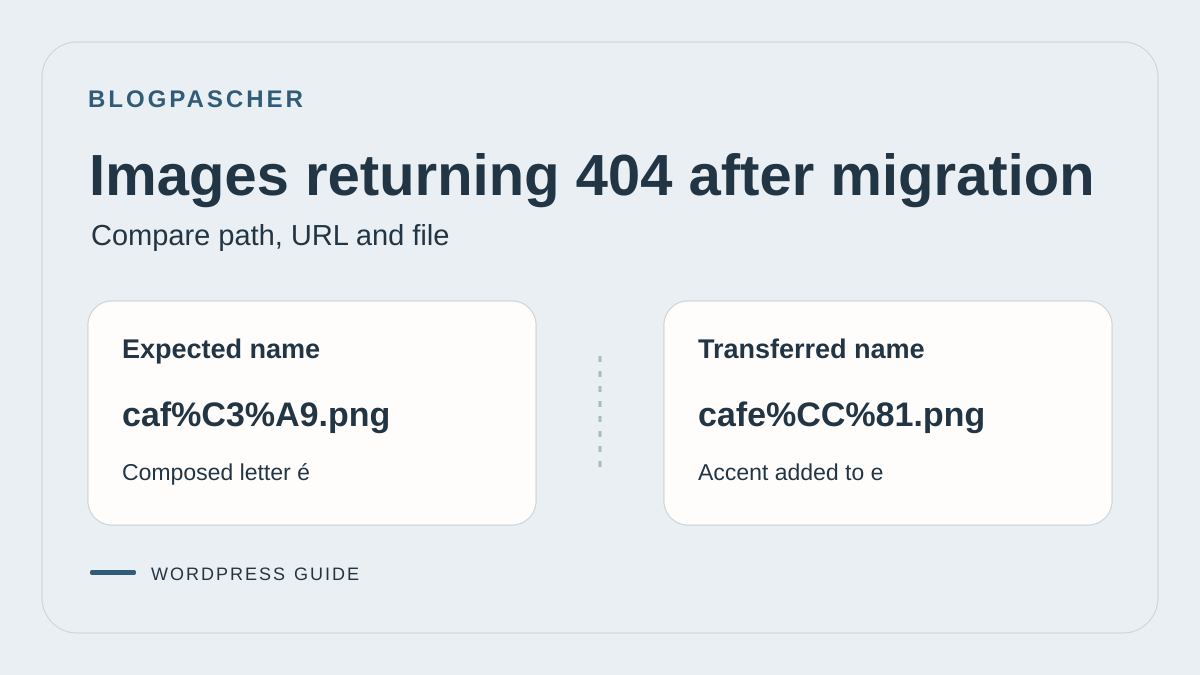
An image may seem to have the same name before and after migration while the path received by the server differs. WordPress issue tracking documents a report of media becoming unavailable after transfer, with combining accents on disk and another form displayed in administration. That report does not justify attributing every 404 to Unicode. On the moved site, first establish three values for the same image. Record the path stored by WordPress, the exact address requested by the browser and the filename in the destination directory.
For example, the visually identical name café.png may contain a single U+00E9 character or the letter e followed by the combining accent U+0301. NFC and NFD forms can therefore produce two different segments. The first example yields caf%C3%A9.png in the URL. The second yields cafe%CC%81.png. The server normally decodes the URL segment to look up a file under its own rules. A system comparing names without Unicode normalization may find one and return 404 for the other. Appearance in a file manager does not settle the question. Do not remove any accents before this comparison.
With dashboard access alone, open the media entry under Media > Library and record its ID and address. In the browser's network tools, retrieve the failing request. Check whether it targets the original, a thumbnail with dimensions in its name or a variant on another host. Ask the file administrator to check the same directory. The entry's ‘File URL’ value may be filtered by a plugin and does not replace reading the stored field.
With an authorized terminal, read the value without changing it using wp --path="/chemin/recette" --url="https://recette.example.test" post meta get 123 _wp_attached_file. Replace 123 with the media ID. In an ordinary installation, this value is relative to the uploads directory, for example 2024/08/café.png. Check the year and month directory and the site's or storage's base path separately. For a thumbnail, also record the derived name requested by the browser and the sizes described in the media metadata. Comparing the original with a thumbnail cannot establish that the original's transfer is faulty.
Put the script below in a working directory and run it with Python. Supply the already verified destination directory, stored path and failing request URL. For example, use python verifier-nom-media.py "/chemin/uploads/2024/08" "2024/08/café.png" "https://recette.example.test/wp-content/uploads/2024/08/caf%C3%A9.png". For remote storage, request a name inventory from the operator or download a copy of only that directory with a tool that preserves names. Check that the copying tool did not normalize them. The script reads the chosen directory and compares final segments. It does not contact the URL.
The script percent-decodes only once. If the result literally contains %C3%A9, there may be double encoding, unless the on-disk name contains those literal characters. A + sign in a path remains a plus sign. The UTF-8 field shows the encoded string's bytes for comparison. It does not describe the disk's internal format. NFC matching and case comparison help identify candidates. The ‘exact’ fields compare original strings and help choose the name to check. If several candidates appear, compare their content or a hash before correcting anything.
import argparse
import json
from pathlib import Path, PurePosixPath
from unicodedata import normalize
from urllib.parse import quote, unquote, urlsplit

parser = argparse.ArgumentParser()
parser.add_argument("dossier", type=Path)
parser.add_argument("chemin_stocke")
parser.add_argument("url")
args = parser.parse_args()

stocke = PurePosixPath(args.chemin_stocke).name
segment = urlsplit(args.url).path.rsplit("/", 1)[-1]
try:
    demande = unquote(segment, encoding="utf-8", errors="strict")
except UnicodeDecodeError:
    parser.error("Le dernier segment ne se decode pas en UTF-8.")
if not demande or "/" in demande or "\\" in demande:
    parser.error("Utilisez l'URL du fichier, avec un dernier segment valide.")

def cle(nom):
    return normalize("NFC", nom).casefold()

def fiche(nom):
    return {
        "nom": nom,
        "points": [f"U+{ord(c):04X}" for c in nom],
        "utf8": nom.encode("utf-8").hex(" "),
        "segment_encode": quote(nom, safe=""),
    }

candidats = sorted(
    chemin.name for chemin in args.dossier.iterdir()
    if chemin.is_file() and cle(chemin.name) in {cle(stocke), cle(demande)}
)
print(json.dumps({
    "stocke": fiche(stocke),
    "demande": fiche(demande),
    "stocke_egale_demande": stocke == demande,
    "stocke_exact_sur_disque": stocke in candidats,
    "demande_exacte_sur_disque": demande in candidats,
    "candidats": [fiche(nom) for nom in candidats],
}, ensure_ascii=True, indent=2))
Correct one confirmed mismatch
If the decoded request and stored reference match but the transferred file has another form, prioritize recovering the original under the exact expected name in the staging directory. Keep a copy of both forms if they exist and check that they do not identify different images. Restoring the expected name may avoid modifying the media entry and all its references. If the destination server cannot preserve that name, create a copy with a stable name through the media library or the approved storage method, then replace identified references. Keep the old media until links and variants are verified.
If the exact name exists on disk but the public address requests another, first correct that URL's source. The fault may be in the block, a cached variant, a page builder or CDN rewriting. An address containing %25 may result from a second encoding pass. Renaming the on-disk file would then shift the problem. Verify the domain, uploads base and actual path before editing data. If the original displays but one size returns 404, address the variant and check its presence in metadata. Do not replace every occurrence of the name in the database to resolve one control case.
- On the copy, record the saved field, submitted path and bytes of the name found. Keep the original file and references pointing to it.
- Restore one file or correct one reference. Check the browser response and image content for the original and one derived size actually used.
- If a correction does not restore both controls, restore the previous file or reference. Repeat the comparison at the origin and cache levels before expanding processing.
Approach 2: correct an isolated reference in the editor
This approach suits a few blocks still pointing to the old address when the correct media already exists in the new library. It requires permission to edit the affected content. Record the page, old URL and selected media before changing anything; also keep alternative text, caption and any link applied to the image.
Under Pages or Posts, open the content and select the affected Image block. Use Replace → Media Library to select the verified media. In recent interfaces, the block's Content panel also offers media selection. Preview the result before saving. This replacement applies to that block: it does not automatically correct other pages using the same old address.
Check crop, resolution, alternative text and click destination after replacement. A similar-looking image is not necessarily the same document, especially in a catalog or portfolio. If the media is absent from the library but its files were copied, examine migration data before creating a new entry.
To roll back, restore the retained reference and settings or the appropriate content revision without losing other recent changes. If hundreds of pages retain the same old prefix, stop repetitive manual corrections and prepare a targeted replacement. The choice between methods depends on the number of references and their origin, not merely the number of visible images.
Approach 3: prepare a bulk replacement of old addresses
This procedure suits many references sharing a confirmed old prefix. It does not repair missing files. Before using it, open several destination addresses in the new environment and check the files. The transformation must have the same meaning across the entire selected scope.
For example, searching for https://ancien.exemple/site/wp-content/uploads/ and replacing it with https://nouveau.exemple/wp-content/uploads/ may be suitable if that mapping is confirmed. These domains are fictional. Adapt both complete strings, including any subdirectory and trailing slash. Searching only for the word ‘ancien’ could change unrelated text.
WordPress can store values in serialized form with recorded lengths. A naive SQL replacement or global editing of an exported file can break that data. Use a tool that understands the structure, then check the result. That does not guarantee a poorly chosen string has no consequences.
Also identify the affected tables. Content and a plugin's settings do not necessarily live in the same table. Do not select every database in the account for convenience. If you cannot justify the list, have the migration administrator establish it on the working copy. A restorable backup must precede any actual write.
Run a dry run with Better Search Replace in administration
Without a terminal, Better Search Replace by WP Engine provides this serialized-data-compatible replacement. Free version 1.4.11 requires at least WordPress 6.2 and PHP 8.1; its listing declares testing through WordPress 7.1.4. Check the requirements of the version actually offered. This free feature is sufficient for the procedure described.
Install the plugin under Plugins → Add New Plugin, confirming the name and author, then open Tools → Better Search Replace. The free edition's menu does not have a Pro suffix. On a network, involve the administrator to select the correct tables and affected subsite.
The dry run reports matches and totals. The free edition does not provide the detailed before/after preview reserved for Pro. A plausible count therefore does not validate every change. Have representative content checked on the copy within the prepared scope.
- In Search for, paste the exact old prefix; in Replace with, paste its verified destination.
- In Select tables, choose only validated tables. Use Ctrl-click on Windows or Cmd-click on macOS for multiple selections.
- Leave Case-Insensitive unchecked to preserve case distinctions in this targeted test.
- Leave Replace GUIDs unchecked: permanent identifiers are not the image links to rewrite.
- Keep Run as dry run checked, then run Run Search/Replace. Keep the report and examine tables with matches before deciding to write.
Apply the validated dry run and prepare a real rollback
If the dry run finds nothing, do not immediately expand the search to the entire domain. The reference may be in a CSS file, builder setting, encoded form or page cache. Return to the request and its source. If the report affects unexpected tables or a disproportionate volume, correct the scope on the copy.
After validating on that copy, use exactly the selected strings and tables on the target site. Check the dashboard domain and backup freshness one last time. Uncheck only Run as dry run, then run the replacement. Wait for the report and record any failure or partial stop before another attempt.
The expected result is a request to the new address and display of the file on control pages. An operation completed without errors does not prove that every variant or builder reference is corrected. Examine those cases separately instead of automatically repeating the replacement.
To undo an incorrect write, use the prepared restoration for the affected scope. An inverse replacement is not reliable rollback: it can affect values that were already correct before your intervention. A database restoration may also overwrite new content or orders; coordinate its timing and scope if the site receives writes. Disabling Better Search Replace afterward does not undo any database change already saved.
Alternative with WP-CLI if SSH access already exists
This alternative for the same replacement requires installed WP-CLI, authorized access and the correct installation directory. It is unnecessary for the administration procedure. The example simulates only a literal search in two illustrative tables; replace URLs and table names with the validated scope, whose prefix may differ from wp_.
--dry-run prevents writes. --skip-columns=guid preserves identifier columns; --report-changed-only limits the report to affected fields. The command handles serialized data. It does not correct CSS files or missing storage.
Remove --dry-run only after validation on a copy and preparation of the rollback described above. On a network, explicitly select the subsite with --url and its tables; do not generalize with --network or every table on the server. Keep the report in a private location and check pages afterward.
wp search-replace 'https://ancien.exemple/site/wp-content/uploads/' 'https://nouveau.exemple/wp-content/uploads/' wp_posts wp_postmeta --skip-columns=guid --report-changed-only --dry-runCheck variants, backgrounds and externally stored images
An image may work on a computer and fail on a phone because the browser chooses another size. WordPress can provide several candidate URLs in srcset. An image's currentSrc property indicates the selected candidate without guaranteeing successful loading. Network status and response content are still necessary.
Reload the page at several widths and compare the requests actually made. If the original works but a variant is missing, do not replace every URL with the original's address. First check whether the variant was transferred, then follow targeted generation of missing sizes from an available source. Preserve old sizes still in use before any cleanup.
A background image may come from a CSS stylesheet rather than an Image block. If the request reveals an old address in that file, correct the setting generating it or the identified custom file after keeping a copy. A database replacement does not automatically change a static file. Then regenerate derived files only through the procedure for the component already used.
For external storage, a local file's presence does not establish that the remote object or its variants exist. Have the correct storage area, path and permissions expected by the integration checked. Do not copy an entire library to a new service simply because an intermediate domain returns 404. You could change the architecture without correcting the initial mapping.
Check control pages before closing the migration
After a correction, check the homepage, an old post, a recent page and a page containing several image sizes. Open control files directly, then inspect their rendering within pages at several widths. For public content, also compare a logged-out session without bypassing private-media protections.
Check the status and actual content of each response. A page that appears repaired thanks to browser cache does not prove the new origin serves the files. Reload with network tools open and, if necessary, browser caching disabled during the check. This does not purge server or CDN caches.
Keep a list of retained corrections: recovered files, replaced prefixes, affected tables and changed origin settings. Also record cases still failing. If the issue affects only variants or an external component, send that precise scope to the person responsible with URLs and check times.
Keep the migration backup until this sample and important uses are validated. Do not delete the old hosting while it remains your only recoverable media source. After resolution, include old and recent files, responsive sizes and CSS backgrounds in future migration checks: checking only the homepage can miss part of the problem.
Restore images when posts are already back
On a staging copy, simulate the case where the database still contains the post and its attachment but original and thumbnail files are missing. Record both HTTP responses before intervention. Restore only the original at the expected path, then check its content and response. The thumbnail may remain missing until its own file is restored or regenerated. This protocol is not a report of an executed test.
On your copy, first record the address actually requested in the browser's Network tab. Compare it with the original's address in the media library and the path in your file backup. If the original is missing, restore it from a known file source while preserving the relative directory. If it exists and only one size returns 404, search for that variant in the file set before considering regeneration.
On a copy with WP-CLI, the example regenerates the native thumbnail size for a single media item whose original is readable. Replace 123 with the attachment ID and check the desired size name. This command can write a file and update the media entry. Keep a backup of those items before testing.
After the test, open the post and both URLs separately. The post must remain accessible, the original must retain its content, and the thumbnail must respond with an actual image without creating a new attachment. If the failing URL still points to the old domain, follow the reference-correction procedure. To preserve a historical crop or a size absent from the current theme, look for the original file before generating another variant.
wp media regenerate 123 --image_size=thumbnail --skip-deleteList the images actually selected by the browser
On a staging page where several images fail, this free browser-console record helps compare the address written in src with the selected candidate. It downloads nothing itself and does not modify the page.
A candidate containing an old domain points toward the reference or its rewriting. A correct candidate with naturalWidth at zero calls for examining its network request; that number alone does not demonstrate a 404. A lazy-loaded image may not yet have been requested: scroll to it, wait for loading, then repeat.
Compare a phone width and a computer width, reloading the page in each context. The browser may select two distinct variants. Keep the URLs in the private record, then restore only the missing file or confirmed reference. After correction, check the network response and visual content; a consistent candidate list does not replace those two checks. This read-only probe makes no change to undo.
console.table([...document.images].map((img, index) => ({
  index,
  src: img.getAttribute('src'),
  candidate: img.currentSrc,
  terminee: img.complete,
  largeurNaturelle: img.naturalWidth
})));
Sources and references
Use these references to check the features, requirements and limitations described. Reading documentation is not a practical test.
View 16 references
- WordPress: migration and address changes ↗
- WordPress: media directory path and URL ↗
- WordPress: replace a block's image ↗
- Chrome: inspect network requests ↗
- MDN: HTTP 404 response ↗
- MDN: image actually selected by the browser ↗
- Better Search Replace: official listing and free edition ↗
- Better Search Replace: official 1.4.11 archive ↗
- WP-CLI: targeted replacement and dry runs ↗
- WordPress Trac #22363 — post-migration report ↗
- WordPress — wp_get_attachment_url() ↗
- WordPress — get_attached_file() ↗
- WP-CLI — wp post meta get ↗
- Unicode Consortium — Unicode Normalization Forms ↗
- IETF — RFC 3986, character encoding ↗
- WP-CLI · regenerate targeted thumbnails ↗