

Define the expected time with its timezone
A post appears an hour earlier or later than expected, or the date visible on the site does not match the editorial calendar. To correct the right setting, start with a specific document and a complete expectation: day, time and timezone. “Publish at nine” remains ambiguous when the team works in several countries.
The goal is a correct scheduled time for future posts, followed by a check of schedules already saved. Changing only the date’s appearance does not necessarily move publication. Conversely, moving a post to correct a time label may unnecessarily change its schedule.
Keep the document’s address, status and date shown in the editor. If the post is already public, note how its actual release time is known: observation, log or another available record. The date displayed in the text is not, by itself, proof of its execution time.
- Open Posts and find the original without creating a public copy.
- In its settings, record the complete publication date and saved status.
- Separately note the desired time and the team’s reference timezone.
- Compare with a second affected post to determine whether the discrepancy is general or isolated.
Distinguish timezone, format and execution delay
The timezone determines how a local time is interpreted. The format determines how it is written, for example in twelve- or twenty-four-hour notation. The server clock indicates system time. Finally, task triggering determines when a due job is actually processed. These layers can produce different symptoms.
A constant offset in scheduled times suggests checking the timezone. Confusion between morning and evening may concern entry or formatting. A post still scheduled after a correctly interpreted due time calls instead for diagnosing a missed publication. Do not add a one-hour correction to all content before making this distinction.
Authorized access to General settings is required to change the site timezone. Correcting a document requires its editing and publishing permissions. On WordPress.com, choose the correct site in the dashboard; in multisite, check the subsite. Your personal timezone and another installation’s timezone do not replace its setting.
- Open Settings, General and record the exact Timezone value.
- Record the date and time formats without changing them yet.
- Compare times in the same reference timezone, specifying the relevant date.
- If the scheduled time is correct but remains overdue, keep the case for missed-publication diagnosis instead of changing the timezone.
Preserve schedules before a global correction
The site timezone affects several pieces of content and may also be used by components. Prepare a short list of scheduled posts and their expected times before changing it. If an imminent release must not occur during diagnosis, have its postponement or return to draft approved by the responsible person.
The first approach corrects a genuinely wrong global timezone. The second adjusts one post’s scheduled time when the site setting is correct. The third examines a displayed date, log or external tool using a different reference timezone. You need no new plugin for these checks.
A recoverable backup is useful before a broader intervention on data or components. For a targeted setting change, above all keep its initial value and scheduling decisions. Rollback should restore those values rather than restore an entire older database.
- Keep the statuses and dates of schedules to check in a private record.
- Confirm the desired editorial timezone with the team before the global change.
- Prepare display or component tests on an isolated copy if needed.
- Correct one layer at a time and note the result before continuing.
Approach 1: correct the site timezone in General
This approach applies when the site uses a different timezone from the one chosen for its editorial calendar. It requires permission to configure the site. The expected result is a value retained after reloading and a local time consistent with the chosen reference, without changing the server clock.
Select a city that follows the same time rules as the reference location, for example Paris for a calendar using that timezone. A geographically close city may follow different rules: choose the time reference rather than simply the nearest location. If the team intentionally works in UTC, retain that choice and express its instructions in that reference.
To undo the correction, restore the exact value recorded before the intervention, then recheck posts that may have been rescheduled in the meantime. Returning to the initial setting does not replace this second document check.
- Open Settings, General in the administration of the relevant site.
- Under Timezone, choose the city or reference agreed with the team.
- Save using the confirmation button on that page.
- Reload General and check that the choice remains selected; compare the indicated local time when displayed.
- Open a post to schedule and check its calendar before confirming any release.
Choose between a city and a fixed offset
A named timezone has rules that may vary by date, particularly during seasonal clock changes. A fixed offset such as UTC+1 always expresses the same difference; it does not automatically become UTC+2 when a region changes its clocks. Both choices may show the same time today while differing on another date.
For a calendar tied to a location’s civil time, the appropriate named timezone avoids maintaining these changes yourself. A fixed offset remains relevant if your organization specifically wants the same difference throughout the year. Do not therefore replace every fixed choice without checking the intended use.
Do not modify seasonal clock-change dates in WordPress or add a plugin for a basic conversion. If the named timezone seems inconsistent on a specific date, prepare a dated case for the environment’s administrator; the rules used by the server must then be checked.
- Reread the current value: city name or numerical offset.
- Determine whether the instruction requires local time at the location or a constant offset.
- Choose the appropriate value in General and save if a correction is necessary.
- Compare a nearby scheduled time with one in another season, without publishing them for this test.
Recheck posts already scheduled
Do not assume that changing the timezone converts every previous schedule according to your new intention. WordPress stores local-date and GMT-date information, and the publishing task has its own due time. Review the affected documents using the initial record instead of shifting them in bulk.
This step requires permissions for the affected posts. The expected result is an explicitly confirmed future date for each, with Scheduled status retained. If a document should no longer be released, choose draft according to the editorial decision; do not leave an old overdue time as a temporary setting.
To undo rescheduling, use the scheduling instruction that remains valid rather than automatically restoring an old time that is now past. If date comparisons remain inconsistent, the technical check below lets you record the fields before another change.
- Open Posts and find the documents recorded before the global change.
- For each, open publication settings and reread the day, month, year and time.
- If necessary, explicitly choose the newly agreed future time, then confirm the schedule.
- Reopen the settings to check the retained status and date.
- Note the corrections actually made and documents still requiring a technical comparison.
Approach 2: correct only one post’s scheduled time
This approach applies if the site timezone is intentional and only one document’s date is wrong. Use an account that can edit and schedule that post. The expected result is a new future time retained on the original, without a global change for other authors.
First convert the instruction into the site’s reference timezone. For an international team, write the complete date and both relevant timezones in your record. A conversion near midnight may change the day; check the calendar as well as the number of hours.
If the post is already public, changing its date does not undo its earlier release. Confirm the goal before scheduling it again. Its ordering and an address containing the date may also be affected; check the provided link after correction.
- From Posts, open the original document and its publication settings.
- Click its date to open the calendar; enter the future date and time expressed in the site timezone.
- Check the AM or PM indication when the interface uses that format.
- Confirm Schedule, then reopen the document to reread its status and due time.
- If canceling, restore the date that remains approved or the intended draft status, without automatically restoring a past due time.
Approach 3: check the date displayed in the template
Choose this approach if the publication instant is correct but the date visible on the site appears wrong. A last-modified date is not the publication date. A blog card and the post page may also use different display settings.
With a block theme, check whether it is the Post Date block or its Modified Date variant. Depending on the version, the choice is made by transforming the block or through a last-modified setting. Changing it affects the template and may affect several pieces of content. Keep the initial state; the expected result is the correct information displayed without rescheduling the document.
With a classic theme or builder, find its date feature in the official documentation. Correct the identified field or setting instead of changing the post’s time to compensate for presentation. The absence of the native block in these interfaces is normal and does not require changing themes.
- Open the affected destination and identify whether it shows publication or modification.
- For a block theme, go to Appearance, Editor, Templates and open the template for that destination.
- In List View, select the relevant Date block and identify its variant and format.
- If you want publication but find Modified Date, use Transform to choose Post Date, or disable the old equivalent setting if it exists in your version. For formatting, use the block settings; the Edit date button in its toolbar concerns the document’s date.
- Save, then check two posts without changing their publication dates.
- To undo, restore the initial variant or option and format.
Compare an external service in its own reference timezone
If the discrepancy appears only in a newsletter, integration or log, check that tool’s reference timezone. A date expressed in UTC may represent the same instant as a different local time. This does not prove a WordPress error.
Record the field name used by the integration and its format with the tool’s administrator. A modification date, local publication date and GMT date are not interchangeable. Native functions specifically distinguish this information; do not correct the site to satisfy a misinterpreted external display.
If the service has its own timezone or calendar, change only that setting after confirming its scope. Rollback consists of restoring its initial value without moving the post in WordPress. A function that sends messages must be checked in a suitable test environment.
- Choose a document and record the same operation in WordPress and the external tool.
- For each time, note the date, indicated timezone or offset and relevant field.
- Convert to the same reference to compare the instants.
- If the service causes the error, correct its documented setting and check test data without a real send.
Read saved values with WP-CLI if that access exists
This optional check is for someone who already has an authorized terminal and WP-CLI. It lets you compare data without requesting changes. Run the commands from the correct installation’s directory; in multisite, add the --url parameter with the confirmed subsite address to each command.
Replace 123 with the post’s actual ID, visible in its edit-screen address, among other places. post_date is the saved local date, post_date_gmt its GMT field; the post_modified fields concern modification. The value of gmt_offset must not be used alone as a seasonal rule for every date. With a named timezone, look first at timezone_string.
The expected result is a targeted record to compare with the intended calendar, not an automatic correction. An empty timezone_string value may indicate a fixed offset. If WordPress does not load or the ID is not the expected one, stop and check the environment. No bulk update command is needed here.
- Confirm the path and, where relevant, the subsite before inventorying.
- Read the two options, then only the document’s date fields.
- Compare the local/GMT pair with the relevant timezone and date, with the administrator if inconsistent.
- Keep the record in a private location, then return to a targeted correction in the interface; these commands require no data rollback.
wp option get timezone_string
wp option get gmt_offset
wp post get 123 --fields=ID,post_status,post_date,post_date_gmt,post_modified,post_modified_gmt --format=json
Check a schedule after correction
On a copy prepared for testing, create a document without confidential content and choose a future time in the corrected reference timezone. The administrator must disable notifications, distribution and other external effects on the copy before this check. A test domain name does not guarantee that isolation.
In production, prefer observing the next legitimate publication with the team. A copy may use a different trigger or configuration. The expected result combines a consistent status and due time, followed by an observed publication; a nicely formatted time alone does not validate processing.
If the time is correct but the post remains scheduled after its due time, continue with missed-publication diagnosis. Do not change the timezone again to compensate for a WP-Cron delay.
- Schedule the test document on the isolated copy and record the retained date.
- After the due time, check its status and accessibility in that environment.
- Note the observed time and the reference used for comparison.
- Have the test document deleted or retained according to the copy’s rules, then observe the next planned real schedule.
Keep the calendar and a targeted rollback
Once the result is validated, tell authors the reference timezone and where to find it. For a team spread across several countries, keep this reference in scheduling instructions. Wording with a complete date and timezone avoids mentally recalculating an offset that may vary by season.
If a regression occurs, restore the specific saved setting, then check documents changed during the intervention. A global restoration could erase other recent changes. If the post is already public, reverting its date or status does not remove information already viewed or sent.
If the problem persists after these actions, provide a complete case: ID, local and GMT dates if available, selected timezone, expected time and observed display. Specify the template or service where the discrepancy appears. This allows a particular conversion to be checked without moving the entire calendar.
- Keep the old value, applied correction and rescheduled documents.
- If undoing the change, restore only the relevant timezone, date variant or due time according to the approach followed.
- Check the final state of imminent publications and tell the team the selected reference.
- Keep technical follow-up open until the next expected publication has been observed.
Recalculate the due time if the displayed time is already correct
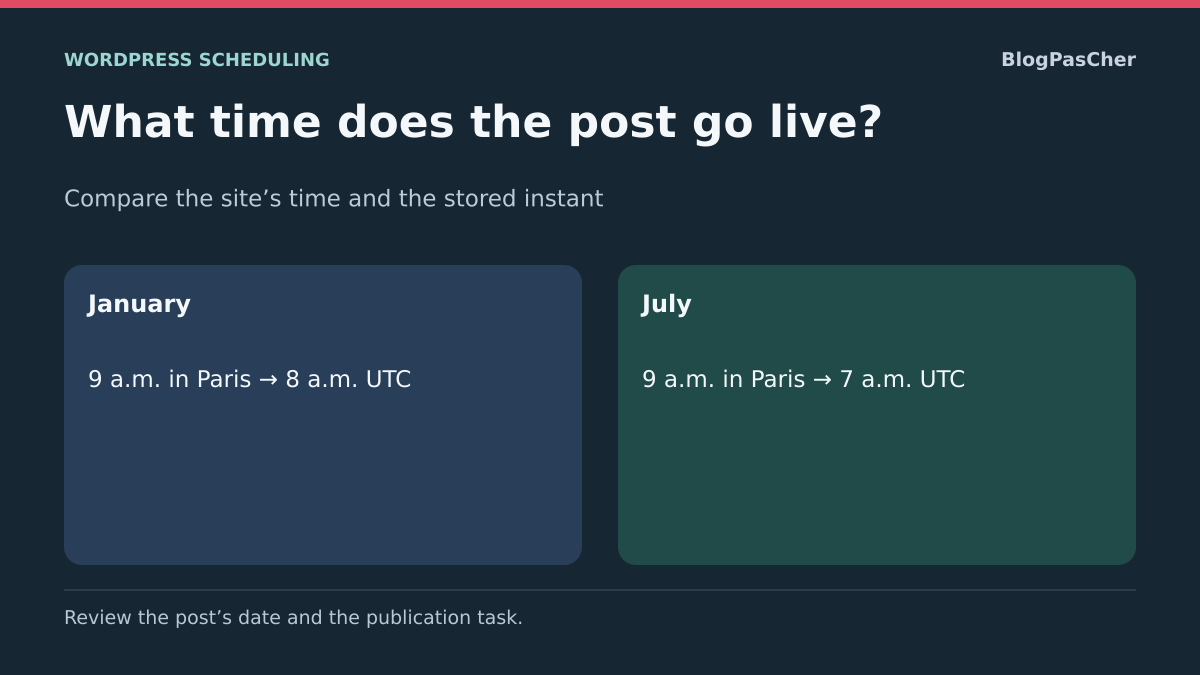
An example to reproduce on a copy: a publication scheduled for 9 a.m. in July with a fixed UTC+1 offset corresponds to 8 a.m. UTC, whereas 9 a.m. in Europe/Paris corresponds to 7 a.m. UTC. After changing the timezone, compare values for a newly scheduled post with those of an already scheduled post. Do not assume the old post has been recalculated: record its GMT field and publication event separately.
This check verifies saved dates and the scheduled task. On the public site, observe the next legitimate publication before concluding that its trigger works correctly.
If WP-CLI is already available, compare this post’s task with the GMT field read above. Replace 123 with its actual ID and keep the same target site. The command indicates whether the event exists and displays its UTC time without triggering it.
- Record the timezone, civil time, GMT date and post event’s due time. First check that both UTC times match the instruction. If an old value persists after saving, address only this document.
- On the isolated copy, choose another minute clearly in the future and confirm the schedule. Then return to the intended future time and save. Check that this new schedule rewrites the local time and GMT field consistently. Do not perform this test with a due time close to the present.
- Reopen the post and compare the GMT field and scheduled event again. For the July example, both must correspond to 7 a.m. UTC for 9 a.m. in Paris. Check that the post remains scheduled and another reference schedule remains intact. Also reread the missed-publication procedure if both values agree but the content does not appear at the expected time.
wp eval '$instant = wp_next_scheduled("publish_future_post", [123]); echo false === $instant ? "Aucun événement\n" : gmdate("Y-m-d H:i:s", $instant) . " UTC\n";'Choose an unambiguous time during a seasonal clock change
When a region changes its clocks, some local times may not exist or may occur twice. For an important publication near this transition, record the date, named timezone and expected UTC instant in the calendar. Simply saying “2:30 a.m.” does not always distinguish the two occurrences.
On the copy, check the saved local date, its GMT field and the task’s due time using the commands already provided. If the editor normalizes a nonexistent time or the resulting instant differs from the approved calendar, choose an unambiguous time with the team instead of manually adding an hour to every post. The named timezone retains its date-specific rules; a fixed offset does not reproduce them. After correction, observe a legitimate publication to also verify WP-Cron triggering, which remains separate from conversion.
Sources and references
Use these references to check the features, requirements and limitations described. Reading documentation is not a practical test.
View 14 references
- WordPress: timezone and formats in General ↗
- WordPress.com: set the site timezone ↗
- WordPress: named timezone or fixed offset ↗
- WordPress: timezone object used by the site ↗
- PHP: transitions and fixed offsets ↗
- WordPress: local date, GMT date and publication status ↗
- WordPress: schedule a document ↗
- WordPress.com: schedule and reschedule ↗
- WordPress: publication or modification date ↗
- WordPress: Date block and last modification ↗
- WP-CLI: read a targeted option ↗
- WP-CLI: read post fields ↗
- WordPress: how WP-Cron works ↗
- WordPress: recoverable database and file copy ↗