

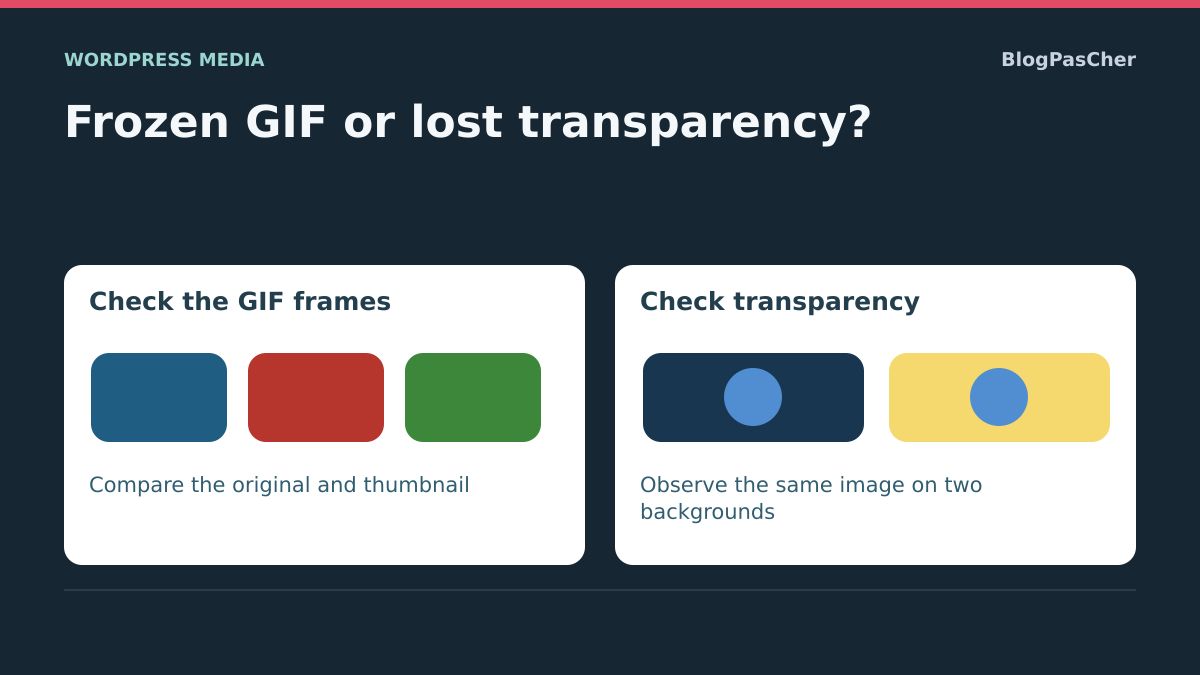
Distinguish frozen animation from lost transparency
Your GIF moves on your computer but remains still on a WordPress page. Or a cutout illustration now displays a white or dark rectangle around its subject. The goal is to retain the file’s useful property: successive frames for animation or transparent areas for composition.
These defects may appear after insertion, resizing, editing or optimization. Start by comparing the original file, the file actually received by the browser and the page background. A correct filename extension does not prove the variant still contains the expected animation or transparency.
This procedure assumes the file loads. If the request returns a 404 error, first restore its address or presence. If WordPress rejects the type during upload, examine allowed formats. A blocked image and an image transformed into a static visual require different diagnoses.
Keep the original intact on your computer and work in a draft or page copy. Avoid globally replacing a shared media item on the first attempt. The same image may appear in several pieces of content; the correction must preserve their references and allow returning to the previous choice.
Compare three versions before changing settings
Open the original file in a browser or viewer supporting its animation and transparency. For a GIF, wait long enough to observe its sequence; a single short playthrough may already have ended when you look. For a transparent illustration, check it on a contrasting background instead of white that hides the edges.
In WordPress, open Media → Library, find the media item and view its file URL. Open that address separately. Compare movement and edges with the saved original. If this version is already frozen or flattened, the problem precedes its display on the page.
On the faulty page, open developer tools, then Network and reload. Record the URL actually requested, status and response content type. The browser may select a variant through srcset; the name seen in the editor alone is insufficient. currentSrc identifies the selected candidate, not whether it loaded successfully.
Record these three results. An animated source, animated media-library file and static public variant point toward variant selection or transformation. A file retaining transparent areas but appearing white only on the page points toward its display background. This record avoids repeatedly converting a file that was already correct.
Account for the processing route and WordPress version
Versions and upload methods may produce different results. WordPress 7.1 enables browser-side processing when technical conditions allow, falling back to the server otherwise. In this browser route, animated variants may retain movement; resource limits can nevertheless result in a static version. Server-side core does not provide the same animated resizing.
It would therefore be inaccurate to promise every GIF thumbnail remains animated or claim they are all necessarily static. Compare files actually produced for your media, especially if added before an update. A new capability does not automatically transform all previously stored derivatives.
The processing location is not proof of the cause either. A plugin, image delivery service or cached copy may intervene after upload. Note versions and tools in place, but do not disable them all to try to recover movement.
For initial troubleshooting, choose a limited action: select an existing animated version, use the native video toggle when suitable or restore a file that genuinely has transparency. These approaches mainly require content-editing and media-upload permissions. Customized technical processing settings are the site administrator’s responsibility.
Approach 1: select a GIF version that remains animated
This approach applies when the main media-library file retains animation but a variant displayed in content has lost it. It requires permission to edit the page. Note the current resolution and media item before changing the block.
Open the page or post, select the Image block containing the GIF, then its Settings panel. Under Resolution, choose Full Size if offered and corresponding to the verified animated file. Then preview the page and check the new request. This choice alone does not prove that an intermediary service has not transformed the file.
You can adjust display width without requesting another GIF transformation. Let height follow the proportions unless a particular constraint requires otherwise. Do not crop or resave animation in a tool whose preservation of successive frames you have not verified.
The expected result is visible movement on the page and a URL providing the desired version. Also check a narrower width because another candidate may be selected. To undo, restore the previous media item and resolution. If the block belongs to a gallery or theme component, use its own source settings; those of a standalone Image block do not automatically carry over there.
Approach 2: try the native video toggle for an opaque GIF
On a recent installation that has prepared a video associated with the GIF, a standalone Image block may offer Display as video in its toolbar. This approach concerns a GIF without transparency. It must not be used to deliberately flatten a cutout animation against a background it needs to remain independent of.
Select the block and use this control only if it appears. Switching is deliberate: WordPress does not automatically replace every GIF in content. The result is a video block suited to that animation. The media remains associated with its GIF and necessary companion files; their presence does not justify manually deleting files from the media directory.
Preview the animation on the page and a phone. Check that playback and composition meet the need, then save if you retain this rendering. The resulting block’s Display as GIF control returns to the GIF representation. If these controls are absent, retain the other approach: availability depends on the processing and browser used.
This toggle does not apply in the same way to GIFs in Gallery, Media & Text or Cover. Do not convert a set of blocks to make the button appear. An animation requiring transparency must retain a format and workflow that preserve it.
Approach 3: restore a file that actually has transparency
Transparency depends on file data, often described as an alpha channel. An ordinary JPEG does not contain it. A PNG can retain it, but a PNG file may also have been exported with an opaque background. Its extension alone is therefore inconclusive.
If the original still has transparent areas, prepare a separate copy in an appropriate format while preserving this property during export. For a static illustration, a transparent PNG is a simple control choice. Open the result against two contrasting backgrounds before uploading. Renaming a JPEG to PNG does not change its content or recreate what was flattened.
Under Media → Add Media File, upload this copy with a recognizable name. In the content, select the affected block, then Replace → Media Library and choose the new item. Preview without deleting the old resource. If the defect concerns the featured image, change that assignment in post settings instead of a block in its body.
Check edges and background on the page. To roll back, reassign the previous media item and its recorded settings. If you no longer have a transparent source, find the creation document or ask its author for a new export. A WordPress setting cannot automatically restore areas lost in an already flattened file.
Test the container background without changing the file
A transparent image reveals what is behind it. A visible white background therefore does not prove the file lost transparency. The browser, block or container may supply that color. Conversely, a checkerboard drawn into the file is not transparency, even if it resembles a graphics application’s preview.
On a page copy, select the Group containing the image using List View. If no control container exists, add a Group block with the inserter and place the reference media inside. Keep this operation within the diagnostic draft.
In that Group’s settings, find background color, located in background settings in recent interfaces. Try a dark color and then a light one, retaining the initial value. If areas around the subject follow these changes, the file is indeed allowing the background through there.
If the rectangle remains independent, compare the served file and the image’s own background using the inspector. A block shadow or background may also contribute. Remove only the setting confirmed responsible, then check the page. To finish the test, restore the initial color and structure or discard the control draft; do not change the entire site’s background to examine one image.
Identify a conversion or optimization changing the result
If the original and media-library file are correct but the public response differs, find the component generating this variant. It may be the configured image service, an optimization or a custom output format. Compare the request, received type and dimensions before choosing an action.
A WebP file is not necessarily static or opaque: this format can also retain animation and transparency. The format name alone therefore does not identify the culprit. Check whether this specific transformation retained the expected properties. WordPress may also receive conversion configuration; that does not mean every installation automatically converts every PNG to JPEG.
On a copy, use only the documented targeted-exclusion setting for the existing tool when it allows preserving this media item or format. Note the initial value and purge only the affected variant after confirming that the source remains available. Do not disable all site optimization for this first test.
If you cannot find this control, send the two compared responses and desired result to the integration administrator. You then have a localized defect rather than a general request to disable things. To undo a test, restore the original setting and delivery; removing a plugin does not necessarily restore files it already replaced.
Validate rendering in real uses
After correction, open the page in a logged-out session when the content is public. Compare desktop and phone, along with another page using the same media. Check the file received at each location: a gallery, card and Image block may choose different variants.
For animation, observe several stages rather than just its first frame. Check that useful movement and composition remain. If video conversion was chosen, check that block as a video on the page; a still poster before playback does not alone establish loss of the sequence.
For transparency, examine edges against the backgrounds actually intended for the site. Edges may retain a halo from an old background within the file. Restoring a transparent channel does not automatically remove color already present on the subject’s pixels. Find an appropriate export if the defect is part of the image.
Keep previous media until checks are complete. Afterward, delete only identified unused test files. Note the chosen correction, its scope and rollback: block resolution, new media assignment, GIF/video toggle or transformation-service setting. These operations have different effects and cannot all be undone with the same button.
Keep a usable original and a fallback version
Keep the source file, its verified animated or transparent export and the final version used outside WordPress. Name them to distinguish their functions. A static poster may be useful as a preview but must not be confused with the file containing the complete animation.
If movement conveys an essential explanation, also provide text or static steps conveying its meaning. The first frame alone may show neither the action nor its result. The visual’s alternative text and nearby text must remain consistent with the version actually displayed, especially after switching between image and video.
For the next upload, start with a representative draft and check the resulting URL before replacing media on several pages. Note the browser and workflow used when comparing processing: browser generation and server-side processing are not necessarily equivalent. Do not multiply identical library copies to bypass an unidentified setting.
On a managed platform or multisite network, the editor may lack transformation options. They can nevertheless record the three compared files, correct the block within their scope and send a precise case to the administrator. Ask for preservation of animation or transparency for this media item with its intact source, rather than a general change to every site format.
Compare the original GIF with a thumbnail on the same page
On a copy, choose a GIF whose movement is easy to recognize. A demonstration file alternating three solid colors is enough. Add it to the media library, then insert it into a test page. Select a small resolution when offered. In the browser, open the inspector, select the image element and read its currentSrc property. It gives the address actually chosen by the browser, including when a srcset attribute offers several sizes. You can find this address in the Network tab after reloading.
Open the resulting URL in a separate tab and compare it with the media-library file. For a GD exercise, use an original animated GIF of known dimensions and frame count, then examine the resized derivative actually served. GIF type alone does not prove every animation frame was retained. Switch the block to full size and compare the loaded address and movement. Restore the initial resolution to undo. This server check is separate from processing performed by the editor in the browser.
Check transparency with a reference background
Add the same transparent illustration to two groups on the copy. Give one a dark blue background and the other a light background. Place a flattened export of the same illustration alongside, for example a JPEG with a white background. Compare the same corner of each image. The PNG’s transparent corner should reveal the group background, while the flattened JPEG’s corner keeps its own color. Check this result on the files actually served.
If the served version correctly reveals both backgrounds, return to settings on the page where it seems opaque and find the background or layer causing that effect. If the served file already shows its own rectangle on both backgrounds, check the original or a replacement transparent export. Keep the old assignment until the new one is confirmed. Rollback consists of restoring that media item or the specific color saved before testing.
Repeat the check at widths where the problem appears
Repeat the comparison at two widths, such as a phone and a computer. Note the address actually loaded each time and the background used. If a gallery remains frozen while the isolated Image block animates, compare their served files and settings. Avoid regenerating the entire media library for one variant or component.
If the media may be used on several pages, record those sharing the source and keep a reference page before expanding the correction. When movement is necessary for understanding, also check that the description or nearby text provides the essential steps. Test measurements concern files and pixels on a local copy. Your theme or optimization system may supply other variants.
Restore movement without imposing permanent animation
A GIF that animates again can create another difficulty if it loops while readers consult the text. WCAG 2.2.2 requires a way to pause, stop or hide movement that starts automatically, lasts more than five seconds and accompanies other content, unless the movement is essential. This check is separate from image fidelity and transparency.
For a tutorial, a voluntarily started video with playback controls or a sequence of captioned images may serve readers better. Check that controls are keyboard accessible and steps remain understandable when movement stops. Do not assume a browser’s reduced-motion preference automatically stops a GIF. If replacing the media, keep the original file and compare the illustrated steps before removing its old insertion.
Sources and references
Use these references to check the features, requirements and limitations described. Reading documentation is not a practical test.
View 12 references
- WordPress: Image block and resolution selection ↗
- WordPress 7.1: browser-side media processing ↗
- WordPress 7.1: architecture and GIF-to-video conversion ↗
- WordPress: first frame in the server-side Imagick engine ↗
- WordPress: output format mapping ↗
- MDN: image formats, animation and transparency ↗
- MDN: image selected by the browser ↗
- Chrome: read requests and responses ↗
- WordPress: block and container color settings ↗
- WordPress: Group block as a container ↗
- WordPress: candidate size selection and GIF processing ↗
- W3C: pause, stop or hide movement ↗