

Read the error details before replacing files
You upload a plugin and WordPress refuses the package: “Incompatible Archive,” “No valid plugins were found,” or a message mentioning PclZip. These wordings do not all identify the same stage. The desired result is a recognized installable package followed by a controlled installation; making a warning disappear is not enough.
An unreadable archive fails during extraction. An archive that opens may contain a theme, documentation or a development folder instead of an installable plugin. A message requesting a different PHP or WordPress version refers to yet another check. Copy the complete text, not just the “installation failed” heading.
This guide concerns a standard plugin on self-hosted WordPress. Use Plugins, not the Themes screen. On a multisite network, installation requires the appropriate network permissions. If the menu is unavailable on your managed hosting, clarify installation permission first. Changing the ZIP name will not unblock an account lacking that permission.
Preserve the received package and site state
Keep the original file in your local storage with its name, size and source. Make observations on a copy when extracting its contents. If you later ask the publisher for a correction, they can distinguish their package from one you might have recompressed. Do not publish a private download or license link in a forum.
Before replacement or activation, prepare a restorable backup of the files and database. For a plugin already in use, record its version, active or inactive state and role. Deleting it beforehand can trigger uninstallation and remove data: it is not a normal step in diagnosing an invalid ZIP.
Start with the local package: source, download and structure. If an intact, correctly organized official package still fails, examine the server-side upload and extraction. A test copy limits changes, provided payments, sending and other external effects are disabled there before any activation.
Approach 1: obtain a fresh official copy
This method applies if the download was interrupted, the file came from an old exchange or its nature remains uncertain. It requires your access to the official directory or publisher’s download area. The goal is to start again with a package intended for WordPress, without manually repairing missing files.
For a plugin from the WordPress.org directory, open its official listing and use its download. For a commercial product, open your authorized customer area and read the version-specific procedure. A similarly named product, theme archive or standalone PHP library does not become a plugin by renaming its file.
- Download the installable package matching the intended product and version into a new local folder.
- Wait for the download to finish and check the full name and size. A file that is still temporary or empty is unsuitable.
- Keep the old copy separate for comparison. If the publisher supplies a checksum, compare it using the tool specified in its documentation.
- Retry the upload with the new copy after the following checks. No site file needs changing for this first step.
Distinguish the full archive from the installable ZIP
A commercial download may bundle documentation, examples, a license and one or more packages. On Envato Market, the All files and Documentation choice is used in particular to obtain included documentation. This full container is not necessarily what the Plugins screen expects. The author’s documentation should identify the file to install.
Open the archive locally without executing its files. If you find a ZIP explicitly identified as the installable plugin, use that inner ZIP. Do not add PDFs, examples or other folders from the full package. If several ZIPs are present, identify their roles: main component, add-on or different version. Their presence does not authorize installing everything.
A source-code repository may also require preparation by its publisher. Folders such as src and tests or dependency files do not prove it is ready for use. Look for the version distributed for WordPress or ask the author for the built package. Do not invent a build procedure to bypass the installation message.
Recognize a plugin’s structure without changing its code
A standard plugin distributed in a folder has a main PHP file with a header recognized by WordPress. The Plugin Name field identifies the plugin; other fields describe its version and requirements. You can examine this file in a local text editor without running it. Its name alone does not establish the product’s validity.
The example below is fictional and schematic: the mon-extension folder contains its main file and any subfolders. It helps identify extra wrapping, rather than imposing these names on every plugin. A dossier-livraison/documentation/mon-extension.zip structure calls for choosing the intended inner package, not renaming dossier-livraison.
If no main plugin file is present where expected, return to the official distribution. Do not add a Plugin Name header yourself to force recognition: you could disguise a theme or incomplete package as a plugin. If WordPress cites a minimum PHP or WordPress version, retain that detail and address compatibility separately.
mon-extension/
  mon-extension.php
  includes/
  assets/
Extract a copy locally to identify a damaged file
This check is suitable for an archive from an identified source. It lets you inspect contents and read errors without installing code on the server yet. Choose an empty local folder reserved for this copy; do not mix files with an older version.
On Windows, in File Explorer, right-click the ZIP copy, then Extract All and choose the destination. Labels may vary slightly by version. Wait for completion and record any error message. Do not open an included executable or script to try to repair the archive.
Successful extraction proves only that this tool could read the items it extracted. It certifies neither code safety nor compatibility with the server’s method. If the tool requests a password or additional volumes, obtain the appropriate installable package from the publisher. Renaming RAR or 7z to ZIP does not convert its format.
If the new official copy fails locally, provide this finding to the author. Keep the original; there is still no site change to undo.
Optional check with Python already available
If Python is already installed on your computer, its zipfile module provides an additional ZIP check. This variant is not required for the File Explorer approach. It tests the archive; it does not execute the PHP code inside it or upload it to your site.
The example uses a fictional Windows path. Replace it with the path of the copy to check and retain quotation marks if the path contains spaces. On another system, use its local path with the same -t option. Work only on the identified package, without extraction or automatic testing of all your archives.
- Open your local terminal and run the command adapted to this file.
- Read the complete result, including any exception or extraction error. A compression method unsupported by this tool does not alone prove a truncated file.
- If the check succeeds, keep that result as a readability check, not a security certificate or WordPress validation.
- If the check fails on a recently downloaded official package, ask the author for a compatible distribution. No site data has changed.
python -m zipfile -t "C:\CHEMIN\extension.zip"Upload the right package from the administration area
Once the package is identified and requirements reviewed, return to WordPress with the authorized account. Use the installable ZIP itself, not the extracted folder or a ZIP encompassing your entire working folder. Do not recompress a valid distribution merely because its name contains a version number.
Another identical failure despite a locally readable package warrants the server checks below. A minimum-version, dependency or activation message is no longer resolved by downloading the same ZIP again. Keep this distinction to avoid a series of attempts that change several things without producing evidence.
- Open Plugins, Add New Plugin, then Upload Plugin.
- Select the new copy of the intended official ZIP and check its name before clicking Install Now.
- Wait for the result and record the precise message. If installation succeeds, check the name and version in Installed Plugins before the prepared activation.
- If WordPress recognizes an already installed plugin, move to the replacement check described later; do not confirm without comparison.
Approach 2: check whether the complete file is received
This approach applies after verifying the source and package. Record its size, the upload limit WordPress displays and when the error appears. In Tools, Site Health, Info, examine the available server settings. Your computer’s terminal or another PHP version does not necessarily represent the one receiving administration requests.
PHP distinguishes the per-file limit, upload_max_filesize, from the entire request limit, post_max_size. The latter must accommodate the file and other form data. A lower ceiling in a proxy or the web server can still stop the request before PHP. Do not choose a random value for all these layers.
If the package size is below the effective ceilings and the server confirms complete receipt, do not raise these limits to address a ZIP with no recognized plugin. However, a confirmed excess can be corrected in the panel for that domain using an authorized, proportionate value. This check distinguishes file transport from its internal structure.
Adjust a confirmed limit for only the domain in cPanel
This approach requires cPanel access and the administrator’s agreement on permitted values. It applies only if upload size has actually been identified as the blockage. Keep the initial values and relevant configuration; do not choose a very large size to avoid measuring the file.
Do not delete all of php.ini to undo two fields: you could lose other useful settings.
- Open Software, then MultiPHP INI Editor, and choose Basic Mode.
- In the selector, choose the exact domain. Home Directory applies a broader scope to the account and is unsuitable for this targeted correction.
- Record upload_max_filesize and post_max_size when offered. Change only values confirmed necessary for the package, allowing room for the complete request.
- Click Apply, return to site information and verify the change took effect. Then repeat a single prepared upload.
- Restore the initial values if the change was unjustified. If the panel limits the value or an upstream layer still refuses the request, have the provider examine only that layer.
Distinguish opening the ZIP from writing files
WordPress may use ZipArchive and, in some cases, its PclZip library to extract a package. Seeing PclZip in an error does not prove the library is missing: it may be explaining why it could not read the archive. The exact code and rest of the message remain necessary.
A ZIP opening error, an empty archive and an inability to copy a file do not describe the same problem. If the local tool reads the distribution but WordPress cannot open it, provide the host with the exact package or its official reference, site versions and complete message. They can compare the received file and the extraction method actually used in PHP.
Do not globally disable archive checks or add a filter found elsewhere to force another library without identifying the cause. If the publisher confirms an incompatible distribution format, request an appropriate installable ZIP. A new archive supplied by the author is preferable to an improvised rebuild that could remove necessary files.
Check available space and the working directory
A compressed package needs space after extraction and during copying. WordPress uses a working directory, usually under wp-content/upgrade, to prepare the package. The ZIP size alone therefore does not represent the operation’s space requirement. Keep the exact path displayed in a write error.
In cPanel, Files then Disk Usage helps examine the account’s storage use. Verify effective ceilings with the provider if quota or file count is a problem. Free only identified items after preserving necessary backups off the server. Do not delete unknown folders to recover space quickly.
A write denial calls for checking the owner, permissions and temporary location PHP uses. It is not fixed by making the whole installation accessible to everyone. Request a correction limited to the confirmed path and identity. Do not empty wp-content/upgrade during a concurrent operation or assume everything there belongs only to the attempt you just started.
If the plugin is already installed, compare before replacing
A recognized package may lead WordPress to display a comparison between the current plugin and the uploaded one. This is no longer the initial unreadable-archive error: the system has identified a product. Compare its name, author, version and displayed requirements. An unexpected difference calls for cancellation and checking the download.
Replacement must target the same product in the intended edition. A free version and its commercial version do not necessarily follow the same procedure. If the publisher requires keeping two components or migrating settings, its specific documentation takes precedence over an assumption based on similar names.
After backing up and validating these points, use WordPress’s replacement confirmation, then check the installed version. Do not click Delete to bypass a comparison or an existing folder. A downgrade is not simply a ZIP repair and may be incompatible with data already transformed. If you cancel before confirmation, return to the plugin list and verify that the old version remains the expected one.
Check activation and keep the diagnostic evidence
A successful installation makes the plugin available; activation remains a separate action. Before activating, confirm requirements and dependencies relevant to the project. On a copy, prepare the necessary settings without sending real messages or transactions. Then check a representative function, the administration area and a public page.
If activation fails with a PHP error or version message, keep the record and use the corresponding troubleshooting process. Do not change the file header to hide a compatibility requirement. If an update already performed must be undone, coordinate files and data according to the backup; reinstalling only an old ZIP does not guarantee a complete rollback.
For assistance, provide the package’s official source, name, version, size, complete message and local then server results, with their times. Send commercial archives only through the publisher’s authorized private channel. No repair plugin is required for these checks: native tools distinguish the wrong distribution, an unreadable file and denied receipt or writing.
Identify the stage at which WordPress refuses the package
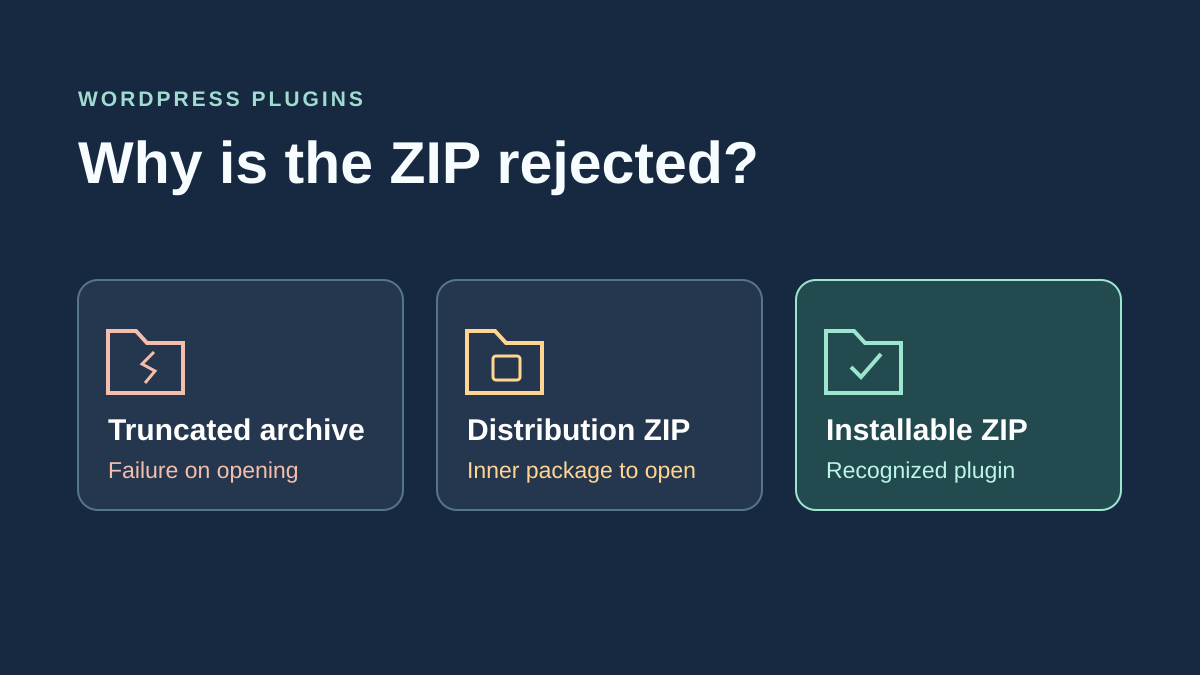
To classify the denial, distinguish four cases: unreadable archive, readable archive with no recognized plugin, recognized installable package and unmet execution requirements. The latest detailed message indicates where to start; grouping these cases under the word ZIP is insufficient. On a dedicated copy, a competent person can compare fictional packages of these types without activating external code.
On your copy, read the details after the general failure message and record the last displayed state. If the file does not open locally, download it again from the publisher and check this copy again. If it opens and contains the installable ZIP identified in the instructions, select that inner file on the upload screen. If WordPress displays a minimum PHP version, record the site version under Tools, Site Health, then Info, in the Server section. Send both versions to the site manager or check with the publisher which product version is supported.
After each denial, check the plugin list and the relevant folder’s state before retrying. Failure does not universally guarantee the absence of intermediate files. If a version is already present, compare it with the values recorded initially and leave the new test package inactive.
Verify that you are comparing the same file
This check applies when you have two copies supposedly matching the same distribution. For example, you have the original download and a copy transferred to private storage by your team. With Windows and PowerShell, run the command below on each file, replacing the paths. Compare the entire Hash column, which contains a SHA-256 fingerprint. If the publisher publishes a fingerprint for this precise version, also compare your result with that value.
Two identical fingerprints confirm that the check concerns the same content. If they differ, first check the version name and each file’s source. A file can change during an incomplete transfer, and a publisher can distribute several legitimate packages for one product. Obtain the file identified in its instructions before another attempt. The fingerprint lets you compare files. Source is verified through the official distribution.
Get-FileHash -LiteralPath 'C:\Recette\extension-originale.zip' -Algorithm SHA256
Get-FileHash -LiteralPath 'C:\Recette\extension-copie.zip' -Algorithm SHA256
Test one correction at a time on the copy
For a distribution container, open the original ZIP in a local working folder. Identify the inner package from the instructions, extract only that file and retry installation from Plugins, Add New Plugin. The expected check is the correct version appearing in Installed Plugins. To undo this attempt on a dedicated copy, delete the still-inactive test plugin’s files from the administration area if possible, or return to the copy’s snapshot.
For a readable official file that fails as soon as upload starts, record the file size, displayed limit and attempt time. Ask the server administrator to confirm which layer refuses the request before changing a setting. Then retry with the same file after only the authorized correction. If denial still occurs at the same stage, restore the setting value recorded before the attempt and continue diagnosis with the exact message. HTTP receipt, quotas and server permissions are checked separately from local ZIP readability.
Decide whether the problem belongs to the package or server
A useful comparison involves the same official ZIP at two stages, not two similarly named archives. First verify local readability, then its receipt and processing by WordPress. Keep a file fingerprint and its source. If local reading fails, ask the publisher for a new package before changing PHP. If it succeeds, that does not yet show the server received the same bytes.
With Python 3 already present, the guide’s command avoids installing a WordPress plugin to examine a ZIP. The launcher may be python3 or py -3 depending on the computer. A “command not found” message concerns the local tool, not the archive.
If WordPress recognizes the product then displays a missing requirement, stop recompressing: recognition has already succeeded. Address the required version or dependency. At the end, check the installed name, version and active state separately; a valid installation is not a successful activation.
Sources and references
Use these references to check the features, requirements and limitations described. Reading documentation is not a practical test.
View 18 references
- WordPress: validating a plugin package ↗
- WordPress: extracting an update package ↗
- WordPress: choosing ZipArchive or PclZip ↗
- WordPress: ZipArchive and write errors ↗
- WordPress: PclZip errors ↗
- WordPress: plugin header ↗
- WordPress: installing and managing plugins ↗
- WordPress: replacing an already installed package ↗
- Microsoft: extracting archives locally ↗
- Python: optional ZIP check ↗
- Envato: full archive and product documentation ↗
- PHP: upload limits and temporary folder ↗
- cPanel: adjusting directives for a domain ↗
- cPanel: disk space and quota ↗
- WordPress: Site Health information ↗
- WordPress: backups ↗
- Microsoft — File hash with Get-FileHash ↗
- Python: command-line ZIP check ↗