

Identify what actually prevents activation
WordPress refuses to activate a plugin because your PHP or WordPress version does not meet its requirements. This check avoids loading a component into an environment declared incompatible. The goal is activation on a supported combination followed by a functional check, not bypassing the message.
Keep the full text: it may mention PHP, WordPress, both or a missing dependency. A ‘not tested with your version’ warning differs from an unmet minimum. A fatal error during loading requires yet another diagnosis; it may occur even when declared minimums are met.
This guide targets a self-hosted site with an identified plugin. A WordPress administrator can inspect versions and prepare a core update; the PHP version depends on hosting. On multisite, a PHP change potentially affects every site using that installation. Confirm its scope with the network administrator before preparing the switch.
Record the versions actually used by the site
Start under Tools, Site Health, Info. Record the WordPress version in its section and the PHP version under Server. These values come from the context serving administration. A number seen in a commercial offer or another site in the same account is insufficient.
The hosting panel may offer several PHP versions and domains. Some installations inherit a shared setting. Therefore record the tested copy's domain and location along with both observed versions. If you use a terminal, its command-line PHP may differ from the site's; do not replace the web reading with that observation alone.
- Open information for the correct site and record WordPress, PHP and the check time.
- Under Installed Plugins, record the rejected package's exact version and current status.
- Compare these values with the activation message. If the panel and site show different versions, clarify domain mapping before changing PHP.
- Keep this record for comparison after each change. This observation activates no plugin.
Read the affected package's requirements
Consult the official listing and documentation for the precise plugin version. Requires at least states its minimum WordPress version and Requires PHP its minimum PHP version. Tested up to indicates the WordPress version declared tested; this field is neither a minimum nor a guarantee for every possible combination.
The installed package's requirements may differ from another version shown on the author's site. WordPress reads the main PHP file's declarations for prerequisite checks. If a local copy and its listing seem inconsistent, verify product, edition and version with the author. Do not change the header to obtain a more favorable message.
Fictional example: a package requires WordPress 7.0 and PHP 8.3 while the site uses WordPress 6.9 and PHP 8.2. Two requirements remain unmet; changing PHP alone does not resolve the WordPress minimum. This reasoning helps choose steps, not recommend those numbers for every site. The target version must also remain maintained and compatible with other components.
Prepare a usable backup and representative copy
Before upgrading, back up files and the database, then verify availability and the restoration process. Record versions, active plugins and hosting-specific settings. Files from an older version are not always enough to undo a database migration.
Prepare a representative site copy with the same component set. Disable payments, emails and external connections before testing. If this copy already uses a different PHP version, first record that difference: success will not prove the same combination works on the public server.
Choose checks useful to the project: login, editing a draft, displaying a page and the plugin's specific function. For sensitive operations, use the intended test mechanism and control data. Do not trigger a real purchase or send to prove compatibility. The backup and check list must be ready before the first replacement.
Choose change order based on shared compatibility
If only the WordPress requirement is unmet and current PHP suits the target core version, start with the WordPress procedure. If only the PHP requirement is unmet, prepare the PHP switch with every affected theme and plugin. When both are unmet, find a compatible intermediate combination before imposing an order.
The official WordPress matrix helps compare core and environment generations; it does not certify every plugin. Also consult requirements for already active components. A new PHP version may satisfy the rejected package while exposing a problem in an old theme. Do not infer that the plugin to activate is necessarily responsible.
For a very old site with no clearly supported common intermediate version, have its administrator prepare a migration on a copy. Random successive switches would make rollback harder. Keep one identified change at each step with its result before activating the new component. Do not combine a global update, PHP change and activation of several plugins in one test.
Approach 1: upgrade WordPress from its native screen
This procedure suits an unmet package WordPress minimum when the environment supports the chosen target version. It requires update permissions, a restorable backup and file access for recovery if necessary. Prepare the operation on the copy first, then schedule it on the live site.
Choose a supported stable version consistent with the project's components. Reaching an old minimum does not justify staying there without a support policy. For a large version jump, use an extended upgrade procedure prepared with the site administrator instead of simply repeating clicks.
- Open Dashboard, then Updates, and check the core version offered.
- Start the prepared update with the button for that version. Do not choose reinstallation of the current version to change its minimum.
- Wait for completion and follow any offered database upgrade.
- Return to Site Health, Info to record the resulting version. If downloading or file access fails, keep that new message and resolve this step before continuing.
Check WordPress before resuming activation
After updating core, first check administration and representative pages with existing components. This distinguishes an upgrade problem from one exposed by new activation. If the site no longer works at this stage, keep the target plugin inactive and apply the recovery plan.
Once this check succeeds, open Installed Plugins and locate the affected package. Activation is a real action: the component may create tables, settings or tasks. WordPress's error-checking mechanism is not an isolated copy of your database and does not guarantee reversal of all those effects.
- Check the plugin name and version, then click Activate for that plugin alone.
- Read the result. If PHP or a dependency remains insufficient, keep the message and prepare the corresponding procedure.
- If activation succeeds, check the intended function with the prepared control data.
- If a new error appears, record it and deactivate only this new component from its row when administration remains accessible. Deactivation does not automatically remove data already created.
Approach 2: choose a PHP version still maintained
This procedure concerns an unmet PHP requirement. PHP is the engine executing site code; its version changes in hosting, not by editing a number in WordPress. Choose a maintained branch compatible with core, theme and plugins, then confirm required PHP modules.
WordPress currently recommends PHP 8.3 or higher for hosting. That recommendation does not replace the package's specific requirement or PHP's official schedule. A branch may stop receiving ordinary fixes while still receiving security fixes. Conversely, an old minimum accepted by a plugin is not a recommendation to remain on an abandoned branch.
Before switching, record the previous version and check how to restore it if testing fails. Ensure that version will remain authorized for your account during the intervention; its initial display does not guarantee every rollback option. If you cannot change PHP or the target version is unavailable, have the host prepare only that intervention.
Change PHP for the relevant domain in cPanel
In cPanel, use Software, then MultiPHP Manager. This procedure requires the target to have been validated on the copy with the site's components. Record the domain, version and any inherited state before changing anything. Available versions depend on the server and account permissions.
Do not select every domain to correct one site. The system-wide setting and PHP-FPM activation may belong to the WHM administrator. They are unnecessary for this simple version choice; do not change them simultaneously in an attempt to enable activation.
- Select the checkbox for the exact domain to change and verify its name.
- Under PHP Version, choose the prepared maintained, compatible version.
- Click Apply and wait for the panel's result.
- Return to Tools, Site Health, Info, Server on the affected site and record the PHP version actually used.
- If the result differs from the selection, have the domain, directory and PHP process mapping checked; do not switch other domains to obtain a different number.
Check the site after switching PHP before activating the package
First repeat checks with components that worked before the incident. Open the homepage, a page and administration; also check a prepared editing operation. Compare the result with the tested copy. If an existing function breaks immediately after switching, keep the new plugin inactive during analysis.
Record a precise error and its time in available private logs. A missing PHP function may point to an environment module; a syntax error may reveal a component incompatible with the chosen branch. Engine version does not describe the entire environment. Have the administrator compare relevant modules and settings instead of changing several unrelated parameters.
When the site is stable on the target version, return to Installed Plugins and activate only the affected package. Check the intended function, then useful pages. Successful activation means that step completed; it does not prove every interaction among the component, theme and plugins was covered.
Return to the previous PHP version if checks fail
Reverting PHP restores an engine, not database state. If activation or an update already transformed data, prepare the corresponding recovery before overwriting a backup. Preserve recent additions. Do not describe restoring a version number as a complete site rollback.
If the new plugin was activated and requires the target PHP, deactivate it before reverting while administration remains accessible. Otherwise, it may no longer load correctly on the old branch. If access is lost, have the administrator prepare deactivation of the affected component and recovery before switching.
- In cPanel, return to Software, MultiPHP Manager and select the same domain.
- Choose the recorded previous version if still authorized, then Apply.
- Check the effective version in Site Health and repeat basic checks.
- If rollback is unavailable or fails, send the initial and target values to the host. A temporary return to an old branch does not remove the need to prepare a maintained combination.
Distinguish a missing dependency from an error despite meeting minimums
A message may name another required plugin that is installed but inactive or absent. Address that exact dependency according to product documentation. Verify its publisher and version before installation, its own requirements and activation effects. A similar name in the directory does not prove it is the correct component.
If WordPress and PHP minimums are met but a fatal error appears, declared checks were insufficient to guarantee execution. Record the component and precise message from the recovery mechanism or private log. Keep resulting versions and the sequence of changes to distinguish conflict, missing module and package defect.
Do not lower Requires PHP or Requires at least in the main file or bypass checks with another activation tool. That does not make the code compatible with missing functions. Leave the package inactive, preserve observations and obtain a correction or validated procedure from its author. If administration remains accessible, deactivate only this new component before preparing the next step.
Separate WordPress rejection from a loading error
Open Tools > Site Health > Info > Server and record the PHP version shown by the site rejecting the plugin. Compare it with the Requires PHP field for the precise package version. Terminal PHP may differ from the domain's PHP. When sharing a record, state how each version was obtained and retain the staging domain or subdomain name.
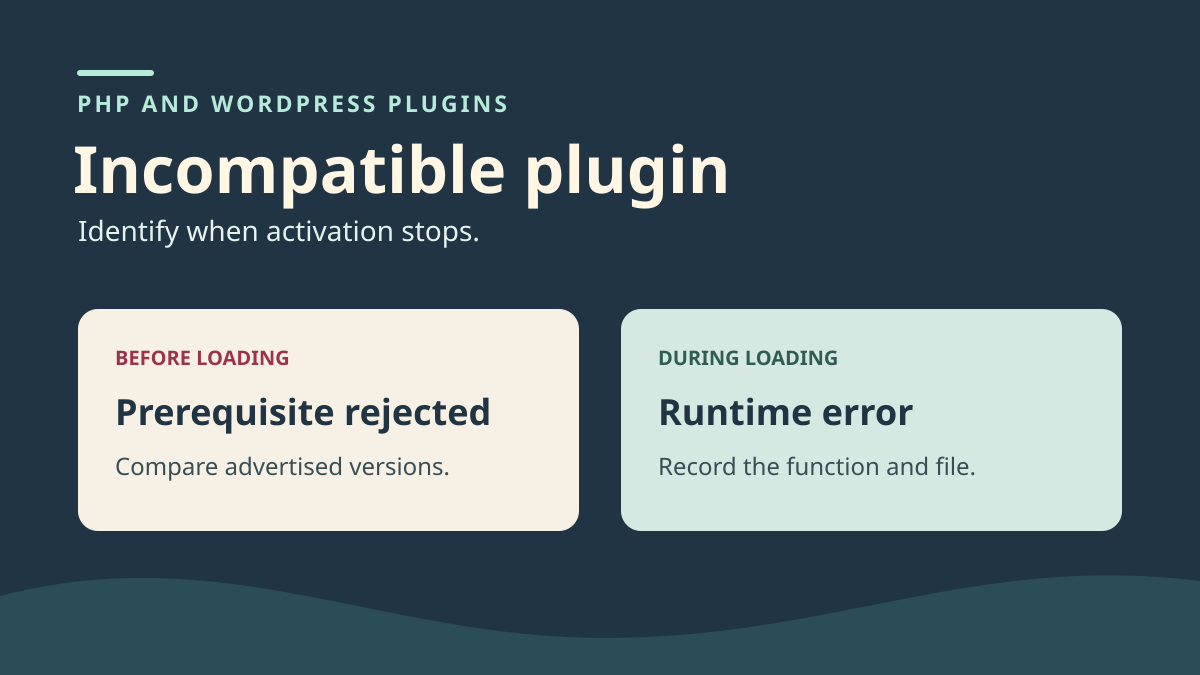
When WordPress reports an unmet PHP minimum, it may stop activation before loading the main file. Record the exact text and check that the plugin remains inactive under Plugins. When the prerequisite is accepted but activation produces a critical error, find the first error message, file and line in the PHP log. A missing-function call, syntax error and missing dependency need different corrections. Do not lower the package's stated requirement to make the button available.
After switching PHP on the copy, reopen Site Health to verify the change affects the intended domain. Test the public page and administration before activating the plugin. Successful activation must then be followed by a check of the function you intend to use.
Observe both results on a WordPress copy
To distinguish the mechanisms on a disposable installation, compare a package whose declared minimum exceeds the engine in use with one whose minimums are met but whose loading calls an unavailable function. Treat the first as prerequisite rejection and the second as a runtime error to locate in the private log.
The get_error_handler() function is available from PHP 8.5. A file calling it may be syntactically valid under an earlier engine yet fail at runtime. A successful php -l result is therefore insufficient to certify compatibility. This comparison describes a staging exercise to reproduce; it is not certification that your plugin was tested.
After each test, check package status under Plugins and remove controls. Record versions actually used instead of copying numbers from another environment. The useful check remains activation followed by the business function and a site reload.
Check syntax and terminal context
With technical access, perform this check on a package copy and specify the PHP executable matching the version to check. Use the binary path confirmed by the host. Also replace the plugin path with its main file, the one carrying the header. The command reads that file without executing it. If it reports a syntax error, compare the binary version with the reported line. If it succeeds, resume activation on a copy and check the runtime log. The command reproduces neither the domain's libraries nor other files loaded during activation.
"/chemin/vers/php" -v
"/chemin/vers/php" -l "/chemin/recette/wp-content/plugins/exemple/exemple.php"
Prepare the correction and its rollback
If WordPress blocks before loading, compare that version's requirements with the combination available on the copy. Correct the domain engine in the intended panel, or request an explicitly compatible, maintained package from the publisher. If minimums are met but code fails, keep the plugin inactive and record the first plugin or dependency file cited by the error. With a corrected package, repeat the same procedure. The expected result is activation that remains valid after reloading and a useful function responding correctly.
Before returning to older PHP, deactivate the plugin just activated on the newer version, then check its status under Plugins. If administration is inaccessible, have only the identified directory isolated using the copy or authorized file manager. Keep its initial name for restoration after correction. Changing PHP does not reverse a data migration already executed by a package. If activation modified data, reconcile performed operations with the backup before deciding on rollback.
If the environment cannot yet be upgraded
Do not replace the current package with a random old archive merely to remove rejection. An older edition may lack fixes or require different migrations. Its availability in an archive does not prove the author still supports it.
Ask the publisher whether a maintained version exists for your exact combination, what limits it has and how its data is handled. Keep that response with the package version. If no supported solution exists, retain the inactive component and prepare either a hosting upgrade or another plugin meeting the need.
This choice must consider function and data, not just an available Activate button. For a payment, membership-access or storage component, prepare migration and rollback with its administrator. Deferring a function is preferable to disguising the requirements of code whose environment lacks necessary capabilities.
Validate the combination and keep a useful record
Once checks succeed on the copy, reproduce the prepared changes on the live site within the agreed window. Record WordPress, PHP, package version and actually active dependencies. Check that the public site does not use a different hosting setting from the copy. Verify the same functions before closing the intervention.
Keep declared minimums, actually used versions and observed results separate. This explains a possible new incident without attributing universal compatibility to one successful test. For author or host support, include the exact message, time, step and versions without passwords, keys or unreviewed technical exports.
No bypass plugin is necessary for these procedures. Native menus provide versions and allow core updates; the hosting panel manages PHP. The expected outcome is a maintained combination verified for your function, with a documented previous state and recovery method suited to changes already applied.
When a version minimum is met but a function is missing
Version checks and PHP module checks answer two different questions. A plugin may require a compatible PHP branch while depending on a module missing from the domain. Record the first function or class name in the error, then look for that dependency in publisher documentation. Site Health information helps compare staging and production; it does not replace logs from the PHP process that executed the request.
For a beginner, the appropriate correction is to send the affected domain, effective version and missing dependency to the host. Request activation only on that target, then check the failing procedure again. For a developer, also check that the package detects the missing dependency and displays a clear message before calling its function. Do not replace a missing function with an empty one to manufacture successful activation. No free plugin can install a system module the hosting account does not permit.
Sources and references
Use these references to check the features, requirements and limitations described. Reading documentation is not a practical test.
View 19 references
- WordPress: requirements checked before activation ↗
- WordPress: how activation works ↗
- WordPress: plugin header ↗
- WordPress: requirements versus tested version ↗
- WordPress: hosting recommendations ↗
- WordPress: environment version compatibility ↗
- PHP: official maintenance schedule ↗
- WordPress: check and prepare a PHP upgrade ↗
- WordPress: Site Health information ↗
- WordPress: plugin management and activation ↗
- WordPress: updating core ↗
- WordPress: extended upgrading ↗
- cPanel: domain PHP version and rollback limits ↗
- WordPress: backups ↗
- WordPress: network administration ↗
- WordPress: supported versions ↗
- WordPress forum, plugin activation incompatibility ↗
- PHP, get_error_handler() availability from PHP 8.5 ↗
- PHP, command-line options ↗