

Understand what the proxy did not receive
Your site displays “502 Bad Gateway,” sometimes with the name of Nginx or a delivery service. An intermediary did not obtain a valid response from the service it contacted. The number describes that failed exchange; it does not prove WordPress is corrupted or your personal connection is responsible.
A proxy is a server that receives and forwards the request. The origin means the site’s hosting behind that intermediary. There may be several relays: an external service, the host’s web server, then the PHP engine running WordPress. An error on one connection can propagate to the visitor.
The desired result is to identify the connection and request involved, then correct their handling. A 504 error indicates a timeout; it does not justify exactly the same conclusions. Keep the code actually observed even if the screen resembles another incident.
Prepare access and rollback without losing a transaction
If the 502 follows a purchase, submission or save, first check its application-side result. A lost response may occur after an operation was recorded. For diagnosis, prefer a read-only page and an unpublished draft. Copy unsaved work before reconnecting.
Record the domain, time and time zone, last known change and affected paths. Keep a useful session open. Before changing a component, retain an appropriate backup and its activation state; before a server change, keep the original file and value in a private folder.
The approaches require different access: WordPress administration or files to isolate a component; SSH with service permissions for PHP-FPM; Nginx administration for its connection. The following server commands do not apply to shared hosting without those permissions. You can still establish an HTTP record and submit a precise request rather than ask for a general restart.
Locate the 502 request in the browser
Required access: browser, without adding a component. The expected result is identifying the page or resource actually receiving 502. A cached home page may work while dynamic processing fails. A visible image therefore does not validate the PHP connection.
This observation does not change the site. If a form failed, inspect data already present in Network instead of resubmitting it. Keep only necessary characteristics; a full export may contain cookies and private data.
- Open a known public read-only page. From the browser menu, open developer tools, then Network.
- Reload this page once and select its Document row. Record status, final address and time.
- If Document responds normally, identify which other resource receives 502 and record its domain. A third-party service requires separate diagnosis.
- In response headers, record an identifier such as Ray ID when present, without copying session secrets.
- Compare with a second public page and then an accessible administration page. Keep successes and failures in the record.
Keep HTTP evidence with curl if a terminal is available
This optional check requires only curl installed on your computer. Replace the example with a public read-only page. Choose your operating system’s line. The -q option, placed first, ignores any curl configuration file. The GET request displays headers and discards the body; it does not resubmit your form or use credentials.
Expected result: the first response’s status and any request identifier. A 301 or 302 requires examining Location before testing the known destination. Without a follow option, the first redirect remains visible. A 502 with curl and success in the browser can also reflect different security or caching treatment.
Keep headers private, particularly Set-Cookie, and do not paste cookies or a password into the command. No rollback is necessary. If curl is unavailable, the browser record is sufficient to continue.
# macOS ou Linux
curl -q -sS -D - -o /dev/null "https://www.example.com/"
# Windows PowerShell : utiliser cette ligne à la place
curl.exe -q -sS -D - -o NUL "https://www.example.com/"
Choose the intervention based on the change and logs
The first approach applies if an update or precise component precedes the failure while part of WordPress remains usable. You can isolate this change through administration or files, preferably on a copy if it affects visitors. A 502 alone does not identify a plugin.
The second concerns a server you administer when logs identify PHP-FPM as stopped or failing. It lets you inspect the exact service, then restart the one actually intended. It does not apply to shared hosting without SSH or someone who merely holds a WordPress account.
The third repairs a Nginx-to-PHP-FPM connection after migration or a version change if the configurations no longer specify the same communication endpoint. A refused connection or missing socket is not an overly short timeout. Keep the precise message to choose this approach instead of increasing every timeout.
Approach 1: undo only the identified WordPress change
Required access: WordPress administrator and a backup appropriate to the component. Choose this route if a nonessential plugin was just activated or updated and logs or chronology point to it. For a store or essential feature, test on a protected copy with emails and payments disabled.
Expected result: the same read no longer produces 502 after isolating only this component. This confirms a lead, not necessarily an intrinsic defect: a conflict or resource shortage may be involved. If the error remains identical, restore the original state before examining another component.
- Open Plugins, then Installed Plugins. Record the implicated plugin’s name, version and state.
- Check deactivation effects on the business function. If the attempt is appropriate in the chosen context, click Deactivate for only this plugin.
- Revisit the read-only page that failed, in the same context and through the visitor’s normal route. Check its status.
- If the 502 disappears, keep the plugin isolated on the copy and verify a correction or reliable version with its publisher before returning to production.
- To undo an ineffective attempt, click Activate for this plugin and check that its feature returns. Do not install an old ZIP from an unknown site.
Without the dashboard, rename only the suspected folder
Required access: authorized file manager or SFTP. This route isolates a precisely identified plugin when WordPress no longer opens. It genuinely affects the component’s feature: for an essential plugin or multisite, have its administrator prepare the scope. Renaming will not repair a stopped PHP service.
Expected result: WordPress can handle the read without loading this component. If nothing changes, immediately restore the original name. If the test restores administration access, check the state in Plugins: returning a folder to its name does not guarantee reactivation after its absence was detected.
- In the correct installation’s files, open wp-content/plugins unless a known custom path is used. Record the exact name of only the suspected folder.
- Rename that folder by appending, for example, .isole to its name. Do not rename the entire plugins directory or delete any files.
- Open a read-only page and then administration. Record whether the 502 disappears and retain the test time.
- To undo an ineffective attempt, restore the exact name. Then check the component’s status in administration as soon as it is accessible.
- If the component is involved, prepare its repair on a copy and controlled return; do not leave a business function disabled without reporting it.
Option: isolate a session conflict with Troubleshooting
This optional community plugin is useful when you can still administer WordPress and the failure reproduces in your session. Its current listing is published by Marius L. J.; check displayed requirements before installation. It attempts to isolate themes and plugins for your user. It does not separate the database or disable writes, emails or payments. Must-use plugins, called mu-plugins, remain loaded and some caches may not respect the mode correctly.
Expected result: the same screen works in a simplified context, then the triggering component is found by reintroducing them one at a time. This does not prove an anonymous visitor’s behavior or repair FPM or a proxy. Prefer a test copy if caching or a sensitive feature makes the attempt uncertain.
- In Plugins > Add New Plugin, search for Troubleshooting, check author and compatibility, then install and activate if the attempt is appropriate.
- Open Tools > Site Health, then the Troubleshooting tab and enable its mode.
- Reproduce a read with no business effect. In the administration bar’s Troubleshooting Mode menu, reintroduce one component at a time and repeat that read.
- To return, choose Disable Troubleshooting Mode in that menu or mode screen. Then check the normal session and actual plugin states.
- If the display remains altered after exit, check the relevant cache; do not infer that every component needs global reactivation.
Approach 2: read the PHP-FPM service state on your server
This approach requires SSH and service-inspection permissions on a Linux server using systemd. PHP-FPM executes PHP processing passed by the web server. Start by listing installed units; enabled means startup is configured, not that the service is currently running.
The php8.3-fpm.service example must be replaced with the service actually intended for this site. Do not choose another version merely because it appears in the list. Paths and names vary by distribution and containers; on a managed plan without access, send the request and your HTTP record to the administrator.
Expected result: status shows active, inactive or failed, and the journal provides the reason at the failure time. These commands are read-only. If the service is active, do not reflexively restart it: move to the connection and failing request. Keep logs private; a service may also write to a separate file.
systemctl list-unit-files 'php*-fpm.service'
systemctl status php8.3-fpm.service --no-pager
sudo journalctl -u php8.3-fpm.service --since "20 minutes ago" --no-pager
Start an FPM service that should have been running
Required access: administration of this server and sudo permission for the identified unit. This case is limited to a service intended for the site, stopped after an intervention or whose failure cause has been corrected. Do not start every PHP version or reenable a service deliberately stopped for maintenance.
If the journal indicates a persistent configuration error, missing library or resource shortage, first correct that cause and validate configuration using the installation’s tools. Repeated starts do not resolve it. The command below again uses php8.3-fpm.service as an example to replace with the confirmed unit.
Expected result: status shows active and the dynamic page responds normally. The start command does not change configuration files. If it fails, retain the new journal and stop repeated attempts. If you changed configuration to correct the cause, rollback must use its preserved copy and its own validation. Do not restart the entire server to test this single service.
sudo systemctl start php8.3-fpm.service
systemctl status php8.3-fpm.service --no-pager
sudo journalctl -u php8.3-fpm.service --since "5 minutes ago" --no-pager
Approach 3: align Nginx’s FastCGI endpoint with the correct PHP pool
Choose this approach if PHP-FPM works but the Nginx log reports a missing communication endpoint or refused connection after a change. Required access: Nginx administration and knowledge of the PHP pool associated with the site. A pool groups its PHP processes and has a listen setting; FastCGI here means the protocol between Nginx and that pool.
On a typical Debian or Ubuntu layout, the pool may be defined under /etc/php/8.3/fpm/pool.d and the Nginx site under /etc/nginx/sites-available. These are examples: identify your actual files. The read command sudo nginx -T shows loaded files and server blocks; keep this output private.
Expected result: fastcgi_pass targets the socket or port actually configured for this site. The example below is suitable only if the correct pool’s listen value is exactly /run/php/php8.3-fpm.sock. Do not apply this path because it appears in a tutorial. If the log says Permission denied rather than a missing path, have the intended socket group or ACL corrected; do not set permissions to 777 or ever expose FPM to the Internet.
- In the private nginx -T output, locate the domain’s server_name block and its fastcgi_pass directive.
- Open the PHP pool file actually associated with this site and record listen. If fastcgi_pass specifies an upstream group, examine that group instead of arbitrarily replacing it.
- For a direct socket connection, compare exact paths, preserve the old value and prepare only the confirmed correction below.
# Exemple seulement : dans le bloc PHP du bon site
fastcgi_pass unix:/run/php/php8.3-fpm.sock;
Apply only the Nginx correction and keep immediate rollback available
Required access: the same server administration, for a site whose loaded file you have identified. Replace example.com below with that real file and choose a private backup name not yet used. This operation assumes manually managed configuration; on a panel generating it, correct the intended source rather than a regenerated file.
Run commands one at a time. The backup goes outside the public directory. In the editor, change only fastcgi_pass according to the confirmed pool, then save. The test must report correct syntax and success before reloading Nginx; otherwise correct or restore without reloading. Reloading may affect other sites using the same service: account for that scope.
Expected result: the dynamic read no longer returns 502. If it fails or affects another site, restore the file from backup, rerun nginx -t and reload only after success. Keep the exact message; increasing a timeout does not fix an incorrect socket.
sudo cp -p /etc/nginx/sites-available/example.com /root/example.com.nginx-avant-502
sudo nano /etc/nginx/sites-available/example.com
sudo nginx -t
# Seulement si le test précédent réussit :
sudo systemctl reload nginx
When Cloudflare displays 502, preserve the origin-relay distinction
In the browser, keep the exact URL and any Ray ID. Cloudflare describes errors originating at the origin and others from its own processing. Its page branding helps diagnosis in documented cases but does not replace correlation with logs and request time.
If PHP or the server connection was repaired, first test through the domain’s normal route. Do not disable the proxy, change DNS or open the origin for verification. Any direct comparison must be organized by the administrator using the correct hostname and intended protections.
If the chain still fails, send the service administrator the identifier and precise results of earlier checks. Invalid compression or an interrupted response requires correcting response production, not generally lengthening timeouts. Keep the previous value of any optimization setting tested and undo only that change if it does not help.
On managed hosting or multisite, respect access scope
On WordPress.com or administered hosting without system access, do not run VPS commands. Perform HTTP checks and authorized WordPress actions, then ask support to inspect the service and its connection. Specify if the cached home page works while a dynamic screen fails.
In multisite, a shared plugin or PHP service may affect several sites. The super administrator must validate the scope of isolation. Compare a few affected domains without generating load; do not rename a network component as though it belonged only to your site.
If several origins serve the same domain, one success may have reached another node. Have failures correlated with their logs. Do not temporarily replace production with public staging containing old data and still-active automation.
Verify recovery on dynamic pages and the original flow
The result must be the correct complete response, not merely disappearance of the 502 label. A cached page does not validate PHP processing. For an intermittent incident, also revisit the times and requests that failed with proportionate observation rather than a load test.
If a correction produces a new failure, restore only the changed component or file through its approach. Check server configurations before reloading. A global database restore could overwrite recent data without repairing the connection.
- Open the public pages recorded initially and check status, content and resources.
- In your usual session, open an administration screen and the authorized dynamic flow.
- If saving must be checked, use an unpublished draft and reopen it; do not test a real payment or submission.
- Exit any troubleshooting mode and check actual component states and a logged-out visit.
- Record the time and check newly available logs. Purge only a cache confirmed to hold an old response.
Keep the cause and correction limits
Keep the domain, request, times and applied correction. Distinguish the isolated component, restarted service and corrected connection value. A restart followed by success does not demonstrate why the service stopped; retain that uncertainty if the cause was not established.
The support case should contain the exact message and what still works, without published cookies, credentials or complete logs. For exhausted memory or reached process capacity, request measurements from the relevant window. Increasing process count can worsen total consumption.
Before the next migration or PHP change, check the chosen pool, its availability and site connection with a prepared rollback. Remove the temporary diagnostic tool if no longer useful. The next check should concern the connection actually changed rather than repeat general component deactivation.
Check the page that actually depends on the origin
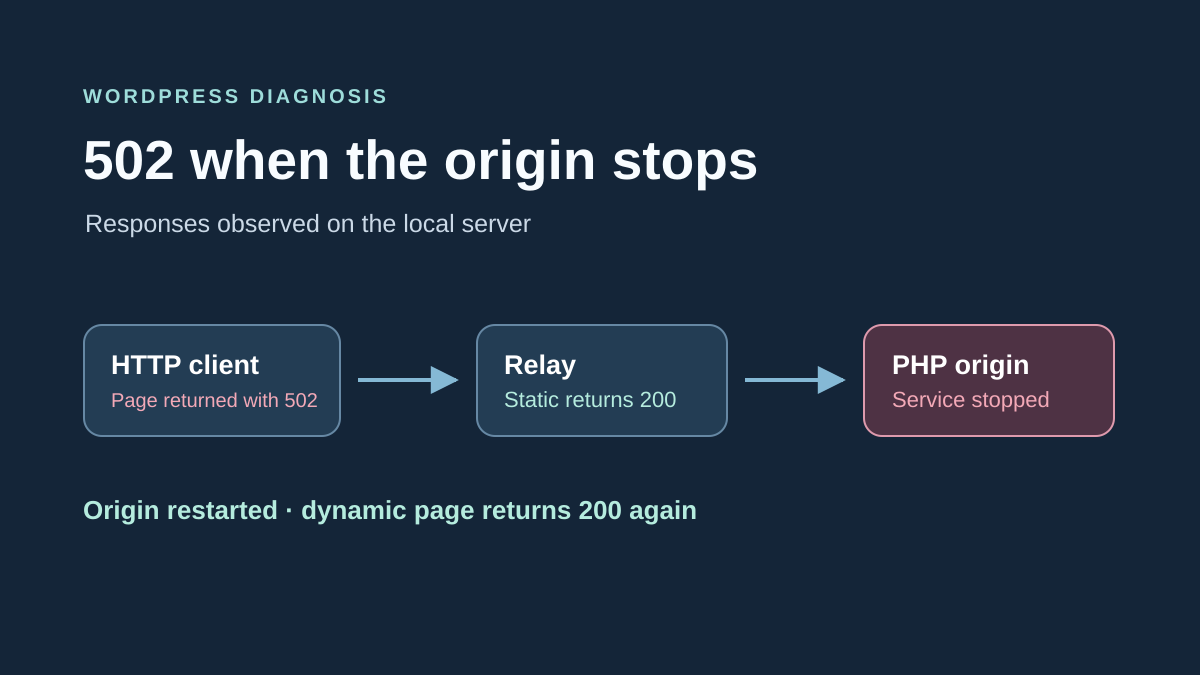
A static resource may respond normally while the PHP execution service is inaccessible. Compare these two reads and keep their statuses, without inferring PHP health from the static file alone. This comparison locates the symptom; relay logs must confirm the connection actually failing.
If you have only a browser, choose a known dynamic read on the site and a static resource that page normally loads. In Network, separately record the document request’s status and the resource’s status. Keep the time and failing path. If a page can be served from cache, also note available header clues and whether logged in or out. The resource’s 200 provides support with a comparison point. Confirming the faulty layer then requires the relay or origin log.
Correlate observations according to your available access
With the WordPress dashboard, first check whether the problem follows a particular action or screen. A safe read in a troubleshooting session can help isolate a component if the site still loads PHP. Exit the mode as soon as comparison is complete, then check the normal session. If every dynamic request fails, move to the connection between web server and execution service or send the record to the host.
With authorized system access, find the line corresponding to the failed request at the recorded time. If the log reports a refused connection to the configured service, check that service’s state and the endpoint it listens on. Inspect the configuration of the vhost actually responding and compare recorded paths or ports. An HTTP origin and a FastCGI socket use different connections. For FastCGI, use the PHP-FPM journal and inspection commands described in this guide.
On managed hosting, ask support to correlate the observed status with the matching proxy-side and origin-side request. Include time with time zone, path, static resource status and request identifier if available. Support’s response should establish which connection or service failed before choosing a WordPress action.
Repeat the same check after the correction
After an authorized repair, first check the same dynamic page through the site’s normal route. Verify expected content as well as status. If the affected screen saves data, start with a read and then verify on the copy with planned data. Also reopen a page depending on the same service to confirm recovery extends beyond the single tested address.
If you changed routing and the request still fails, restore the backed-up configuration, have its syntax validated and reload it as planned. Repeat the record for the same path. Rollback validation must compare dynamic responses and their contents with the expected state; a restart alone does not demonstrate the cause of the initial stop.
Distinguish a permanent outage from a failing node
If 502 appears intermittently without any change on your part, record several observations spaced apart and their request IDs. Do not launch a burst of tests. A load balancer may route requests to several origins, only one of which is failing; an isolated success therefore does not validate the whole chain.
Ask the administrator to correlate each failure with the node and PHP pool handling it. Keep the same URL and session context so responses remain comparable. A cache can temporarily conceal the unhealthy origin, then expose the failure again when it expires.
Free browser tools and curl are enough to prepare this record. No WordPress plugin can repair an FPM service inaccessible before core loads. The correction then belongs in the identified connection or service, and validation must cover the visitor’s normal route and other affected nodes.
Sources and references
Use these references to check the features, requirements and limitations described. Reading documentation is not a practical test.
View 16 references
- RFC 9110: status 502 and distinction from 504 ↗
- Cloudflare: 502 and 504 errors ↗
- Nginx: HTTP proxy and upstream responses ↗
- Nginx: FastCGI communication ↗
- PHP: FPM manager configuration ↗
- Chrome: viewing network requests ↗
- WordPress: backups ↗
- WordPress.com: site unavailable ↗
- curl: HTTP options ↗
- systemd: viewing and starting a unit ↗
- systemd: viewing a targeted journal ↗
- Troubleshooting: current official listing ↗
- Troubleshooting: official repository ↗
- Health Check: deprecation notice ↗
- Nginx: configuration validation and display ↗
- Troubleshooting: mode interface ↗