

Identify which Theme Builder level fails
You open Divi > Theme Builder and the screen displays “An unknown error has occurred.” The same message may appear when you try opening a template's header, body, or footer. Elegant Themes documents this symptom. The message identifies no specific component. Start by noting whether the whole template list is inaccessible, only one template is affected, or the area opens and fails only when saving.
Theme Builder manages templates and their assignments. The same header may serve several pages, while another template may be reserved for a category or document. A failure when opening an area does not by itself indicate that its content has disappeared. In a new tab, open a public page that should use this template and a page that should use another. Keep their state as a reference. If the public site still displays the old header, you have a useful control without touching the console.
Record the Divi version under Appearance > Themes, then the WordPress and PHP versions from the dashboard or hosting panel. Controls and their locations may vary between Divi 4 and Divi 5. First check which interface is actually open. On a hosted service, some logs or PHP settings belong to the host. In multisite, record the subsite where the error appears and have the network administrator confirm the scope of shared components.
Choose a comparison action that does not change the public site. If opening a template body triggers the message, open that same body in each test. If the entire list fails, compare the same menu entry. A test in an ordinary page editor may help delimit the symptom but does not replace the control in the template console.
Back up templates and their assignments
If the console remains usable, identify templates assigned to important pages. For each, record inclusion and exclusion conditions and areas shared with the general template. Take a screenshot hiding client or private-space names. A layout backup alone is insufficient to recover with certainty which pages should have used it.
Under Divi > Theme Builder, open the portability tool when the interface allows it. The developer documents exporting all templates or a selection to a JSON file. Select the desired scope, export, and check that the file exists in a private location. Also retain the recorded assignments. If the defect prevents export, ask the person responsible to confirm a recent, usable backup of the database and files. Keep the failing interface as a control instead of trying imports to unblock it.
Before deactivating a component or changing a template, prepare a representative copy. It should reproduce the theme version, plugins, templates, and assignments you want to compare. If the copy can send email or call integrations, disable these external actions. A simplified copy may suffice to show that an isolated template opens. It does not prove that the same template works with every dependency of the actual configuration.
- Record the template, failing area, and two reference pages.
- Export templates if the interface allows it and check the resulting file. Otherwise, confirm the available restore point.
- On the copy, record the active theme, any child theme, and plugins needed to reproduce the defect.
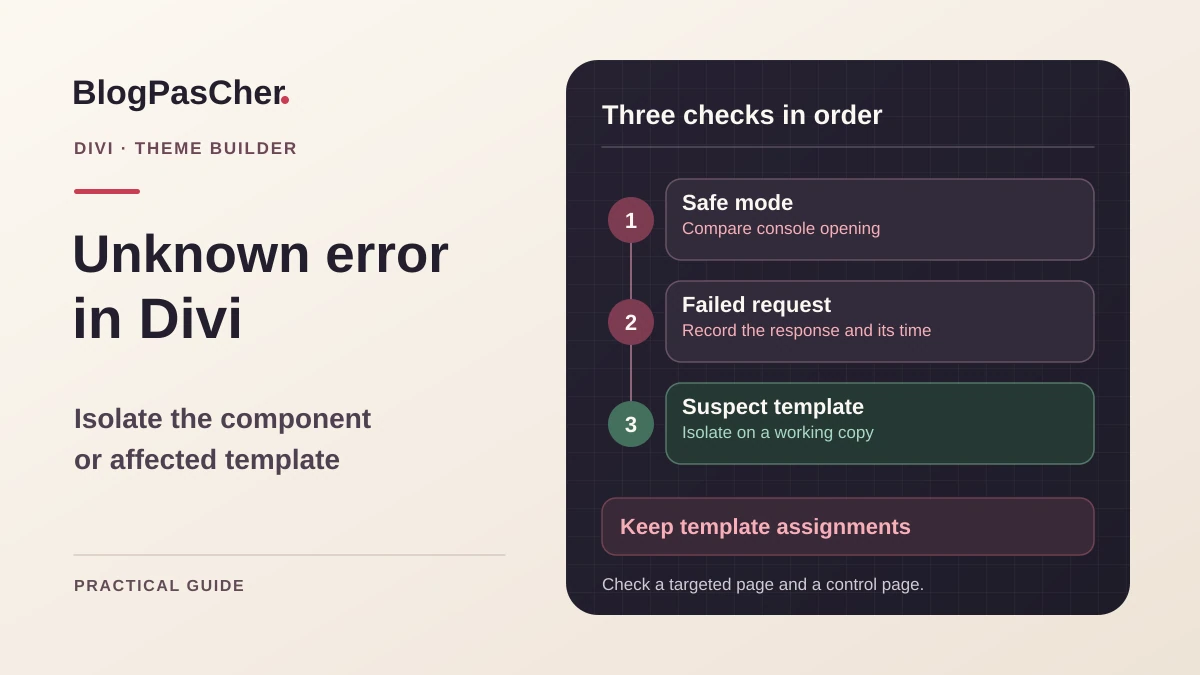
Approach 1. Compare with Divi Safe Mode
This approach suits an accessible dashboard and a version offering Safe Mode. Under Divi > Support Center, open Safe Mode. Enable it with your account, then return to Divi > Theme Builder. Documentation describes isolation of third-party components, the child theme, and custom code for the account that enabled this mode. Visitors continue receiving the usual configuration. The mode serves to observe a test result. Any change you save must be treated as an actual write.
Repeat only the opening action that failed. If the same template opens, the result points toward one of the isolated components. It does not yet identify which one. If the message remains identical, leave the mode and move to network observation. A difference in opening time with the same failure message still requires evidence. Record the status and stage actually reached in each state.
- Open Divi > Support Center and record Safe Mode's initial state.
- Enable this mode and try opening exactly the same area of the same template.
- Record whether the list loads, the area opens, and the error returns. Leave content unsaved during this comparison.
- Restore Safe Mode to its initial state. If the test changes the result, continue isolation on a copy.
Identify the component by gradual reintroduction
If Safe Mode lets you open the template, use a copy to investigate what changes. Keep the list of active plugins and original theme name. On the copy, disable the third-party plugins needed for comparison while preserving those without which the control would lose its meaning. If a template displays WooCommerce data, testing without WooCommerce may show that the console opens but cannot confirm correct data display. Distinguish opening tests from rendering tests.
Then compare only one group of changes at a time. The child theme may add PHP code or an administration script. Custom integrations may also act outside plugins shown in the current list. On the copy, compare child-theme state with parent-theme state where possible. If a plugin is the strongest lead, reactivate it with its immediate dependencies, then reopen the same template. For a large set, reintroduce coherent groups before narrowing the group that triggers failure.
- First reproduce the error on the copy in its usual state. Record plugin and theme states.
- Reduce third-party components on the copy and reopen the control. If opening succeeds, reintroduce one group or dependency at a time.
- When failure returns, confirm the difference with a second test with and without the suspected component.
- Restore the initial configuration on the copy. Prepare a targeted correction for the confirmed version or component.
Approach 2. Follow the template console's request
If Safe Mode does not change the result or the defect occurs during a specific operation, open developer tools. In Network, clear previous entries and enable Preserve log if the interface changes page. Under Divi > Theme Builder, open the failing list or area once. Identify the request corresponding to the message time. For an embedded area, the request may be for a document, while the console itself may load data in the background. Inspect both types when the Fetch/XHR filter reveals nothing.
Record the status, path, and nature of the returned body. A login page in the response suggests checking the session. A protection page with an identifier calls for searching the filtering service's log. A 500 response followed by an error message in the PHP log points toward the component or limit that interrupted processing. A 200 status may contain an unexpected response, such as an HTML page instead of data expected by the interface. Compare the response with a healthy template or the copy.
- Record the time with time zone, path, status, and template area.
- Look for the first abnormal response in the sequence associated with this action. Keep a short anonymized excerpt.
- Correlate the time with the hosting or PHP log. If the request does not reach WordPress, first look in the layer that responded.
- Repeat one opening after the targeted correction. Check that the message disappears and the correct area becomes editable.
Address the cause revealed by the log
Under Divi > Support Center > System Status, compare information about WordPress, PHP, and available limits. A yellow or red indicator signals a discrepancy to examine. It does not prove that discrepancy caused the failure. If the corresponding log line reports exhausted memory, ask which limit applies to the web request and which processing consumed the memory. If the log names a plugin or child-theme file, compare its version with the copy where the template opens.
Elegant Themes support also suggests checking permalinks and protocol. Reserve these checks for results that justify them. A 404 on the actual route or a redirect to an unexpected URL deserves recording the path and relevant server. First check link configuration and WordPress URLs under Settings > General on the copy. A subdirectory installation may intentionally have two different URLs. Avoid blindly making them identical. If repair concerns the web server or HTTPS proxy, prepare configuration rollback before reproducing it live.
On a copy, the WordPress log can supplement the server log if you cannot see the PHP error. Ask the maintainer to record the initial WP_DEBUG, WP_DEBUG_LOG, and WP_DEBUG_DISPLAY values on the copy. If WordPress collection is necessary, request a private log path not served by the site, then check that error display remains disabled. Log data may contain paths or private information. After testing, restore all three settings and handle the diagnostic file according to site retention rules. For a defect appearing after an update, change one component at a time on the copy and keep a backup appropriate to that version.
Approach 3. Isolate a particular template on a copy
This approach suits a template list that opens and several working areas, while one template or specific part triggers the error. First confirm this difference with a comparable reference template. A global header and a footer specific to a single page do not necessarily use the same modules. Choose an area sharing as many dependencies as possible and note what changes.
On the copy, create a control template from a simple layout or duplicate the suspected template when your version allows it. Check assignments before saving. Assign the control to a dedicated test page and keep a second document that must not use it. In Divi 5, the area's builder and template console may have two separate controls. Save the area if you changed it, return to Divi > Theme Builder, then use Save Changes to confirm console changes. Review the list and assignment after reloading.
If the simple area works, bring it closer to the original through targeted additions. A module or dynamic-content reference may fail only when loaded in a specific area. Reintroduce one group at a time, keeping the test page and assignment. When the error returns, check the module's setting, context, and dependency. You can retain the original template for rollback while preparing a correction on the control.
An import from a known export can provide a comparison on the copy. In the portability window, read options before confirming. Override Existing Default Website Template may replace the general template when the file contains one. Override Existing Assignments may replace assignments already in use. Leave both disabled if you only want to observe an imported layout. Also leave Import Preset disabled to avoid adding the file's presets. Keep an export of the scope before importing, then check which templates and assignments were actually added. When page IDs differ between two sites, confirm the assignment by name and test URL.
- Check that a simple template opens with an assignment reserved for the control.
- Gradually add elements from the failing area or import only the necessary template on the copy.
- Check the area, its assignment, the target page, and the reference page. If the error returns, remove the last change and confirm the difference.
- To restore the previous state, restore the original assignment on the copy and remove only the test template whose identity you verified. Save the rollback in the console, reload it, then check both reference pages.
Verify rendering and close the investigation
A console that opens again is an initial result. Open the failing area, check that its elements are present, then leave Safe Mode if you used it. On the copy, apply a harmless change and check that it remains after reloading. If the change concerns an assignment, also check the template console after Save Changes. A template may be editable while the public page continues using another template.
Check the targeted page, a page that should retain a different template, and, for a shared header or footer, another page using it. On a phone, check the menu and context-dependent elements. If administration and assignment are correct but public rendering remains old, examine caching at this stage. Do not edit the template a second time solely because the public receives an old response.
To report the problem, state the Divi version, affected area, result with and without Safe Mode, network status, and first timestamped error. Add the template ID if obtainable without exporting its private content. Keep the export file separate from the record you share. The expected recovery is to reopen Theme Builder in its usual configuration and verify that every reference page still uses the intended layout.
Collect a PHP error without showing it to visitors
When the host's log is insufficient, the maintainer can prepare limited collection on the copy. In its wp-config.php, change existing definitions or add missing ones before WordPress loads. The specified directory must exist, be writable by PHP, and sit outside the web server's served root.
Adapt the path; do not duplicate these lines if the constants already exist. Record the time, try opening the template once, then consult the private log. No file may mean PHP cannot write or the request was blocked before WordPress. It does not establish that Divi encountered no error.
A dummy line such as “Allowed memory size exhausted” suggests examining processing and its actual limit; an error naming a child-theme file calls for a targeted test of that component. Do not change memory, plugins, and templates simultaneously. The no-code alternative remains Safe Mode and the host-provided server log. After collection, restore the three initial values, protect or remove the log, then confirm that the template opens in normal configuration. Collection itself is not a repair.
define('WP_DEBUG', true);
define('WP_DEBUG_LOG', '/srv/diagnostics/divi-recette.log');
define('WP_DEBUG_DISPLAY', false);
Sources and references
Use these references to check the features, requirements and limitations described. Reading documentation is not a practical test.
View 9 references
- Elegant Themes: Theme Builder error message ↗
- Elegant Themes: Divi Support Center ↗
- Elegant Themes: using Theme Builder ↗
- Elegant Themes: managing templates in Divi 5 ↗
- Elegant Themes: saving headers and footers in Divi 5 ↗
- Elegant Themes: importing and exporting templates ↗
- Elegant Themes: changes that do not save ↗
- Chrome DevTools: network analysis ↗
- WordPress: debug log ↗