

Start from a received message rather than a sending promise
A site notification did arrive, but in spam. The recovery request, form or order therefore produced at least that message. The task now is to understand its classification. Rebuilding the form or installing several SMTP plugins may move the problem without changing the recipient mail service’s decision.
The desired result is normal receipt of future legitimate messages from the same flow. One mailbox may apply a personal block, while several recipients may encounter a shared sending defect. These situations require different corrections. A message manually moved to the inbox does not yet prove subsequent ones will arrive there spontaneously.
Start without adding a plugin. Find a recent authentic message whose origin you know, then record notification type, time, recipient and sender domain. Keep its original privately: headers may reveal addresses or technical information, and the body may contain account or order data.
This approach applies to emails actually received. If no message exists, return to generation and transport diagnosis. On WordPress.com or with a host-managed sending service, some settings belong to the platform. On multisite, identify the affected site and sending identity before changing a shared value. A targeted repair must preserve other uses of the same domain.
Define the flow and mailbox classifying the message
Ask the team whether classification affects one person, one email provider or several independent mailboxes. Use only test mailboxes you control for comparison. A direct attempt to each is clearer than forwarding between mailboxes because forwarding adds an intermediary. Do not create a series of messages to customers to measure the problem.
Also compare notification types. If only the form has a different sender address, its configuration is a priority lead. If all emails through the same transport are affected, examine the shared identity and sending service. A marketing campaign marked as spam does not establish that every recovery link has the same defect.
For every reference message, record the actual sender by opening its details. The displayed name, such as your company name, may conceal a technical address or one belonging to the visitor. Also look for a warning explaining classification when provided by the mail service. Keep its exact terms; paraphrasing it as “broken SMTP” would lose useful information.
This collection changes no settings. It should establish scope: personal mailbox, specific notification or shared transport. Keep one message from before correction to compare headers with the new attempt. Do not forward an old recovery link for diagnosis; a minimal technical record is sufficient.
Approach 1: correct classification in a Gmail mailbox
This route applies when one mailbox alone classifies legitimate site emails as spam. In desktop Gmail, open More → Spam, select the verified message and click Not spam. Check the complete address first, especially if a warning indicates possible spoofing. The site name alone does not identify its email.
Then visit Settings → See all settings → Filters and Blocked Addresses. Look for accidental blocking of the address and filters matching the message. Record criteria and actions before changing only the responsible rule. An archiving rule may hide a message without marking it as spam; distinguish the two outcomes.
After correction, request a new reference notification of the same type. The expected result is arrival in that mailbox’s inbox. To undo a filter change, restore the recorded criteria and actions on the same screen. This intervention does not change other recipients’ classification: if the problem remains general, continue with sending diagnosis instead of asking every user to create an exception.
Apply the same limited correction in Outlook on the web
In Outlook on the web, open Settings → Mail → Junk email. Under Blocked senders and domains, find an entry for the site address and remove it only if blocked by mistake. Record the initial entry for restoration. Older Outlook applications may have different menus; use the affected account’s web interface here.
If the sender is identified and this mailbox should receive its notifications, add the exact address under Safe senders and domains, then save. Prefer the affected address to a very broad domain allowance. This remains a local receiving decision whose scope also depends on organizational protections.
Send a new reference notification and observe its destination folder. To undo the exception, return to that list, select the added entry and remove it. Do not disable all account filtering. If an organizational policy or quarantine intervenes, its administrator must examine the message and exact rule: a personal exception does not necessarily correct that protection layer.
Read the original and authentication results
In desktop Gmail, open the message, then More beside Reply and choose Show original. Keep this view private. Record SPF, DKIM and DMARC results presented by the recipient service and their domains. In another mail service, use source or full-header display; do not merely copy the sender’s visible name.
SPF checks whether the sending server is authorized for the domain used in the email’s technical envelope. This may differ from the domain displayed in From. DKIM checks a signature associated with a domain, indicated notably by the d parameter in DKIM-Signature. A positive result is useful, but you must still know which domain was authenticated.
DMARC links the visible identity with a compatible authenticated domain under its alignment rule. SPF or DKIM success for an arbitrary domain therefore does not automatically demonstrate alignment. Prefer the evaluation produced by the service actually receiving your email over an old result added by an unknown intermediary.
The expected result of this reading is a simple observation: authentication absent, failing, inconsistent with the sender or successful. It is not a general message-quality score. An authenticated email may still be marked as spam for other reasons.
Distinguish authentication failure from forwarding effects
Compare a message sent directly to the test mailbox with one passing through an alias or forward. Forwarding may change the server SPF observes; content transformation may also affect a DKIM signature. Failure after this intermediary does not alone prove the initial WordPress server used incorrect credentials.
If the direct copy passes authentication but the forwarded copy does not, examine the forwarding chain with the email administrator. Do not immediately change the site sender to compensate for this route alone. Keep the sending address stable during comparison and record passing or failing domains in each original.
If the direct message also fails, first correct the service the site actually uses: authorized address, active signature and service-specific domain configuration. Validate the change with a new message because already received mail retains its old headers. A screenshot of a setting declared valid does not replace this verification.
Avoid deleting the domain’s DMARC policy to eliminate a warning. It also protects other uses of the address and creates neither SPF authorization nor a DKIM signature. The detailed sender-alignment approach is appropriate if domains do not match; this check selects that repair rather than a simple receiving exception.
Approach 2: restore an authorized sending identity on the site
This route applies when a direct message shows an incorrect sender identity or authentication inconsistent with the configured service. Use the already active transport plugin with administrator access and provider information. Do not add a second transport to improve a supposed deliverability score. An SMTP tool hands email to a service; it does not control classification in every mailbox.
With WP Mail SMTP already installed, open WP Mail SMTP → Settings → General and record From Email, From Name and Force From Email state. Compare the address with the one authorized by your service. If replaced by an old address or a visitor’s address, correct it and save. Enable Force From Email only after accepting its scope over other notifications using that transport.
WP Mail SMTP by WPForms is presented here for its existing settings. Check the offered version’s requirements before updating. This example assumes no paid logging feature and promises no control over message classification.
Trigger a reference notification and reread its original. The expected result is an effective authorized address and consistent authentication, followed by observing its destination folder. If the plugin changes an address expected elsewhere, restore recorded values on the same screen. Any remaining DNS correction must use names and values provided for your account, with a backup of affected records: there is no universal SPF line or DKIM key to copy here.
Correct the template for a specific notification
If only one form is affected, open its notification settings before changing global transport. With Contact Form 7 already used, Contact → Contact Forms → your form → Mail lets you examine From, Subject and Message body. Keep a template copy. Use the site’s authorized address in From; the visitor-entered address may serve as Reply-To when the corresponding field is configured correctly.
Read the body as a recipient: should they understand why it arrived, which site it comes from and what action is expected? Correct a link to an old domain or leftover demonstration text. Verify links’ actual destinations rather than only changing labels. Do not replace legitimate content with words supposedly bypassing filters.
To isolate a template problem, use a simple reference message without customer data, then reintroduce only necessary items, such as the intended attachment. Compare results with the same mailbox and transport. This comparison may guide diagnosis; it does not attribute a spam decision to one word without additional evidence.
This approach concerns Contact Form 7 already installed. Check its version requirements before updating. After each template correction, check the actual received message. To roll back, restore the saved template without restoring the whole site database.
Reduce unwanted sending produced by the site
Even with a correct identity, the site may generate a flow recipients do not expect. Examine actually active notifications, recipients and frequency through the producing component’s settings. An acknowledgment may go to an address freely entered by a visitor; an abused form can therefore email people who requested nothing.
With Contact Form 7, inspect Use Mail (2) in the mail template. If acknowledgment serves no need and was enabled by mistake, record its state, disable only that option and save. Verify the main team notification still arrives. To undo, restore the second template and its initial activation. If acknowledgment is needed, address form protection and destination rules rather than permitting every sending attempt.
Also separate essential site notifications from marketing campaigns. Someone requesting a recovery link has not thereby requested promotions. Use the relevant campaign system’s subscription and unsubscribe features; do not fabricate an unsubscribe link in a transactional notification to make it resemble another email type.
If volume increases without explanation, identify the source before resuming bulk sending: form, automation, account or integration. Repeated domain changes do not remove that source. Preserve necessary notifications and suspend only the flow whose abuse or incorrect configuration is established.
Check new messages without multiplying attempts
After a change, repeat the same scenario with the same test recipient. Compare effective address, authentication results and the new message’s destination folder with the preserved original. If you corrected a personal rule, the result concerns that mailbox. If you corrected shared sending, then use another controlled mailbox without local exceptions to observe another route.
An old message moved to the inbox does not change its authentication results. Likewise, an old conversation may be classified differently from a new subject. Record what was actually tested instead of concluding universal repair. Do not send dozens of password requests for a statistical result: they create unnecessary links and confuse chronology.
A domain’s or sending address’s reputation may depend on history and provider infrastructure, including a shared IP address. One new attempt cannot measure that history. If identity is now correct but several mailboxes still misclassify messages, continue with the provider on observable reasons rather than successive settings unrelated to evidence.
The documented result may be partial: authentication repaired, correct receipt in one mailbox, unfavorable classification in another. This precision helps pursue the right issue without undoing a useful correction.
Provide the right evidence and retain useful corrections
Prepare a brief record for the email administrator: notification type, visible domain, sending service, time with time zone, affected mailbox and results observed in the direct message. Disclose forwarding if involved. Share the complete original only through an appropriate private channel after reviewing its contents. A recovery link or personal reference need not be public to explain classification.
Request a check of the authentication domain, infrastructure or reputation status matching the observed case. “WordPress sends badly” is too broad if only one template has an incorrect sender. Conversely, allowing the address in your mailbox does not resolve a missing signature for all recipients.
Keep initial values, the chosen correction and scope in your record. A stable, understandable configuration helps identify the next change that breaks the flow.
- Only one mailbox corrected: retain the local scope of the conclusion.
- Direct-message authentication fails: repair the affected sender and service.
- Authentication passes but classification remains unfavorable: examine the flow, useful content and provider information.
- Only forwarding causes trouble: have that chain examined without rewriting the site identity.
- Expected notifications arrive normally: close temporary diagnostics and keep the verification record.
Exercise using synthetic headers with unaligned SPF
First identify the domain in From and the receiving service name producing Authentication-Results. In a real message, use results presented by your mailbox or its administration tool. Several lines may appear during forwarding, and a service name in a line alone does not establish its provenance.
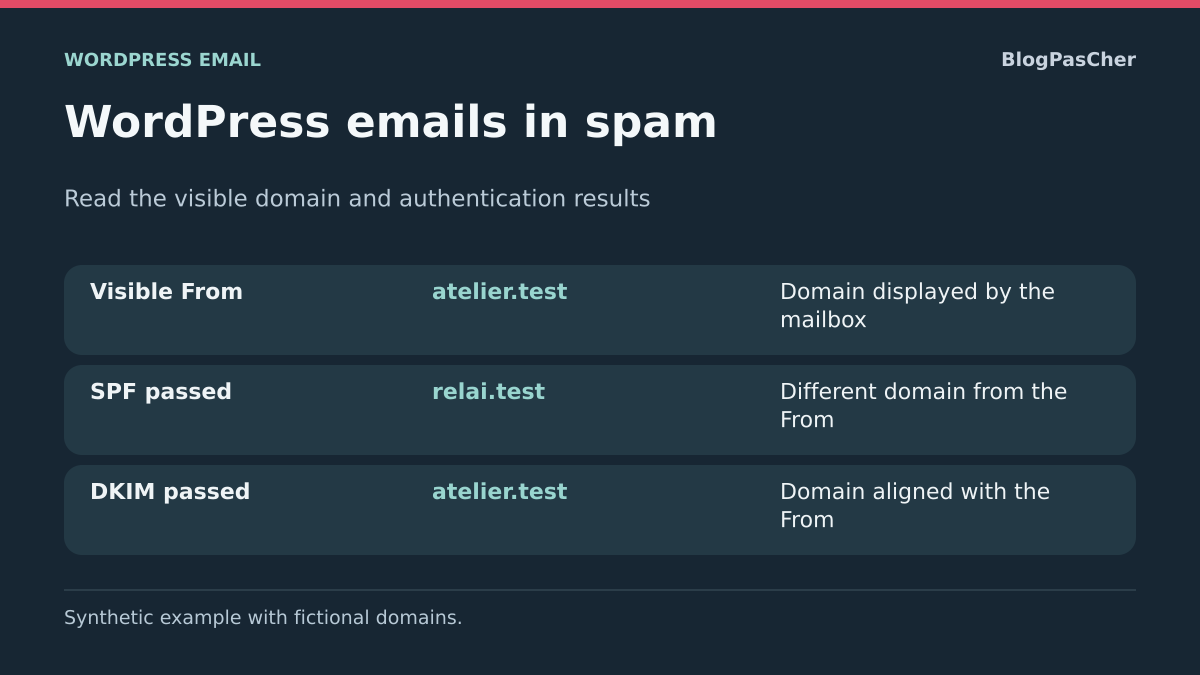
In this example, SPF passes for relai.test, the envelope domain indicated by smtp.mailfrom. The visible domain is atelier.test. The domains differ and the example contains no usable DKIM result. If you see this pattern on a real notification, first identify the sending service and ask how to enable a DKIM signature on your domain or align the envelope domain with the visible domain.
From: Site de test <site@atelier.test>
Authentication-Results: reception.test;
 spf=pass smtp.mailfrom=relai.test;
 dkim=none;
 dmarc=fail header.from=atelier.test
Exercise using synthetic headers with aligned DKIM
In the second example, the SPF envelope is identical. Find header.d and compare it with header.from.
The validated DKIM signature here uses the same domain as From. This explains dmarc=pass despite the different SPF domain. If a real message has this result and still arrives in spam, compare a reference message from the same flow in a second test mailbox, then examine local filters and provider records. If the original provides no trusted result, send the time, reference subject and message ID to your email service.
These two snippets were constructed with fictional domains and reviewed offline. An SMTP 250 response describes acceptance by the server returning it. To establish actual classification, record the folder where the reference appears and inspect the original supplied by the receiving mailbox.
From: Site de test <site@atelier.test>
Authentication-Results: reception.test;
 spf=pass smtp.mailfrom=relai.test;
 dkim=pass header.d=atelier.test;
 dmarc=pass header.from=atelier.test
Different sender and authenticated domains
If a message original shows a discrepancy, first compare a problematic notification with another email sent through the same service. Record From in each original, then envelope domain smtp.mailfrom and signature domain header.d in the mailbox’s results. Reply-To specifies the address proposed when the reader replies.
The following synthetic example illustrates correcting only a form’s From field. It separates this address from the technical envelope and reply address; this table is not an actual sending record.
If the From domain is wrong in only one form, check its Mail template and Mail (2) if active. Correct only the sending address using the one your service authorizes. Keep the visitor’s address in reply headers when the team needs to respond. If several notifications arrive with an address different from the saved one, first check the sender rule in the transport used.
If From already matches the intended domain but recipient results show no aligned authenticated identifier, check in the sending account that this domain is authorized and signed. For a domain you manage, copy only account-specific values into the active DNS zone and preserve entries needed by other services. Then compare a new reference message’s original and restore only the changed setting if the flow no longer behaves as intended.
A local collector could check values passed by the form and transport. Authentication and classification are checked separately in the original supplied by the test mailbox.
                       Avant                    Après
From                   autre@externe.test       site@atelier.test
MAIL FROM              retours@atelier.test     retours@atelier.test
Reply-To               visiteur@atelier.test    visiteur@atelier.test
Use provider information without promising inbox placement
If authentication passes but several Gmail mailboxes continue marking the flow as spam, compare sending-provider guidance with Gmail requirements applicable to your volume. Rules for a small transactional flow and a bulk sender are distinct. A free SMTP plugin can configure transport; it provides neither guaranteed reputation nor control over the recipient filter.
For a domain you administer, Google Postmaster Tools can supplement investigation of Gmail sending when data is available. This external tool does not replace the reference message’s original. An empty dashboard does not mean every message is accepted: volume and display conditions may limit observations.
Keep a stable sender and first check complaints, unexpected flows and authentication actually observed. Do not purchase another relay solely from a score obtained with one email. After correction, compare a few legitimate notifications to your test mailboxes without local exceptions and record destination folders. If changing transport ultimately becomes necessary, prepare rollback by preserving previous settings and affected notifications.
Sources and references
Use these references to check the features, requirements and limitations described. Reading documentation is not a practical test.
View 15 references
- Gmail: removing a message from spam ↗
- Gmail: showing the original ↗
- Gmail: reading authentication ↗
- Gmail: managing filters and blocked addresses ↗
- Gmail: sender requirements ↗
- Outlook: blocked and safe senders ↗
- SPF: authorization protocol ↗
- DKIM: signatures ↗
- DMARC: current RFC 9989 standard ↗
- WP Mail SMTP: sender configuration ↗
- WP Mail SMTP: 4.10.3 code ↗
- Contact Form 7: sender and reply ↗
- Contact Form 7: notification templates ↗
- Contact Form 7: current code ↗
- RFC 8601 · Authentication-Results field ↗