

Restore the access used by the site without replacing the entire integration
A previously working connection stops sending notifications or communicating with a service. The dashboard may report an invalid key, expired authorization or denied access. These messages do not all require a new key. A removed permission, different account or quota block can produce a similar failure with a different fix.
The desired result is restoration of the intended operation with the required account, environment and permissions. Examples use an existing WP Mail SMTP transport: Gmail for OAuth reconnection and Brevo for an API key. They repair an already chosen connection; they require neither a new provider nor an additional subscription. The same distinctions help with other integrations, whose menus remain specific to their tools.
Keep the exact error, time and connection name, removing secrets. A token or key grants service access; it is not text to paste into a public ticket. Retain initial settings and identify what uses the same access before revoking it. A key shared with another application may disconnect that application if deleted.
This approach requires a site administrator and someone authorized to manage the external account. These roles may belong to two team members. On a managed platform or multisite network, check the scope of shared credentials. Start by reading existing state without replaying failed operations.
Distinguish expiration, revocation, permission and quota
Record the code and text supplied by the integration, then correlate them with external account state. HTTP status 401 indicates a request authentication problem but does not by itself provide a key’s expiration date. A 403 means access denied and may require permissions, account authorization or lifting a specific block. Provider details distinguish them.
A 429 indicates rate limiting. Creating a new key every time does not fix call frequency and may complicate tracking. Respect any announced retry delay, then examine the function multiplying requests. A network or domain-resolution error sometimes precedes credential verification itself.
OAuth lets you authorize an application to act within a given scope without directly giving it your password. Its access token may expire and be renewed automatically by the integration. Manual reconnection becomes relevant when authorization or the refresh mechanism is no longer accepted, for example with an invalid_grant message confirmed in this context.
An API key, by contrast, may have a date, be disabled, have lost permissions or no longer be the one actually used. Compare its name and last characters shown by the service with your private record. A masked key consisting of a few characters and dots is not a complete secret to copy into WordPress.
Find the exact connection and its consumers
In WordPress, open the responsible plugin and identify the selected transport or account. With WP Mail SMTP, WP Mail SMTP → Settings → General shows the Mailer and its parameters. Also record whether other connections or routing rules are configured. Correcting a key in a secondary connection does not necessarily repair the one handling failed notifications.
Find the corresponding provider account: organization, project, authorized address and public or test environment. A browser session may be logged into a different account from the site’s. Before reconnecting, check access to the correct account and the confirmation method required for a sensitive operation.
At the November 3, 2026 check, WP Mail SMTP by WPForms 4.10.3 is attributed to Syed Balkhi, requires WordPress 5.5/PHP 7.4 and declares compatibility up to WordPress 7.1.4. The following approaches use its existing connections. They do not assume paid one-click connection, backup connection or complete logging features.
For a shared key, list applications using it before rotation. If the integration uses a configuration-imposed value, the interface may be grayed out: the change must target that source through its maintainer. Do not create a second plugin to bypass it. You must identify one precise access credential, its scope and responsible owner.
Approach 1: renew existing Gmail OAuth authorization
This approach suits an already configured Gmail connection in WP Mail SMTP whose authorization is no longer accepted, particularly with invalid_grant. First check the expected Google address and your account access. Reconnection may briefly interrupt this transport; choose a time when the team can monitor notifications without simultaneously launching a series of tests.
Open WP Mail SMTP → Settings → General and find the Google Workspace / Gmail mailer. Under Authorization, use Remove OAuth Connection when the old connection needs replacing. Current code uses this label; some documentation pages or translations show Remove Connection. This action lets authorization restart and must not accidentally switch accounts.
Then click Allow plugin to send emails using your Google account. In the Google flow, select the intended address and review the application and requested permissions. Grant only access corresponding to this identified integration. If the account, application or scope is unexpected, stop the flow and retain the error; do not bypass a warning assuming it has no consequence.
Back in WordPress, check the associated address and connection state. The expected result is active authorization for the intended account, followed by a successful controlled test. No token should be manually extracted from the browser or pasted into a public site page.
Rollback for removed authorization does not mean resurrecting its old token. If you chose the wrong account, remove this new connection and authorize the correct account again. Keep existing OAuth client settings during this intervention; rebuilding the entire Google project is unnecessary for simple reconnection.
If authorization fails again shortly after reconnection
Repeated reconnection indicates a need to examine authorization duration and account policy. For some external Google applications left in Testing status, refresh tokens expire after seven days except limited cases involving basic profile information. A Gmail integration may therefore fail again without its SMTP password being involved.
Ask the Google project manager to check its status, authorized account and applicable publishing or verification requirements. Do not turn this check into an instruction to publish any application merely to remove a warning. The project must match actual use and provider rules. An organization policy may also limit session duration or allowed applications.
A redirect error requires comparing the return address supplied by the integration with the address configured for this OAuth client. Generating another service’s API keys will not fix it. Retain initial values before any project correction and have the intended connection checked.
The desired result is authorization remaining usable under the intended policy. If diagnosis exceeds your access, provide the error type, time, project and account without a token. Avoid deleting the entire project or all of the user’s Google authorizations: other applications may depend on them.
Approach 2: first check whether the Brevo key is merely disabled
This approach suits a Brevo API integration already in use. In the Brevo account menu, open Settings → SMTP & API → API Keys & MCP. Find the key by its name and last characters, then examine status, expiration date and last use. API and SMTP keys are distinct; use the category matching the WordPress transport configuration.
A key without a fixed date may have been disabled for inactivity. Current Brevo documentation states this occurs after ninety days without a successful API call. Check that the site actually uses this key instead of another entry in the account. An alert concerning an old unused key does not prove the site failure’s cause.
If the key was disabled temporarily or for inactivity, its use is confirmed and no security problem is reported, the three-dot menu offers Activate API key. Then check the integration result and key state. To undo reactivation, use Deactivate API key on this entry only if its suspension must remain.
A key locked read-only after a security incident is not a simple expiration to bypass. Address the account and replace access according to the provider’s procedure. If the key is expired, lost or must no longer be reused, prepare a new key with the required scope before removing access still useful.
Create a new dedicated key without deleting the previous one too soon
In API Keys & MCP, use Generate API key with the account authorized to manage access. Follow the requested identity confirmation. Give Key name a name identifying the site and integration, then choose an Expiry duration suited to your team’s policy. The date must be retrievable before the next deadline without keeping the secret in an ordinary note.
Choose access restricted to necessary resources, then capture the secret when displayed. Store it directly in the designated private credential location for this integration. The last characters later visible in the list identify the key; they cannot reconstruct a lost secret. If you closed the view without saving it, create another key instead of pasting its masked version. Complete this step with I’ve saved my key after checking the secret is retained.
Keep a standard API key for the WordPress integration described here. The MCP version option serves another purpose and must not be activated out of curiosity during repair. You do not need to add a new protocol to restore the existing transport.
When the old key remains valid and uncompromised, overlap with the new one lets you update consumers and verify recovery. If access was exposed, however, removing it belongs to incident response; do not keep it active solely to simplify rollback. This stage produces identified new access, privately stored and ready for installation in the correct place.
Grant necessary permissions instead of confusing rights with expiration
A recognized key may still be denied for the requested resource. With restricted Brevo permissions, every resource starts without access. An Access denied for resource message therefore points somewhere different from an expired secret. Record the named resource and failed operation before broadening permissions.
For Transactional email, current documentation distinguishes None, Read and All. Read allows consultation but not sending. An integration sending notifications therefore needs the level permitting that action on this resource. This does not mean it needs Full across the entire account, including other activities. Other functions may require another resource; add only what the integration actually needs.
To correct an existing key, find its three-dot menu, choose Edit API key, complete requested verification, adjust the identified permission and use Save changes. Record its initial level. Then verify the intended operation in a controlled reference scenario. To undo the expansion, restore the initial level if the integration does not need it.
API key permissions do not replace permissions of the human administering the account. Nor do they automatically apply to an SMTP key. If the error persists, confirm that WordPress uses the key you just edited: correcting another entry’s permissions does not change the rejected request.
Put the key in the connection actually using it
In WP Mail SMTP → Settings → General, find the relevant connection’s Brevo mailer. Replace its API Key field with the new complete secret in this private interface, then use Save Settings. Retain From Email and Sending Domain as intended if the problem concerns only API access. A new key must not become an uncontrolled sending-domain change.
If a constant imposes the field, current plugin code may indicate WPMS_SENDINBLUE_API_KEY. The configuration manager must update this source in the intended environment. Do not publish the line containing its value or transmit it in a shared command. A field change that does not affect the constant will not repair the connection.
Also update identified consumers of the old key, or give them dedicated access if that is the chosen decision. Distinguish the public site and test copy. Any persistent processes or integration-specific configuration caches must be considered by their maintainer; do not randomly restart every hosting service.
The expected result is effective use of the new access by the correct connection. If the previous key remains valid, authorized and uncompromised, its privately retained value may provide a temporary rollback. Otherwise, correct the new access: an expired or revoked key does not become functional because you copy it again.
Verify recovery with one bounded reference operation
Start with connection state or the integration’s designated check. For the example email transport, WP Mail SMTP → Tools → Email Test then lets you send one message to a mailbox you control. This action actually sends email; it must not target a customer and requires no order or registration replay.
Record the time, displayed result and receipt. At the provider, check the key or authorization actually used if the tool supplies that information. A new failure may concern another stage, such as a rejected sender or specific permission. Retain its text instead of concluding that the new key must be wrong.
For an integration reading data, first use its read or connection-check function without requesting massive synchronization. A connection declared active does not prove every scope is accessible. Check the representative interrupted operation with necessary permissions and known impact.
After recovery, examine pending tasks before restarting them. Some actions may already have succeeded despite an error displayed on the site. Restored transport does not authorize resending every notification or replaying every payment. Correlate operation references and choose targeted recovery avoiding duplicates.
Remove old access and record the next deadline
Once consumers are updated and the check succeeds, retire old access no longer needed according to the provider’s procedure. Verify its identity before this action. If several applications shared the key, confirm their migration before removal. Permanent deletion must not be the first test to discover who depends on it.
Keep the connection name, owner, expected expiration date and private secret-management location in your record. A dedicated key per integration makes future changes clearer. Tracking data need not contain the complete key or an OAuth token. Remove temporary copies and screenshots exposing them according to team rules.
If failure returns, compare its date with expiration, last use and account or permission changes. Legitimate inactivity does not call for artificial requests solely to keep an old key alive; access must match the service’s actual need.
- Invalid OAuth authorization: reconnect the correct account, then examine policy if the problem returns.
- Disabled key: check the reason before targeted reactivation.
- Missing permission: correct the required resource and level.
- Replaced key: verify every intended consumer before removing the old one.
- Quota or rate: address frequency and limits without randomly renewing secrets.
- Connection restored: check pending-operation recovery separately.
Distinguish rejections on a simulated service
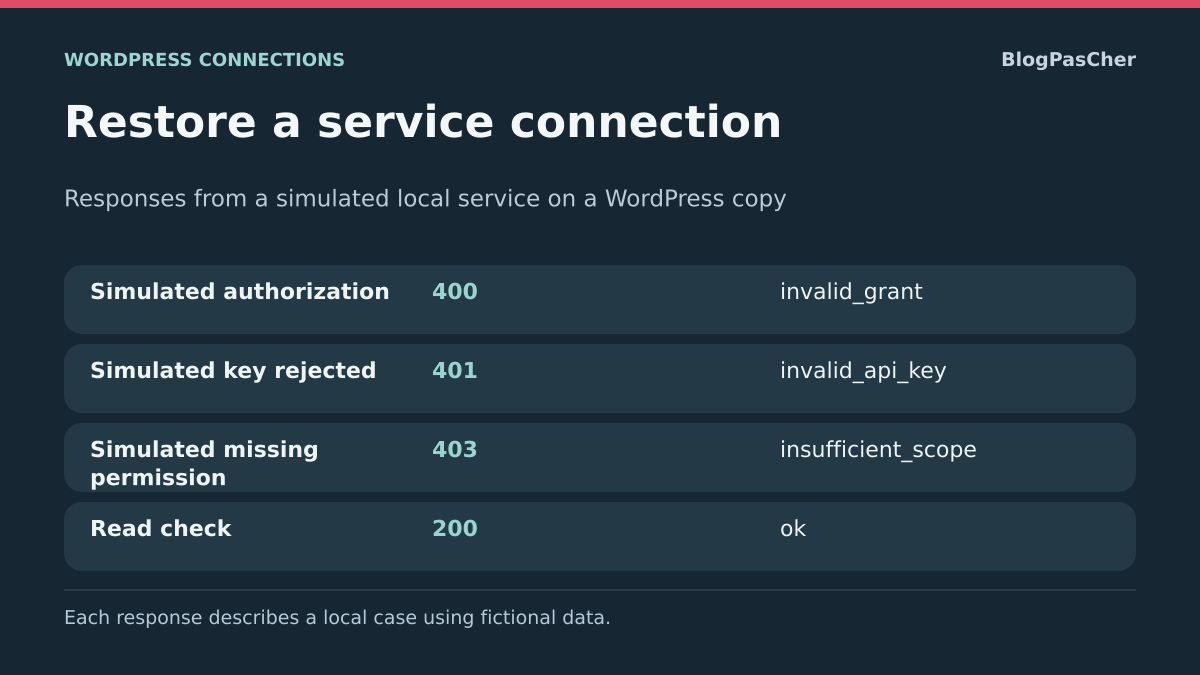
To prepare the exercise, have a fictional local service respond to the WordPress HTTP API with the four scenarios below. Labels illustrate differences between renewal, key and permission; they do not describe Gmail’s or Brevo’s contract. Verify actual values in provider and route documentation.
For your incident, correlate the exact code and message with service documentation. invalid_grant may indicate expired authorization or authorization invalid for another reason. A permission denial may persist after creating a new key if its scope remains identical. A 200 response validates only the check operation performed.
400  invalid_grant       Examiner l’autorisation OAuth existante
401  invalid_api_key     Vérifier l’état de la clé et le compte
403  insufficient_scope Vérifier le droit demandé par cette opération
200  ok                  Confirmer le contrôle de lecture choisi
Verify recovery without replaying operations
In this protocol, each check must produce a single local request identifier without real secrets, email sending or provider calls. On your copy, start with the connection test or read recommended by the service. Check the responding account and scope before launching an action with a business effect.
If events accumulated, correlate their identifiers with destination logs before resuming them. Retry only a case whose absence is confirmed, using the integration’s designated mechanism. If the connection test restored overly broad access or the wrong account, remove the change and return to authorized configuration.
Distinguish immediate recovery from lasting renewal
After OAuth reconnection, record two separate checks: the reference operation succeeds now; the integration remains usable after its next normal access renewal. The first success does not verify the second. Record future errors in the existing tool without retaining tokens.
If failure reappears, have the OAuth client identifier, authorized account and project rules compared with the relevant WordPress connection. New authorization in another project may temporarily hide misconfiguration. The plugin normally manages token circulation; do not add a competing renewal script in functions.php. For API keys, lasting verification instead concerns expiration date and migrated consumers. Do not send regular artificial messages solely to avoid expiration: choose a duration and access suited to the actual need.
Sources and references
Use these references to check the features, requirements and limitations described. Reading documentation is not a practical test.
View 12 references
- WP Mail SMTP: Gmail connection ↗
- WP Mail SMTP: Brevo connection ↗
- WP Mail SMTP: code4.10.3 ↗
- Google: OAuth authorization duration ↗
- Google: server-side OAuth errors ↗
- Brevo: creating and managing keys ↗
- Brevo: API key permissions ↗
- Brevo: key troubleshooting ↗
- HTTP: authentication and rejection ↗
- HTTP: rate limiting ↗
- WP Mail SMTP: controlled sending test ↗
- Google: OAuth 2.0 lifecycle ↗