

Recognize a missing block provider
After deactivating a plugin, you open a page and WordPress says it does not support a block. The content may remain partially visible, appear as code or disappear from the preview. You want to restore editing and functionality without erasing what was saved.
Copy the exact message and technical block name when shown. An unavailable block is not the same problem as a still-recognized block whose content is declared unexpected or invalid. In the first case, identify its provider or resources; in the second, content validation requires a different diagnosis.
Also view the public page without changing it. Some blocks retain a saved representation that remains visible; others depend on server-side computation. Public output still being present does not prove the component is unnecessary or its interactive functions work.
Do not immediately click Delete or Keep as HTML. These actions may transform the content you need to save. Start by inventorying the block, deactivated component and reason for deactivation.
Preserve the saved state before any conversion
Keep the original page and an accessible external copy of its content. Use copying commands when the editor offers them and check the title, affected section and end of the document. Add screenshots to preserve visible settings and the expected result.
Before reactivation, restoration or migration, prepare a recoverable backup of the database and files. Block content and data may be distributed between the post and component; a screenshot does not back them up. Have someone familiar with the tool verify that scope.
Work on a separate copy to test changes. Avoid saving the original while the provider is missing, especially if you have started a conversion or removed an occurrence. A backup saved after transformation does not necessarily restore the initial structure.
Also retain the reason for deactivation: a simple test, incident, planned replacement or confirmed security problem. It determines what follows. Reactivating a component removed for an important reason requires resolving that cause, not merely clearing an editor message.
Identify the block name and its provider
Record the visible label and technical identifier, if provided. This identifier generally includes a namespace and block name. It helps find the provider in its documentation, but similarity to a plugin name is not sufficient proof.
Under Plugins, Installed Plugins, an authorized administrator can compare active and inactive components. Record the exact name, author, version and listed dependencies. A plugin may provide several blocks; the visible section heading on the page is not necessarily the product's name.
Check recent history: manual deactivation, update, theme change or migration. If the provider came from a theme or a bundled package, also check its documentation. Do not install a similarly named plugin assuming it will automatically recognize old content.
If you cannot identify the component, send the block name and a sanitized screenshot to the site administrator. Editing access does not necessarily authorize plugin management. Do not share a password or delete the block to simplify the search.
Choose between reactivation, extraction and replacement
The first approach aims to restore the known provider to a compatible state. It suits accidental deactivation or a missing dependency when the component can be used confidently. It does not require an additional repair tool.
The second recovers elements actually present in the saved content. It may suit static text or an illustration whose function does not depend on special processing. It does not guarantee recovery of data a component needed to calculate or retrieve elsewhere.
The third prepares a replacement when the provider cannot be retained or a documented migration is needed. It requires defining the block's function and validating a replacement on one occurrence before expanding.
If you still do not know the block's nature or why it was deactivated, stay with identification and preservation. The warning frame disappearing is not sufficient: compare the content, editing and uses. Keep the ability to return to the initial copy at every step.
Approach 1: inspect the already installed plugin
With the required permissions, open Plugins, Installed Plugins and find the confirmed provider. Inspect its status and displayed messages. If the plugin is present but inactive, do not delete it to reinstall it: that operation can have different effects from simple activation.
Read every error or dependency notice. A component may have been deactivated because files are incomplete, another plugin is missing or incompatibility prevents operation. Record the message instead of repeatedly clicking Activate.
If the plugin is absent, have the administrator check whether it was deleted, supplied another way or managed by the network. If reinstallation is necessary, use only the identified provider and an authorized source, following its compatibility procedure. An arbitrary archive is not a reliable return to the original component.
The block directory may sometimes offer an installation button in place of the missing block. This button installs a component; it does not alone prove the version suits the site or the previous deactivation was accidental. Have that choice validated before using it, especially if the original was deliberately removed.
Check the theme, network and dependencies
On a multisite network, a plugin may be network-activated or subject to rules a site administrator does not control. Ask the network administrator to check its status on the exact site. Working elsewhere in the network is not enough to establish the same context.
On WordPress.com, use the features available in the account and support when the required management access is unavailable. Do not try to apply a file procedure designed for independent hosting without that access.
Also compare core, theme, provider and dependency versions with its current documentation. A newer version may have changed a block or its requirements; an old version recovered from a backup may no longer suit the current environment.
If the provider is active but the block remains unavailable, have its settings and resource loading checked. An editor error can prevent part of the component from registering correctly. Do not add a random second block plugin: a visually similar block does not necessarily use the same identifier or data.
Isolate the missing block in a copied pattern
In a working instance, copy the blocks of an unsynced pattern. Paste them into a draft on the destination site between two control paragraphs. Transferring content does not load the block provider. In the exercise, it comes from a fictional site and contains an ‘À emporter’ callout. The paragraphs ‘Repère avant la composition’ and ‘Repère après la composition’ mark where it should appear. Keep the received markup in a local file and retain a revision before any conversion. If the received pattern is synced on the destination site, identify its uses before changing its source.
When the block is reported unavailable, open the document code read-only and record the technical block name. The exercise copy contains atelier03/cartouche, with a title and text saved in block attributes. The provider is not loaded. Core's block parser classifies it as missing while both paragraphs remain valid. In the public rendering, the dynamic callout is empty and both markers are present.
Keep separate the case of a recognized block type whose saved content no longer matches what the block expects. The staging static control is registered in the editor, then the parser rejects its intentionally incompatible markup. Type presence and the validation verdict answer two different questions. Reactivation can restore an absent block. It does not automatically correct markup for an already recognized block.
Here is the staging block comment. It identifies the fictional provider and lets you recover the title and text even if the callout no longer displays. Record the technical name in your own copy.
<!-- wp:atelier03/cartouche {"title":"À emporter","text":"Le carnet de démonstration est fourni."} /-->Rebuild the passage with core blocks
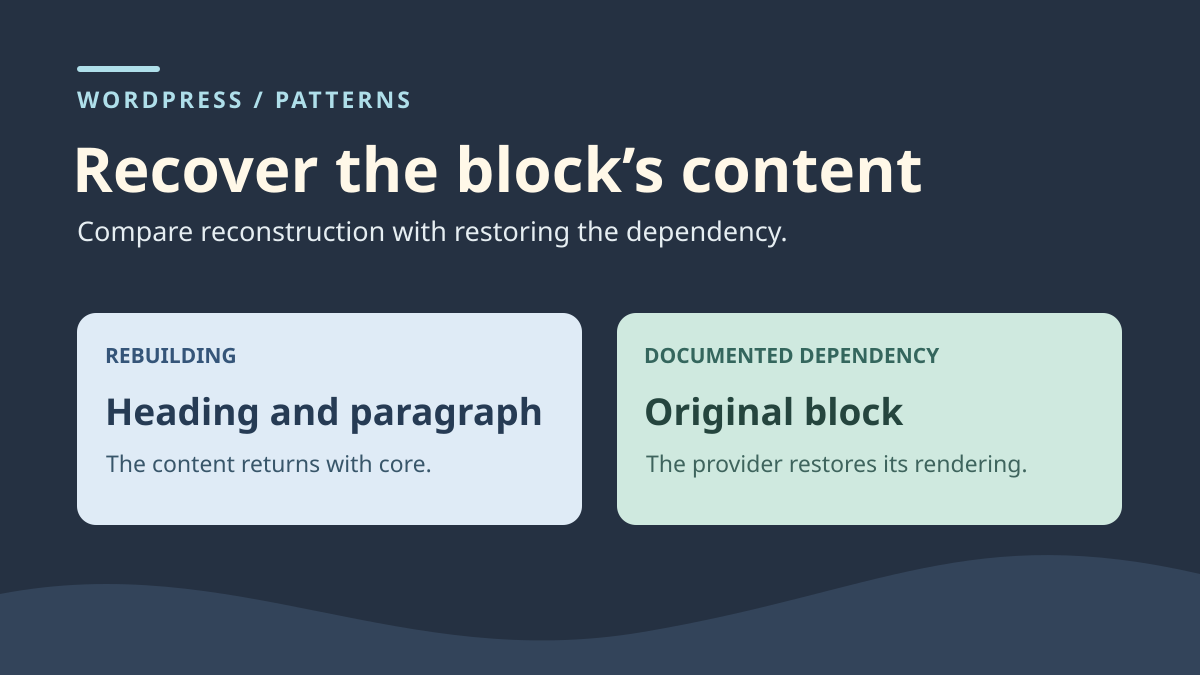
If the callout only presents a heading and sentence, transfer that data to a Heading block and Paragraph block. Work between the two markers on the copy. Check that the sentence exists in retained data or an approved editorial source. An empty rendering does not let you infer the original content. If text is missing, have the source completed before replacing the block.
In the exercise, the title ‘À emporter’ and sentence ‘Le carnet de démonstration est fourni’ are recoverable. Reconstruction restores them in the same order between the two markers using blocks the parser recognizes as valid. It does not restore the provider's specific presentation or functions. If the original block calculates a value, displays related data or offers interaction, record what must be retained before choosing a static replacement.
To compare the other approach, restore the copied pattern's revision. The third-party block name must return in the saved content. While the provider remains absent, the callout is empty again in the staging rendering and both markers remain visible. Keep this step in the record. It allows testing the dependency afterward on the same markup without retaining the reconstruction alongside it.
Restore the documented dependency and verify recovery
If you need the original block, confirm its technical name, provider and intended version before restoring anything on the copy. A similar commercial name or visually similar block does not establish that the component reads the same data. If the provider is unknown or a compatible version is not established, keep the block copy and use the markers to explain what is missing.
The name atelier03/cartouche identifies a fictional provider here, intended to explain the dependency. No archive of that plugin is provided with this guide. On your copy, use only the identified real provider and its compatible version. After activation, check that the block is recognized, its heading and sentence reappear, and both control paragraphs remain in place. Also compare saved content: restored rendering must not require a silent block conversion.
Then deactivate this staging dependency and reload the copy. The parser finds the missing block again and rendering returns to the arrival state. On a site using the same provider elsewhere, check the scope of deactivation before reproducing this rollback. The test compares the editor-side registry and server rendering with fictional data. Pasting, visual pattern import and real-product compatibility still need checking in their own environment.
Reactivate the provider on a prepared copy
First have it confirmed that the component can return to service. In separate staging, keep its initial state and necessary backups. Disable notifications, payments and external integrations before testing if the component participates in those functions.
Under Plugins, Installed Plugins, activate only the identified provider and its validated dependencies. Record the activation result. If an error appears or the site stops responding normally, stop the test and have the technical administrator return the component to its previous state.
Activation can run plugin-specific operations. Deactivating it afterward therefore does not automatically restore data. Rollback must be planned with its documentation and a recoverable copy, not reduced to a sequence of clicks.
Then open the control page without accepting conversion. The block must recover its name and settings, then retain its content after a controlled save. Also check rendering and function. If the block is recognized but now displays a validation error, preserve that distinction and ask the provider for its older-version compatibility procedure.
Approach 2: recover elements actually retained
When the provider cannot immediately return to service, inspect what remains accessible on the copy. A text passage, links or image references can be copied into a local document, then rebuilt in suitable ordinary blocks.
If the editor offers Keep as HTML, that command may transform retained content into a Custom HTML block. Try it only on the preserved copy and compare the result with the starting state. HTML is the markup structuring a page; retaining it does not automatically make the block editable with its former provider's controls.
Do not supplement the result with a script found on a forum to try to make a form or animation work. If an essential function is missing, move to a documented replacement instead of publishing a misleading representation.
Check recovered text, links and media before deleting the initial occurrence. If conversion produces an empty block or removes information, undo it and retain the original version. After saving, recovery may require the copy or an available revision; reactivating the plugin does not necessarily reconstruct a block you already transformed.
Understand the limits of dynamic rendering
A static block retains a representation of its content in the post. A dynamic block may calculate its output at display time: a filtered list, site information or a service-linked function. Some blocks combine both mechanisms.
A dynamic block can save fallback content, but its provider must have planned that capability. Others mainly retain their identity and settings without saving the full visible result. An HTML option therefore guarantees neither complete text nor recovery of required data.
Ask the provider what is stored in the post, its own settings and external data. For recovery from backup, have the necessary elements and a targeted extraction identified. Do not replace the site's current database in an attempt to recover one content area.
If you have a screenshot or a visible old page, use it as a reference without confusing visual reproduction with restored functionality. A drawn form or frozen number may look correct while no longer meeting visitors' needs. Have any temporarily unavailable function explicitly accepted before publishing a simplified solution.
Approach 3: prepare a function-appropriate replacement
If the component is abandoned, incompatible without a fix or removed for a confirmed reason, describe what the block actually provides. Separate text, layout and function: a presentation card has different needs from a form, search or display of updated data.
For simple content, blocks already present may suffice. On the copy, rebuild a set of headings, paragraphs, images or buttons and reintroduce useful data. Do not try to make another block accept the old block's identifier by editing its markup manually.
For a specific function, request a documented migration or replacement. Have transferred data, external connections and the new tool's limits checked before installing it. A product that looks similar in a demonstration does not guarantee it can import the old one's settings.
Add the replacement alongside the old occurrence in the test environment, compare them, then remove only the copy no longer needed. Keep the original preserved until complete validation. If a function is still missing, record it and do not call the migration complete merely because the unavailable-block message disappeared.
Test one occurrence before expanding
Choose a representative page with the settings and content that make the block useful. Check editing, saving and display on a wide screen, then a narrow one. For an interactive element, prepare a test whose effects remain within the isolated environment.
Check links, media, keyboard-accessible elements and any calculated data. An appearance check does not prove a form processes submissions. Conversely, do not send a real submission to production recipients to finish testing a copy.
If several pages use the block, list them before any general replacement. Also check templates and synced patterns: changing a shared original can affect several occurrences. A correct result on one page is insufficient authorization for mass conversion.
For each usage type, keep the starting version, chosen approach and successful checks. If occurrences differ substantially, prepare several representative cases. Avoid global database search-and-replace operations: nested blocks, settings or distinct functions could be changed without your being able to recognize them afterward.
Integrate the correction and retain reliable rollback
Once the result is validated, prepare to transfer only the necessary correction to the live site. Do not replace all production with an old copy to recover a provider or a few blocks. Preserve recent content and settings not involved in the test.
For reactivation, apply the confirmed procedure with the administrator, then check affected pages and the component's other functions. For replacement, reintroduce validated content into its original documents with the intended permissions and status. Check media addresses to avoid depending on staging.
Save, then reopen the documents. Compare the block's state, content and behavior with the reference. Keep copies until that validation and record what was recovered, replaced or left unavailable. If the problem returns, stop conversions and send the reproducible case to the provider.
The support record should contain the block name, versions, plugin status, reason for deactivation, test times and results. Remove private data and authentication secrets. For future changes, retain this dependency inventory and check a few pages before permanently removing a component that provides their blocks.
Confirm the marker is present without loading the provider
With WP-CLI already available, a maintainer can check whether a post still contains the block's technical name. This diagnostic neither reactivates the plugin nor transforms content. Replace 123 and atelier03/cartouche with the post and name recorded on your copy.
A present marker does not prove the block is registered or renders valid output. An absent result is also insufficient to rule out use: it may be inside a synced pattern or separate template. Examine that object separately instead of converting the post.
For a recoverable simple heading and paragraph, free core blocks provide an alternative without a new dependency. For a form or calculated value, that static reconstruction does not preserve function. After reactivating the identified provider, compare rendering, editing and saving for one occurrence before expanding. To undo conversion, restore saved content; deactivating a new plugin does not recreate a marker you deleted.
wp --path="/chemin/recette" --url="https://recette.example" eval 'echo has_block("atelier03/cartouche", 123) ? "Marqueur present
" : "Marqueur absent du contenu direct
";'
Sources and references
Use these references to check the features, requirements and limitations described. Reading documentation is not a practical test.
View 14 references
- WordPress: managing and activating plugins ↗
- WordPress: plugin status and dependencies ↗
- WordPress: missing blocks and keeping HTML ↗
- WordPress: a block's technical identity and resources ↗
- WordPress: static content and dynamic rendering ↗
- WordPress: fallback content for a dynamic block ↗
- WordPress: Custom HTML block ↗
- WordPress: component-management permissions ↗
- WordPress: data and file backups ↗
- WordPress.com: conflicts and staging tests ↗
- WordPress: copying and block options ↗
- WordPress: block content validation ↗
- WordPress: effects of activation and deactivation ↗
- Official documentation — Confirm the marker is present without loading the provider ↗