

Confirm the document before retrying
The scheduled time has passed and WordPress reports a missed schedule for your post. You want to make the correct text available once, or postpone it under a new editorial decision. First confirm its actual state before clicking Publish again.
If the document should no longer go out, have an authorized person cancel its schedule and retain it as a draft. Diagnosis must not become a waiting period during which outdated content could publish. Visits and some WordPress loads can provide another opportunity to run an overdue task.
Find the original under Posts and record its title, ID if available, scheduled date and current state. Compare its viewing link with an editorial preview: they serve different purposes. If the document is already published but missing only from the blog list, the problem concerns that list instead.
Do not immediately create a duplicate to bypass the delay. The original can still become public while the copy has its own address and publication effects. Keep the content and initial settings to decide on targeted recovery.
Compare the expected time and saved state
Open post settings with an authorized account. Check the full date, time and status retained after saving. A document still in draft or pending review is not actually scheduled. Choosing a future date must be confirmed by the scheduling action and the status displayed afterward.
With the required permissions, consult Settings, General to record the site time zone. Compare both times using that same reference. Your computer's local time and a UTC date must not be compared directly. If the deadline has not yet arrived in the site's time reference, there may be no missed schedule to repair.
Do not change the global time zone to make this post match your expectations. That setting also affects other schedules and displays. A time-zone correction must be prepared separately with the person responsible for the editorial calendar.
Finally, check visibility. A restricted document does not necessarily become readable by everyone because its date has passed. Keep its intended protection and distinguish denied access from a post that has not changed status.
Interpret the UTC date before looking for a delay
Write the expected deadline in a form the team can review. ‘July 15, 2027, 9 a.m. in Paris’ becomes ‘July 15, 2027, 7 a.m. UTC’. The same July 15 at 9 a.m. on a site set to UTC corresponds to 11 a.m. in Paris. If the post is set to 9 a.m. UTC and the reviewer arrives at 9 a.m. in Paris, two hours remain. The event may be entirely consistent with the saved date while differing from the editorial calendar. In winter, Paris uses another offset. Convert the specific date with a named time zone rather than using the offset on the day of your check.
On WordPress with technical access, record post_date (saved civil time), post_date_gmt (saved UTC deadline) and the UTC instant of the native publish_future_post event together. The last two can be compared directly. If the site changed time zone after scheduling, keep the local date as a record of what the document contains and compare the UTC date with the original intent. A current time-zone setting may explain how a new date would be saved. It does not prove how an old document was saved.
If your announcement must go out at a precise time, have the calendar approver confirm the time zone. During a clock change, a local time may be skipped or occur twice. For such a deadline, use an unambiguous slot if the team allows it, or confirm the UTC instant and compare it after saving. If the date has passed and publication is no longer desired, choose draft first as described above.
Read the exact event without running a task
This read suits an administrator with WP-CLI. Save this section's code as verifier-programmation.php in a private directory outside the public directory. Move to the WordPress directory and run wp --url=https://exemple.test eval-file /chemin/prive/verifier-programmation.php 123. Replace the URL with the affected site's, especially in multisite, and 123 with the post ID, visible for example in its edit-screen address. An installation inaccessible this way can be checked through the editor and records supplied by its administrator.
The script loads WordPress to read the document and the next occurrence of the hook with that ID as its only argument. It calls no publication or queue-execution function. Read before any correction and keep the result with the observation time. If the UTC date is absent, the script returns null. If no matching event is found, evenement_utc is null even if the site has pending tasks for other posts. If the post becomes Published between reads, check its address and visibility before considering recovery.
<?php
$id = filter_var($args[0] ?? null, FILTER_VALIDATE_INT, [
    'options' => ['min_range' => 1],
]);
$article = $id ? get_post($id) : null;
if (!$article || $article->post_type !== 'post') {
    WP_CLI::error('Identifiant d’article introuvable sur ce site.');
}
$utc = new DateTimeZone('UTC');
$date = $article->post_date_gmt;
$instant = $date !== '0000-00-00 00:00:00'
    ? DateTimeImmutable::createFromFormat('!Y-m-d H:i:s', $date, $utc)
    : false;
$evenement = wp_get_scheduled_event('publish_future_post', [$id]);
echo wp_json_encode([
    'id' => $id,
    'statut' => $article->post_status,
    'fuseau_site' => wp_timezone_string(),
    'date_locale_enregistree' => $article->post_date,
    'date_utc_enregistree' => $instant ? $instant->format(DATE_ATOM) : null,
    'maintenant_utc' => gmdate(DATE_ATOM),
    'evenement_utc' => $evenement ? gmdate(DATE_ATOM, $evenement->timestamp) : null,
], JSON_PRETTY_PRINT | JSON_UNESCAPED_SLASHES) . PHP_EOL;
Choose the correction from the record
For a post still marked future, first compare the saved UTC date with the intended deadline. If they differ, reschedule the original for the correct time when that time remains in the future and the new deadline is authorized. Reopen the editor and reread the result. You should find the same ID, Scheduled status and an event at the agreed UTC instant. If the intended time has passed, choose among immediate publication, postponement or retaining a draft.
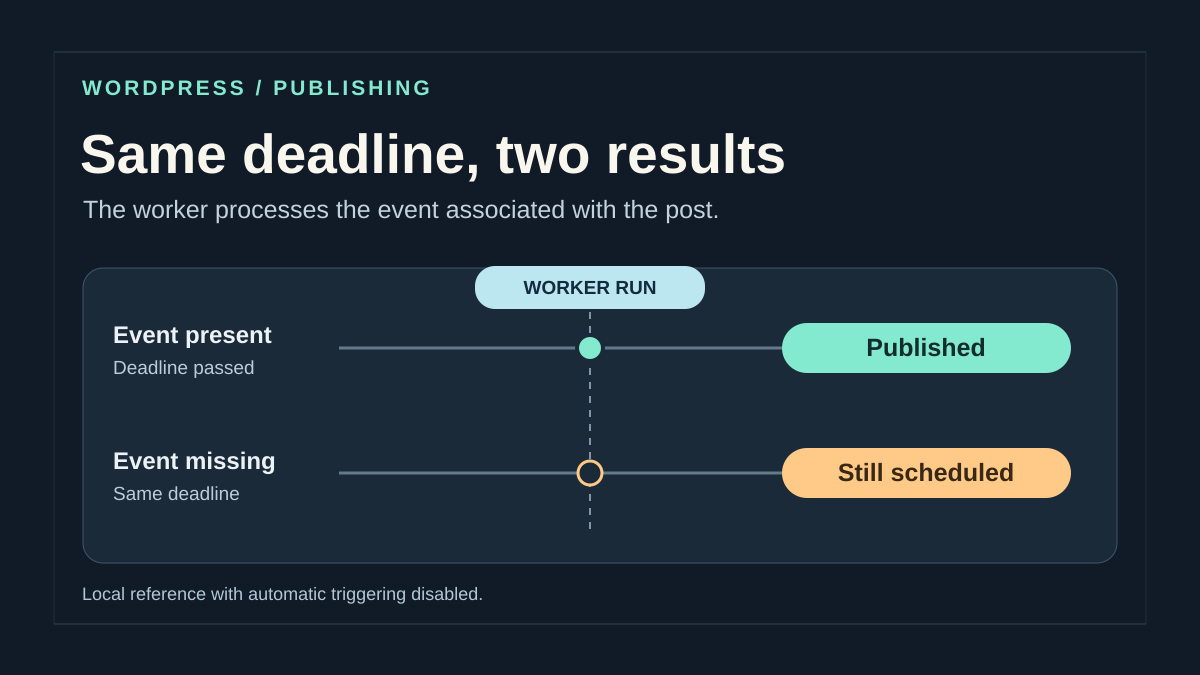
If the UTC date is correct and past, and the matching event is also overdue, the work is still in the queue at observation time. Consult logs for this site's trigger around that time and see whether other native events became overdue. Record whether a worker run actually completed. An entry still present cannot distinguish no trigger, an incomplete start or processing in progress. If the two timestamps differ, keep both. The native callback checks the document's UTC date and may reschedule an event that runs too early.
If the correct date has passed and no event matches, read again after confirming the post remains scheduled. For an authorized postponement, save a new future deadline far enough away to inspect. Check that WordPress actually offers scheduling, then compare both instants after saving. If the event remains absent or divergent, keep the ID, both dates and any error in saving logs. A general scheduler restart does not, by itself, recreate this post's missing occurrence.
Observe the queue from the dashboard
When administration is accessible but WP-CLI is not, WP Crontrol lets you inspect the queue on a copy or in an environment where installation is already authorized. Open Cron → Cron Events (or Tools → Cron Events depending on version), search for publish_future_post and check the ID in its arguments. Then compare the next run with the scheduled date, accounting for the displayed time zone. The same name for another post confirms nothing about yours.
For this diagnosis, only read the list. Run, edit and pause commands act on the queue. The guide's test uses the native scheduler. If the document is ready and immediate publication is authorized, use the post editor to keep that decision within the usual editorial workflow.
Preserve intended effects and choose recovery
Reread the text before late publication: an announcement, promotion or time-sensitive information may require a new editorial decision. Confirm whether the post should appear now, wait for another date or remain a draft. Technical troubleshooting alone does not choose the appropriate moment.
Record already configured associated effects: notifications, newsletter, external distribution or other automation. Publication may trigger them. Check available logs and what actually occurred without sending new messages as a test. On WordPress.com, publishing a scheduled post may notify subscribers.
The first procedure suits an isolated document that is ready and authorized for immediate publication. The second prepares a new deadline when publication must remain delayed. The third addresses repeated failures or signs of a background-task problem; it does not mean rerunning the entire queue.
Keep a copy of the text and date, status and visibility values before changing anything. For configuration or component work, prepare a recoverable backup and isolated copy. In multisite, confirm the subsite; on WordPress.com, use actually available access rather than an assumed hosting procedure.
Approach 1: publish a ready post now
This recovery requires permission to publish the document and an explicit decision for immediate release. Open the original, check that no colleague is editing it, and reread the final content. Do not republish a copy whose relationship to the scheduled post is unknown.
In publishing settings, open the calendar and choose Now or the current date and time, depending on the interface. Check that the proposed action is immediate publication, then confirm it once after reviewing the summary. Labels may differ between the block editor and classic publishing panel.
If you want to retain an earlier date for editorial reasons, have that choice validated separately. It may affect document ordering and, when the address includes a date, its link. Do not shift the timestamp repeatedly merely to remove the warning.
Wait for the editor's response, then reopen the saved state. The expected result is Published for the intended document. If the button seems ineffective or an error appears, keep the message and check state before any second attempt. Missing visual feedback does not guarantee the first action did nothing.
Verify publication without repeating external effects
Open the public link in a session appropriate to the intended visibility. Check title, content and address. Then check its presence in the expected list, accounting for sorting and the retained date. A working direct link and absence from the blog indicate a different problem from scheduling.
Consult records of already configured notifications or distribution if your account can access them. Their operation depends on the installed service; successful text publication does not prove every external service finished. Conversely, no message in your inbox does not prove no recipient received one.
Do not switch the post to draft and back to published to force another send. Do not create a public copy solely to trigger a notification either. Have the service administrator examine the missing effect using the document ID and actual release time.
If publication must later be withdrawn, an authorized person can change its status according to the editorial decision. Withdrawal does not undo an email already sent, a visit or external distribution. Notify those responsible for these effects rather than describing return to draft as complete reversal.
Approach 2: prepare a new deadline
If the post should not appear now, prepare postponement on the original after confirming it is not already published. Choose a future date consistent with the site time zone, read the summary and confirm Schedule. Then reopen settings to verify the date and state actually retained.
Moving a date is a new calendar decision. It does not automatically repair the mechanism that missed the first deadline. If several schedules have already failed, inspect triggering with the administrator before relying solely on this postponement for an urgent announcement.
Keep the initial date in your tracking record and note the new instruction. Check links already prepared for external communications, especially if their structure includes the date. Do not promise the address will remain identical in every configuration; compare the one WordPress now provides.
If you cancel this postponement, return to the approved editorial choice: draft or a precise new deadline. Do not mechanically restore an old expired date, because it could make the document immediately publishable on the next trigger. Check final status and inform other authors of the chosen schedule.
Understand what the delay indicates about WP-Cron
WP-Cron is the mechanism allowing WordPress to process due tasks, including scheduled publication. In normal operation, WordPress loads give it an opportunity to start. It is not a clock that necessarily executes work at the scheduled second.
A lightly visited site may therefore publish later than requested. However, the visit count shown in statistics does not prove the mechanism launched correctly. An internal call can fail, a managed environment may use another trigger, and the function responsible for the document may encounter an error.
Native scheduled publication checks, among other things, that the document still exists, remains scheduled and has reached its deadline. The technical administrator must therefore match the event with the correct post. A general task visible in a tool does not demonstrate that this particular document was processed.
Do not continually reload the site to try to force catch-up. A visit may coincide with expected publication without explaining the initial blockage. If several posts missed their deadlines, retain that repetition as evidence and proceed to trigger diagnosis.
Approach 3: record a recurring failure without running the whole queue
With an authorized account, open Tools, Site Health and consult the Status tab. Record warnings about scheduled events and loopback requests. A loopback request is a request sent by the server to its own site; WordPress uses it, among other purposes, to start WP-Cron.
Keep the exact message and check time. Compare with other recently scheduled posts: do all fail, or only one document? Avoid a record containing confidential text from unpublished posts. Useful titles and IDs must remain in the appropriate support channel.
Site Health's result is a clue, not proof of every post's publication. If it reports a problem, send it to the technical administrator. If it reports nothing but the same delay recurs, keep examples and request comparison with logs at their scheduled times.
Do not click a command intended to run all overdue events. The site may host other tasks with external effects. This phase seeks to identify the affected mechanism; it requires neither clearing a queue, deleting an event nor installing a catch-up plugin.
Have the administrator check the correct environment
Send the site administrator or host the post ID, status, scheduled date with time zone and recorded warnings. Ask them to verify the trigger actually used and its connection to the current installation. After migration, an old path or staging domain may remain in external configuration.
Server scheduling may intentionally replace the usual trigger. Do not add a second task or change a configuration constant before confirming the existing arrangement. Detailed technical background-task diagnosis remains separate from editorial recovery of this post.
On WordPress.com, have support confirm actual options if you lack corresponding access. In multisite, identify the affected subsite; success on the main site does not validate the entire network's scheduling.
If a plugin participates in publication, identify it from logs and documentation. Prepare a component correction on a backed-up copy with external effects disabled. Do not globally disable security or all plugins on the public site to remove a missed-schedule message.
Prepare an appropriate scheduling check
After a technical correction, agree on a limited check with the administrator. On an isolated copy, use a test document without confidential content and a near but clearly future deadline in the verified time zone. Prepare the copy before testing so it sends no emails, triggers no distribution and acts on no real services.
Record state after scheduling, the intended date and the result after the deadline. Check that the document actually changes status and its page is viewable in the test environment. A Site Health warning simply disappearing does not demonstrate that result.
A successful test on a copy alone does not validate the live site's scheduler: its address, protections and traffic may differ. In production, observe the next legitimate publication planned with the team instead of creating a fake public announcement. Keep an editorial checking method if its timing matters.
Do not infer second-level guarantees from one success. Have the administrator specify the mechanism and expected precision. If the deadline needs a human fallback, prepare it as a controlled publication decision without adding a second automatic trigger whose effects nobody tracks.
Reproduce the delay and check recovery on an isolated copy
To verify a correction, schedule one fictional post on a copy with emails and external distribution disabled. Allow several minutes to record its ID, status, UTC date and corresponding event before the deadline. After the expected trigger run, check saved state and page access.
A schedule absent from the queue and a present but overdue occurrence do not necessarily require the same repair. The first calls for checking schedule saving; the second calls for checking triggering and processing. Do not delete an occurrence on the live site to manufacture this case.
To compare two time zones, use two controls on the copy and record their UTC dates after saving. Identical civil times under Europe/Paris and UTC may represent different instants. This procedure describes observations to record; it does not certify their execution on your site. Remove controls and restore the copy's settings afterward.
Check other posts still scheduled
Return to the post list with an authorized account and identify scheduled documents from the same period. Compare dates, statuses and editorial decisions. Do not publish them in bulk merely because one post missed its time; some may still await their normal deadline.
For outdated content, separately confirm retention, postponement or cancellation. Technical recovery of WP-Cron may provide another opportunity to process old deadlines. The team must therefore know which documents remain authorized for release before restoring regular operation.
Also check already prepared communication links and the blog result. If a changed date places the post farther down the list, do not change it again merely to move it up without a decision. Display diagnosis follows state diagnosis; it does not replace scheduling checks.
Keep a short record of confirmed cases with scheduled time and observed publication time when known. Distinguish that observation from the document's displayed time, which may have been retained or adjusted. Do not invent actual execution time from the editorial date alone.
Document recovery and its rollback limits
Record initial state, the chosen decision and action performed: immediate publication, new schedule or retaining a draft. Add the technical correction if demonstrated and any check still pending. Successful manual publication resolves this post's release; it does not demonstrate that future schedules will work.
To undo a configuration setting, have the administrator restore the precise retained value. Do not restore the entire database to undo a date: you could lose newer posts and changes. For a still-unpublished document, check the chosen final status instead of restoring an old deadline without reviewing it.
If the post became public, withdrawal is a new decision whose external effects must be examined. Check completed distribution and shared links with the relevant team. No WordPress status rollback automatically recalls information already read or sent elsewhere.
If the problem returns, send dated examples and the last known result to support. Keep the post ID and technical messages in an appropriate place without unpublished text or unnecessary secrets. The goal is a verifiable cause and a reliable calendar again, not a series of duplicates hiding delays.
Install WP Crontrol for targeted reading
On the copy, open Plugins → Add New, search for WP Crontrol, check the official listing, then install and activate only this tool. Open Cron → Cron Events; some versions also retain access through Tools. Search for publish_future_post, then compare the row's arguments with your post ID. Searching the hook name alone may show several documents.
Record the displayed deadline and time zone without using Run, Delete or bulk actions. If the expected event is missing, keep document status and ID for the targeted rescheduling described in this guide. If the event is overdue, that observation does not prove WP Crontrol is responsible: the tool exposes the queue; it does not by itself fix server triggering.
After diagnosis, deactivate the tool if you do not want to retain the interface. Do not delete WordPress events to ‘clean up’ its screen; they belong to the features that scheduled them.
Sources and references
Use these references to check the features, requirements and limitations described. Reading documentation is not a practical test.
View 15 references
- WordPress: date and publication in document settings ↗
- WordPress.com: schedule, reschedule or publish now ↗
- WordPress: saved post statuses ↗
- WordPress.com: visibility and switching to draft ↗
- WordPress: checks before scheduled publication ↗
- WordPress: scheduling event linked to the document ↗
- WordPress: how WP-Cron triggering works ↗
- WordPress: site time zone and time ↗
- WordPress: native scheduled-event diagnostics ↗
- WordPress: internal loopback requests ↗
- WordPress.com: scheduling on the platform ↗
- WordPress: database and file backup ↗
- WordPress — read an occurrence by hook and arguments ↗
- WP-CLI — run eval-file on the selected site ↗
- WP Crontrol, features and menus ↗